Sending a delayed message at a user chosen day and time
Sometimes you need to send a message to a user at a convenient day and time. This can be done as follows:
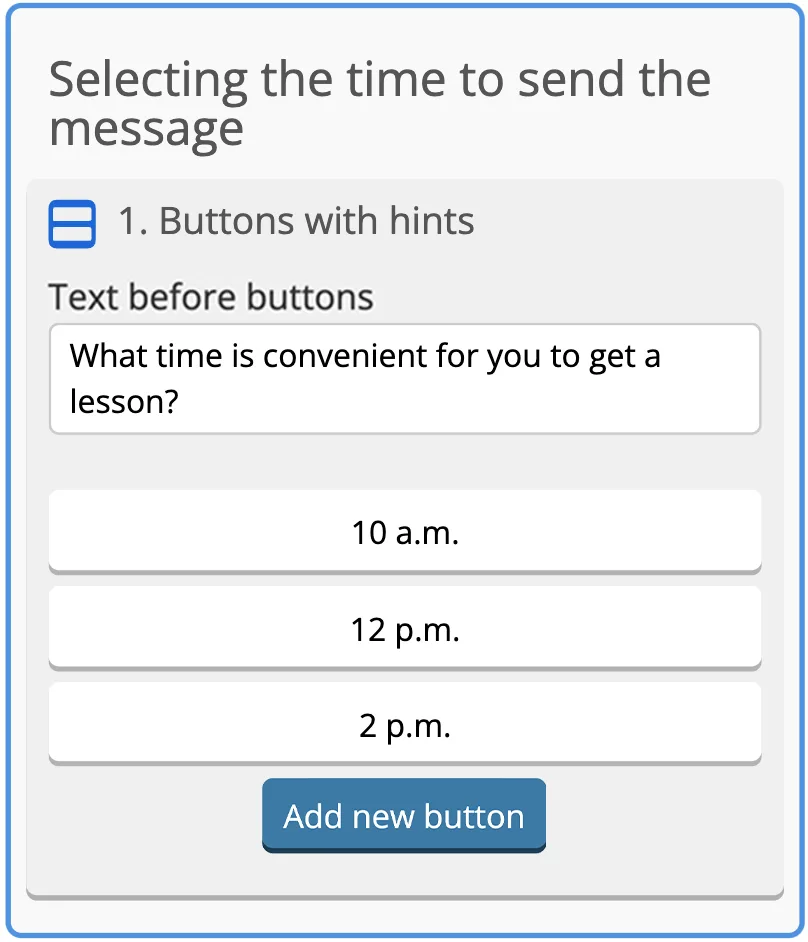
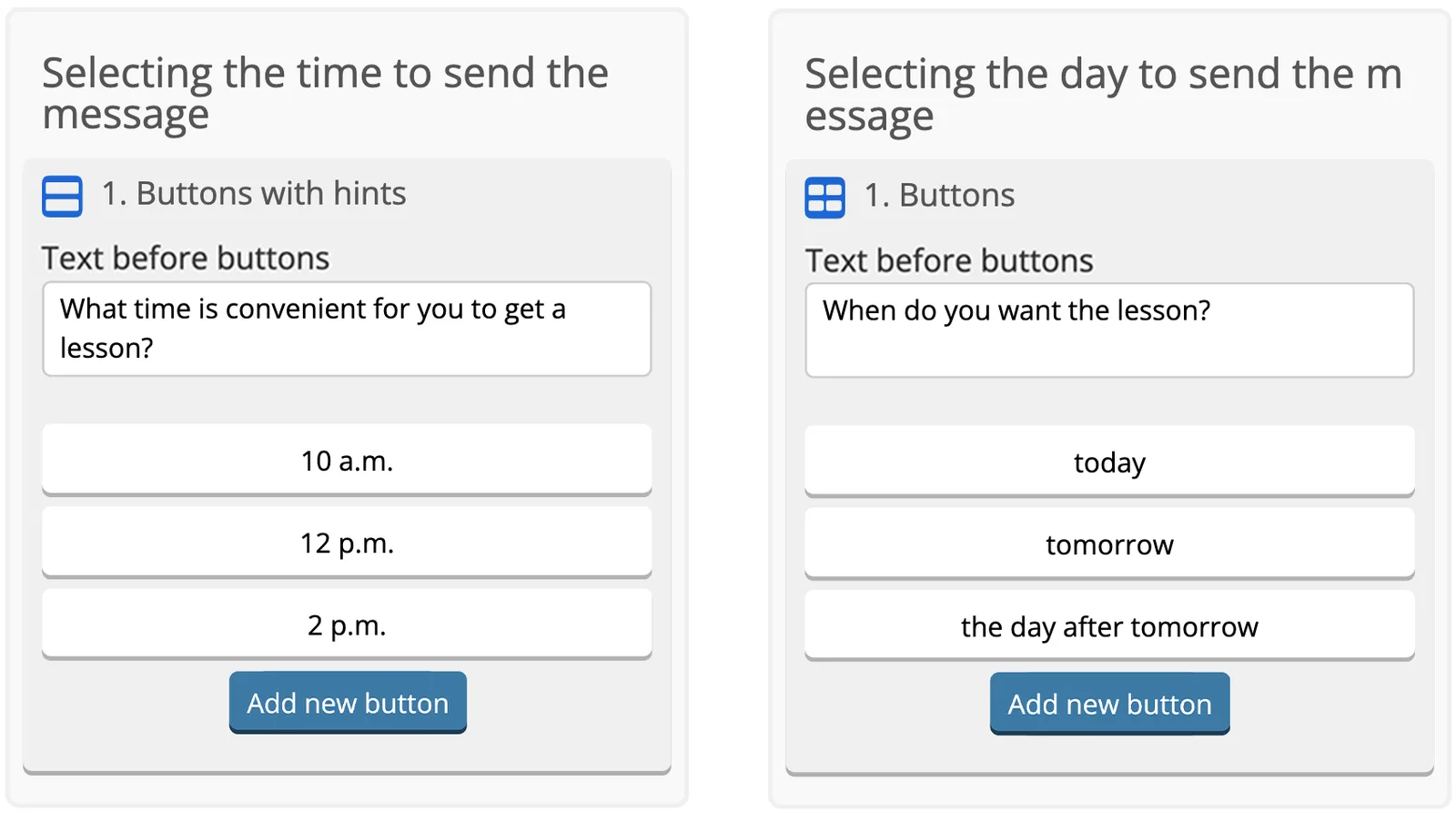
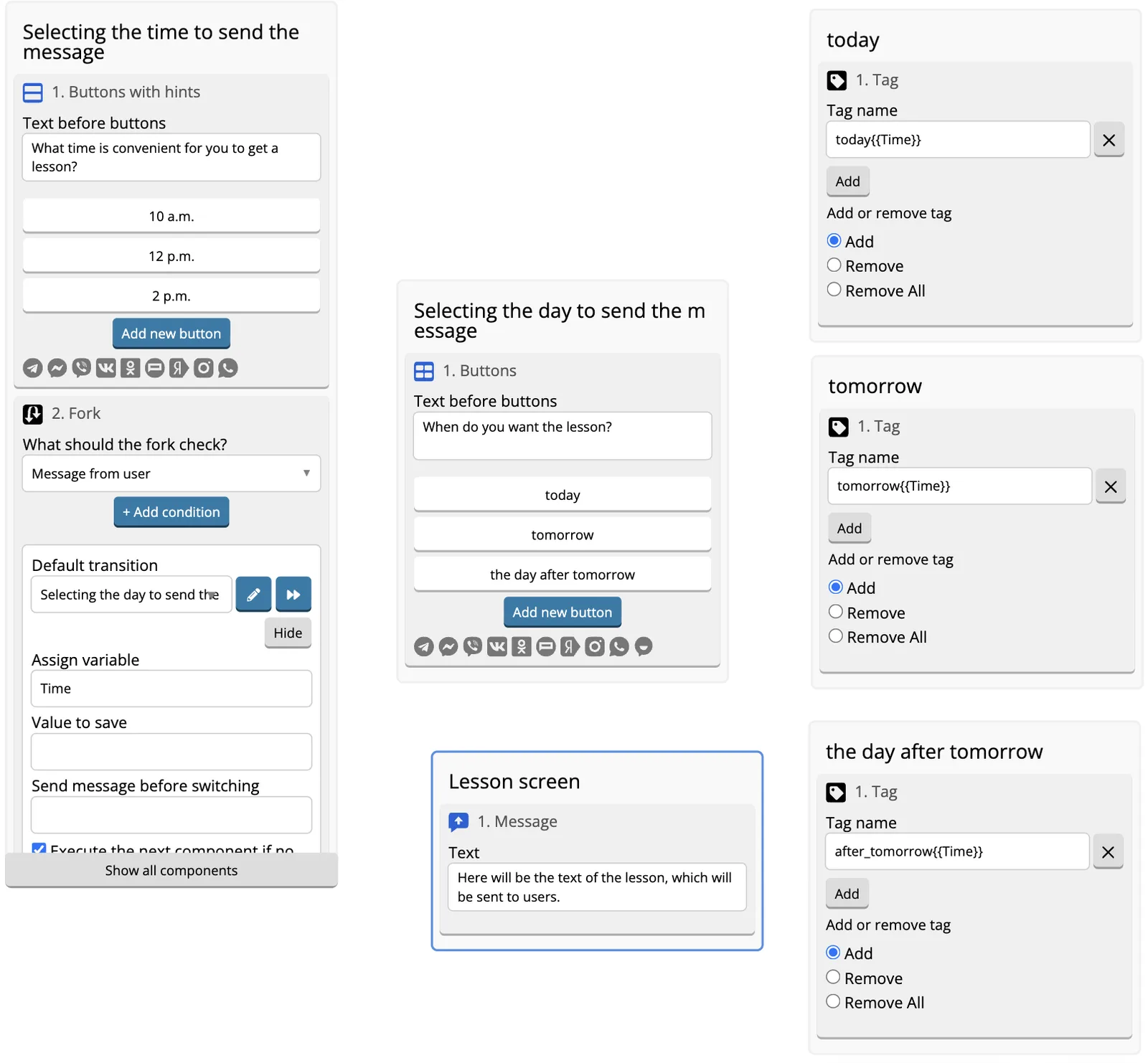
1. Create “Choose Message Time” screen and add Buttons with Hints component to it that would allow you to select a desired time for the user to receive the message.
2. Create “Choose Message Day” screen and add Buttons with Hints component to it that would allow you to select a desired day for the user to receive the message.
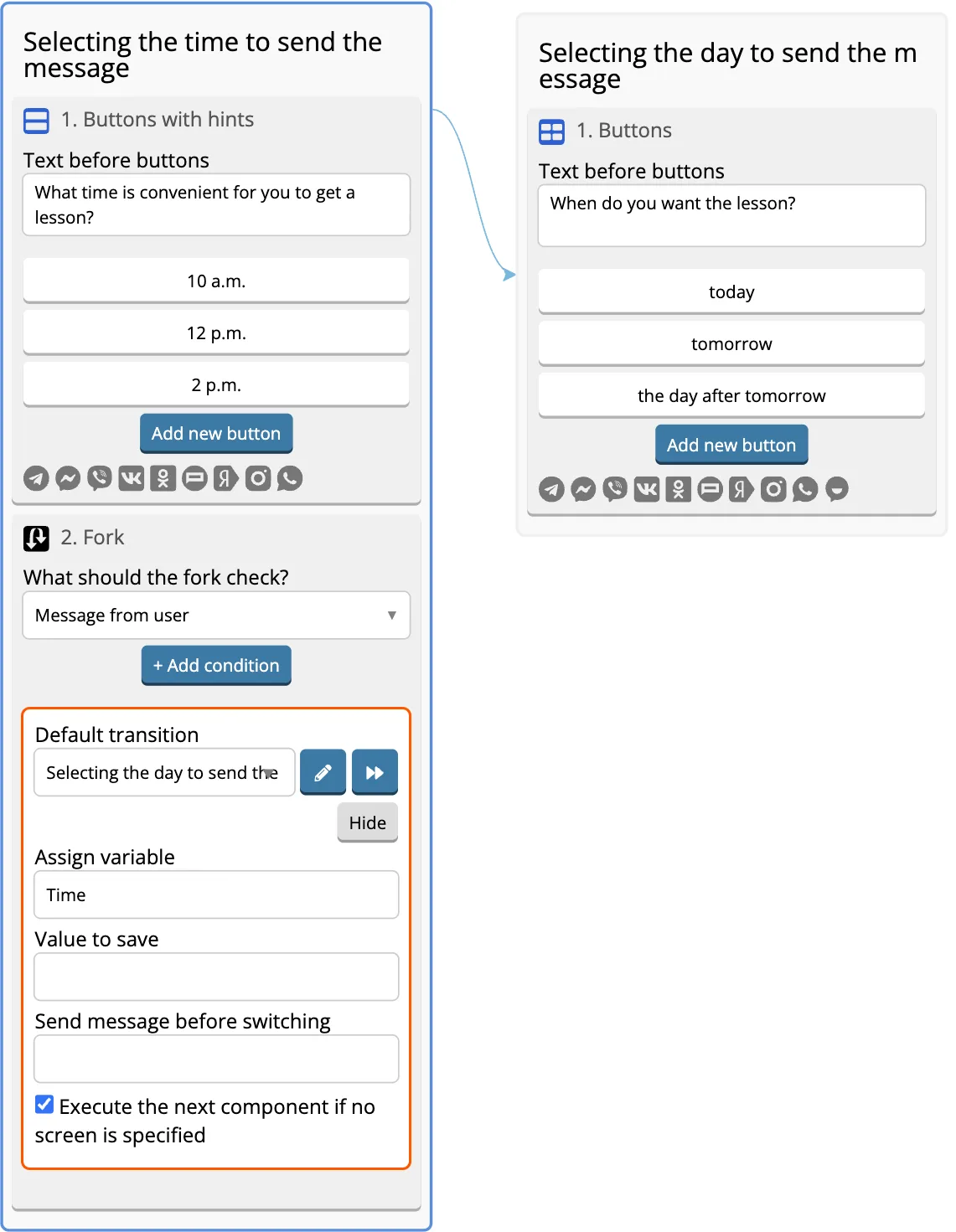
3. Add Fork component to “Choose Message Time” screen. Set Default Target user selection to the Time variable, and configure the target to transition to “Choose Message Day”.
4. In the “Choose Message Day” screen, set up transitions on button events to three screens: “Today”, “Tomorrow” and “The day after tomorrow”.
5. In the each screen set put Label that consists of a word and bracketed variable: Today{{Time}}, Tomorrow{{Time}} и The day after tomorrow{{Time}}.
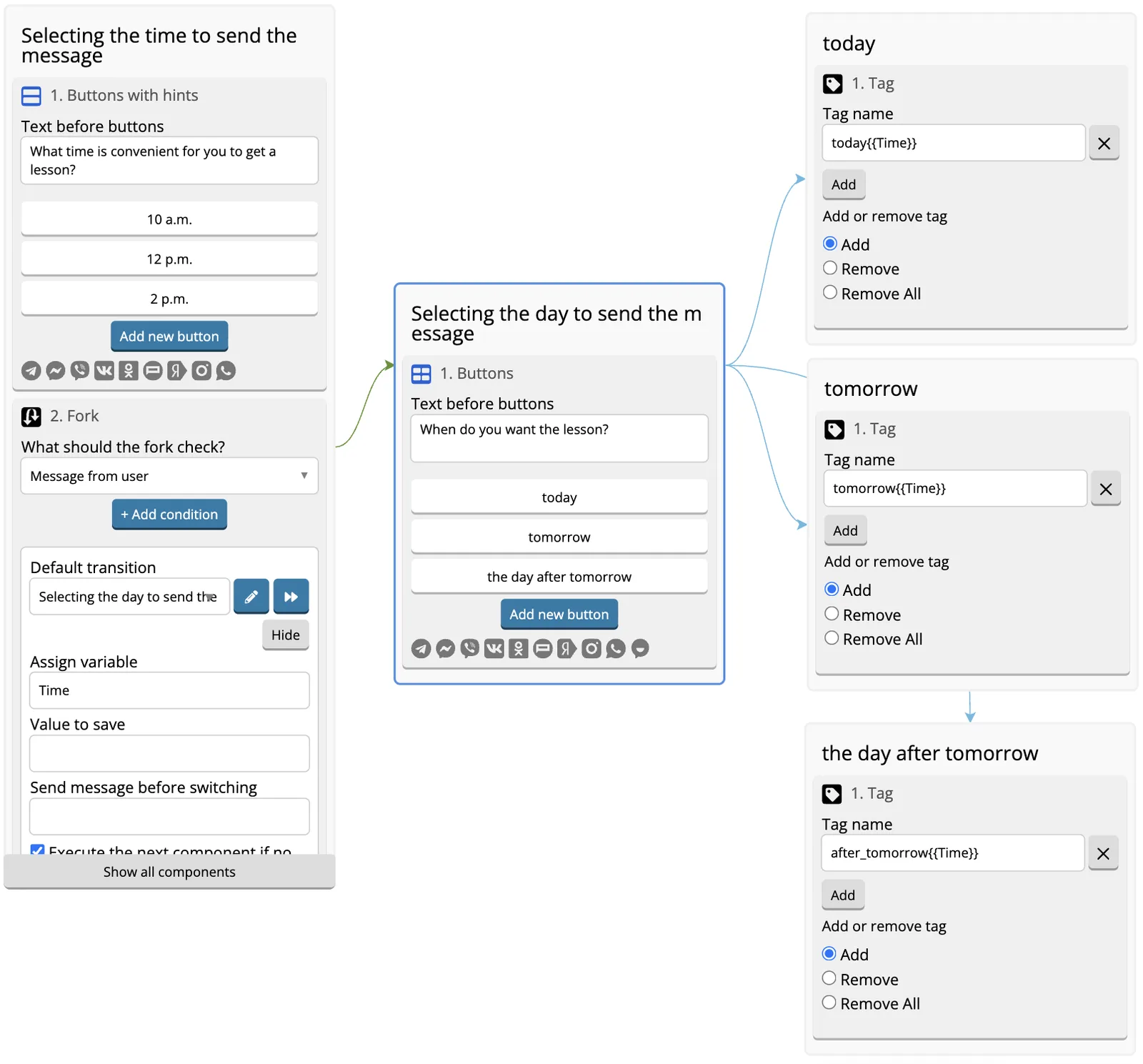 6. This is how screens would look like:
 7. Set nine trigger events, three for each potential day.
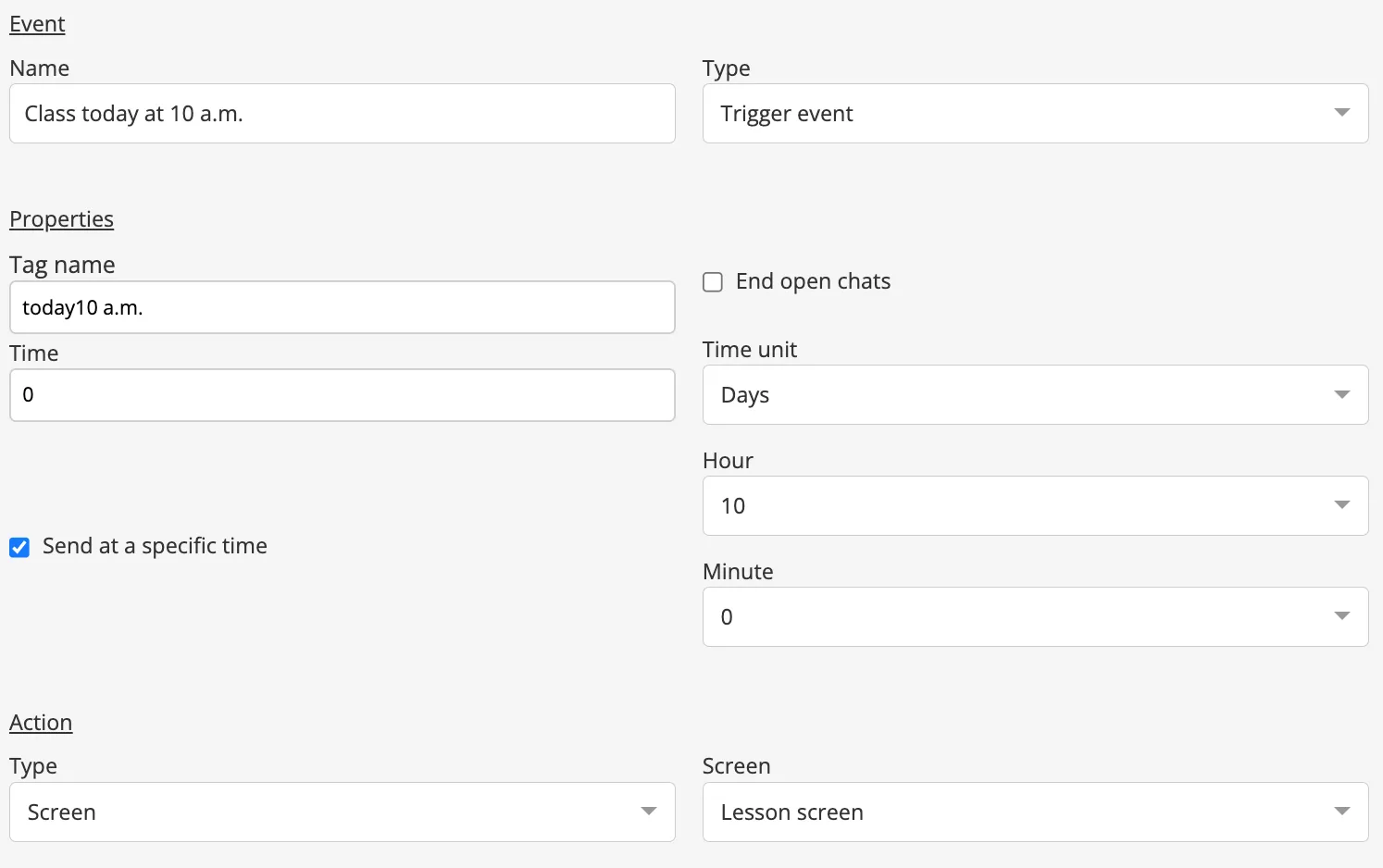
In events for “Today” set Tag Name to the relevant time value (i.e. the value of the Time variable): the first one to “Today10:00”, the second one to “Today12:00”, the third one “Today14:00”.
The unit of time is day. Set “Time” field to “0” and specify hours and minutes you want.
Note that if the label is assigned to the user later than the specified time, the event will be triggered the next day at the specified time.
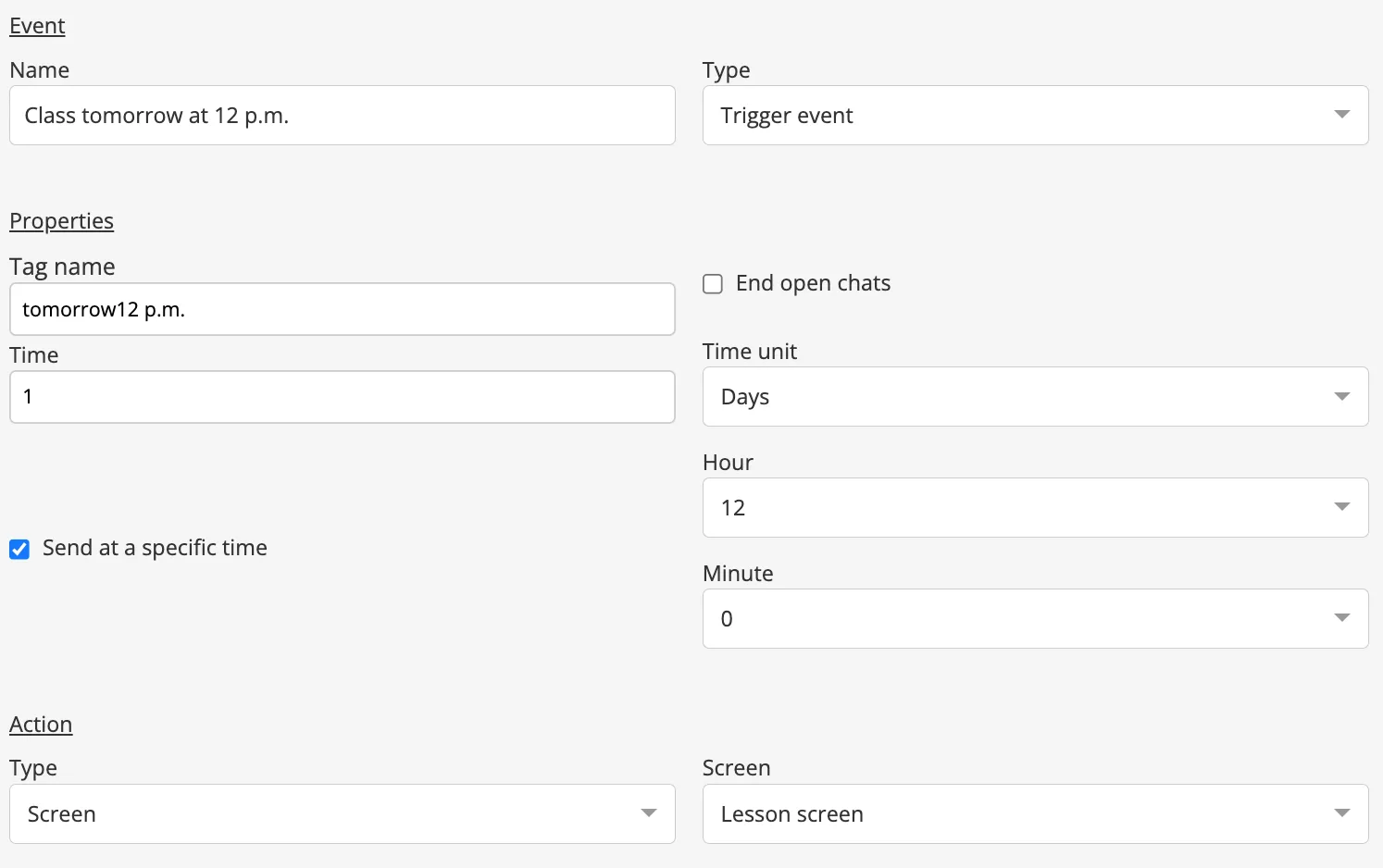
8. Repeat for “Tomorrow” trigger events, however set Time field to “1”.
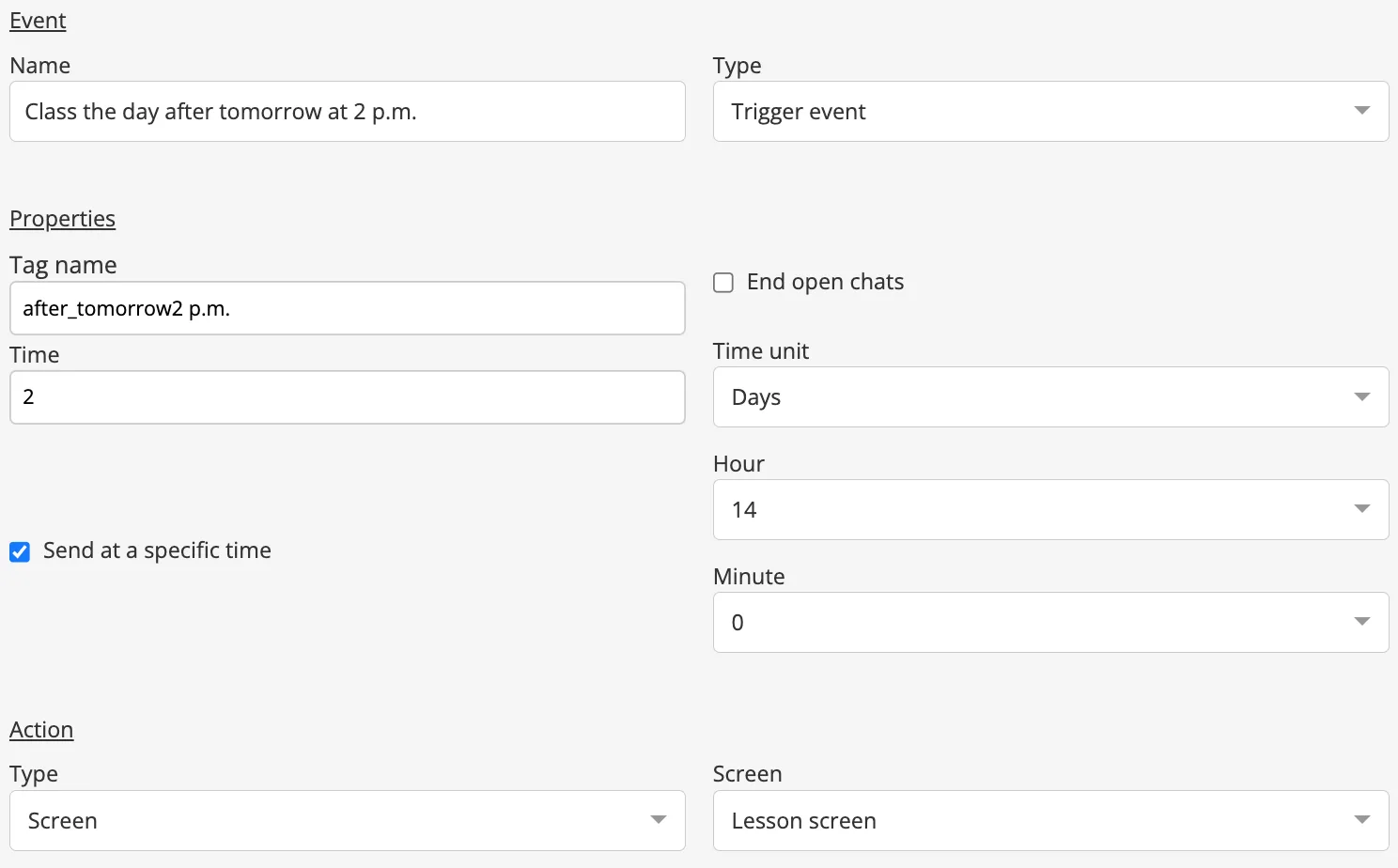
9. Set Time field to “2” for “The day after tomorrow” trigger events.
10. We’re done. This way the screen will be sent to user at the selected day and time.