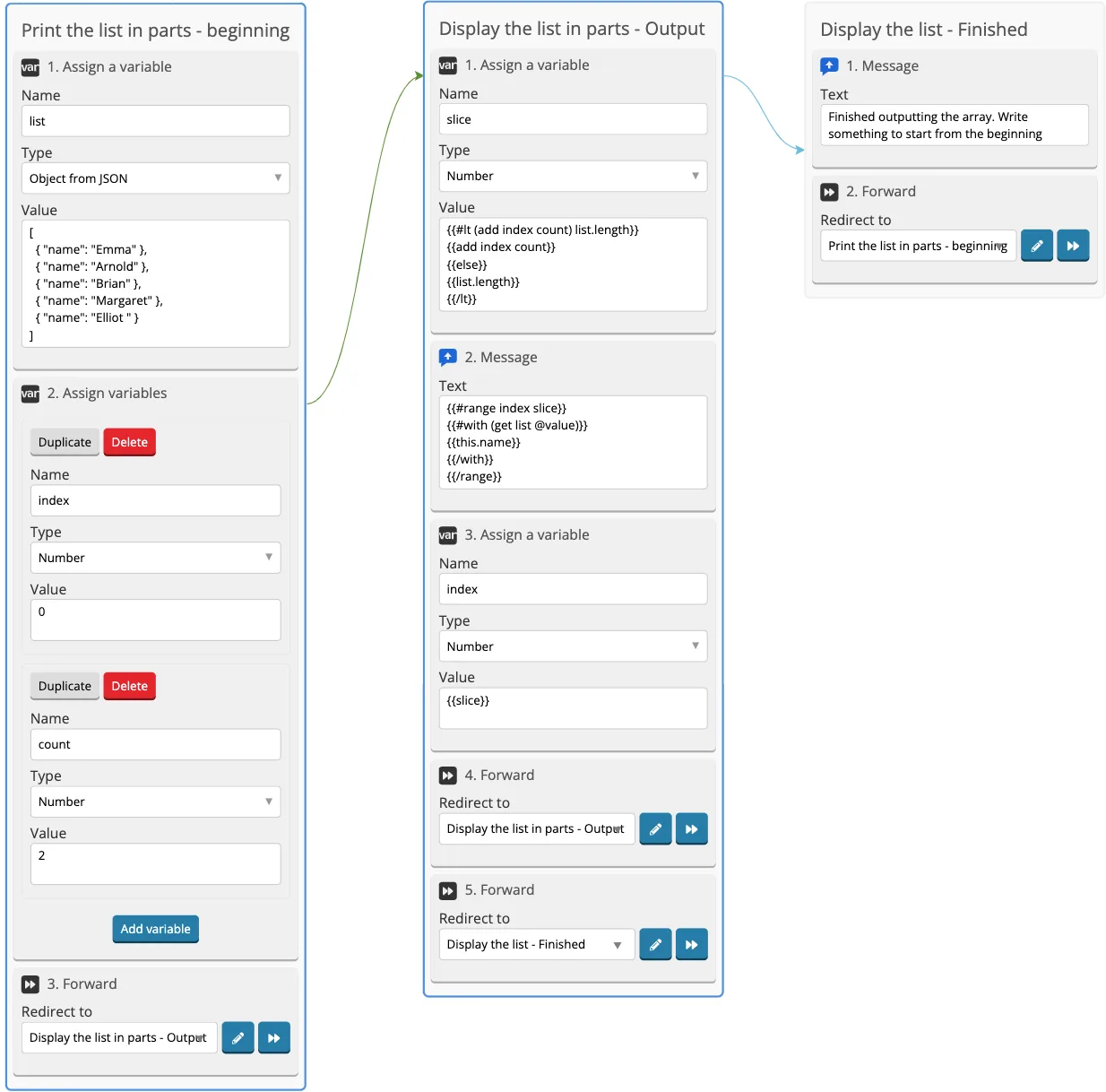
How to split a list and output it with several consecutive messages
Let's split the list into parts and send it to the user in this form.
It can be useful if the bot has a list with a large number of lines and it cannot be sent to the user entirely in one message due to Telegram restrictions.
Let’s consider a small list as an example, but this example can be used to split lists of any size.
For example, we have a list of names:
[
  { "name": "Emma" },
  { "name": "Arnold" },
  { "name": "Brian" },
  { "name": "Margaret" },
  { "name": "Elliot " }
]
In the example, we will add this list to the bot by Assign variables but you can get such a list in other ways, for example, it can come by API requests or in some other way. Such lists can also be called arrays.
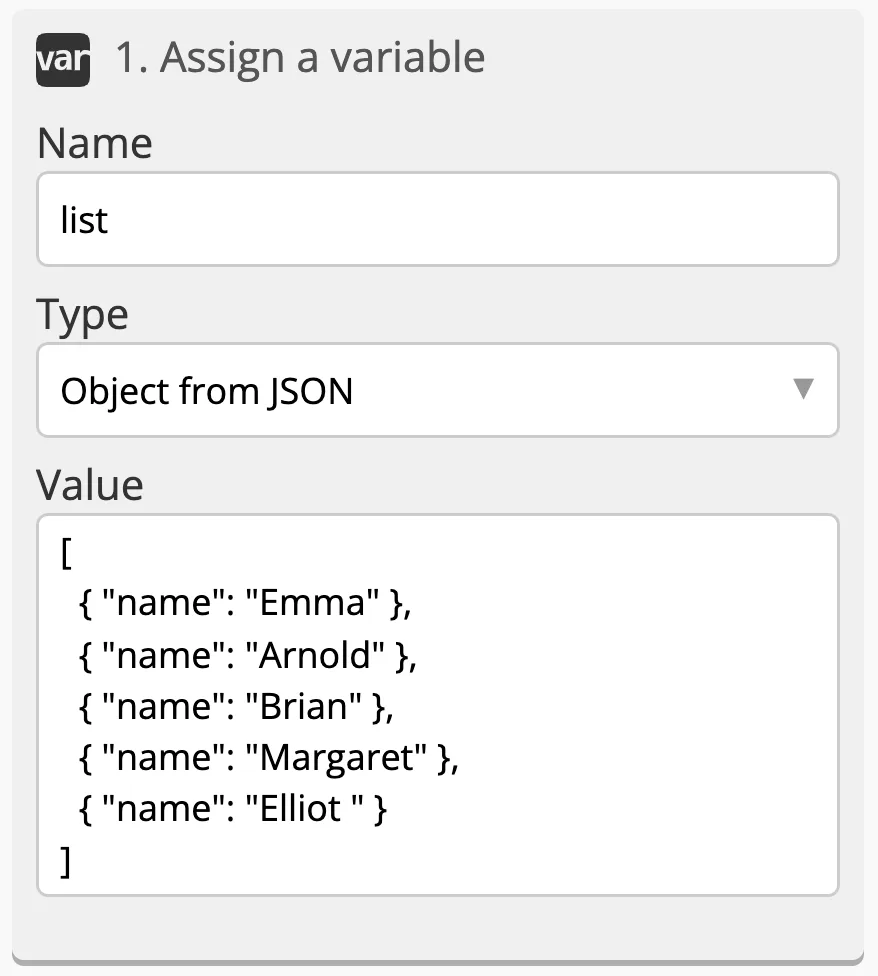
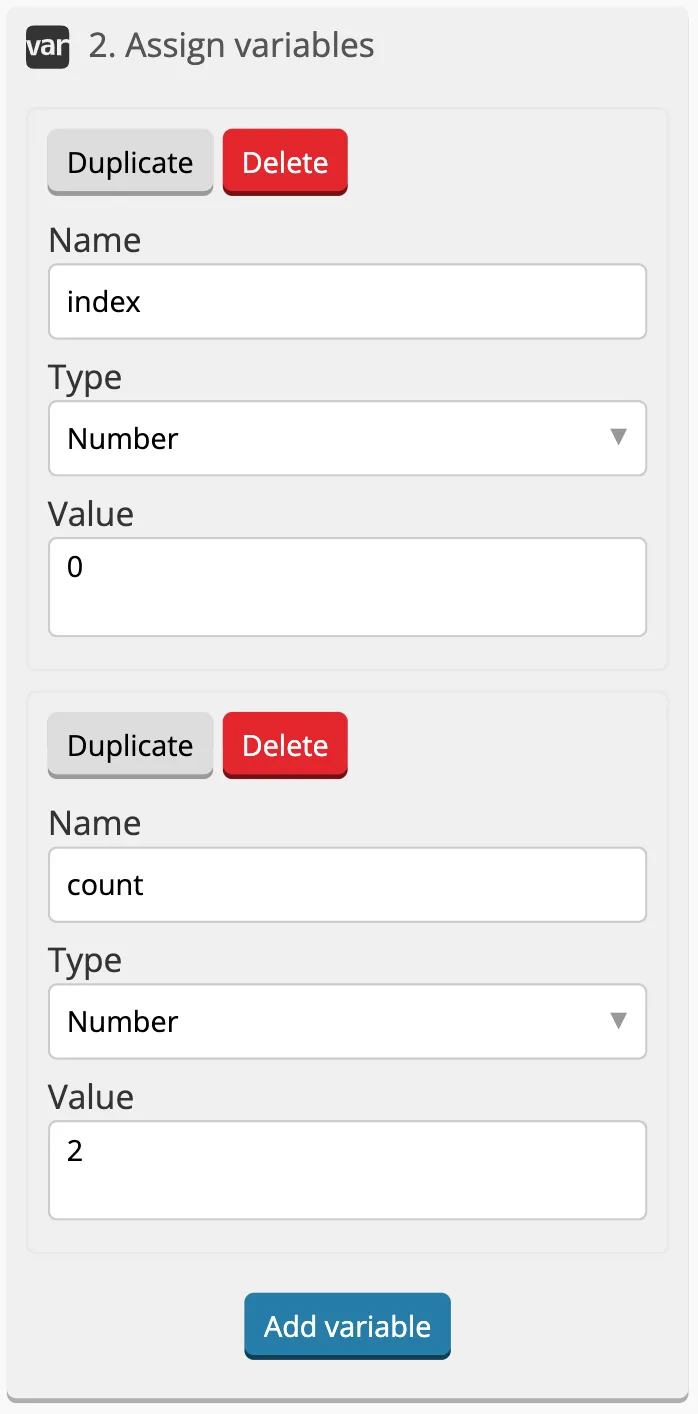
Let's add Assign a variable. We will write index in the name of the first variable. Index determines from which element to output part of the list. The list is numbered from zero, so to output the list with the name Emma, write 0 in the Value.
In the name of the second variable, we will write count — this is the number of elements to output.
Each step we will output as many elements as are written in the count value, and increase index by this number. As a result, the number of elements equal to index + count will be output. And since we made index equal to zero, the number of elements written in the count value will be output
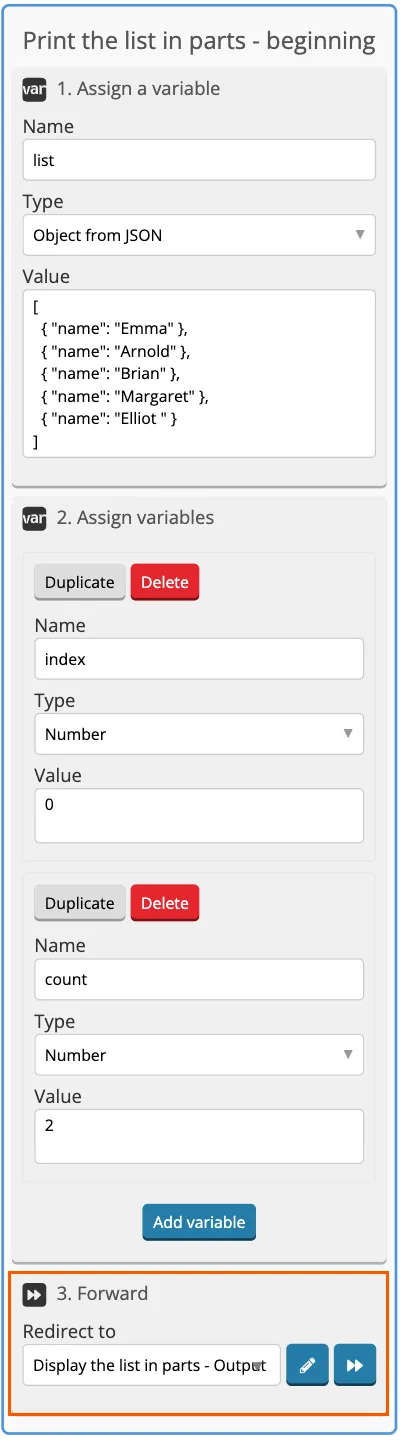
Let's add Rewind to the next screen.
On this screen, we will use the slice variable — this is the upper limit to which the elements need to be output at this step.
In the simplest case, slice is equal to index + count.
Before taking values from the list, make sure that the number of the first element we want to get (index) and the number of elements we want to get (count) are within the limits of the list.
(#lt (add index count) list.length)
For example, if there is a list of three elements, and we want to start getting values from the second element (index) and take three elements (count), this will not work because we will go beyond the list. To avoid this problem, we use a method of protection: for the upper limit (slice), we specify the length of the list {{list.length}}. This ensures that we stay within the list.
{{#lt (add index count) list.length}}
{{add index count}}
{{else}}
{{list.length}}
{{/lt}}
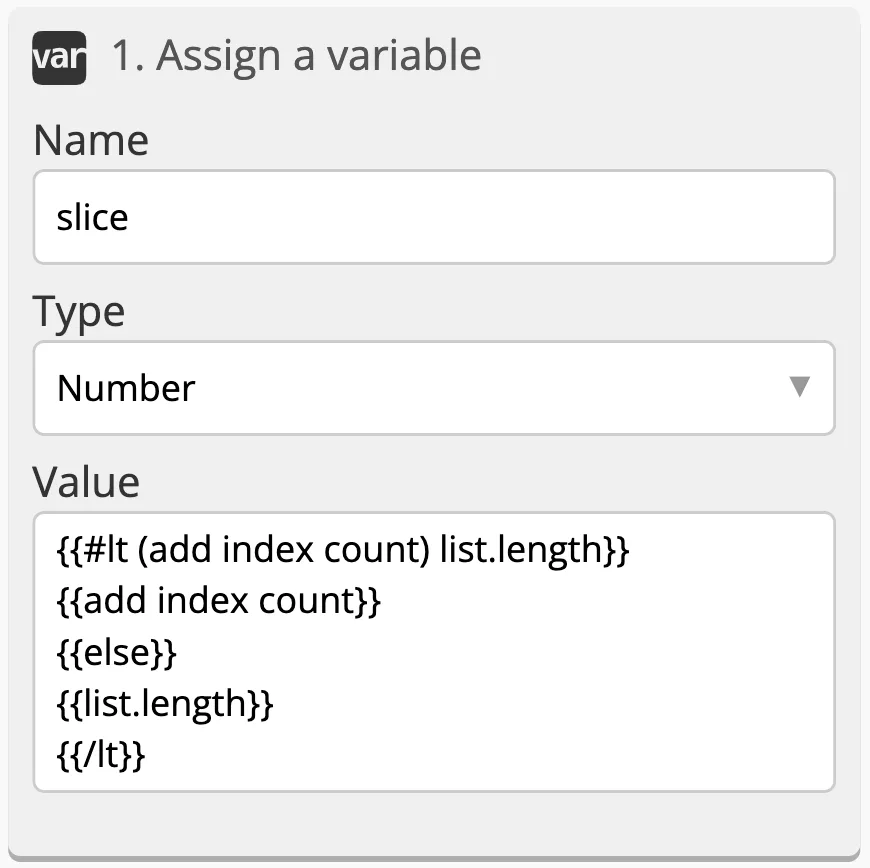
Next, we will use the range helper.
The range helper is useful for sorting numbers in a given range.
Instead of writing such a construction: {{get (get list @value) name}}, we will use with, inside which, in this, will be what we passed, in this case, the list element.
{{"name": 'Emma'}}
The get helper helps to safely access an object element, avoiding errors that may occur when accessing a non-existent element.
list is the name of our list.
{{#range index slice}}
{{#with (get list @value)}}
{{this.name}}
{{/with}}
{{/range}}
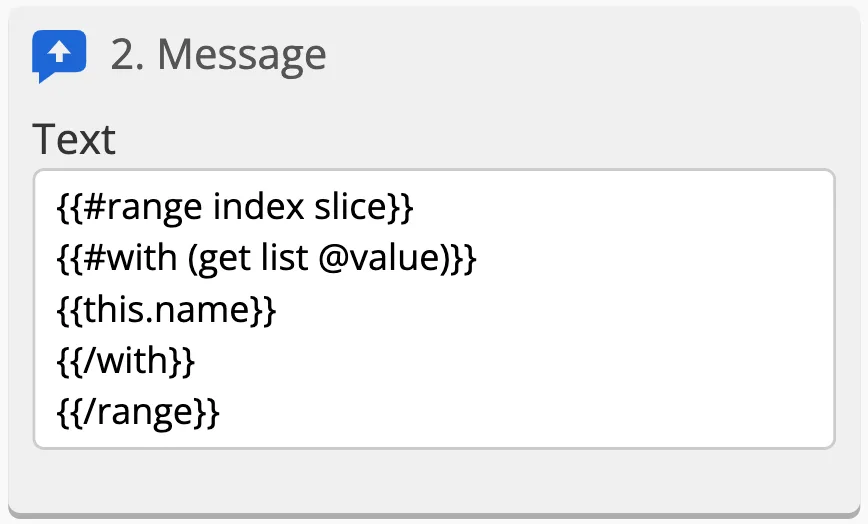
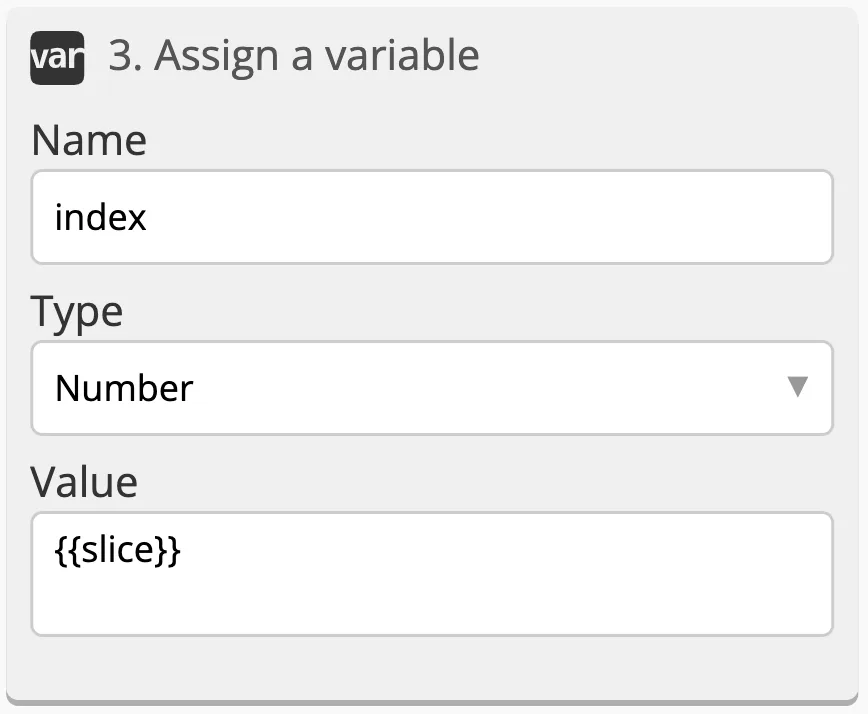
Overwrite index, because since the creation of the previous index, all data were output.
Let's add two Rewinds.
The second rewind without additional settings will work unless the first one works.
In the first Rewind, we add a Conditional template {{lt slice list.length}} and indicate in it the transition to the same screen on which we are now. In our example, it is called "Output the list in parts — Output".
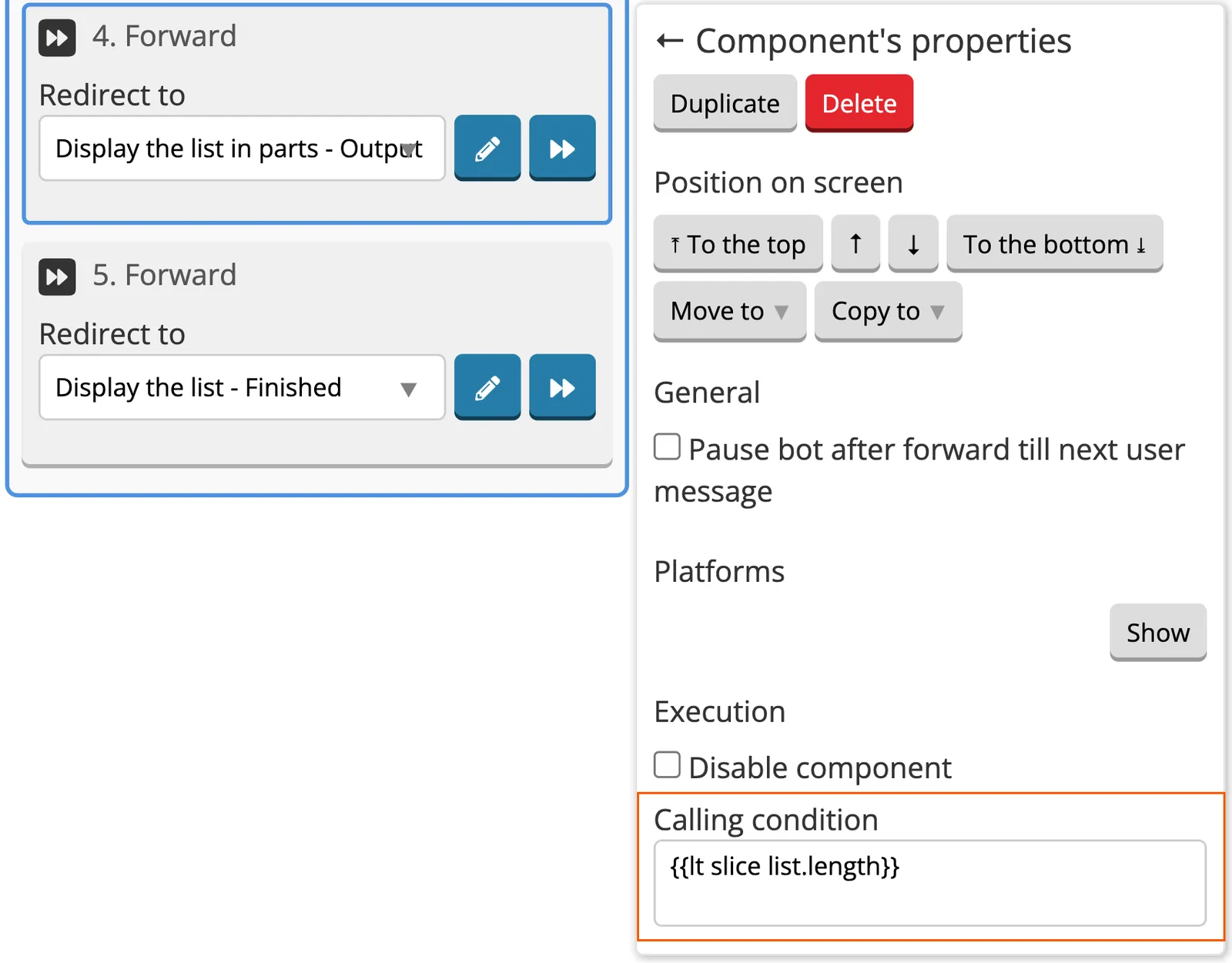
On the final screen, in Rewind, click the checkbox to stop the bot until the next message from the user so that the bot does not loop.
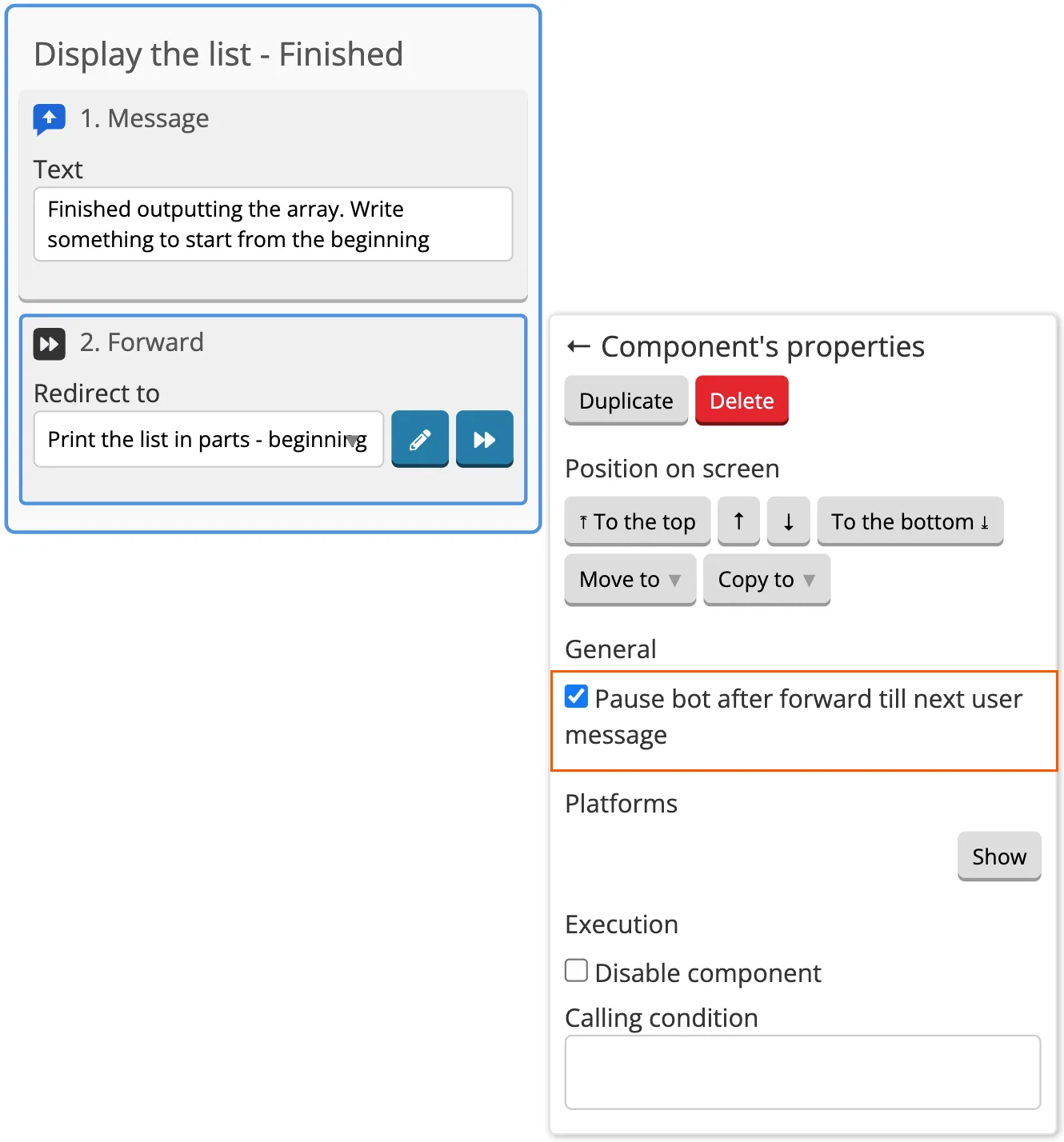
If everything is done correctly, everything will look like this in the end: