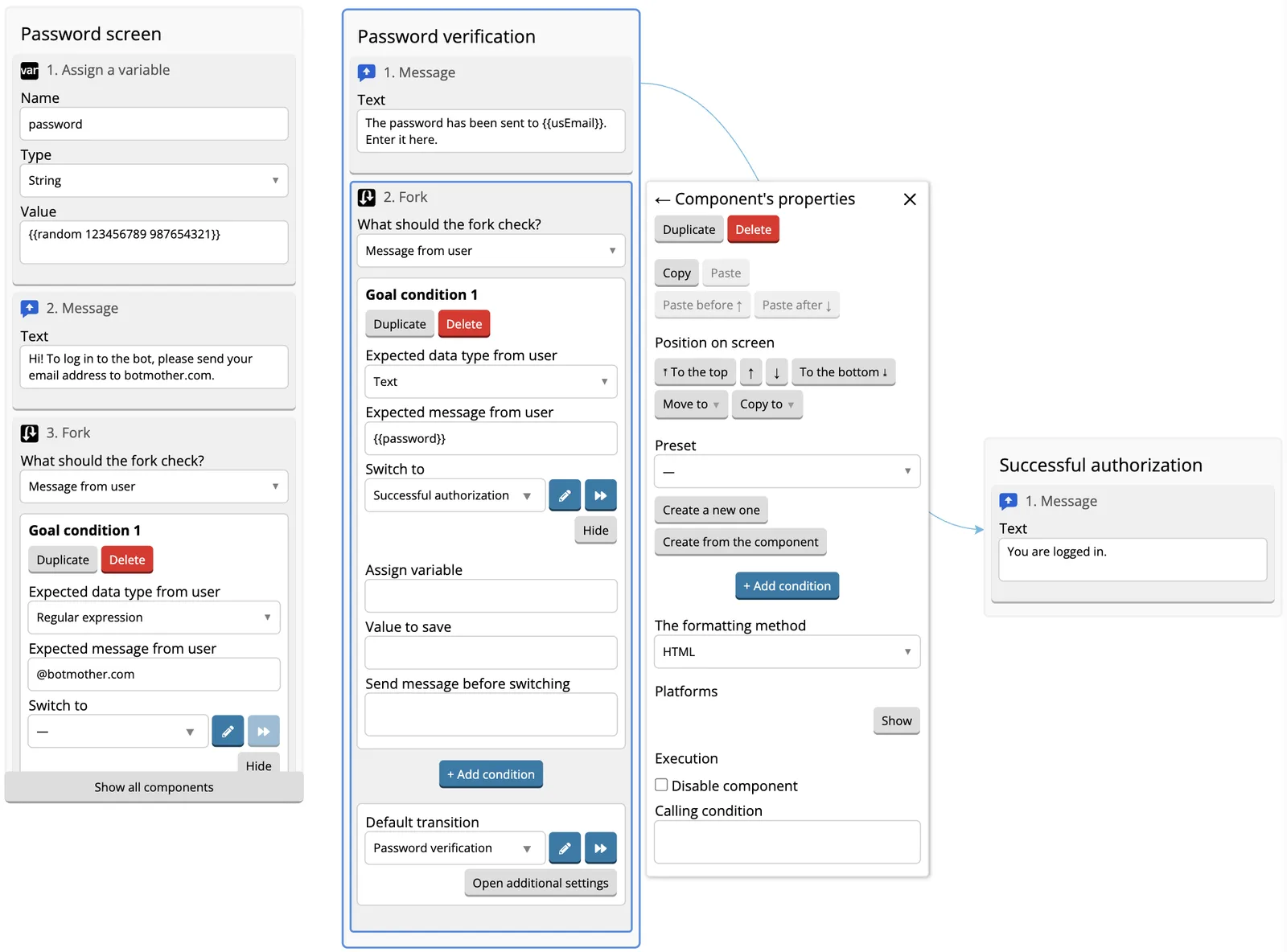
Private authorisation by email
Generating random password
First, make a random numeric password with Assign a variable component. We use random helper which sets the variable to a random number in the interval between two specified numbers. A unique number stored in the same variable will be assigned to each user. Set password variable.
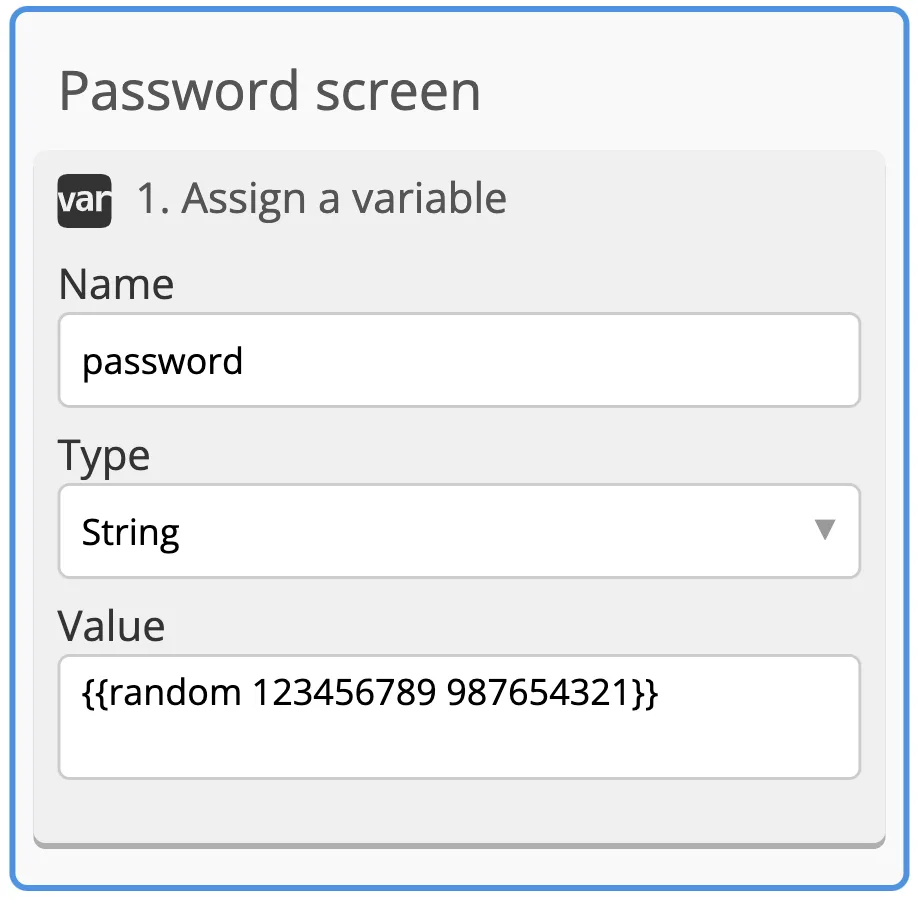
Sending the password
Randomly generated password must be delivered. To do this, we ask the user to specify their email. The user’s email is set to a variable with a Fork: Data Type is Regular expression, Target Value is email domain.
Add Alert component to output {{password}} variable. Specify the variable to be set with user’s email in Recipient’s Email field. Also specify which screen the user will be taken after inputting the email.
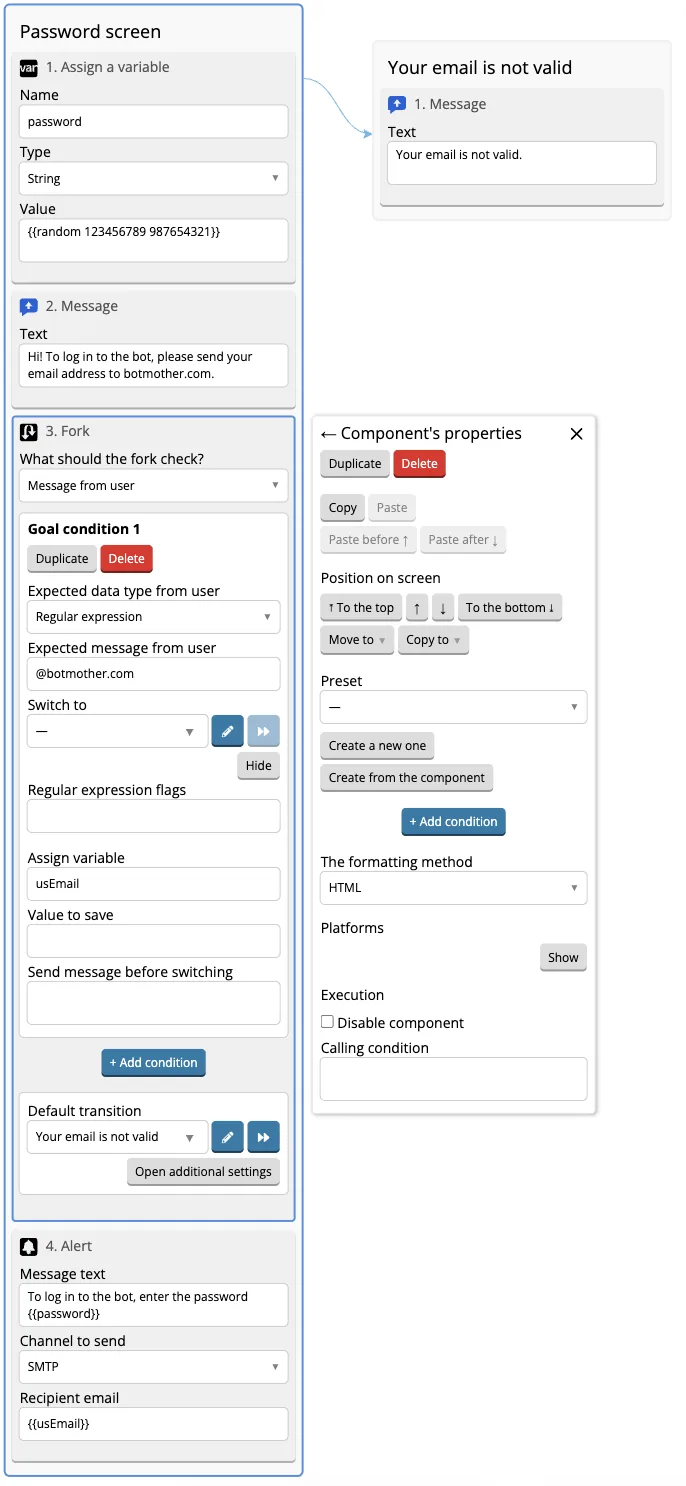
In this way you can check if there is a service domain.
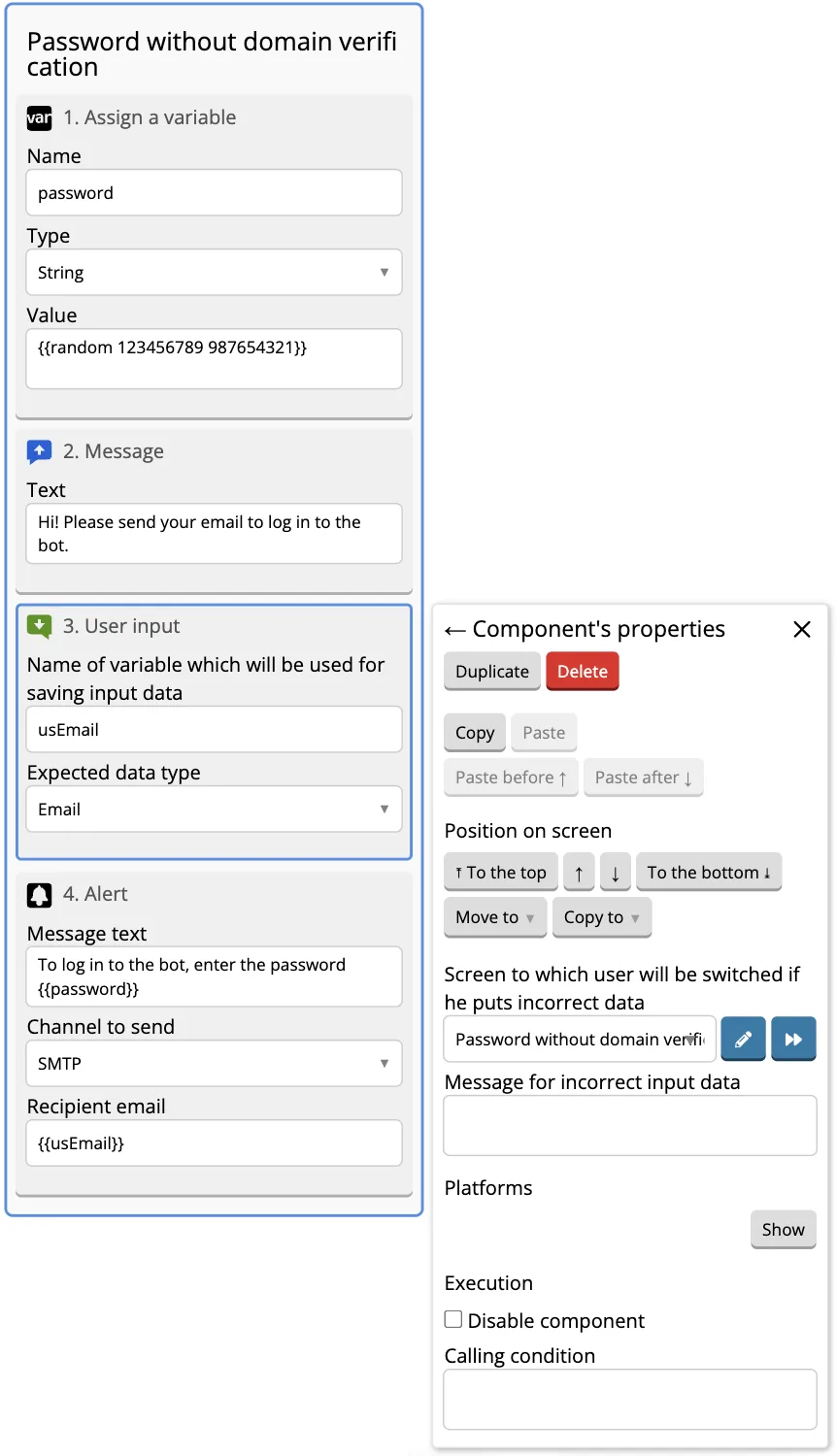
If a specific domain is not important for sending the password and any email is suitable, then User Input from a user with the Email data type:
Password verification
Password verification is implemented with a Fork.
Add a Target. Set Data Type field to Text and write {{password}} to the Value field.
Set up transition to a screen with password verification using Default Target. If user enters the password incorrectly, they will be taken back to the password verification screen. If desired, text can be added before the transition.
If you have one password for everyone, it is sufficient to write it in the target and ask to enter it.