Receiving indefinite number of files from a user
Writing files to a variable
Sometimes it is necessary to receive different files from the user but their number is not known in advance. The solution could be a cycle of fetching files and writing them to the same variable.
1. First set Buttons with Hints with Next button, which the user clicks when all the images are uploaded.
2. Then user should be forwarded to "Fork" Forward component.
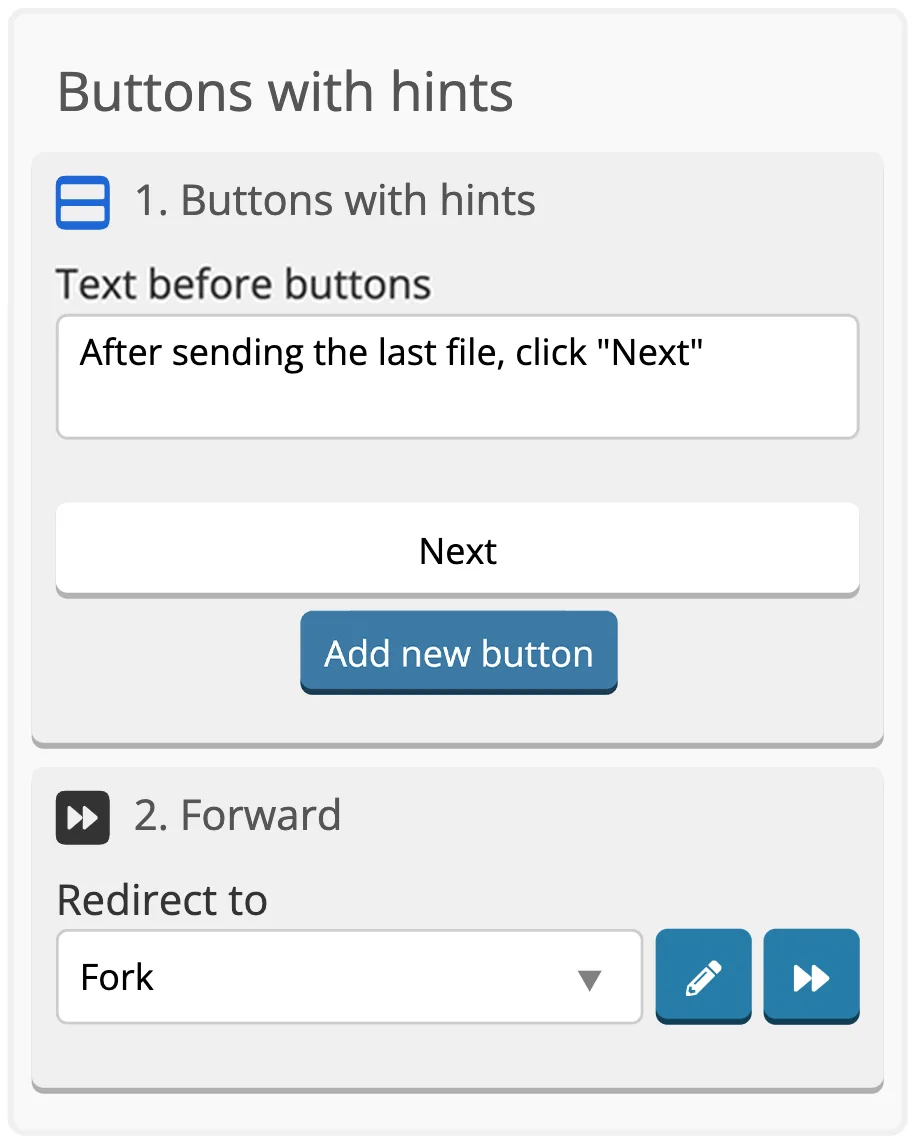
3. In "Fork" screen set up Fork component.
Leave first Fork target Data Type as Text, Target value is set to Next, Transition to the screen is set to "Alert".
Set the second Fork target Data Type to File, set variable name to sos_file. This variable will be set to files which user sends to the bot.
Transition to the screen is set to "Cycle".
Target without value with File Data Type (Target 2) sets sos_file variable to file which is sent by user. That is why sos_file variable name is specified in Name of the variable which Fork sets the value field of Target 2.
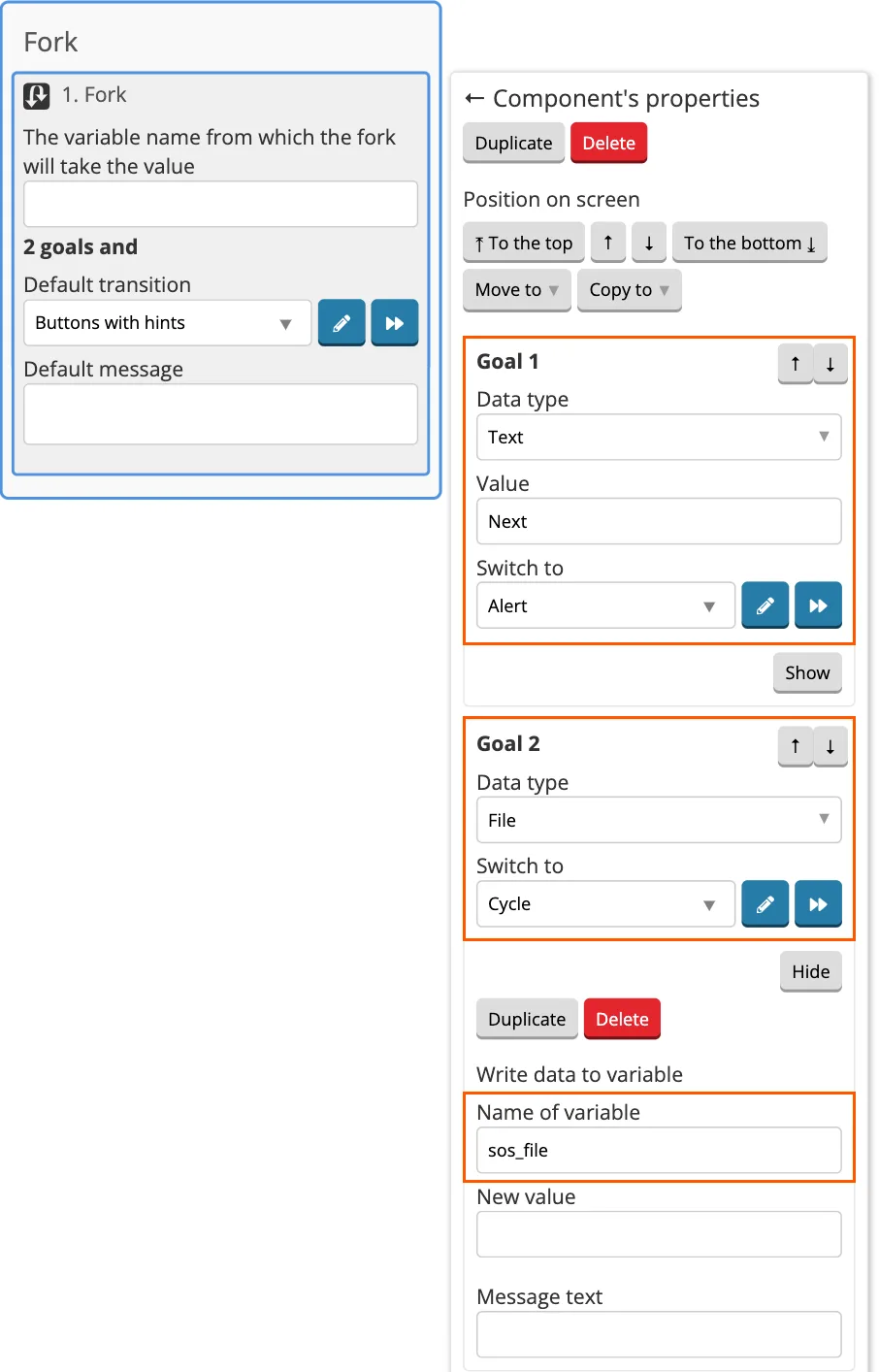
Specify the variables in the variable value on the "Cycle" screen:
{{sos_all_files}}{{\n}}{{sos_file}}
At the same time Target 2 takes the user to "Cycle" screen where the image is already copied to the common variable sos_all_files and returns the user to the previous screen with the Forward component.
If, however, user uploads another image it is copied once again and added to the common variable beginning with a newline. This is repeated until the user presses Next button.
When the user presses Next button, they proceed to sending the shared variable where all the links to the images they have sent are stored.
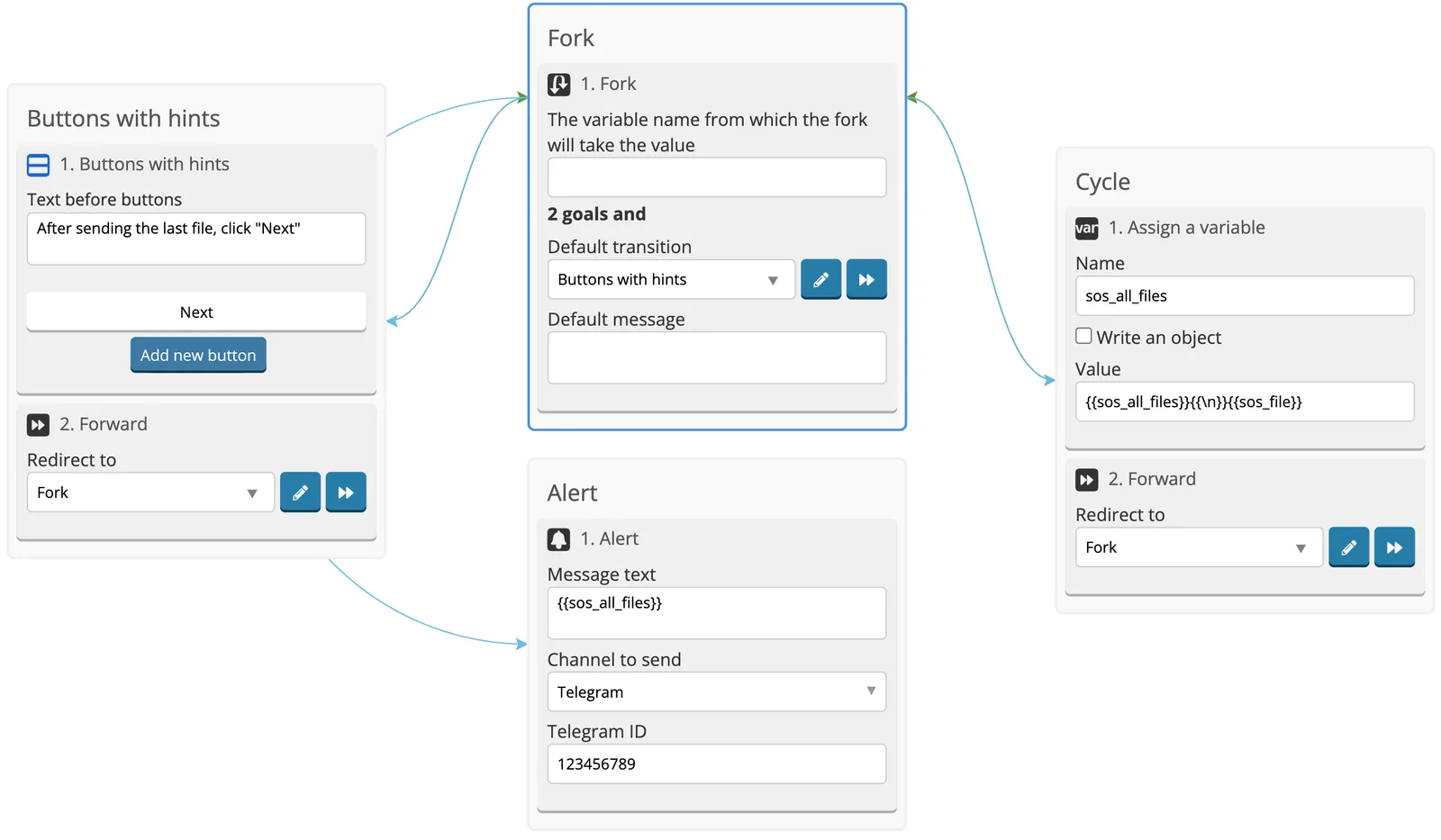
Open the image in a new tab to enlarge it.
All links to the files uploaded by user will be sent to @notification_from_bot
Writing files to a list
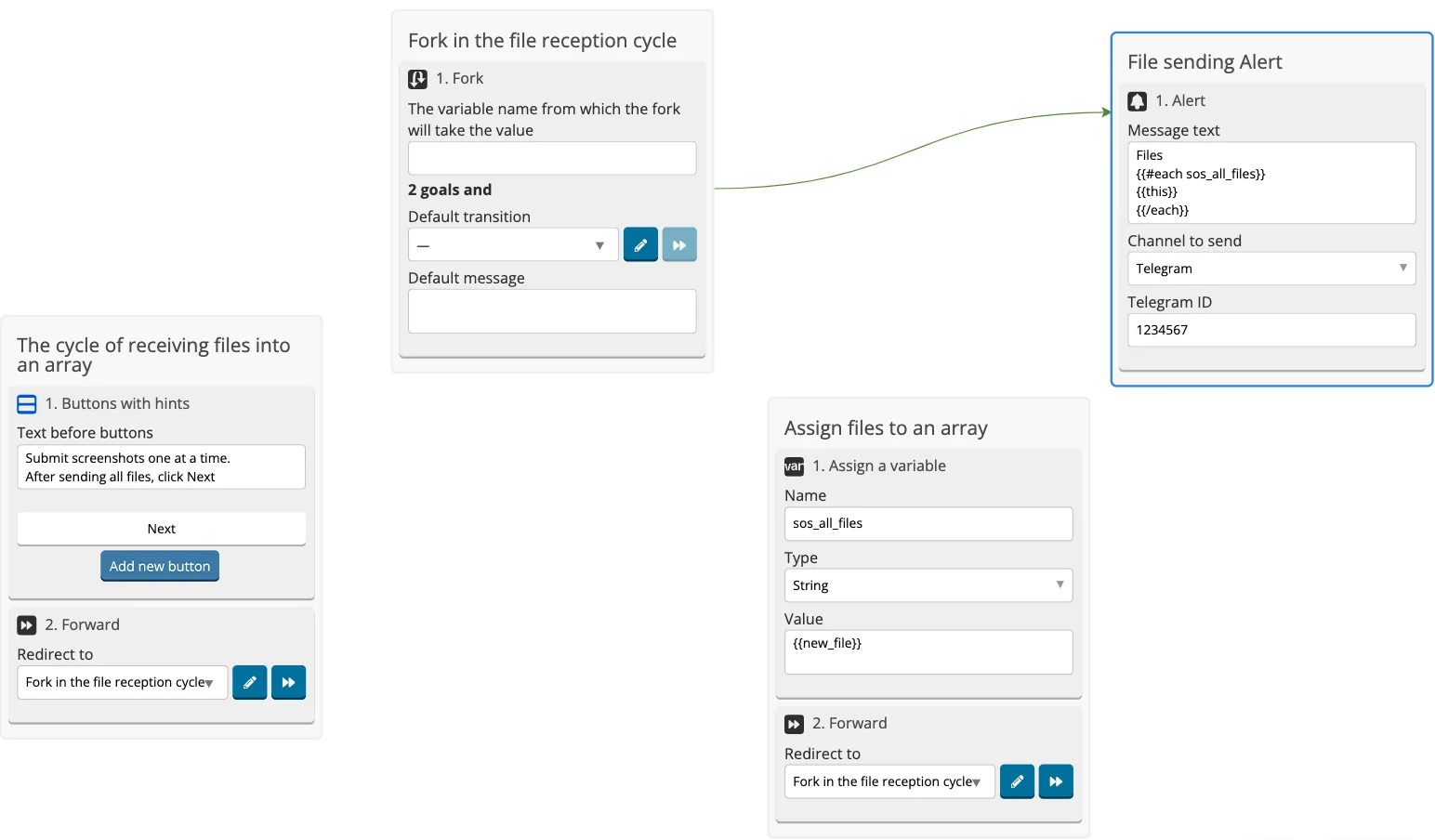
You can also send files in a list. When sending, the user can select all the files and send them in one message.
1. First, we will configure Buttons with hints with the “Next” button, which the user clicks when they load all the images.
2. Then you need to transfer the user with the Forward component to the “Fork” screen.
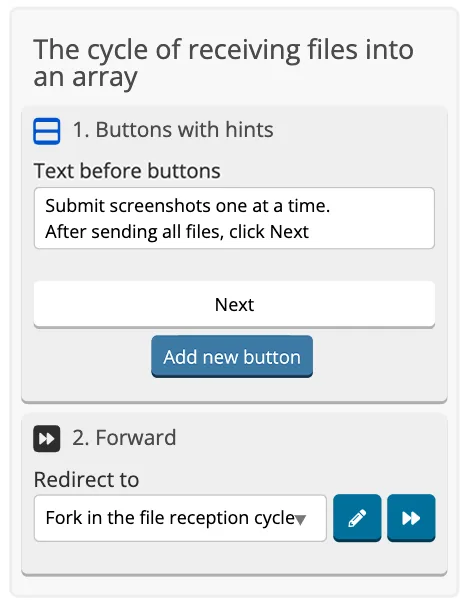
3. On the “Fork” screen, configure the Fork component.
In the first Goal of the fork, we leave Text Data Type, in the value of the goal we write Next, add a transition to the “File Sending Alert” screen.
In the second Fork Goal, we change Data Type to File, expand the Fork Goal settings and set the variable name: new_file. Files that the user will send to the bot will be written to this variable.
There wll be a transition to the “Write files to an array” screen.
A goal without a value with File Data Type (Goal 2) writes the file that the user sent to the new_file variable. To do this, in the settings of Goal 2, in the field “The variable name to which Fork will write the value”, specify the variable name: new_file.
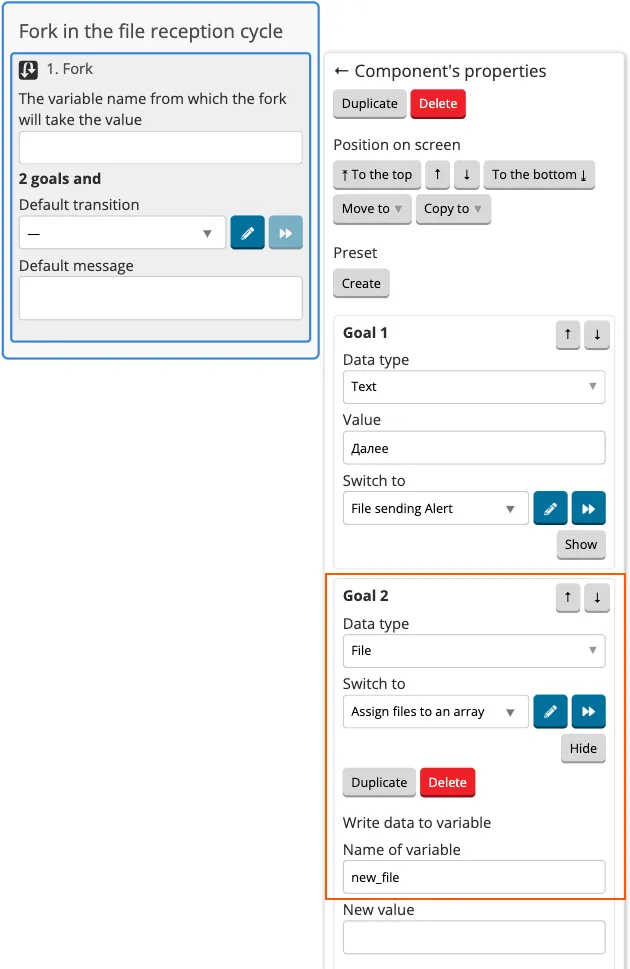
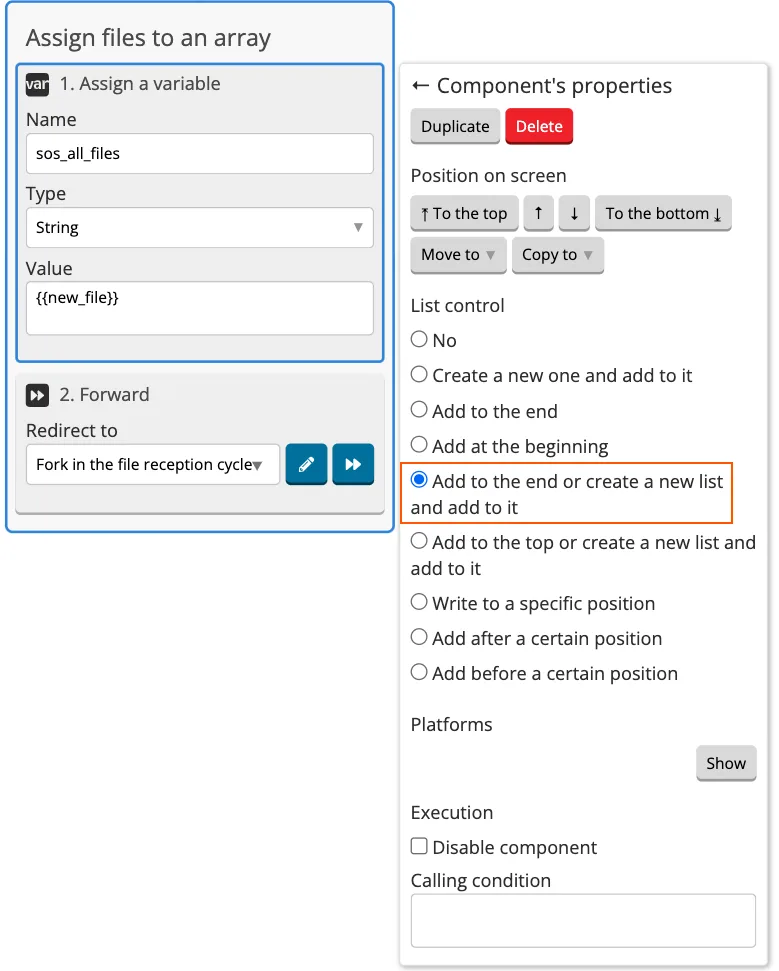
And at the same time, Goal 2 transfers “Writing files to an array” to the screen, where the file from the user should be written to the end of the sos_all_files array, then the user with the help of Rewind returns to the previous screen with Fork.
4. Add Write Variable where {{new_file}} will be output in Value, select “Add to the end or create a new list and add to it” in the settings.
5. Add Alert that displays all the sent files output in the following way:
    {{#each sos_all_files}}
    {{this}}
    {{/each}}
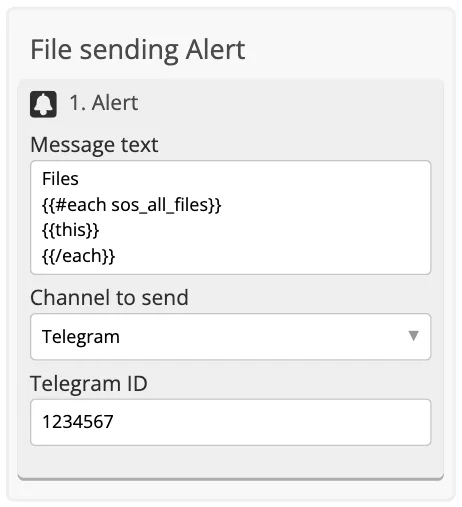
Files from the user will be written to the list until the user clicks Next.
When the user clicks the “Next” button, they proceed to send the entire list with all the links to all his images.