WhatsApp Cloud
Create a Facebook page before connecting WhatsApp. Then you need to connect this page to your business account via Instagram.
For WhatsApp, you need to use a separate business account without linking to other apps. The bot will not respond if the page linked to the WhatsApp app is also used for bots on Instagram and Facebook.
1. Follow the link: https://developers.facebook.com/, then go to My Apps. This section is displayed if you have a developer account in Meta. If you haven’t created it yet, go to Get Started.
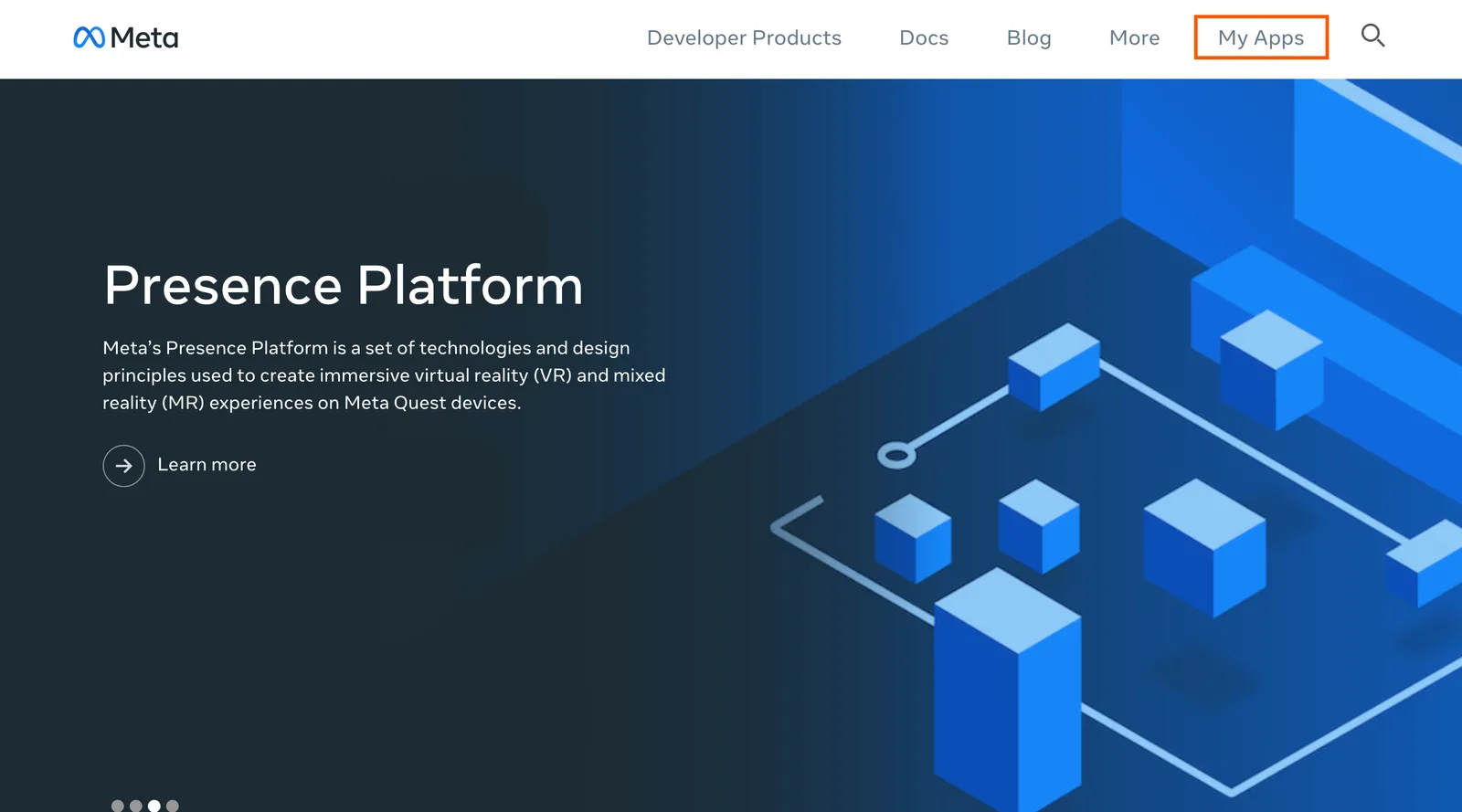
2. If you don't have a developer account, Meta will offer you to create one. If the developer account was created earlier, these steps will be skipped. To register a developer account, enter your confirmation email address.
3. After confirming your account, select Developer and complete registration.
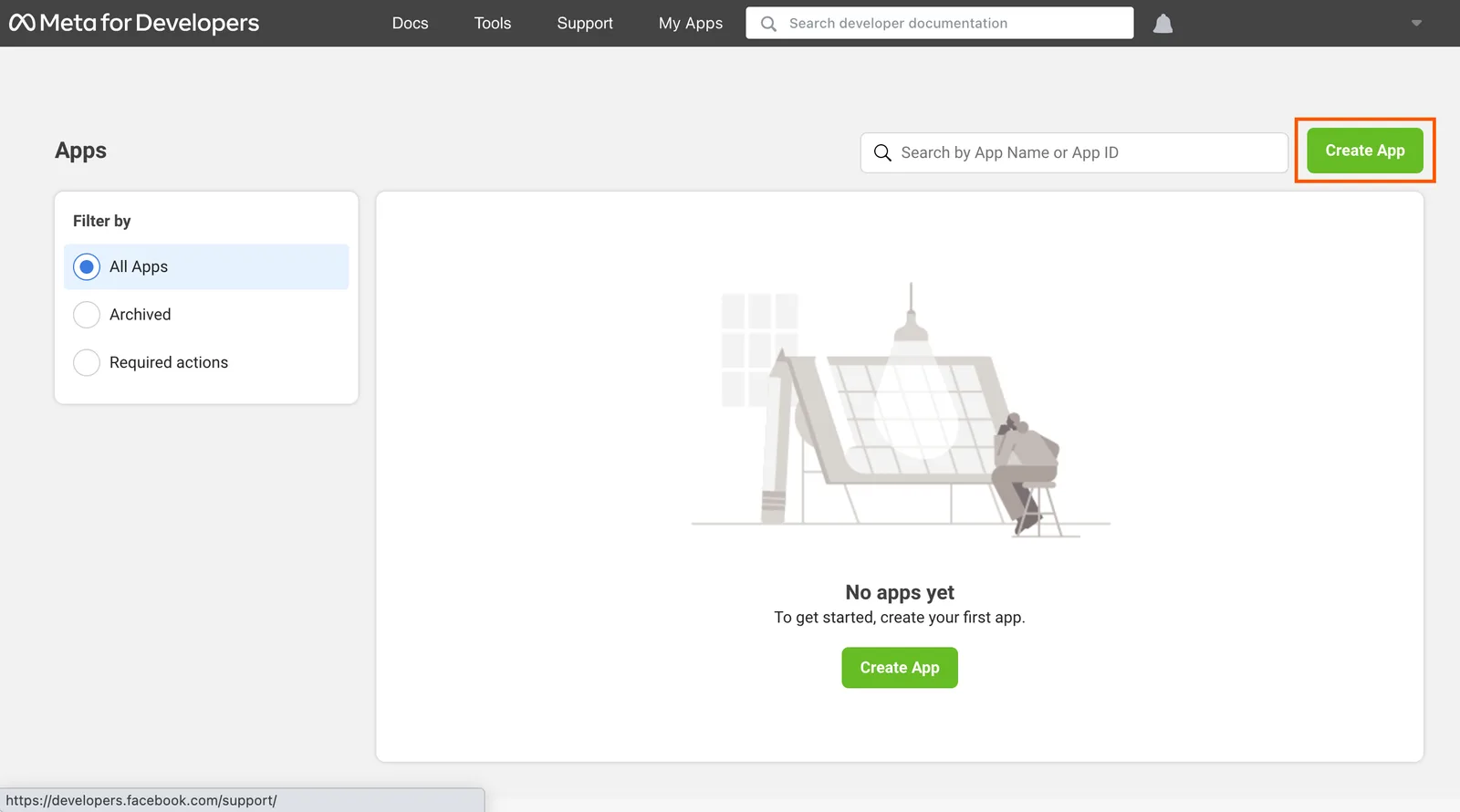
4. Click Create App.
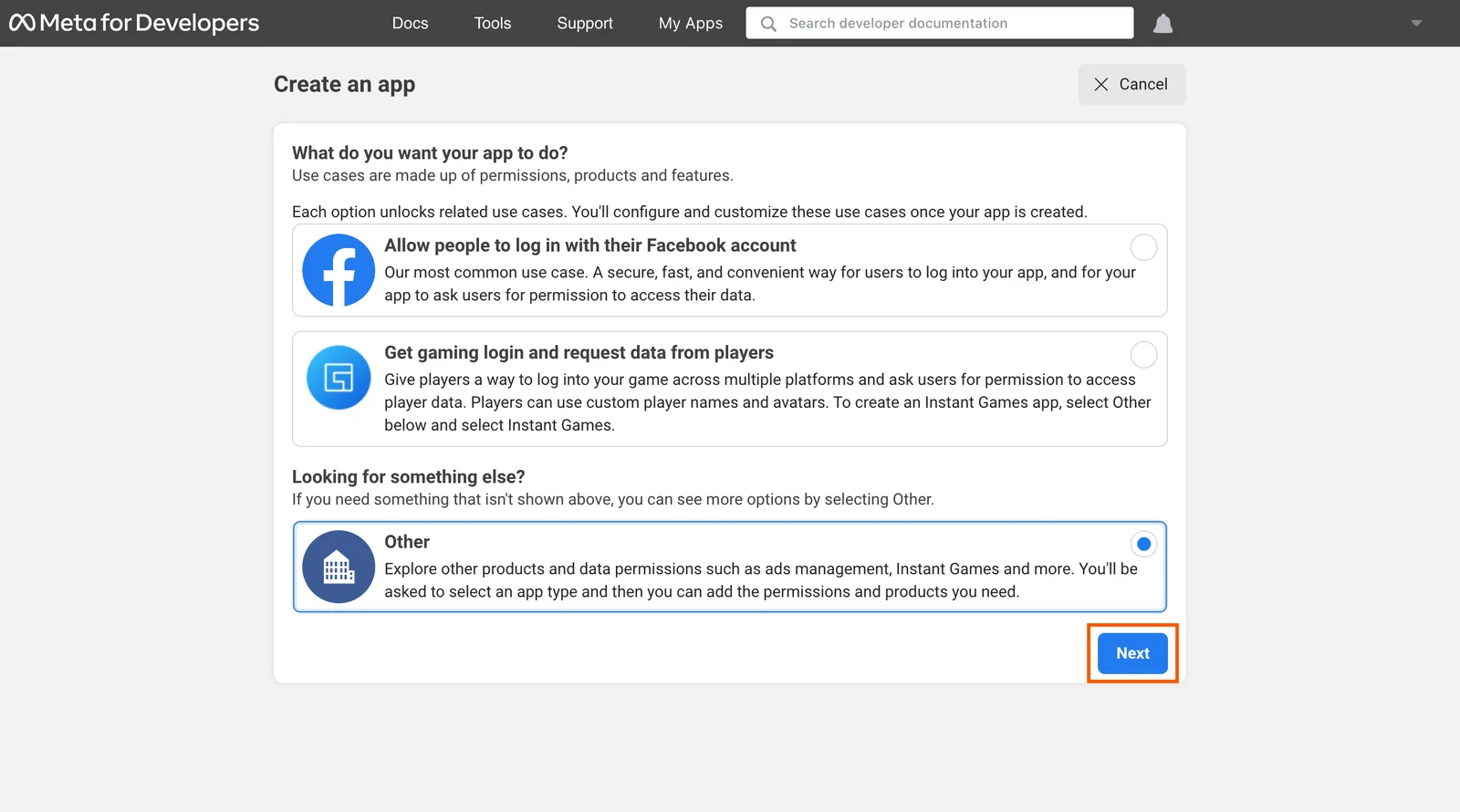
5. Select Other and click Next.
6. Select the app type: Business and click Next.
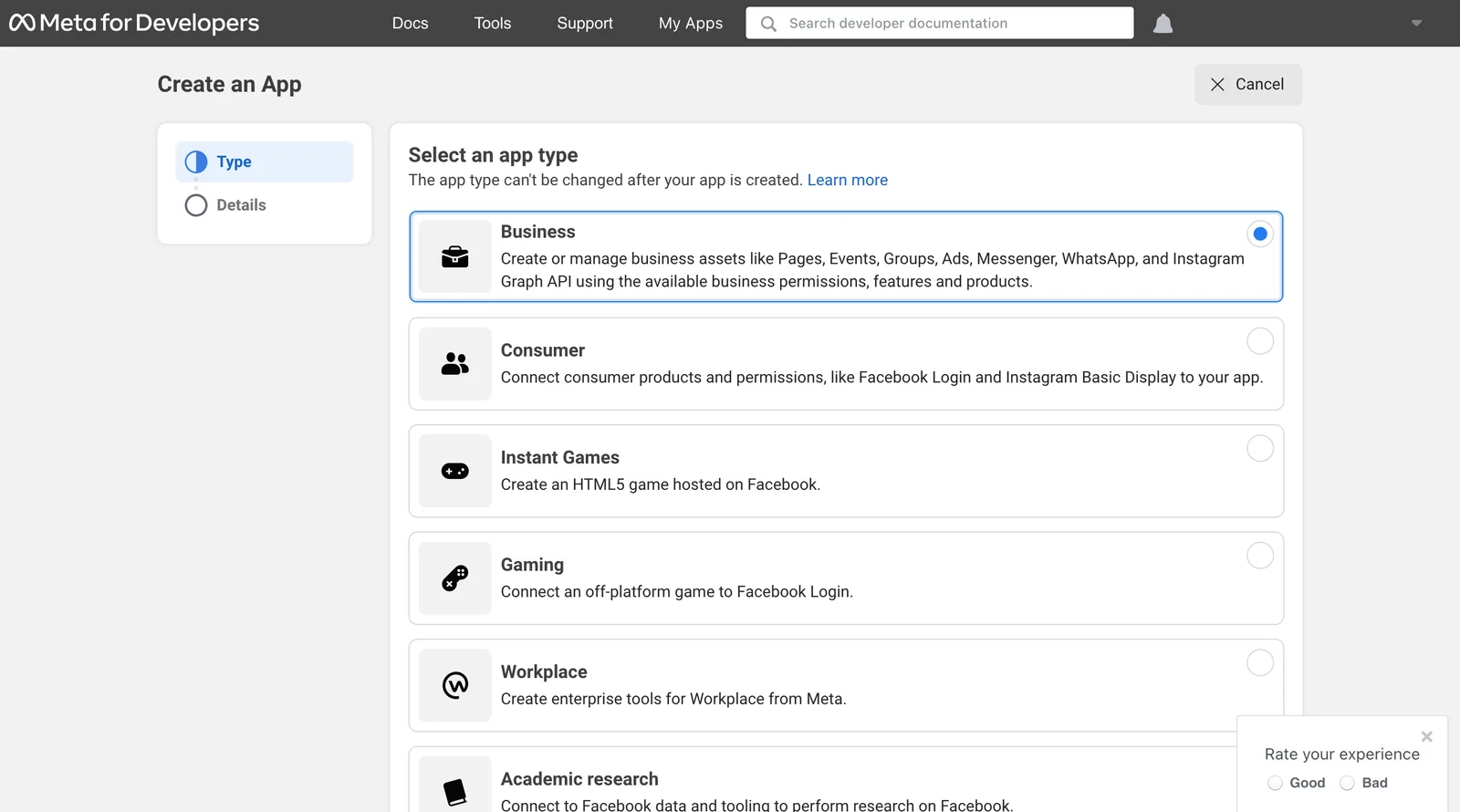
7. Add the application name — it can be the name of your company or any other name, leave an email address to contact. Then click on the Create app button.
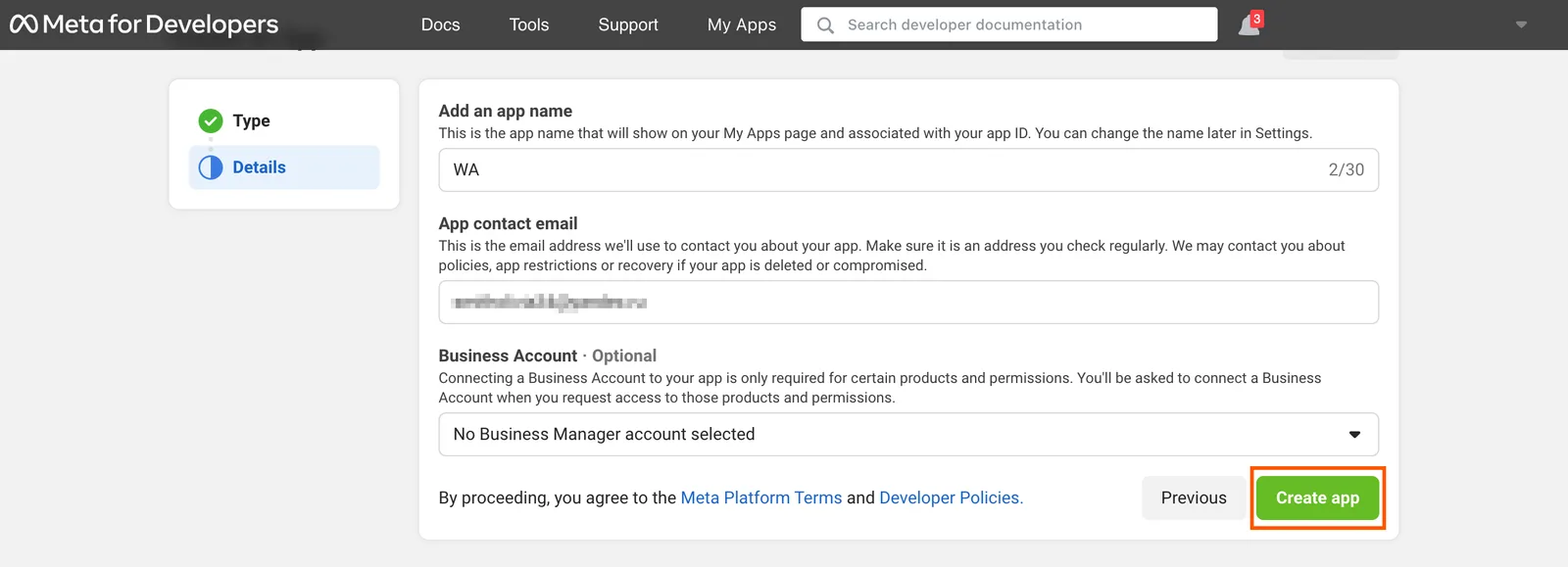
8. Click Set up to the WhatsApp app icon.
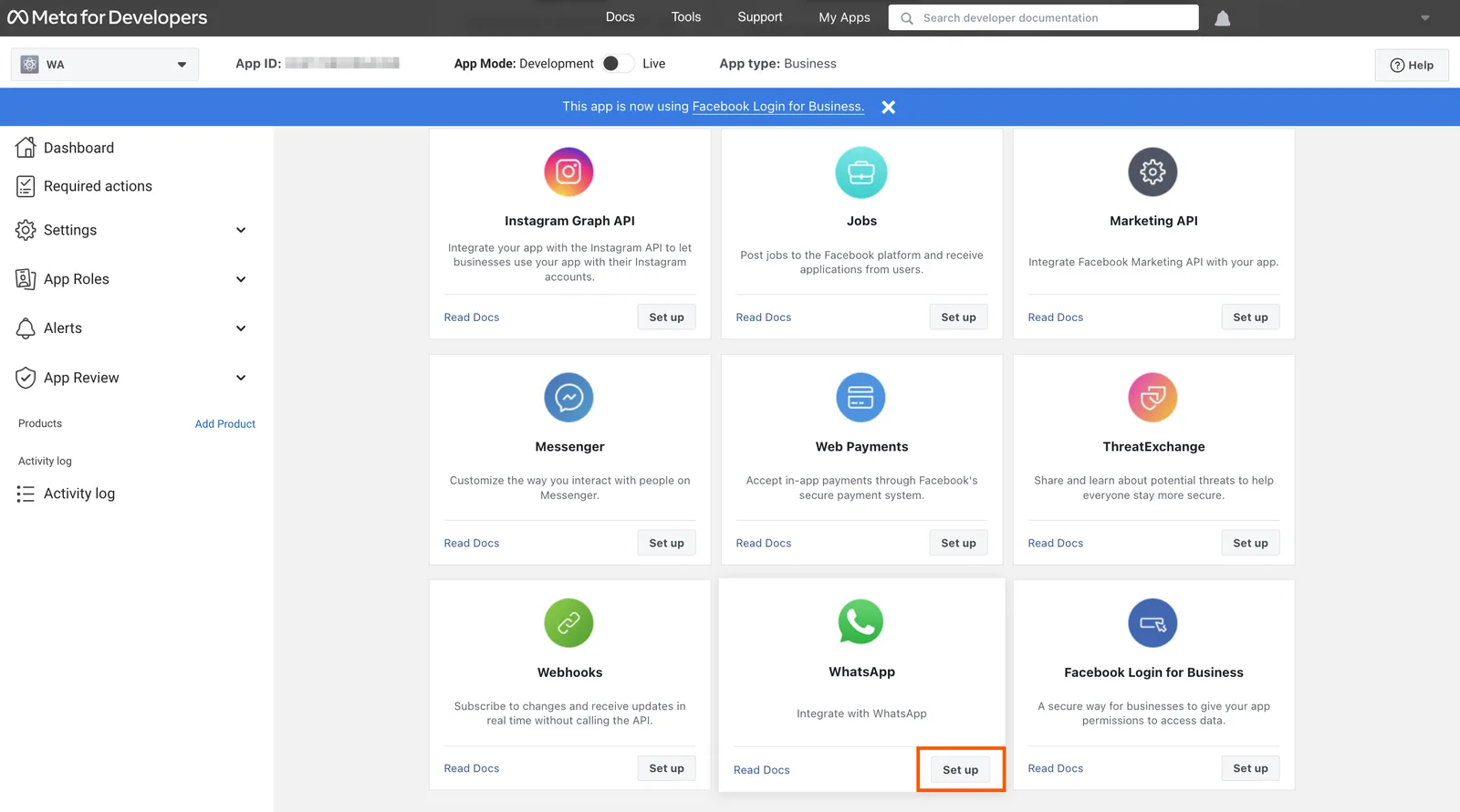
9. If you create a business account in WhatsApp for the first time, Meta will offer you to create it automatically. If you already have business accounts, Meta will offer you to select an existing business account or create a new one. Select the appropriate option and click Continue. Or just click Continue if you don't have a choice, as in our example.
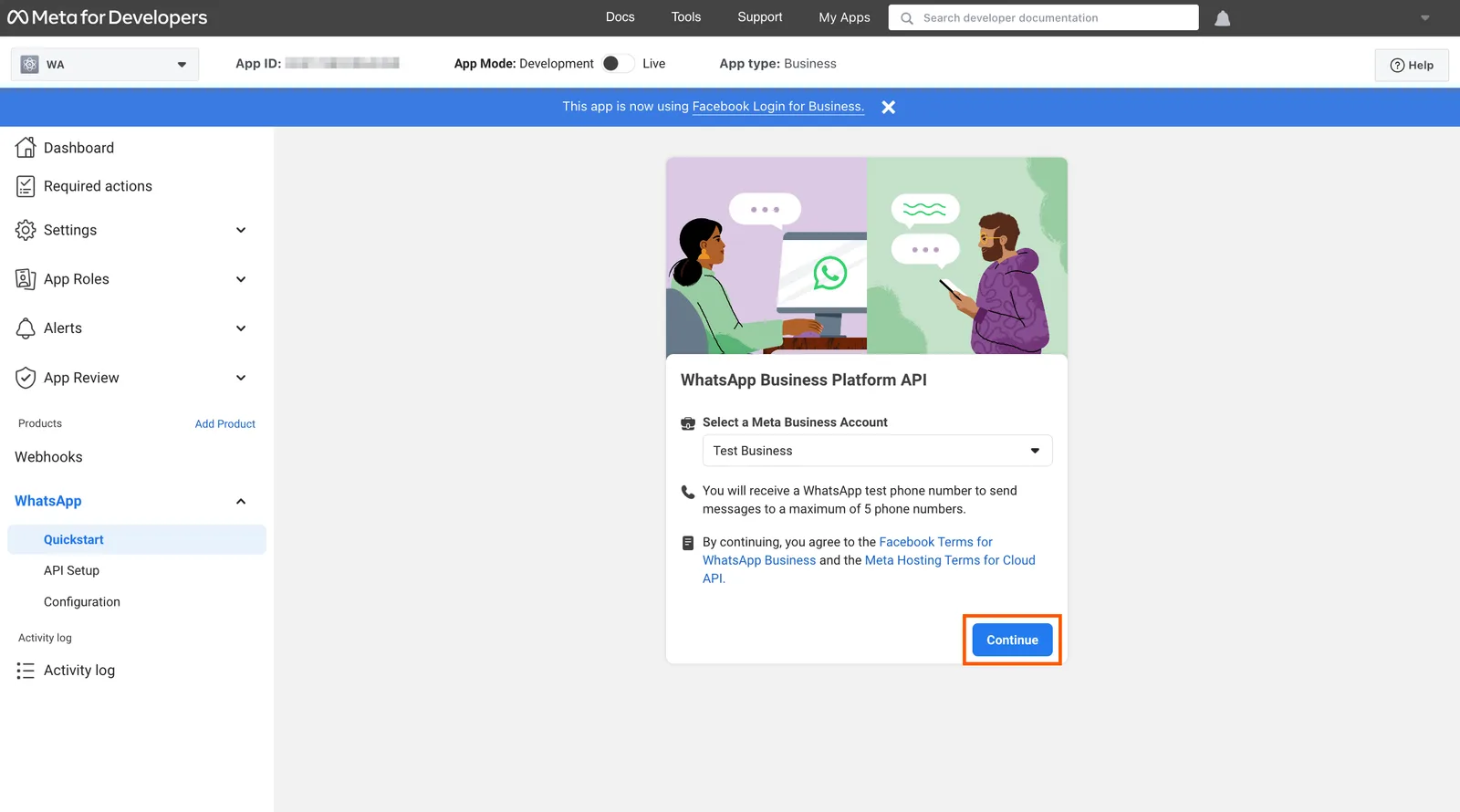
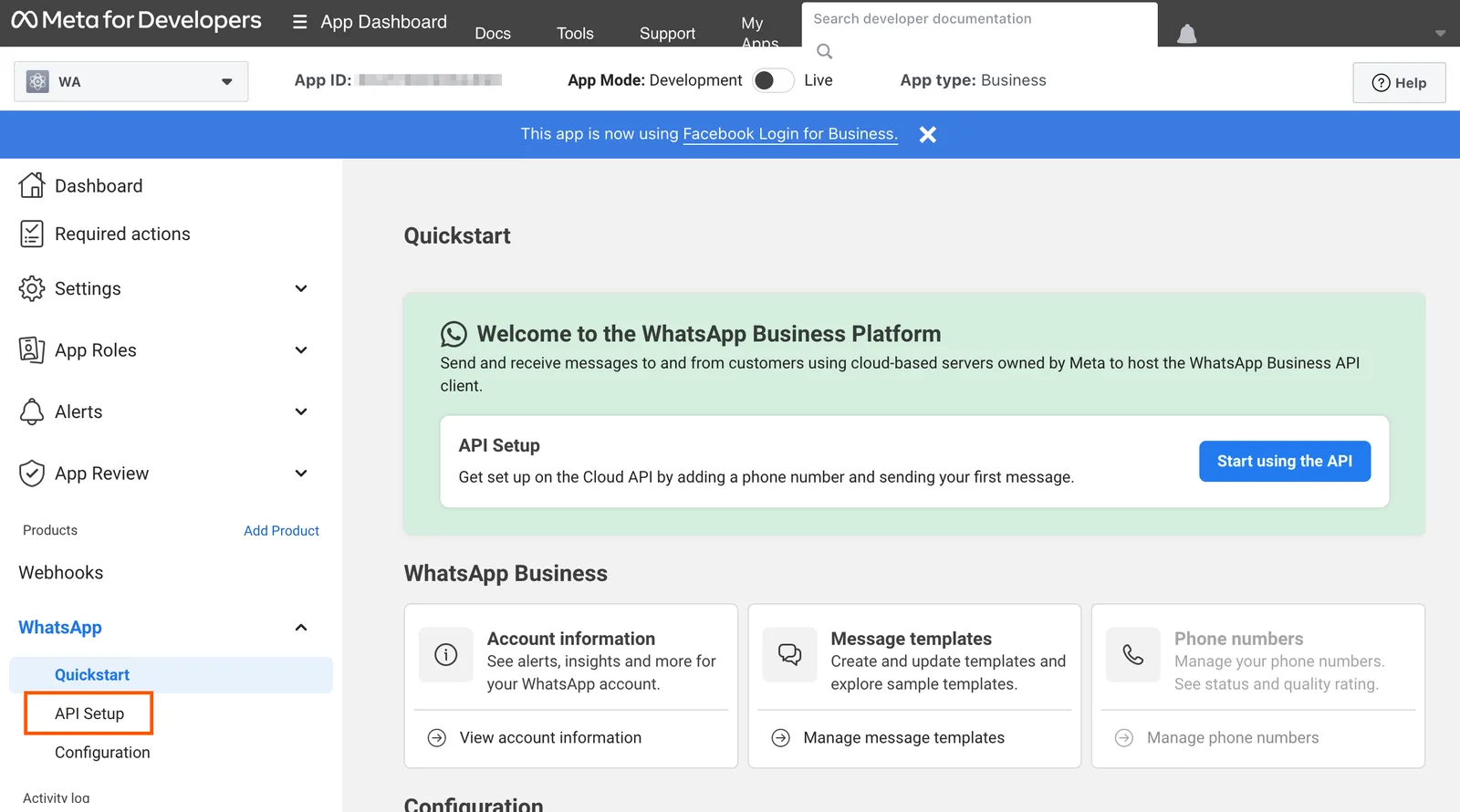
10. Go to the API Setup tab on the left panel.
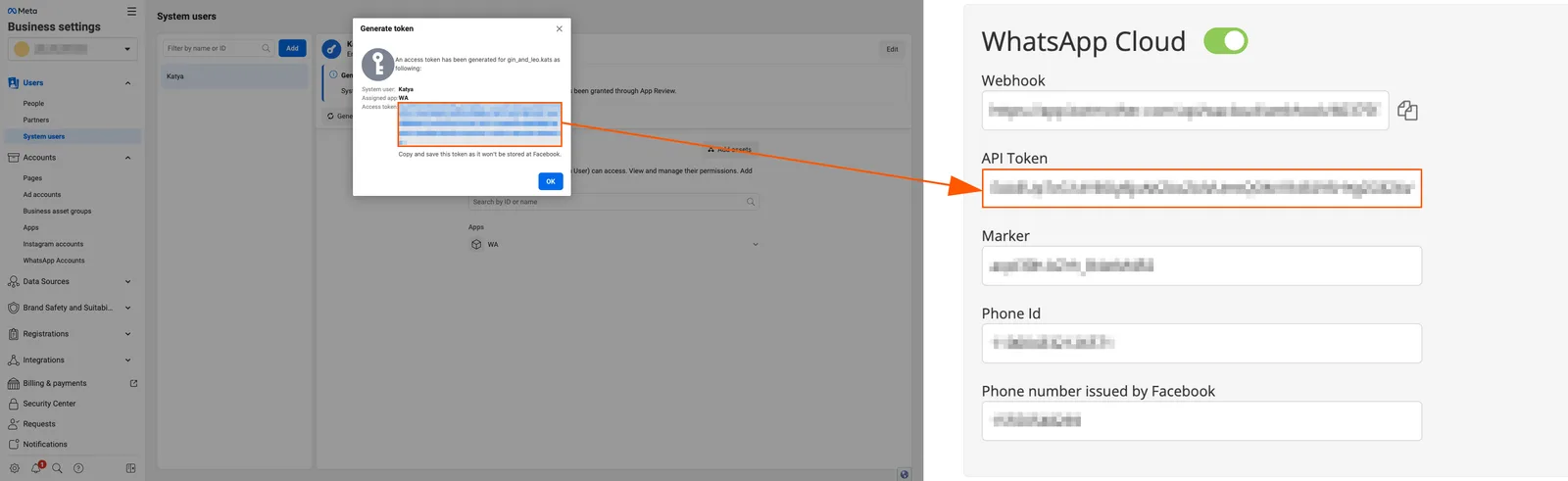
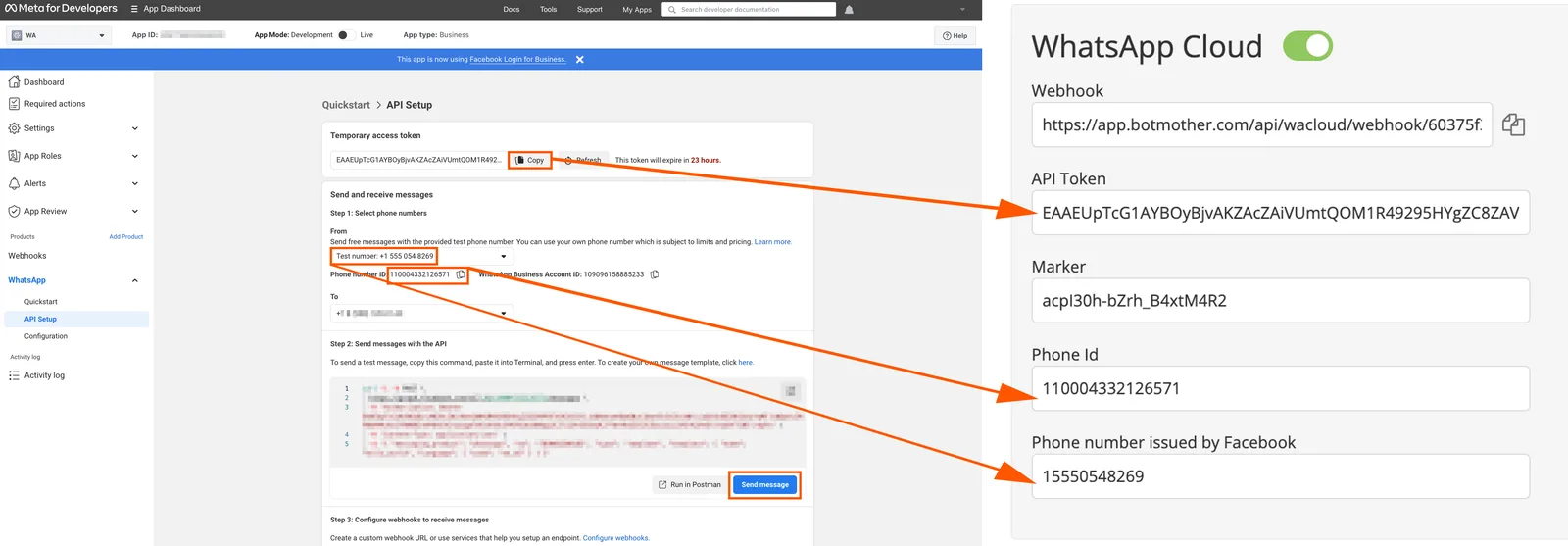
11. Copy Temporary Access Token from Meta and paste it into the API Token field in Botmother WhatsApp Cloud settings.
- Copy the Phone number ID from Meta to the Phone id field in Botmother WhatsApp Cloud settings.
- Copy the phone number from the Meta Test number field in the Phone number issued by Facebook field in Botmother WhatsApp Cloud settings and remove extra spaces.
- Save your changes in Botmother.
- Go back to Meta and select the recipient number in the To field. This can be your own phone number or any other number. In the next step, a test message will be sent to this number in WhatsApp.
- Click Send Message to Meta.
After sending a message from Meta, a test message with the text should come to the number that you specified in the To field in WhatsApp: Hello World.
Welcome and congratulations! This message demonstrates your ability to send a WhatsApp message notification from the Cloud API, hosted by Meta. Thank you for taking the time to test with us.
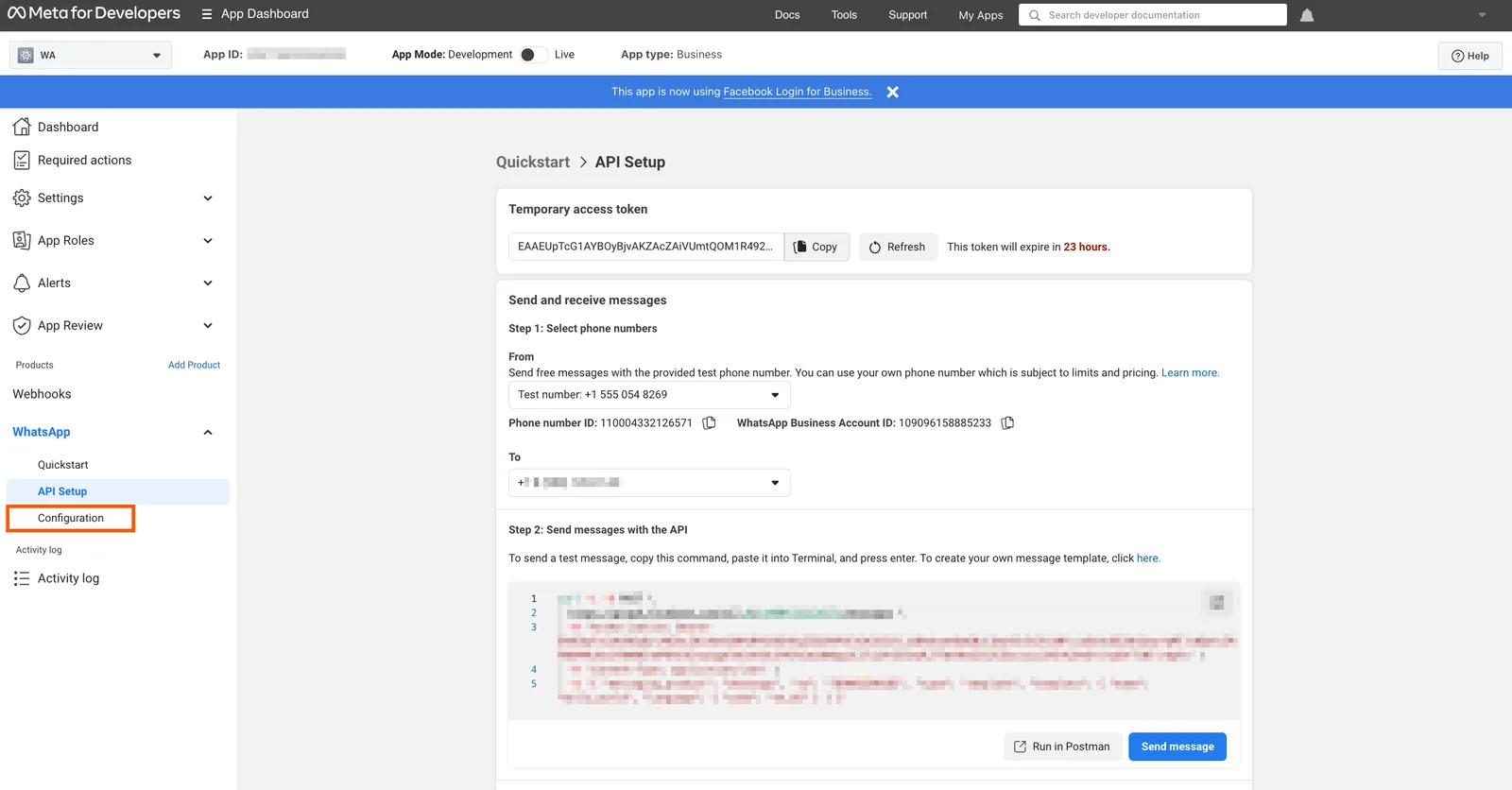
12. Go to Configuration.
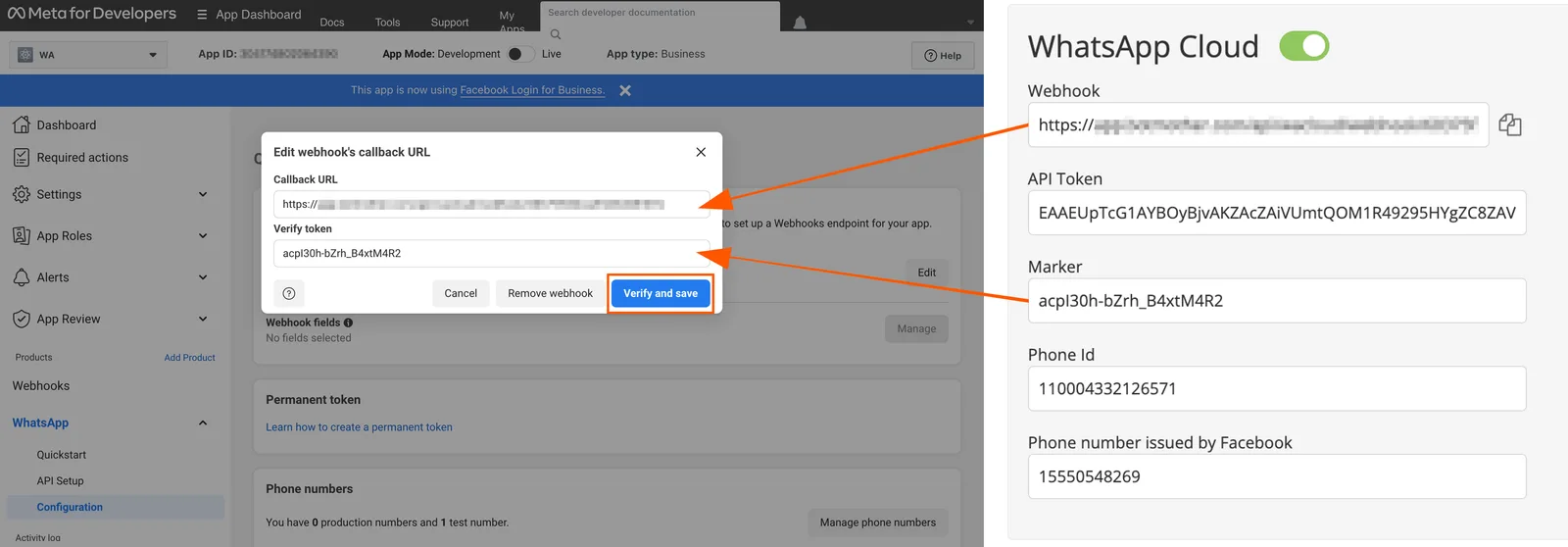
13. Click Edit.
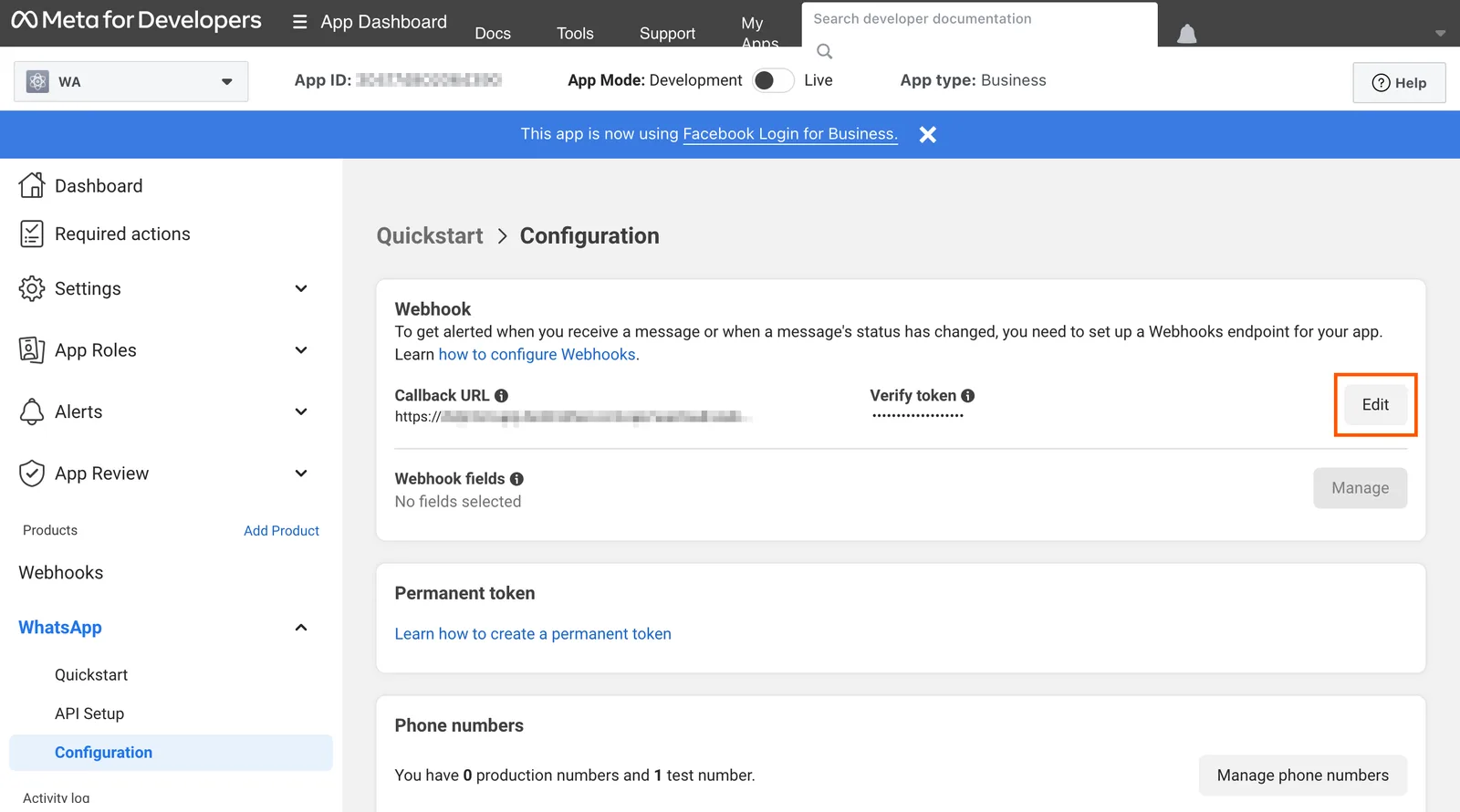
14. In the Callback URL (Meta) field, insert Webhook from the Botmother settings, and in Verify token (Meta), insert Marker from the Botmother settings. Then click Verify and save.
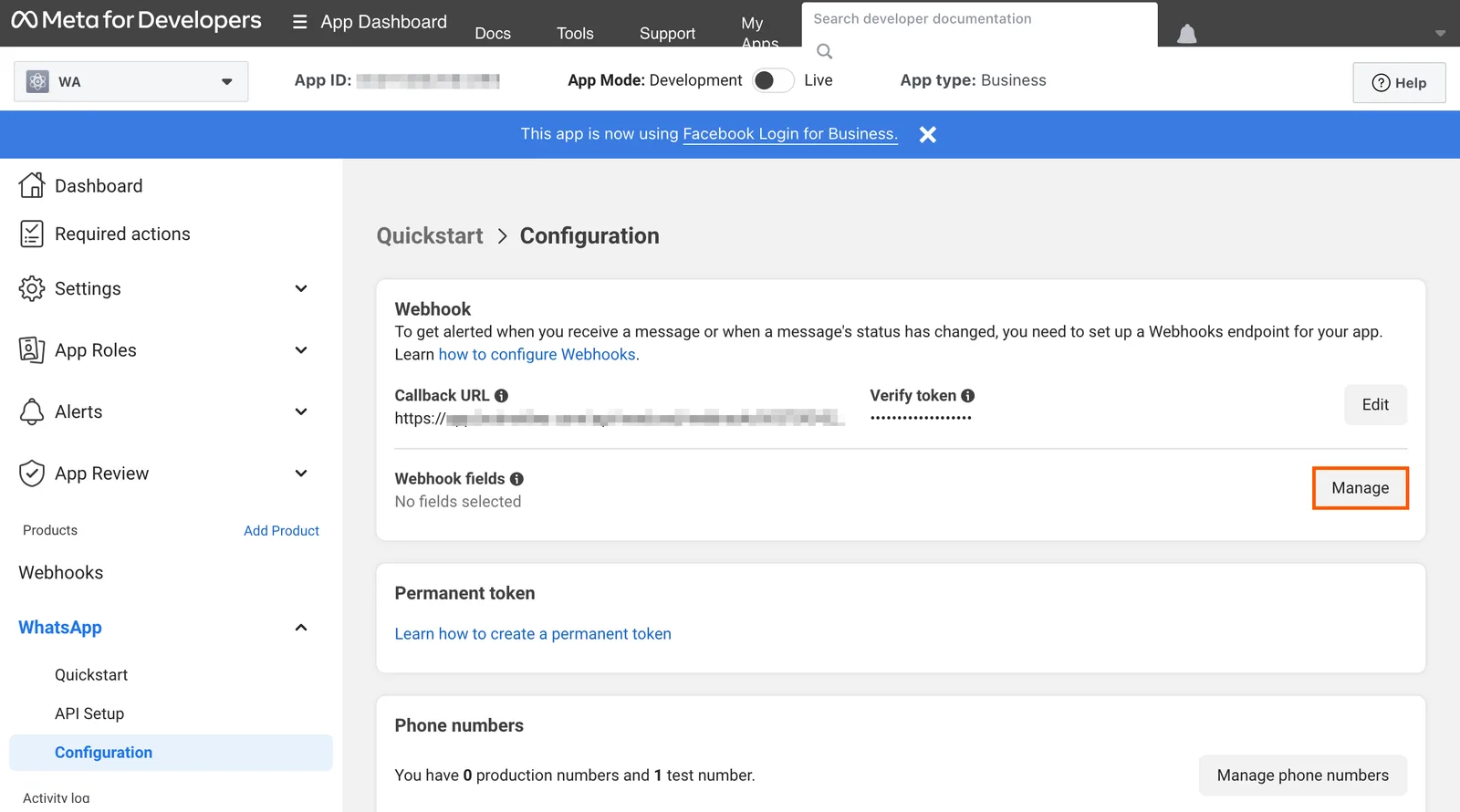
15. Next to Webhook Fields, click Manage.
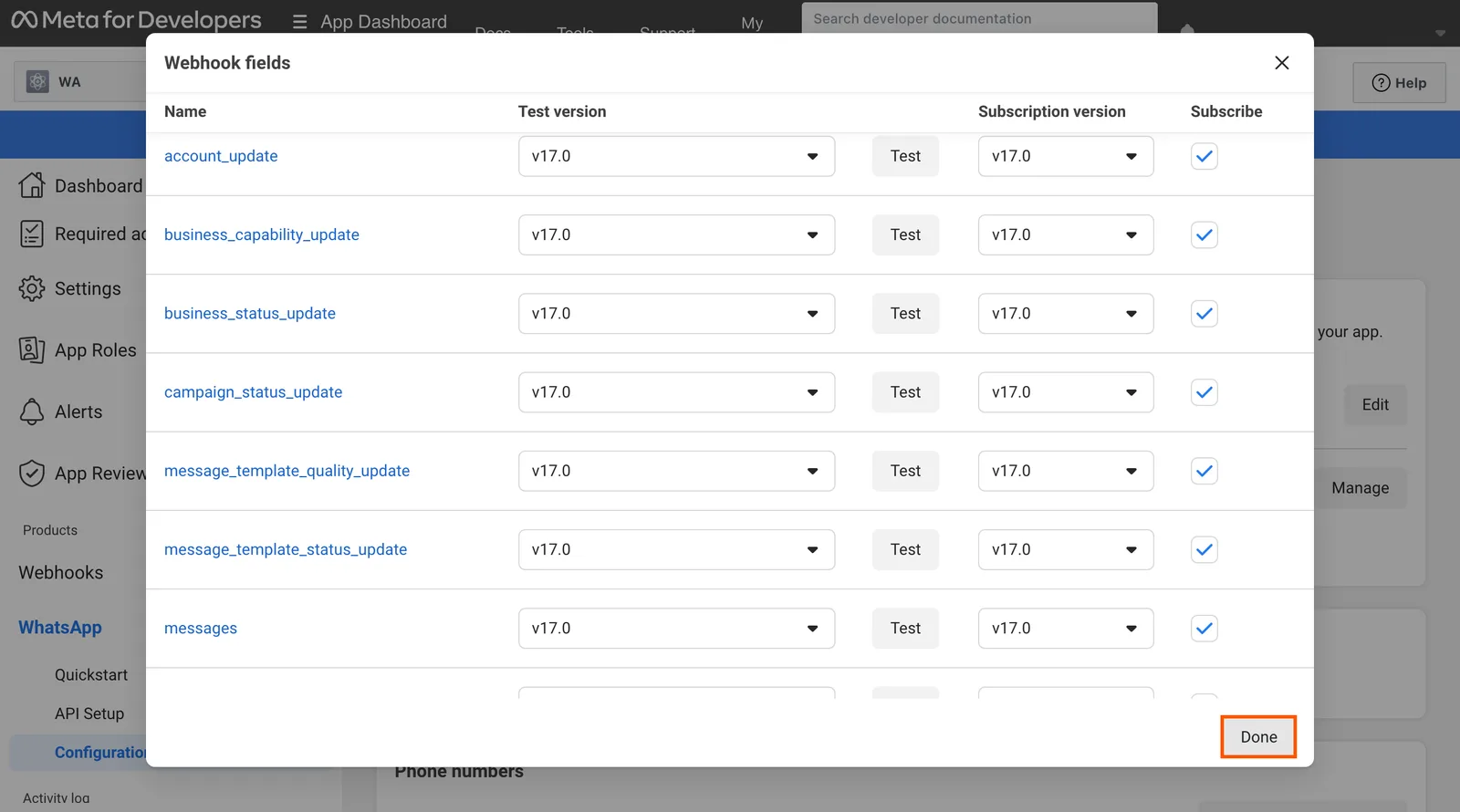
16. Check all the items and click Done.
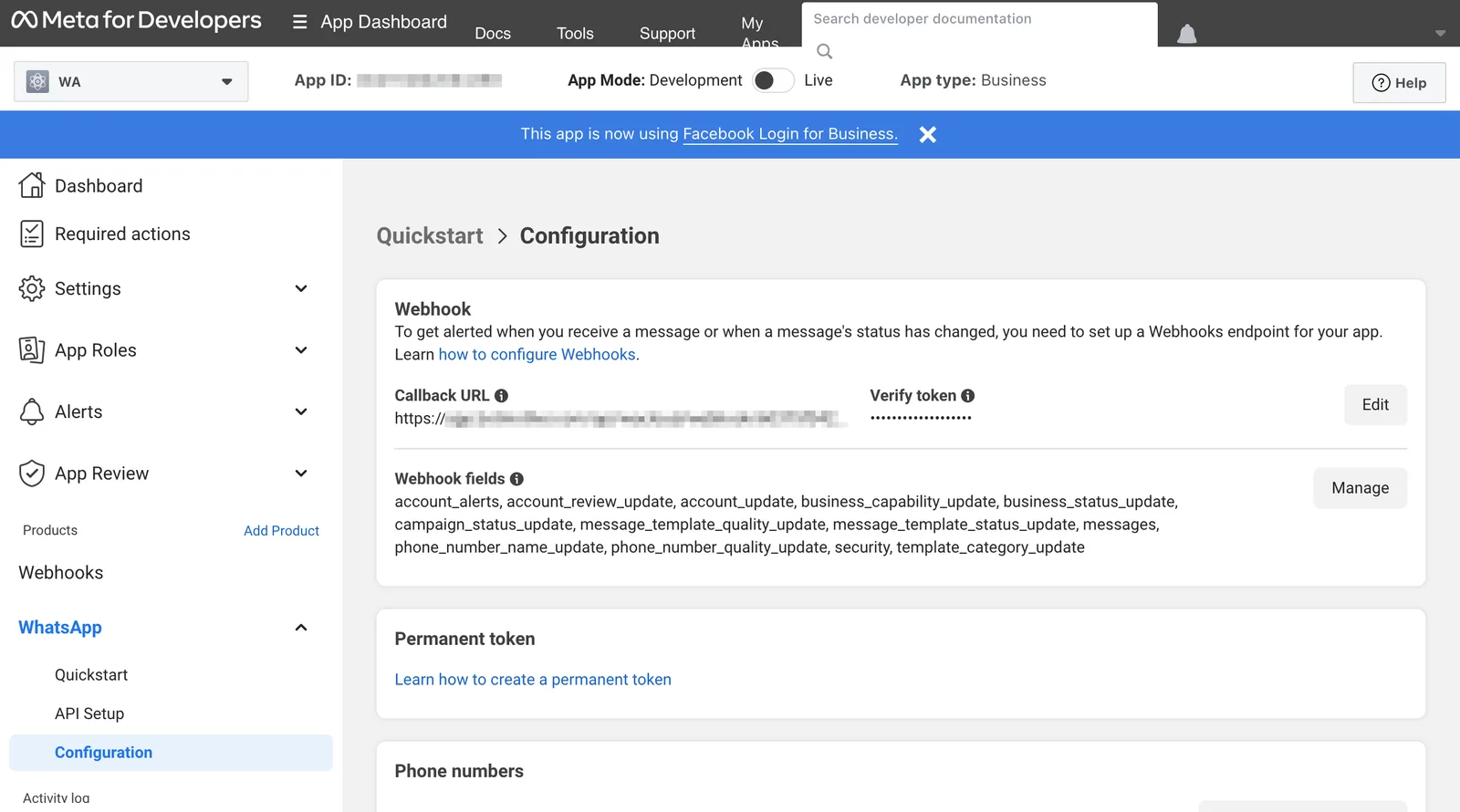
If all the boxes are checked, after clicking Done, the page will look like this.
Open WhatsApp Messenger and write /start in the same dialogue with the bot that previously received the Hello World test message. If all the steps are completed correctly, Start Screen should come in response.
We have just created and tested a temporary token, in other words, a temporary token for WhatsApp that will work for the next 24 hours.
Let's start creating a permanent token.
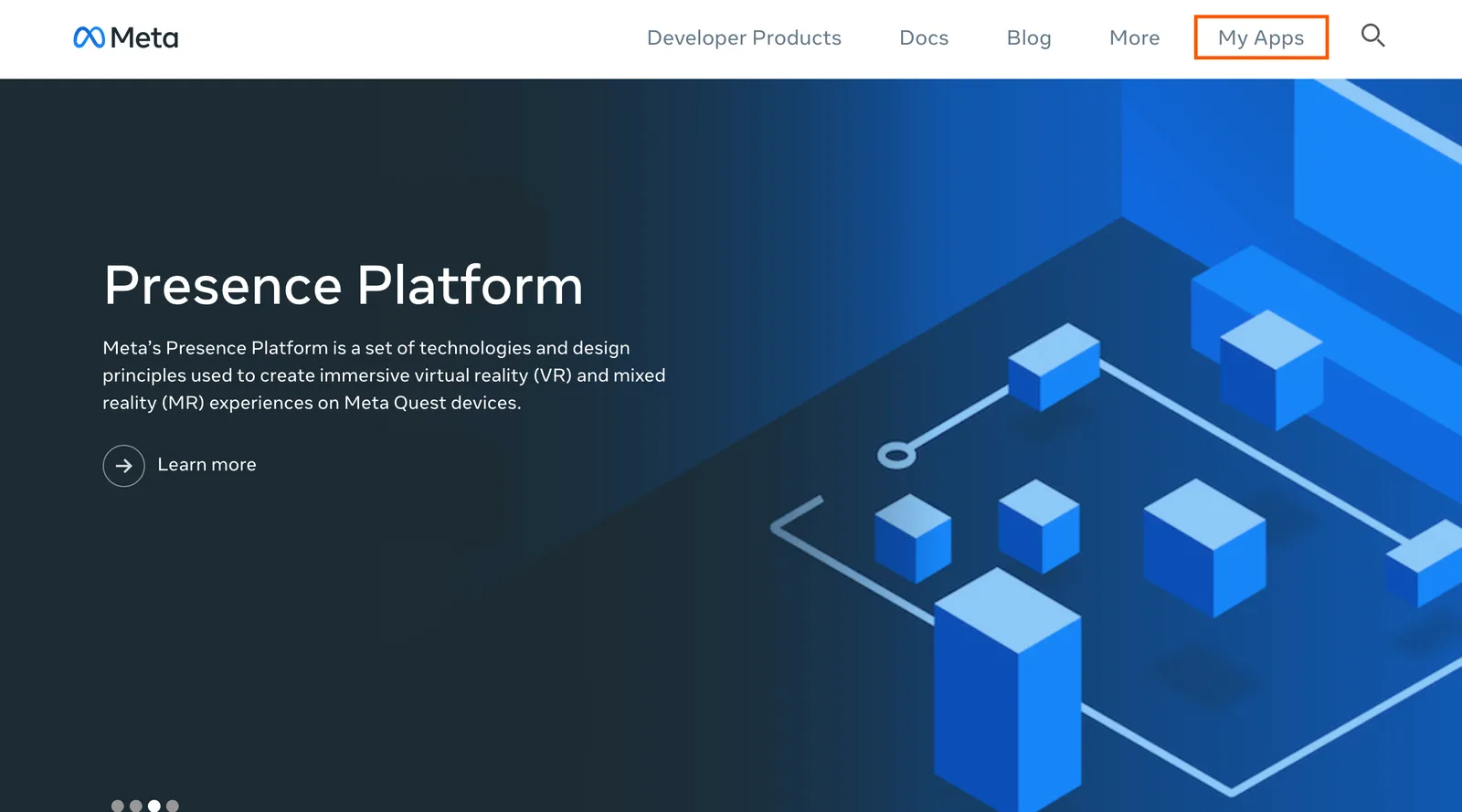
1. Click on developers.facebook.com and go to My apps.
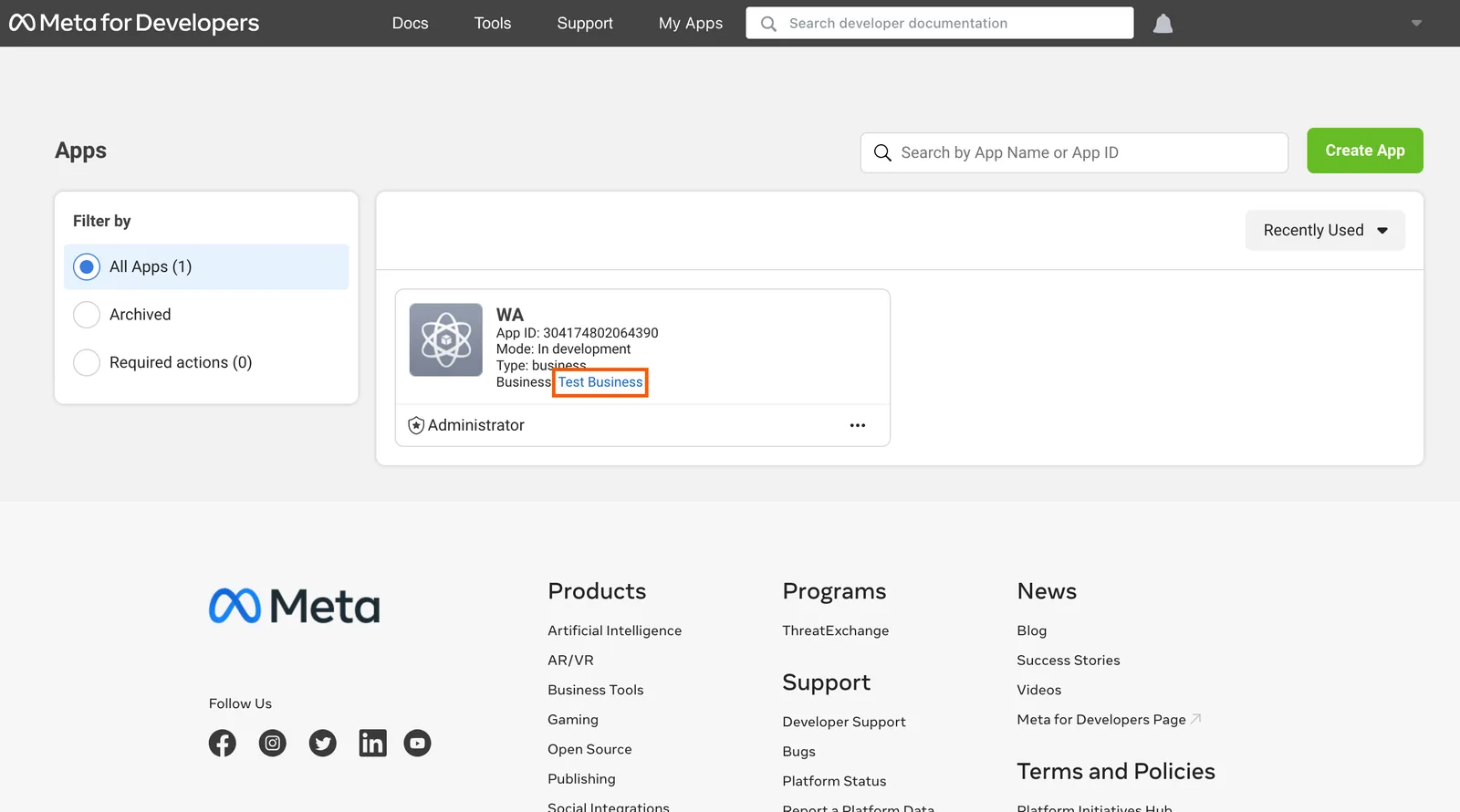
2. Go to your company settings.
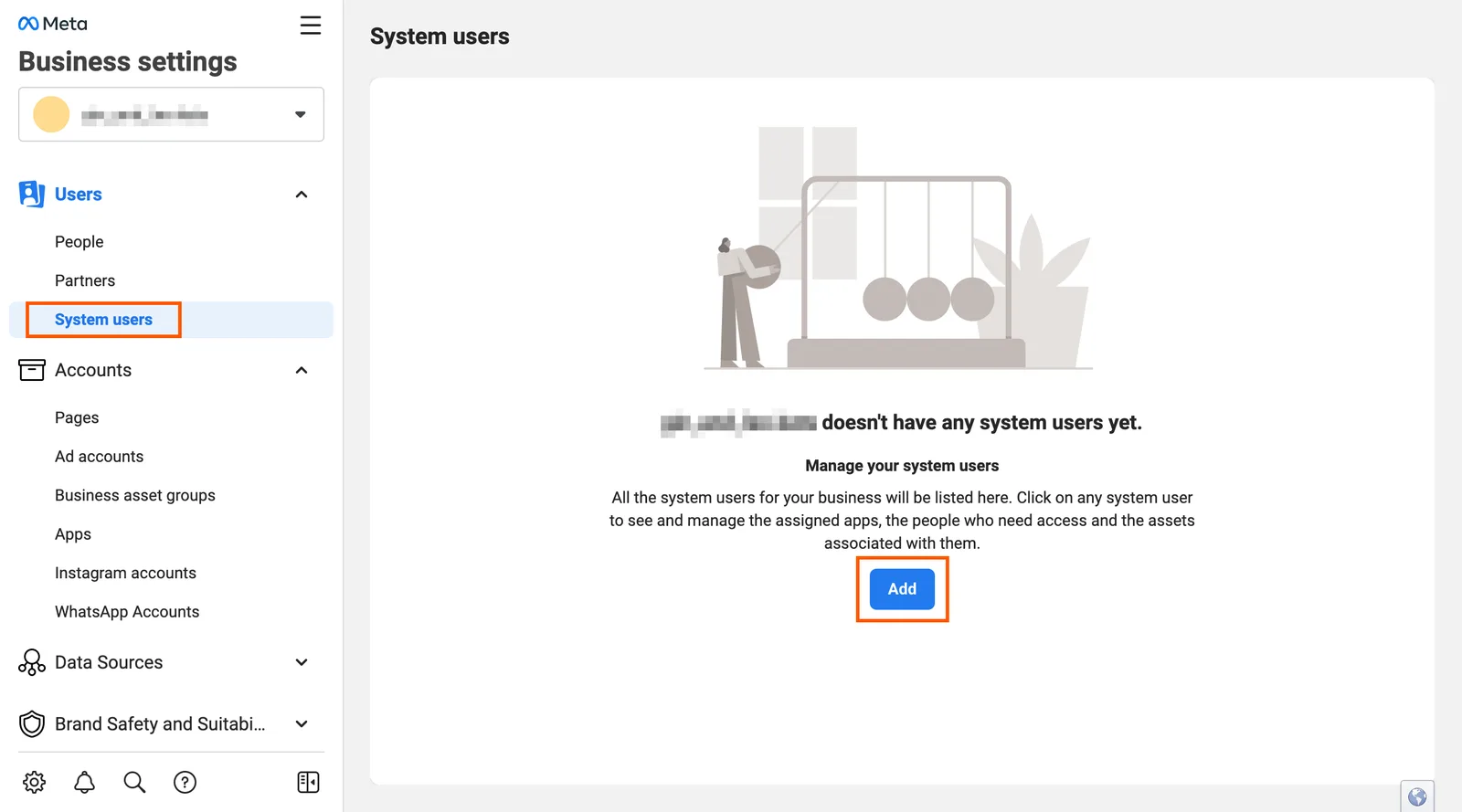
3. Go to the System users tab and add the user.
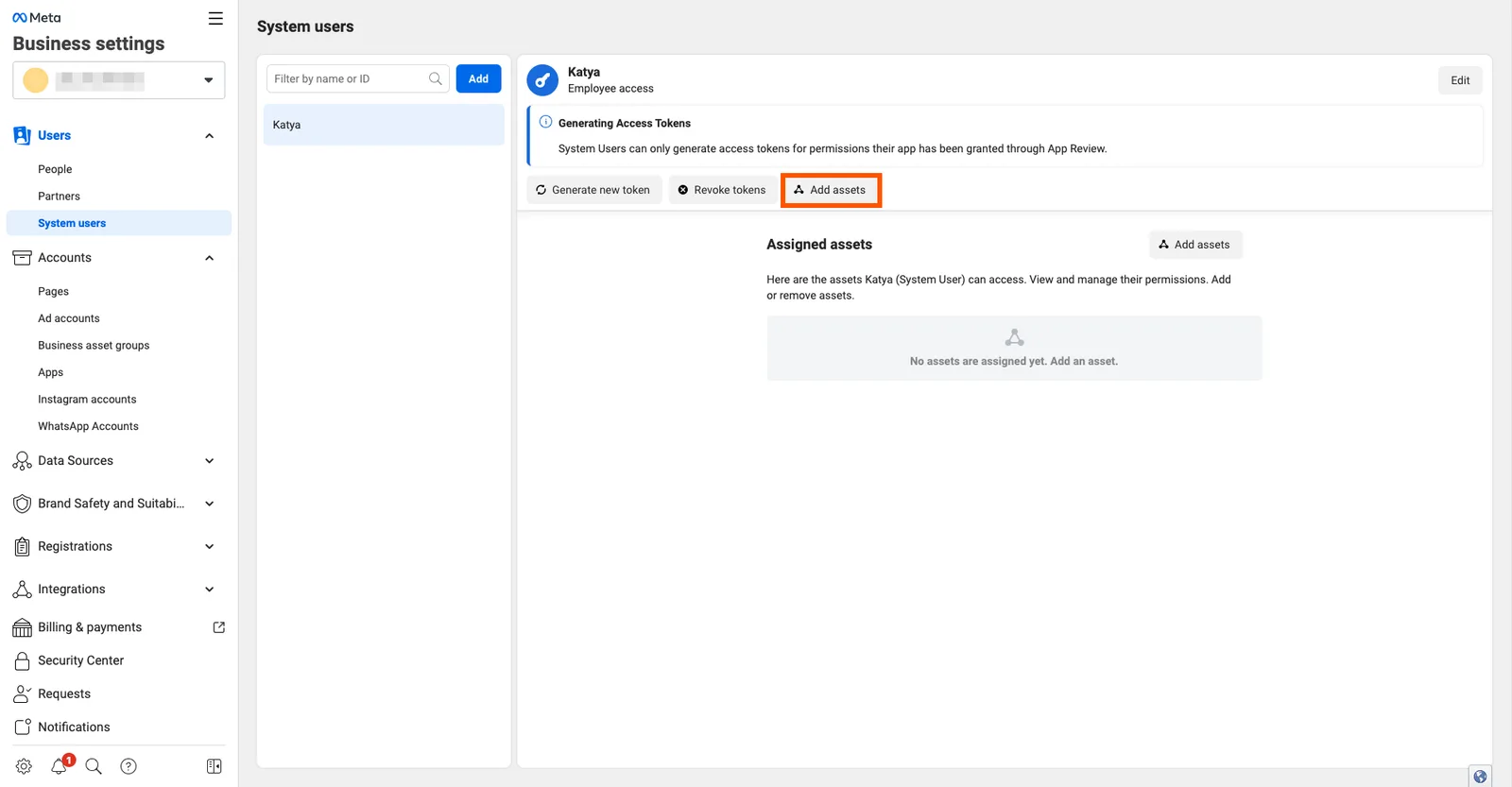
4. Then click Add assets.
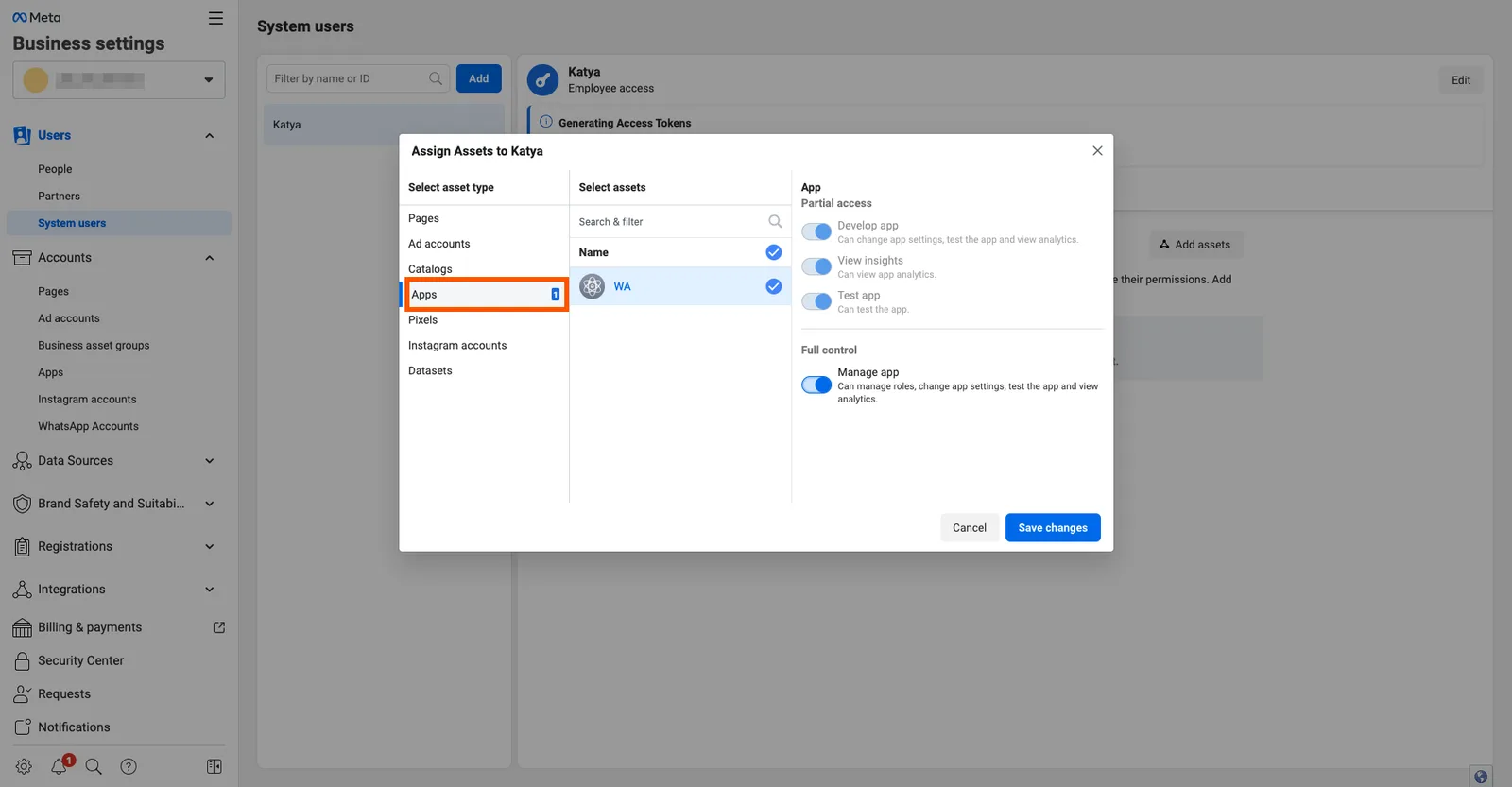
5. In the window that opens, select Apps and check the checkbox next to your app name. Then activate the Manage app switch and save the changes.
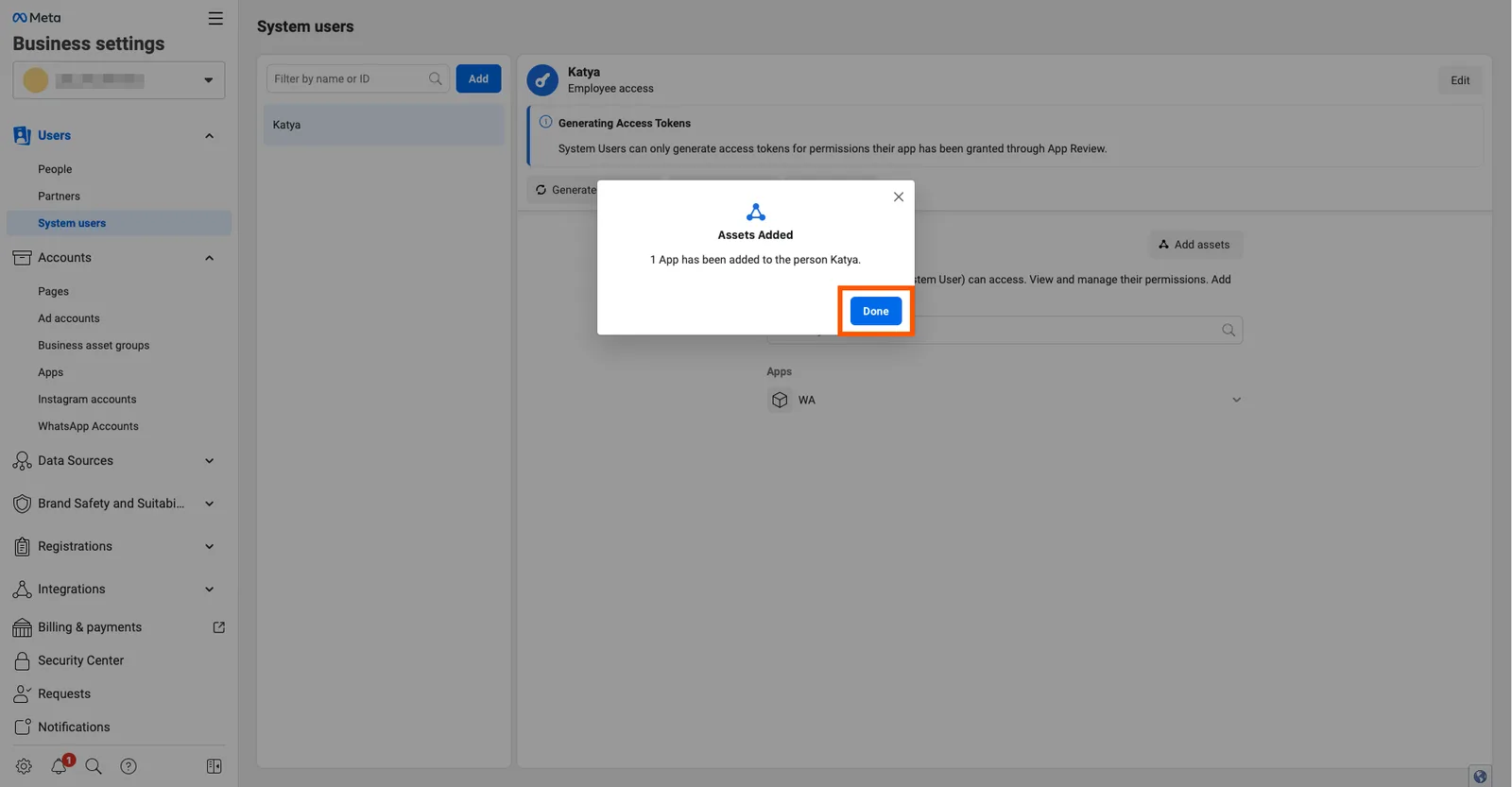
6. Click Done to continue.
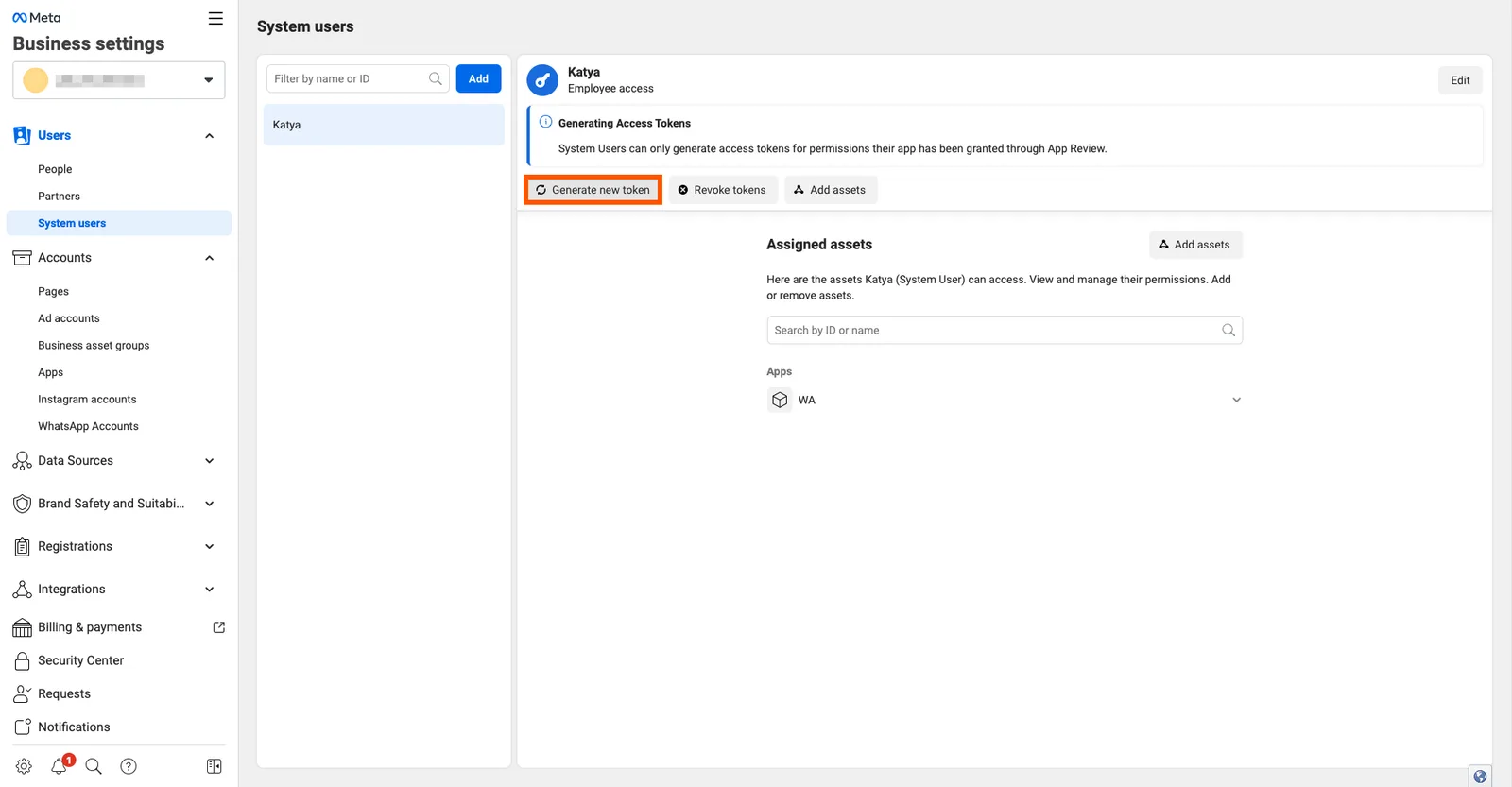
7. Click Generate new token.
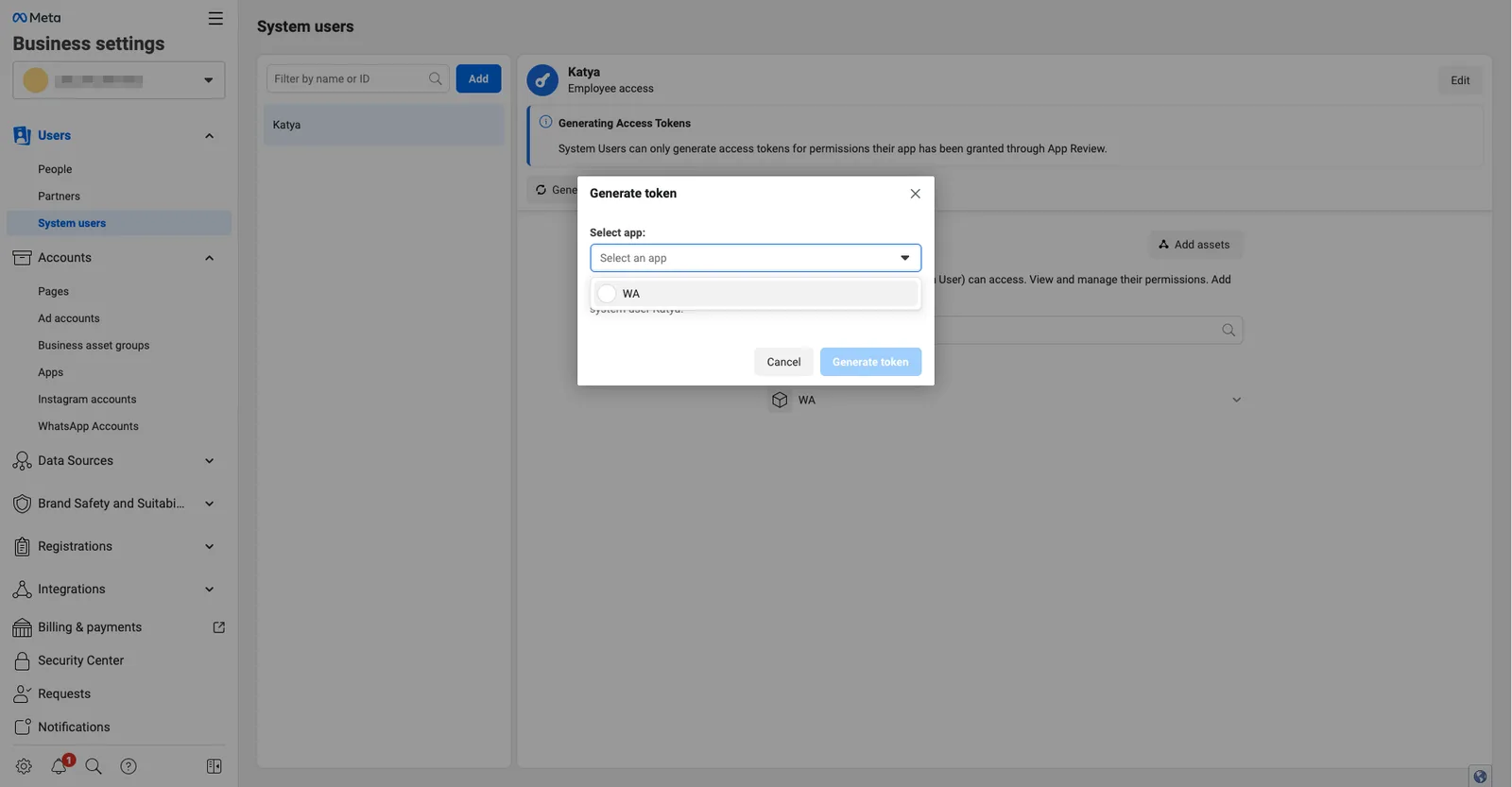
8. Select your app from the drop-down list.
9. Select Never so the token does not need to be updated.
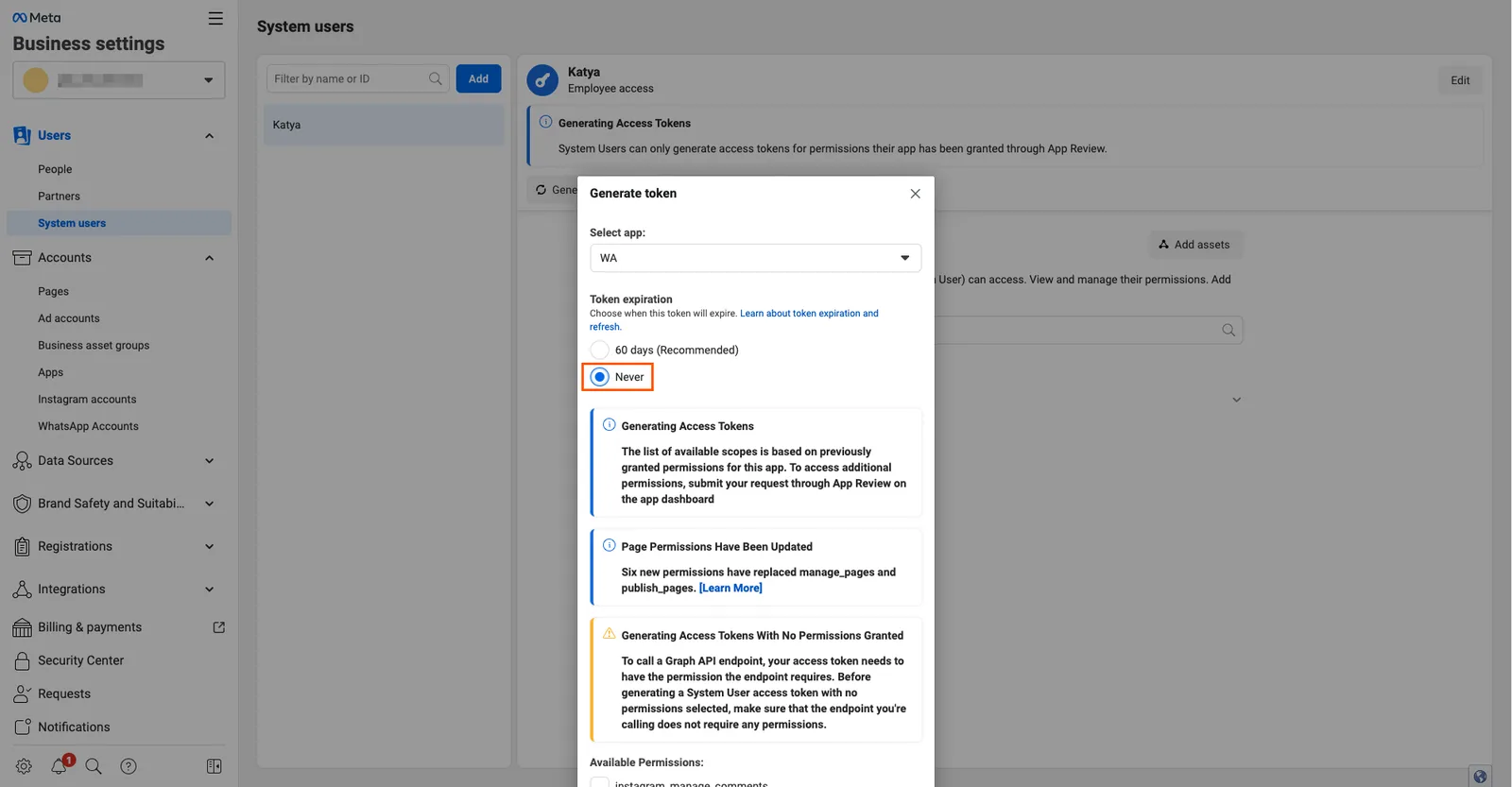
10. Scroll down the page and select the following items:
- business_management
- whatsapp_business_management
- whatsapp_business_messaging
11. Scroll to the bottom of the page and click Generate Token.
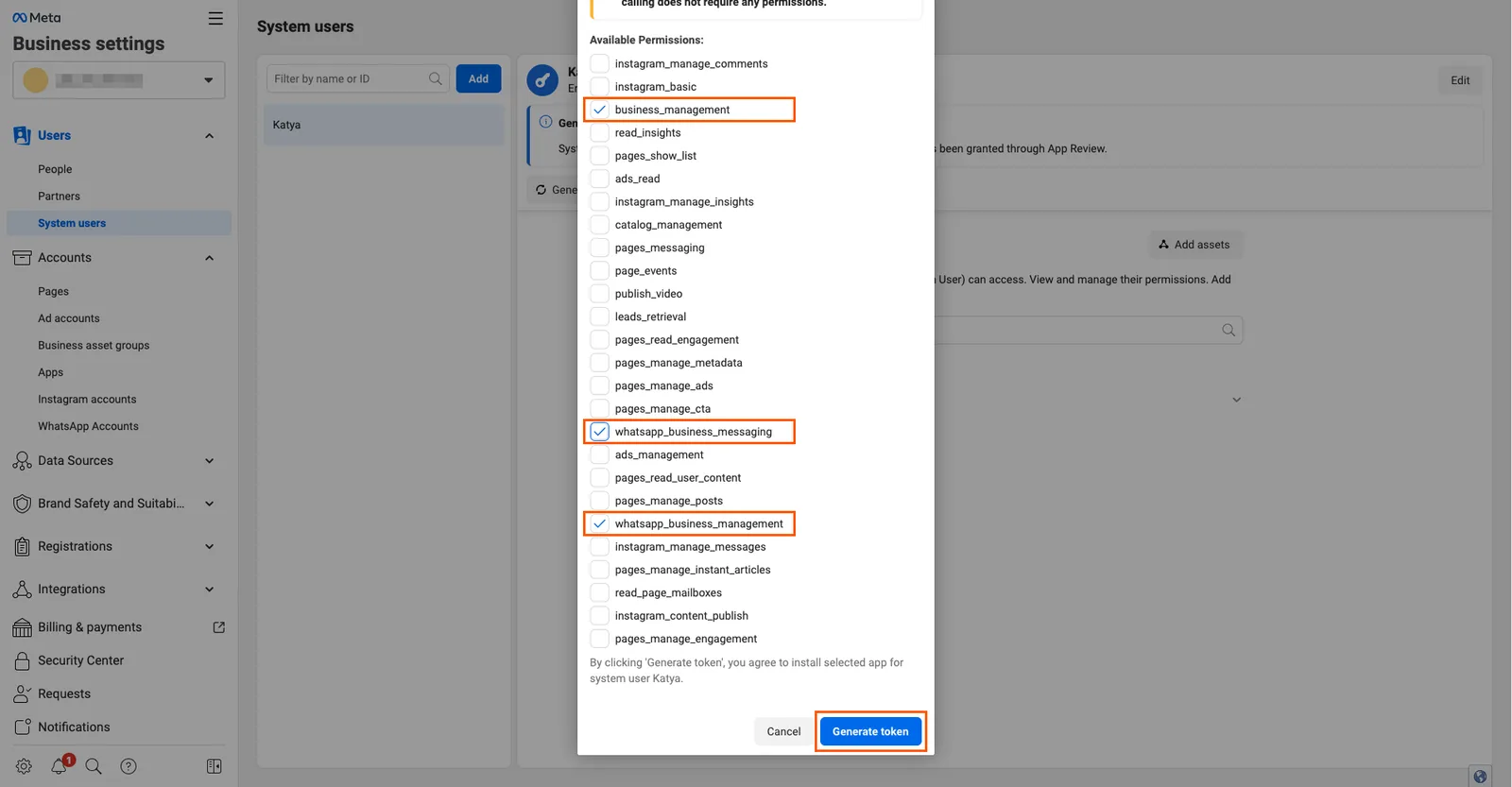
12. Copy the Generate token from the Meta settings to the Botmother Settings API Token field. It is also recommended to save the token in a safe place, since it is not saved in Meta, and in Botmother settings it is displayed as dots.