Viber
Since 05.02.2024 conditions for bots have changed. Read more in the official Viber help →
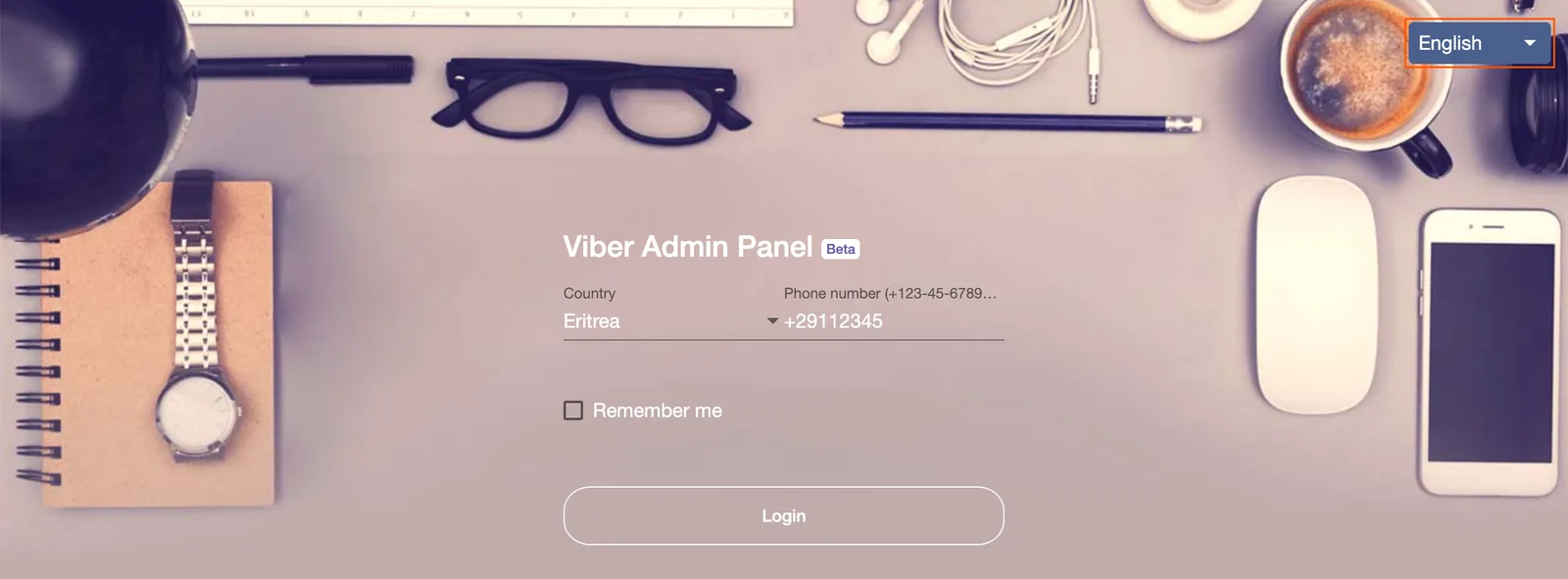
1. Sign up on the website partners.viber.com.
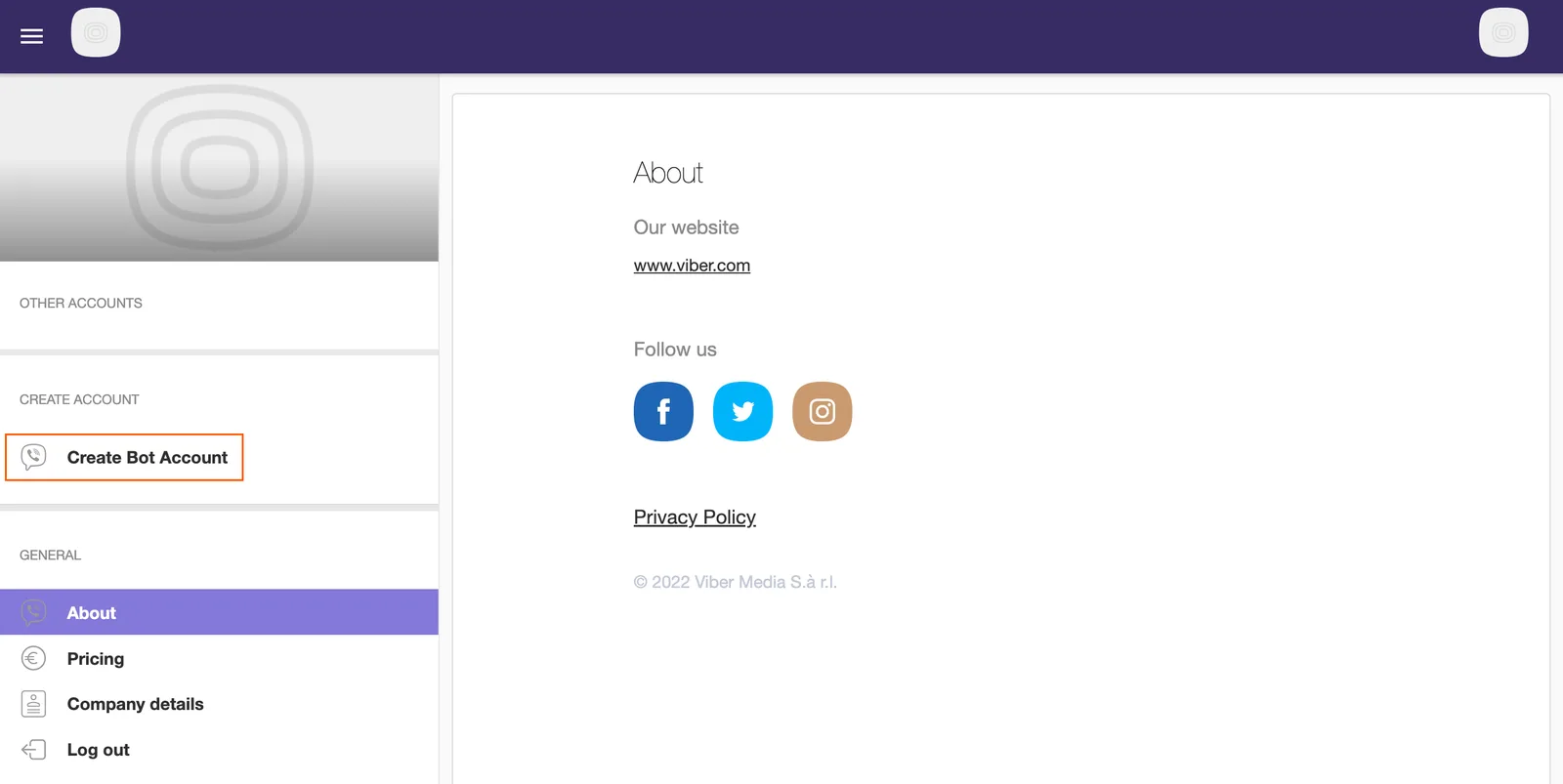
2. Click "Create Bot Account".
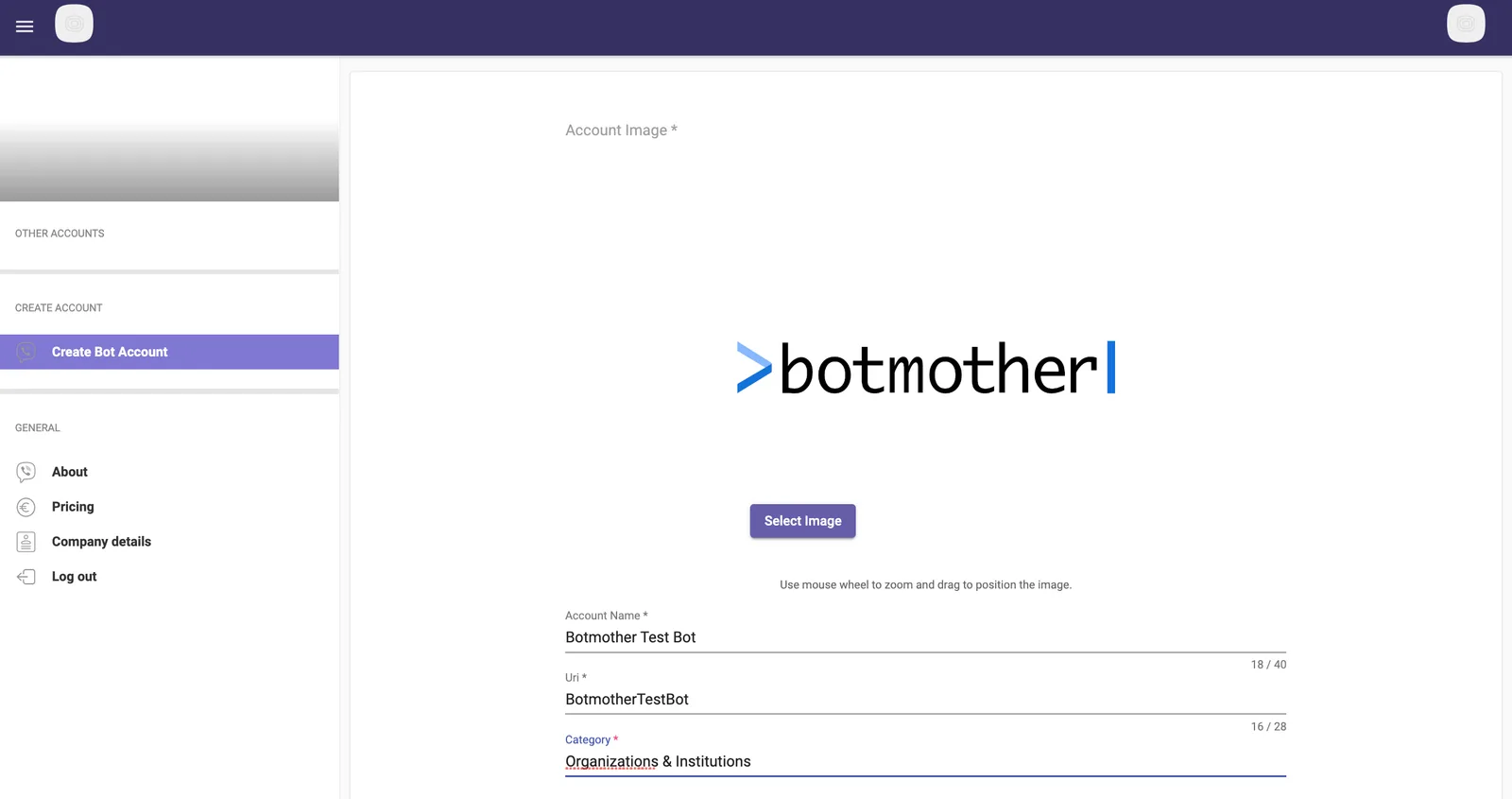
3. Fill in the information about your bot:
- Account Image — upload an avatar for the bot (400x400px image, PNG format, no more than 200 kb).
- Account Name — enter the name of the bot.
- Uri — enter a name for the bot in Latin or leave it automatically generated.
- Category — select a broad topic for the bot.
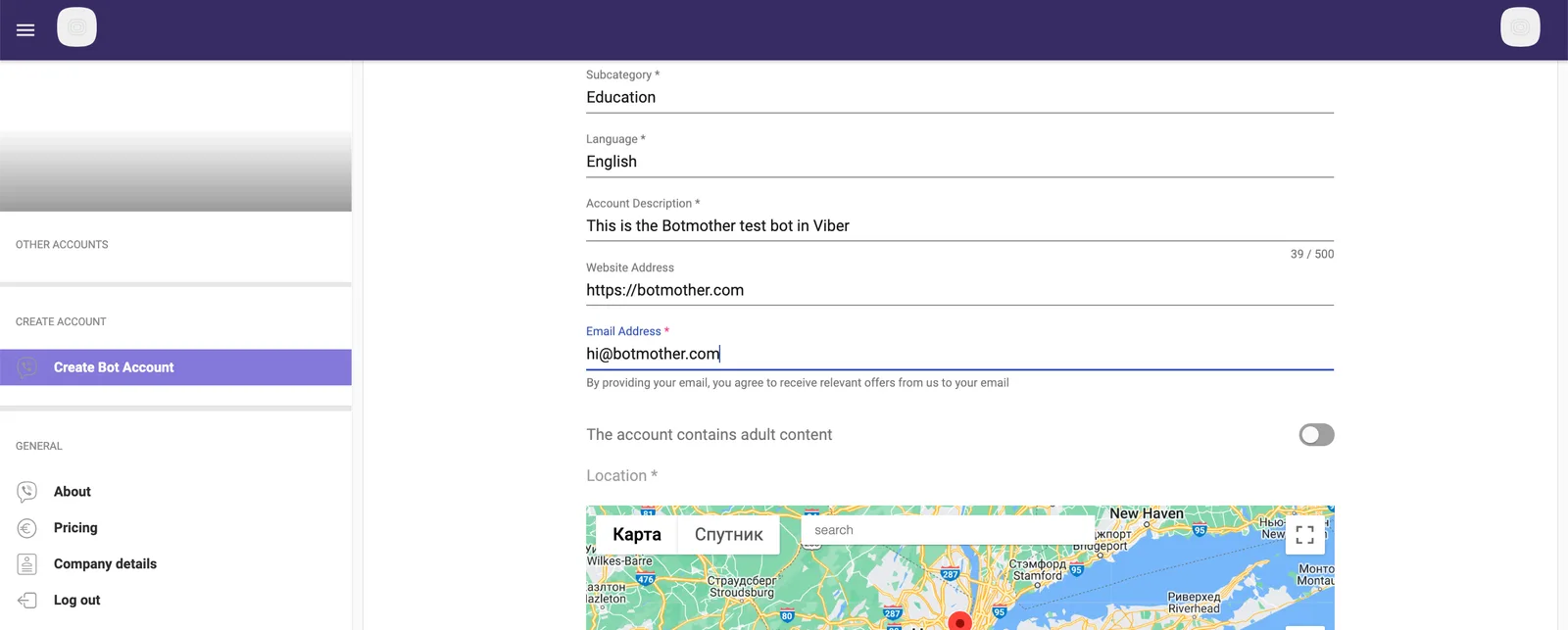
- Subcategory — select a narrow topic for the bot.
- Language — select the main language of the bot.
- Account Description — enter a description for the bot.
- Website Address — enter the website address if you have one. You can leave the field blank.
- Email Address — enter email for notifications.
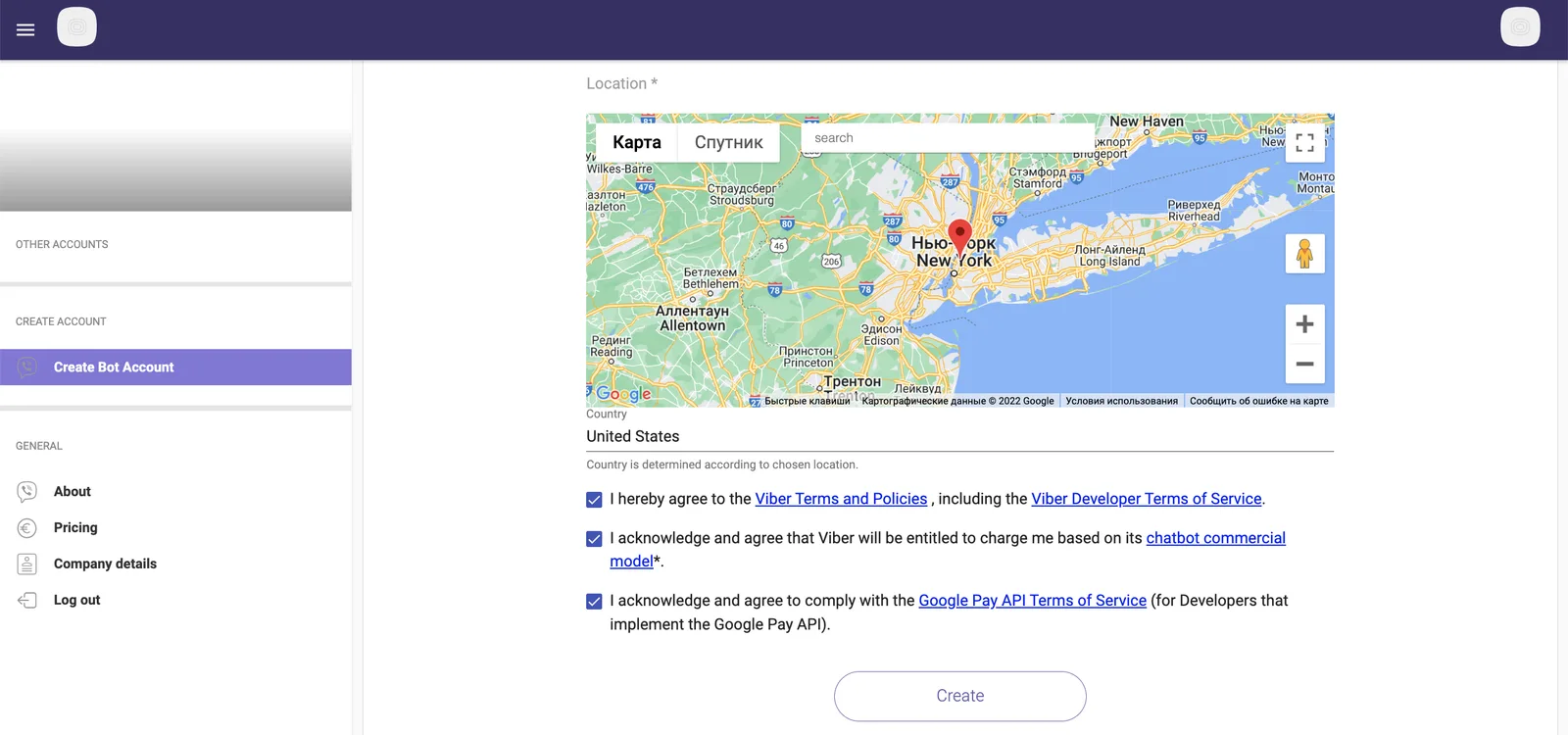
- Location — enter any address for the bot.
4. If you have a bot with adult content, check the box next to "The account contains adult content".
5. Be sure to accept the terms of use of the platform.
6. Click the "Create" button.
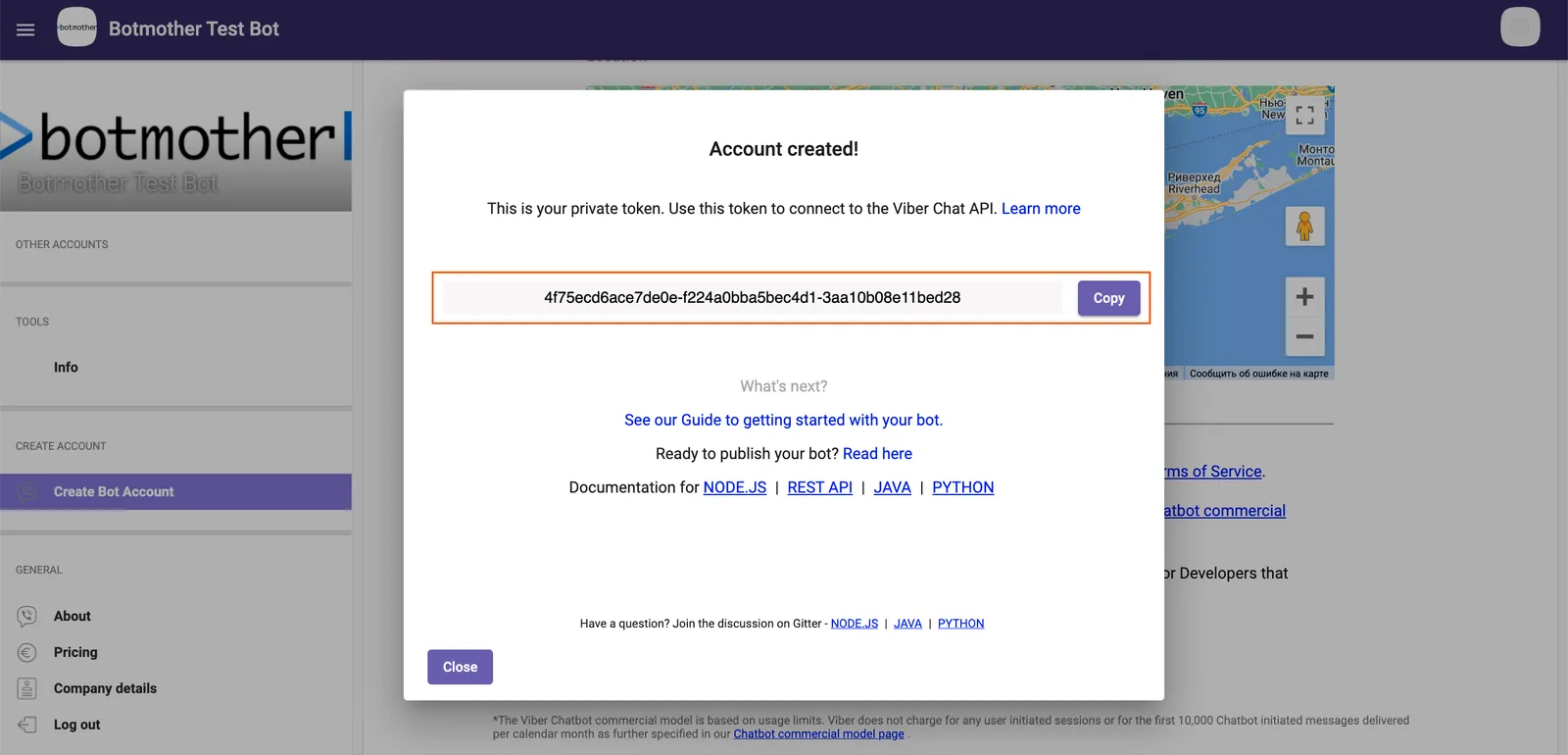
7. Copy the received token by clicking on the "Copy" button.
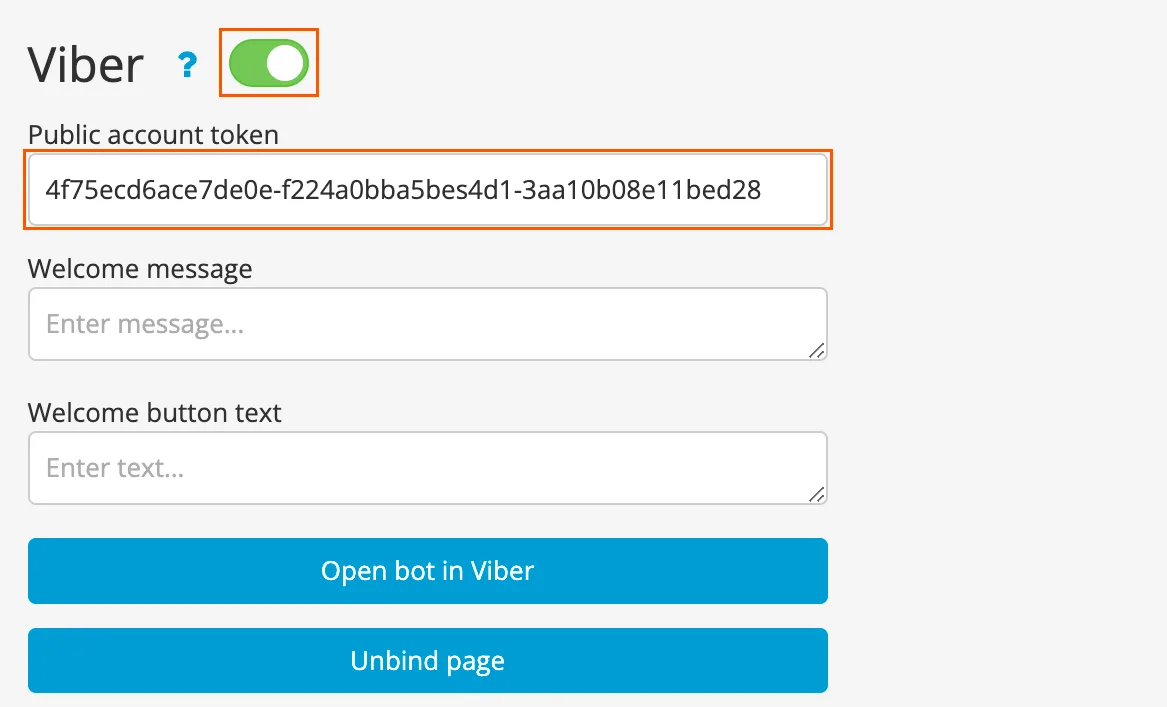
8. Insert the token into the appropriate field in the builder settings. Save changes.
While the bot is working through Botmother, the received token can only be used in our service. If you connect the token of a bot running on our platform to another service, the bot may stop working or work unstable, and users may be blocked from sending broadcasts.
Component execution settings
Disable component — when the checkbox is enabled, the component will not be executed, as if it were not part of the flow. To enable the component again, simply uncheck the box.
If platform is not available execute the next component — the bot will skip the current component and move on to the next one if the selected platform is unavailable.