You can watch all the previous steps in the video tutorial.
If you registered an account with Facebook, create a password to log in to Botmother before linking Facebook. The password is set on the bots page in the Profile Configuration section. After that, save the changes, log out of your account, then log in using your username and password.
For the bot to work, you need a page to which this bot will be binded. You can see how to create a page in Facebook help.
1. Turn on Facebook in Settings and click the "Bind page" button.
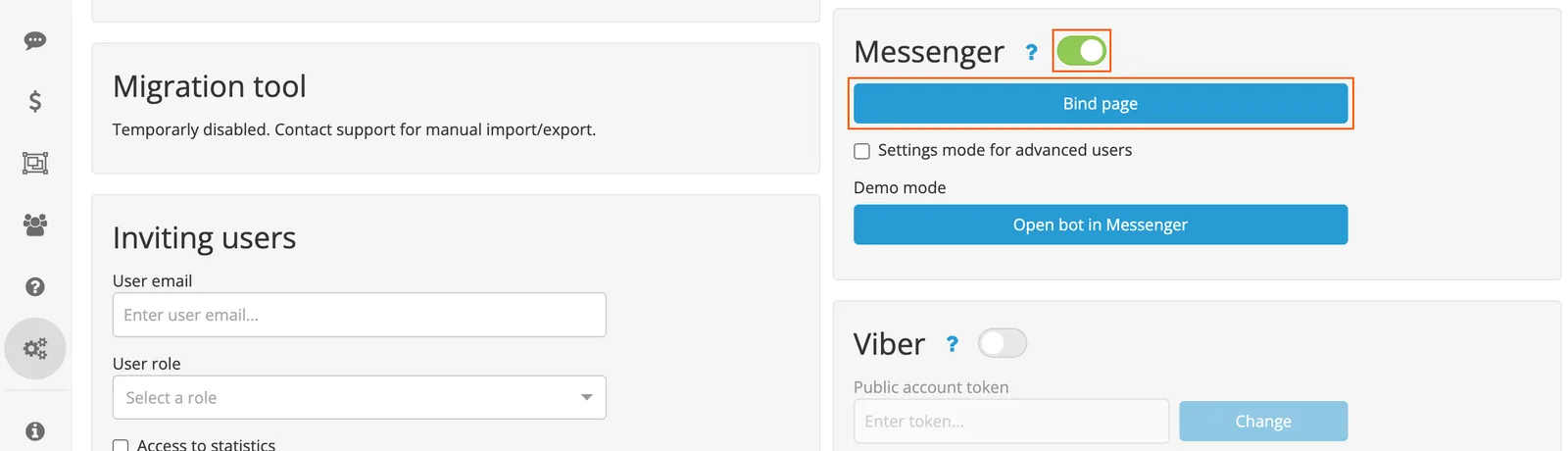
2. Click the "Bind FB" button.

3. Log in to Facebook. Click the "Continue" button.
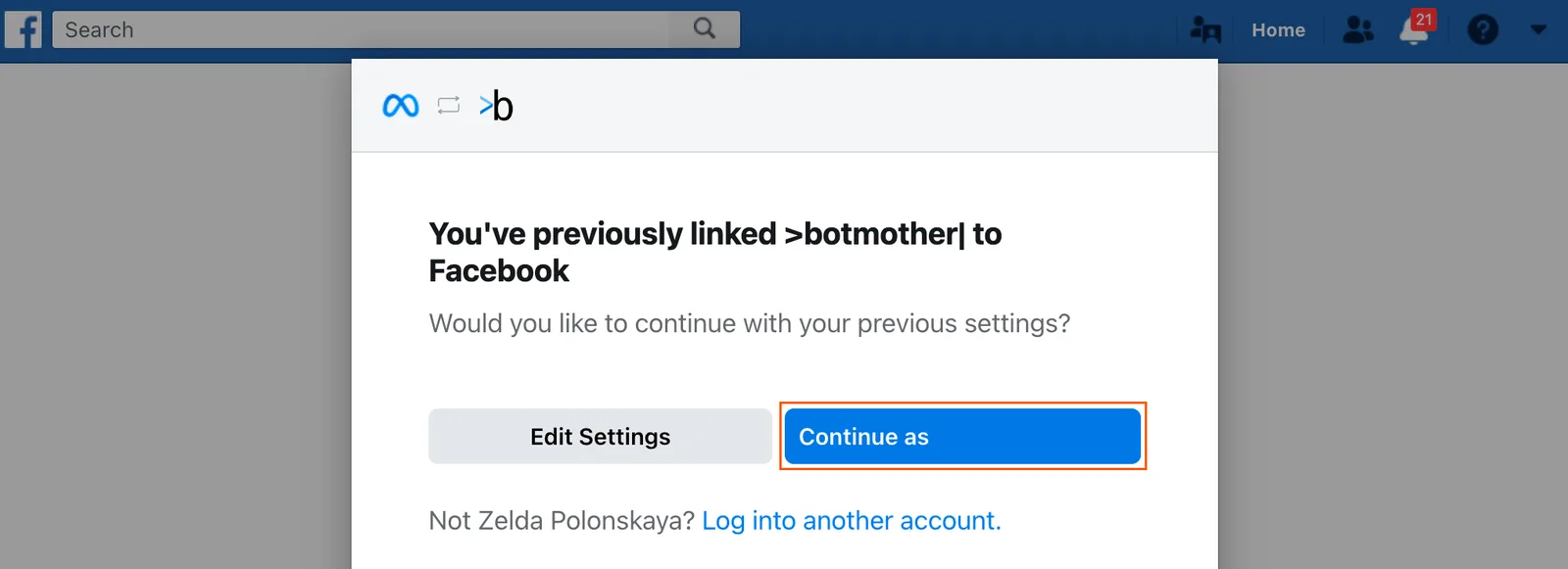
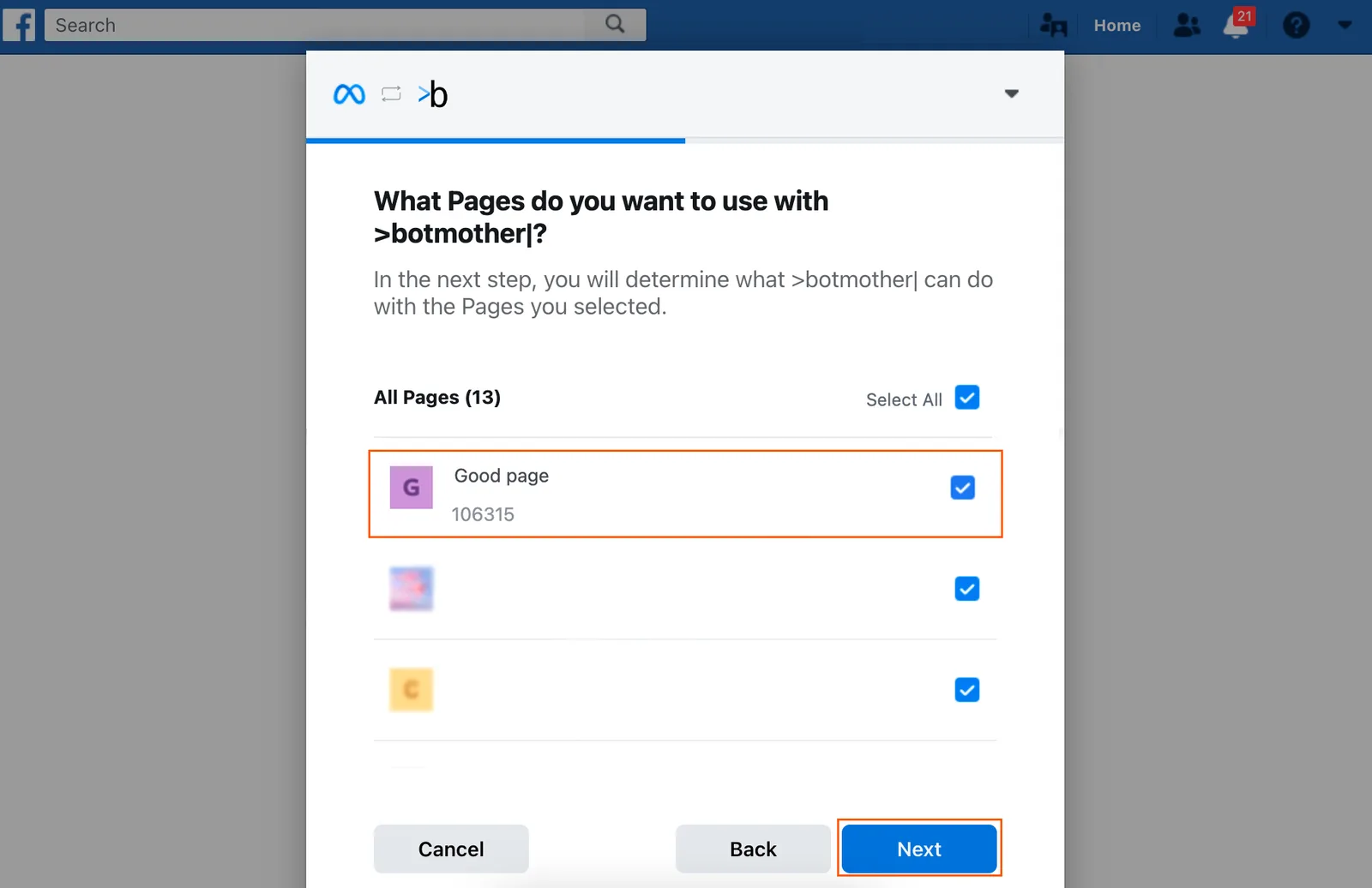
4. Please give permission to view all pages. In this case, when creating new pages in your account, we will automatically get access to them, and you can immediately connect the new page to your bot.
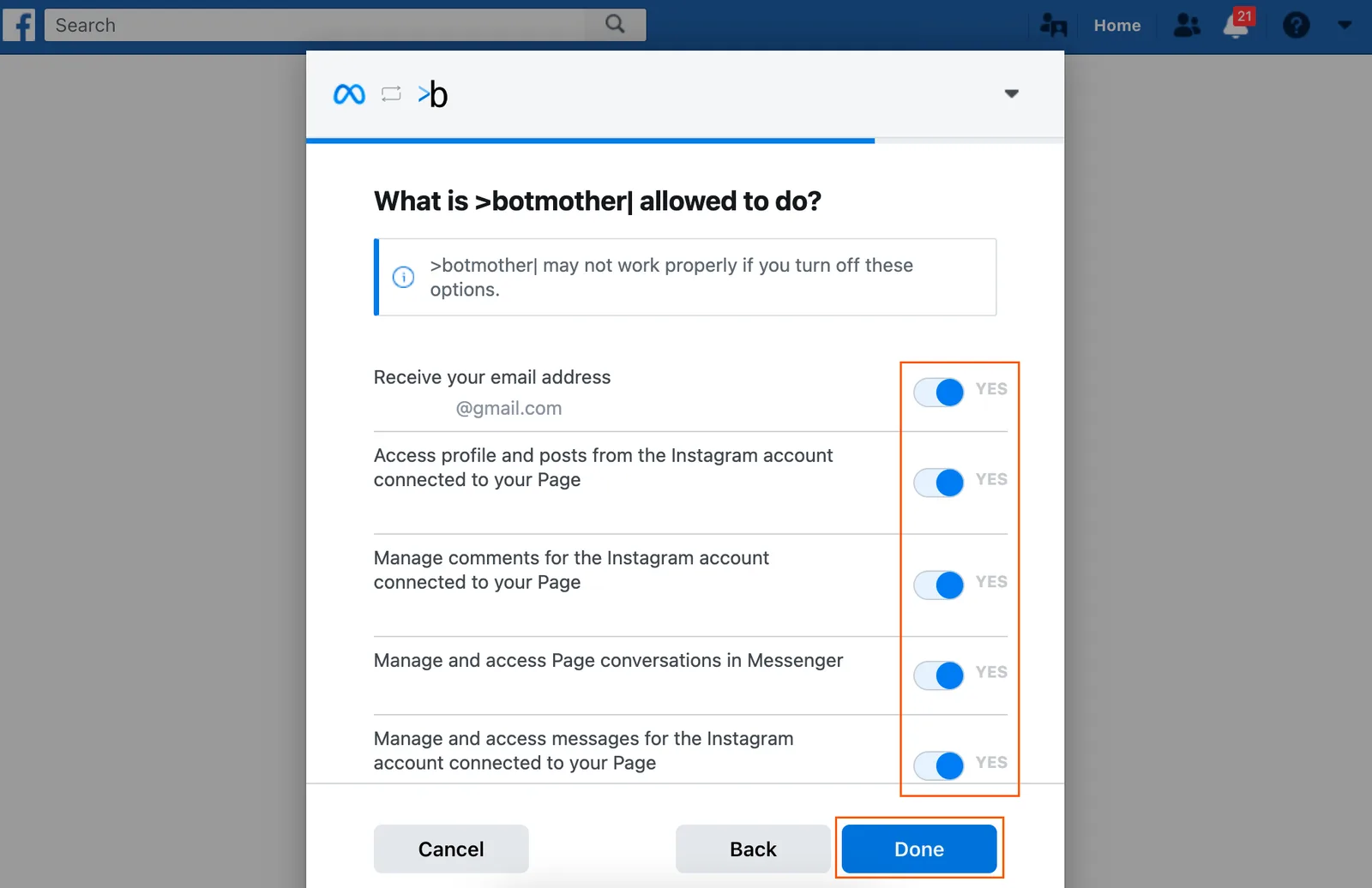
5. Keep all permissions. This is necessary to successfully connect the bot to the page. Click the "Done" button.
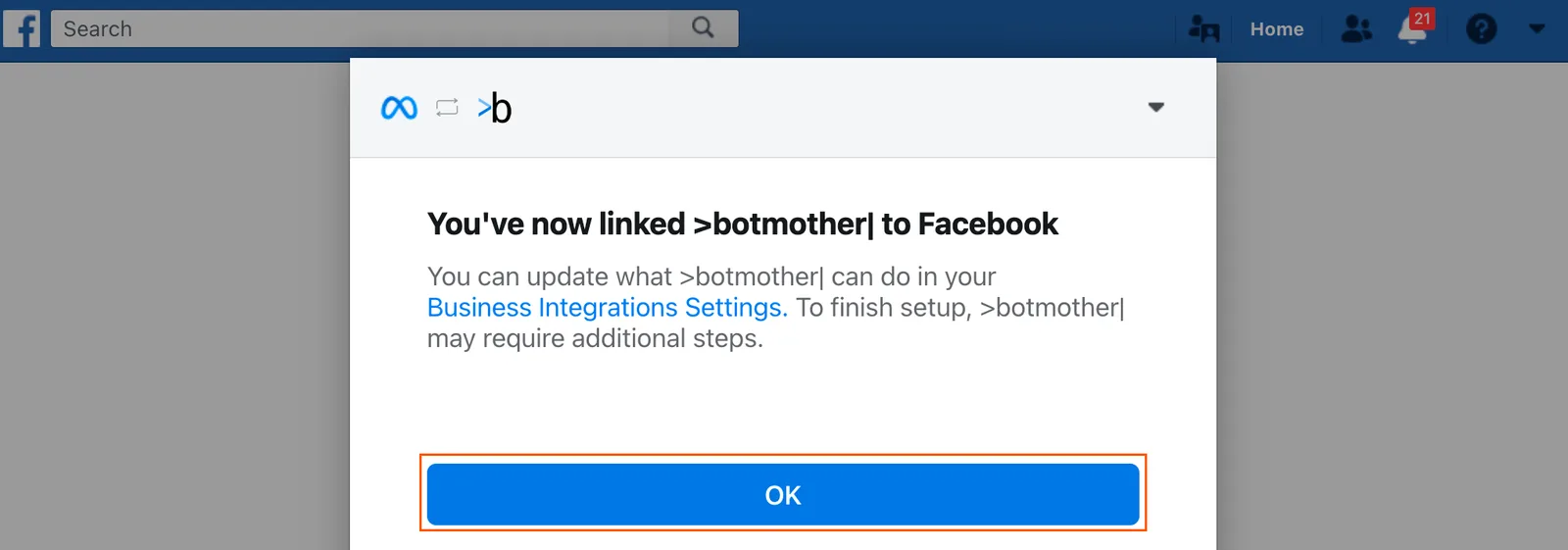
6. Click the "OK" button to proceed to the bot connection.
7. Select the page you want to connect to the bot.

8. Done — the bot is binded. Be sure to save changes.