Usedesk Connection
You cannot send broadcasts or create Deeplinks on the Usedesk platform
Text formatting is not supported on the Usedesk platform
1. Open Usedesk and go to the Channels section.
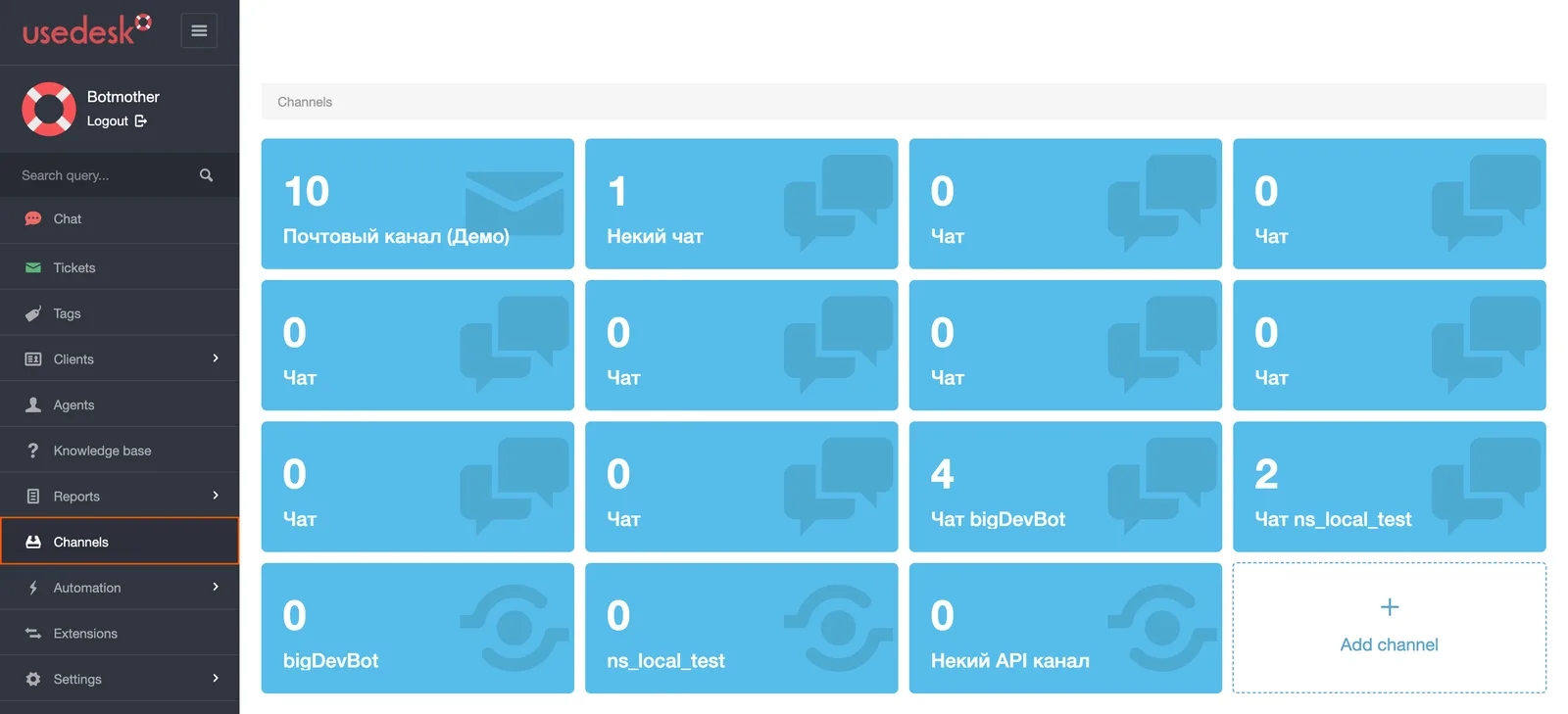
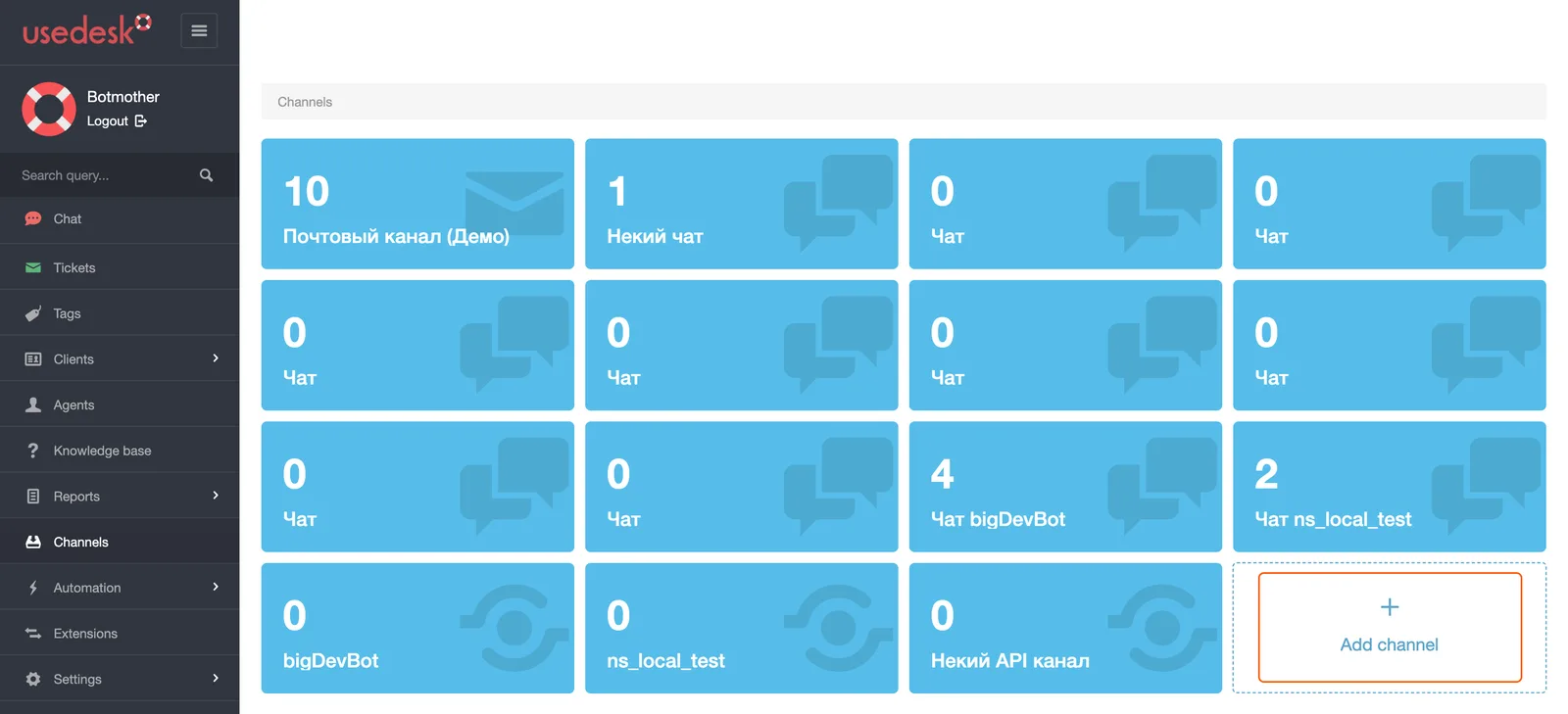
2. Click on + Add Channel.
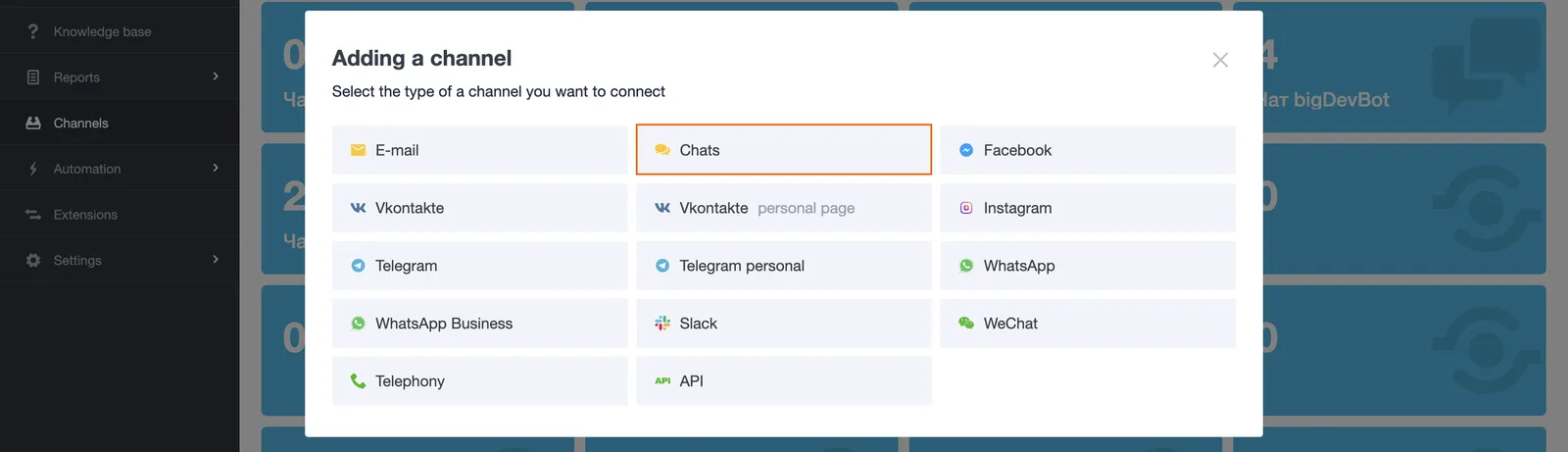
3. Then select Chat in the opened window.
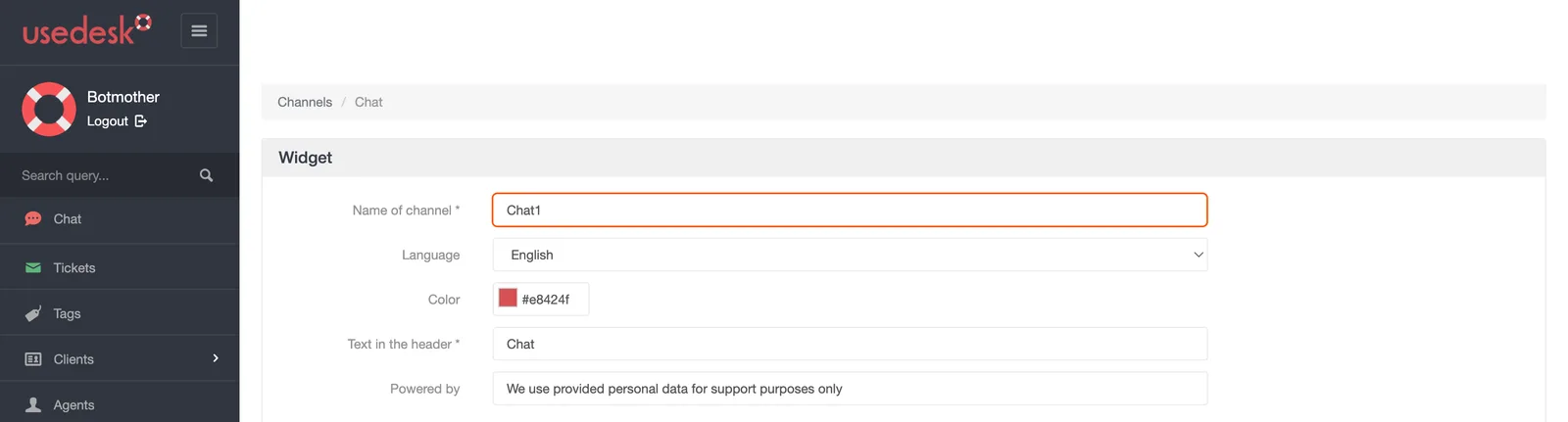
4. Give your chat a name in the Name of channel field.
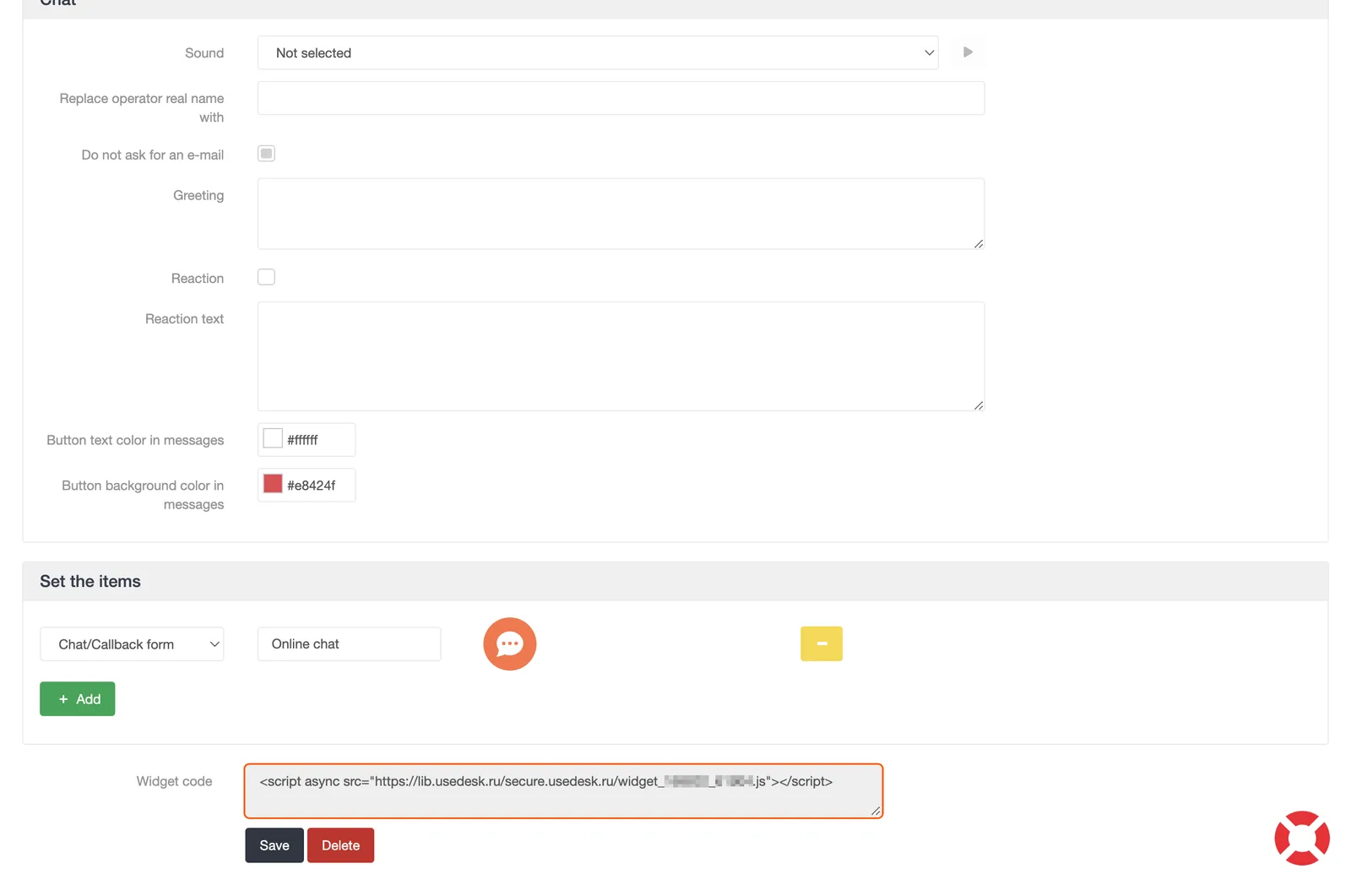
5. Scroll to the end of the section, copy the Widget Code and save. The widget will be displayed on your site after you add the widget code to your site settings.
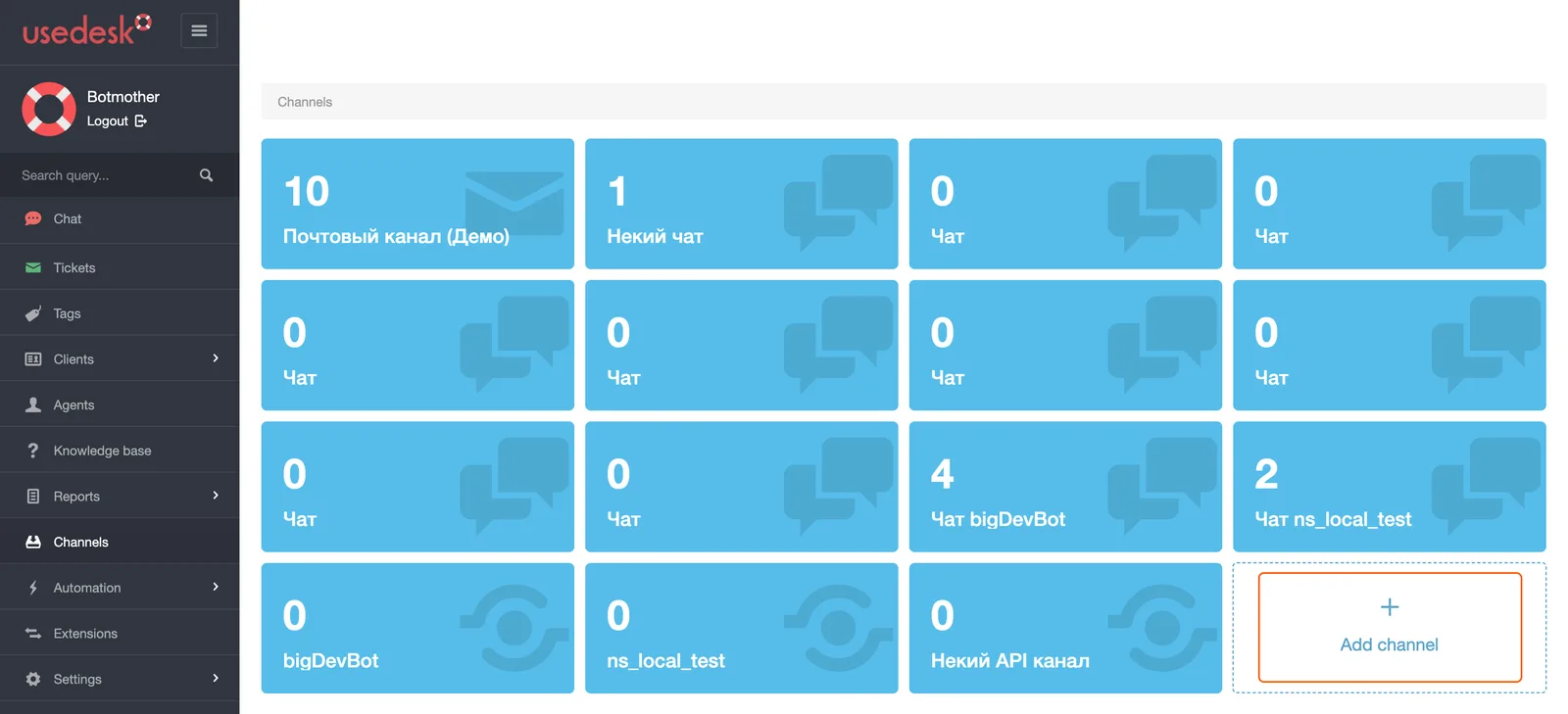
6. Go back to the Channels section and click + Add channel again.
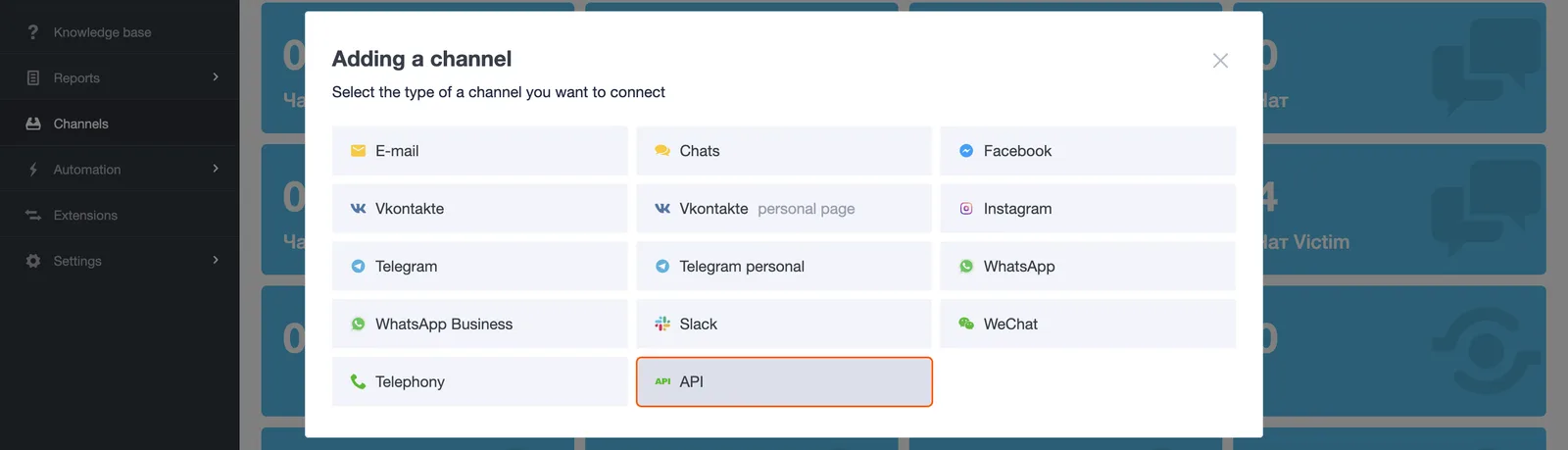
7. Select API.
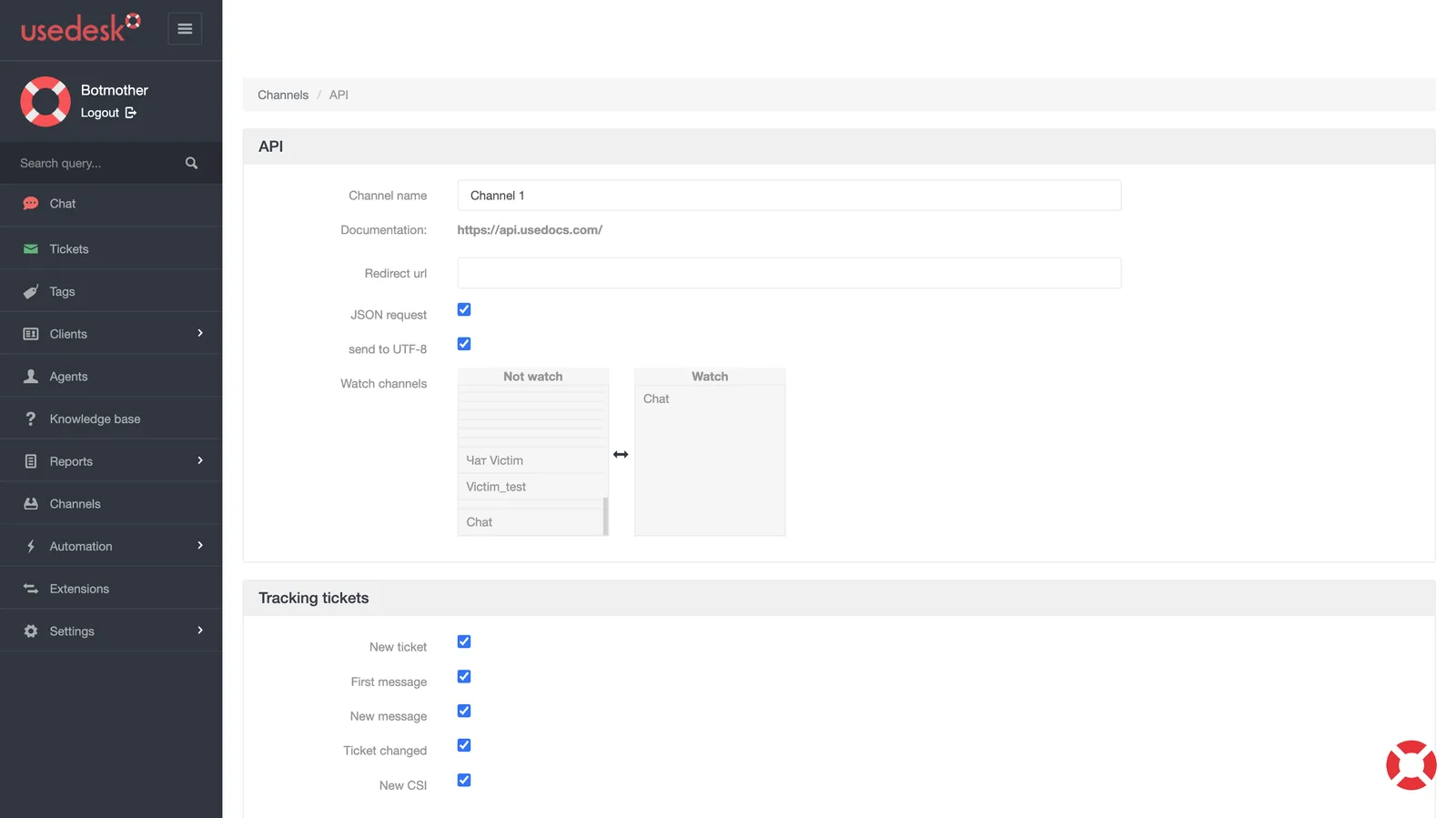
8. Give your channel a name.
9. Check all the boxes in the API, Tracking tickets, and Tracking сhats sections.
10. In the Tracking channels field, from the Do not track section, select the desired chat name and click on it. After that, the name should move to the Track section.
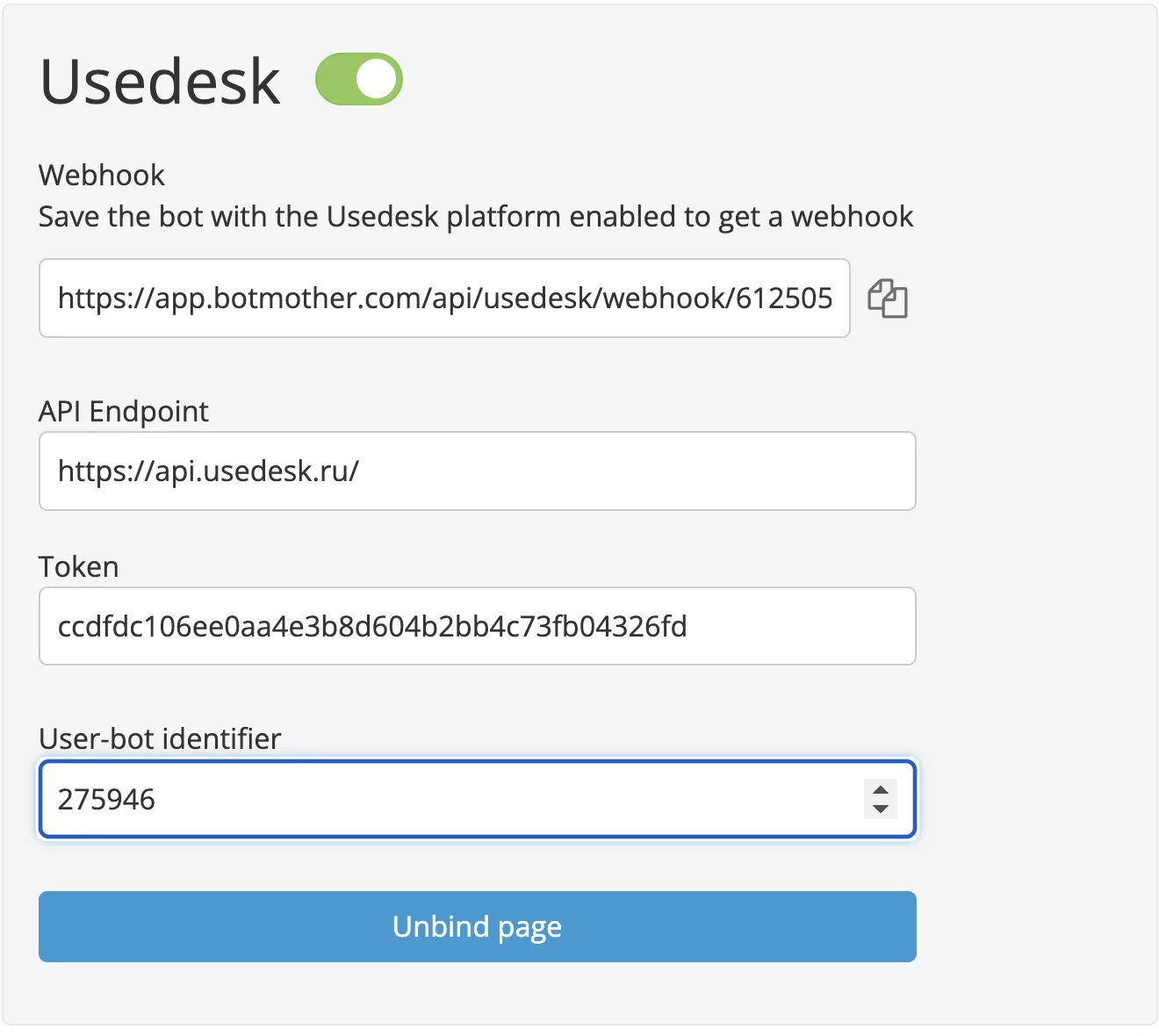
11. Go to the Botmother settings, scroll down to the Usedesk platform, turn on the platform and save.
12. Copy the webhook that appears after saving.
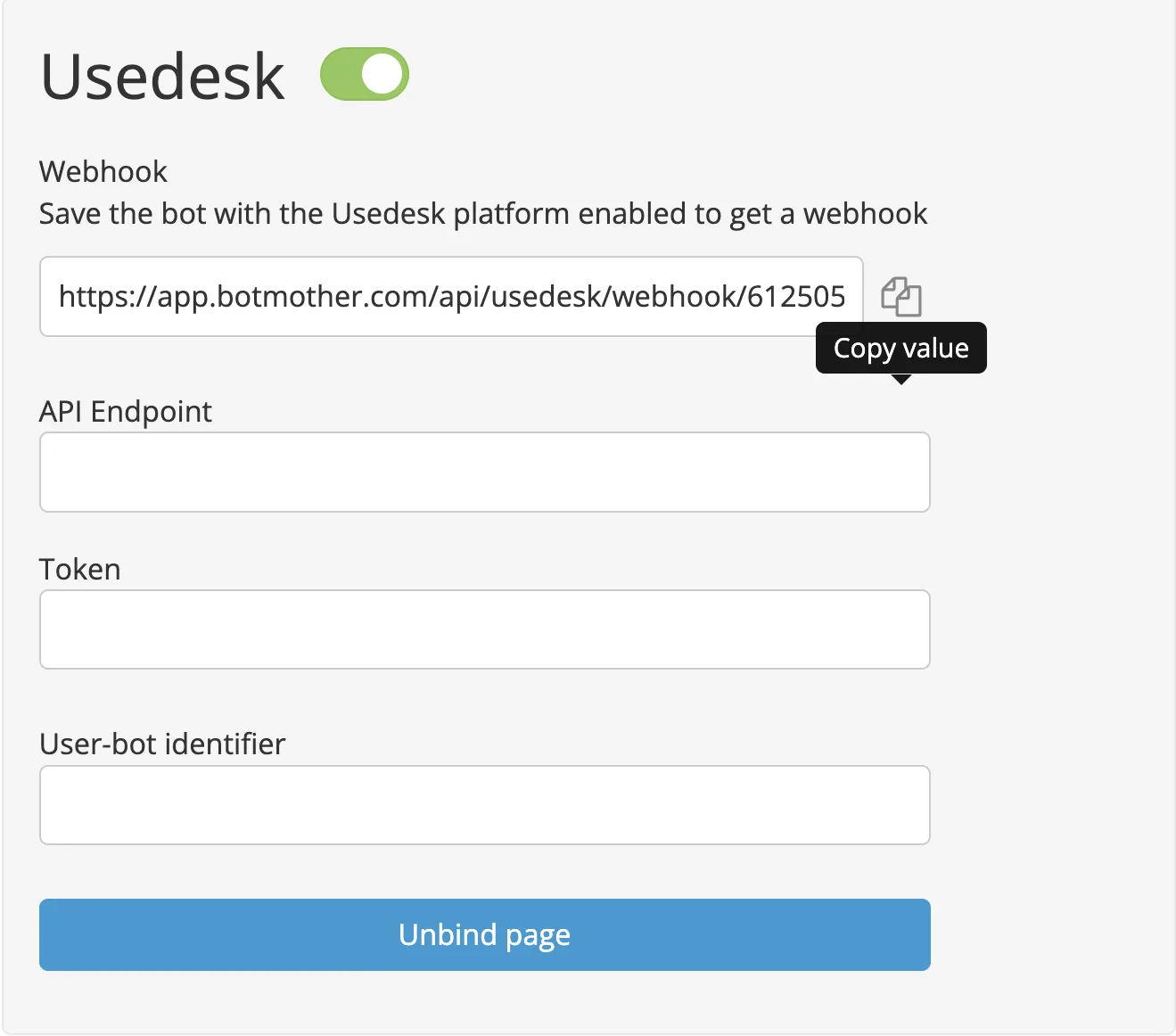
13. Go back to the channel settings and paste the webhook into the Redirect url field.
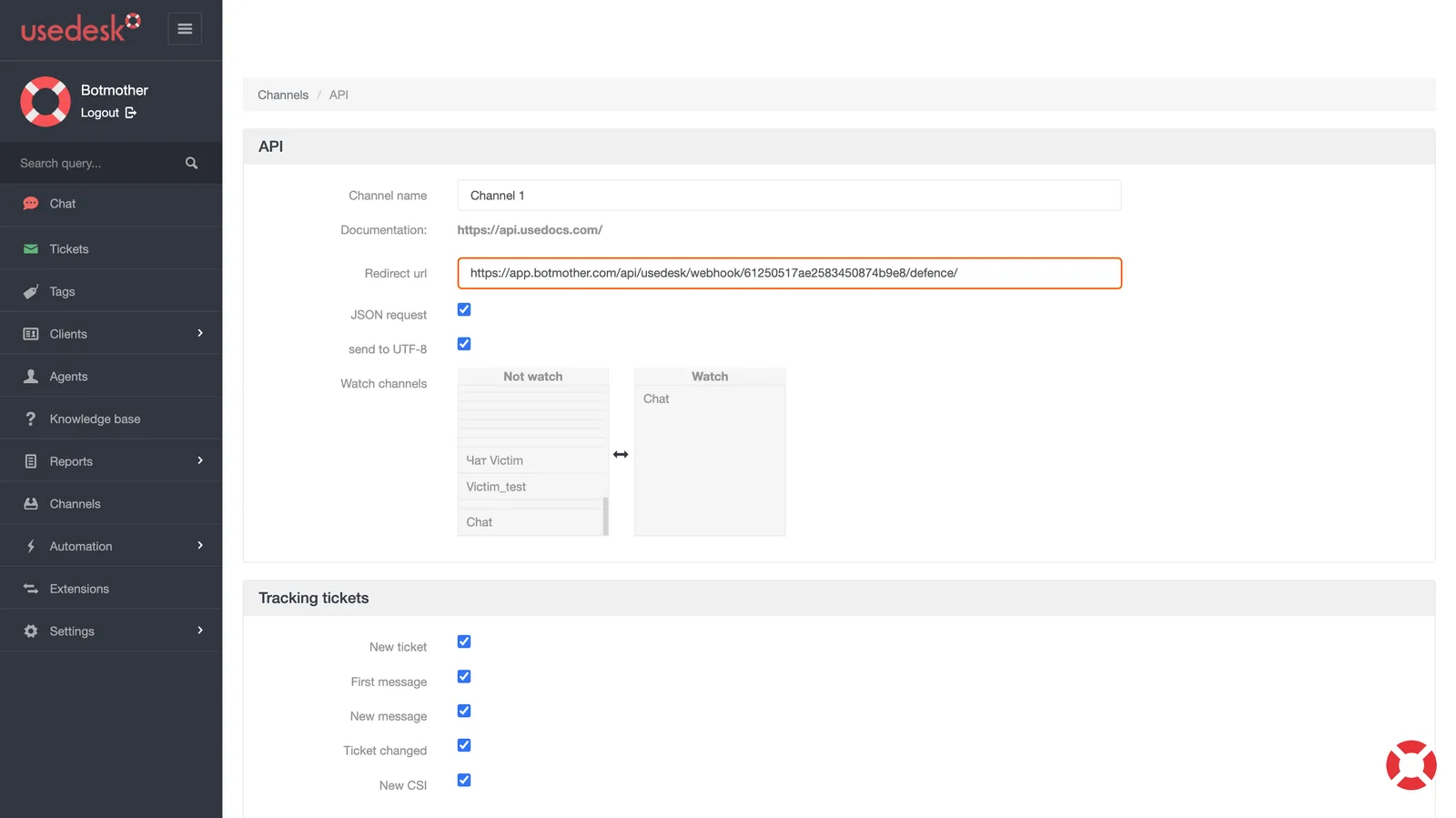
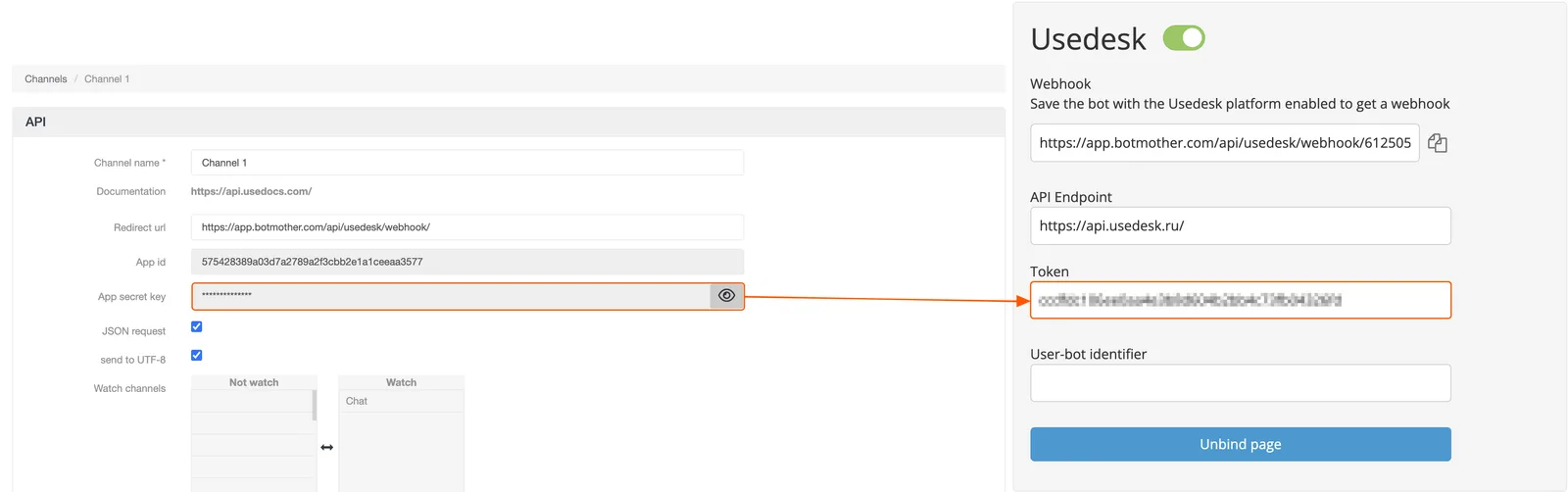
14. Save the changes in Usedesk. After that, new fields will appear that need to be pasted into the Botmother settings:
- from the Usedesk settings, copy the value of the Secret key field and paste it into the Botmother settings in the Token field.
- In the Path to the API field of the Botmother settings, add
https://api.usedesk.ru/
If you have your own Usedesk domain, then check with the manager your path to the API.
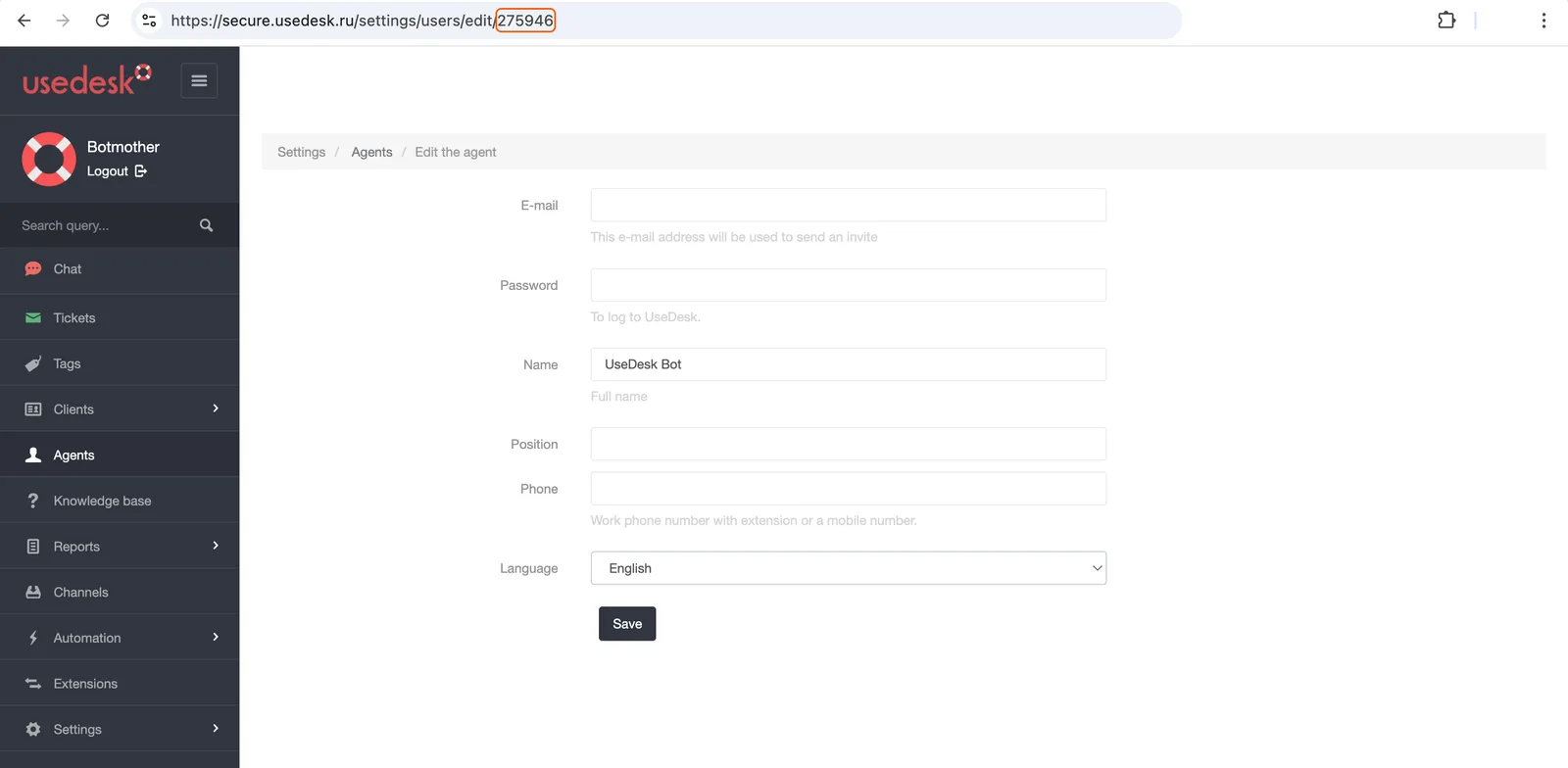
15. To get the last parameter of the Bot User ID, go to the Agents section (Bot tab) and click on the pencil icon.
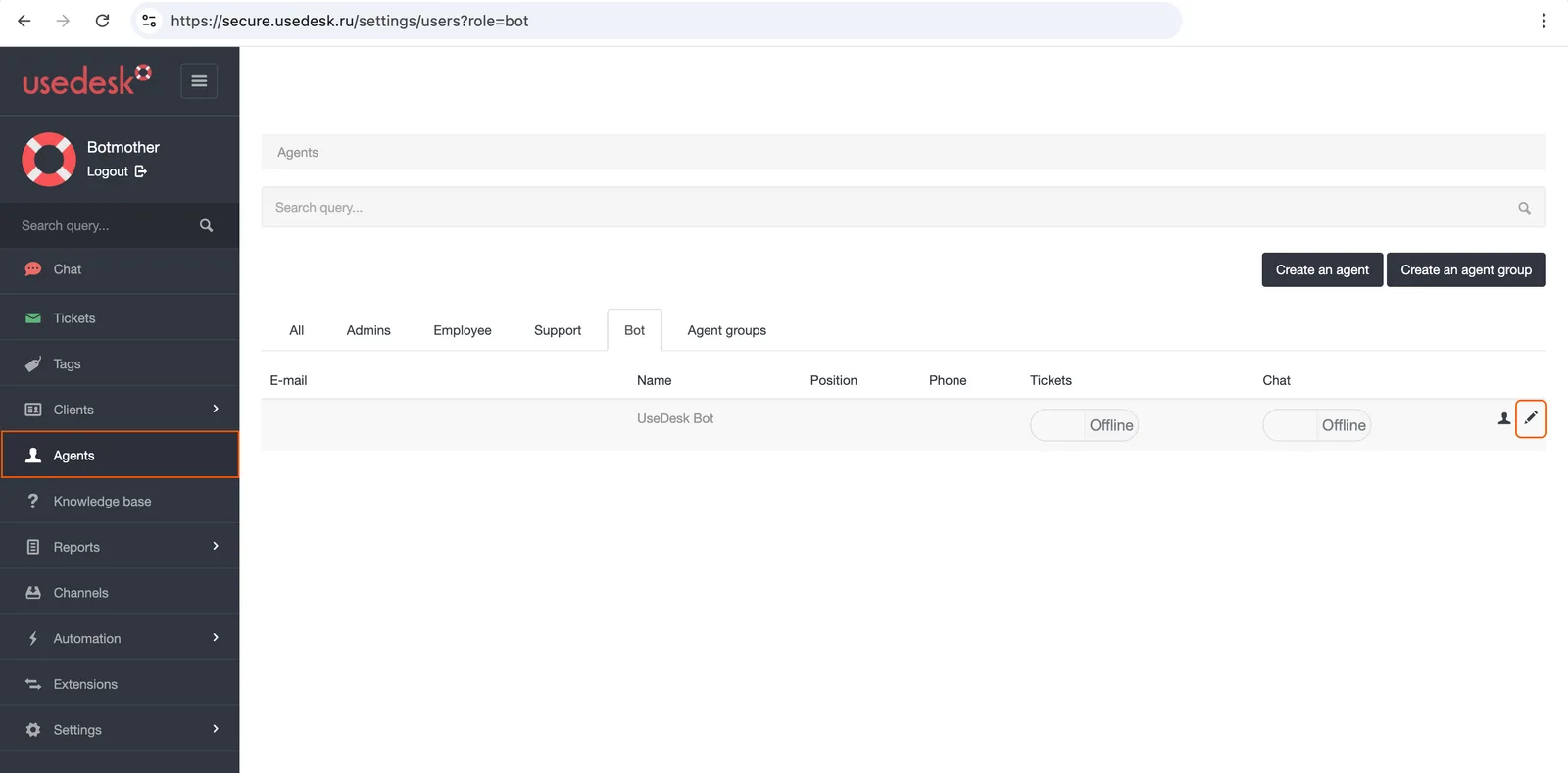
16. Copy the number from the end of the address bar.
Done. You can test the platform by writing to the chat via a widget on your website. If everything is done correctly, you will receive a message from the bot in the same chat.
It is impossible to open the bot from the Botmother settings, since the widget can be connected to any site on any page.