Global variables
Global variables are set and edited for all bot users at once.
This will be useful if some value is indicated on several screens at the same time in the bot, for example, the price, and this price needs to be changed.
If the price was previously recorded in a global variable and displayed in the text as, for example, {{global.price}}, its value can be changed in the global variables settings. After saving the changes, the bot will issue a new value from the variable to all users.
Global variables are convenient to use for storing request addresses or tokens. When changing the data, it is enough to make edits in the Global Variables settings, and the new values will come automatically.
The variable name is compiled according to the rules of creating a regular variable.
In order for global variables to work, a local variable named global should not be used anywhere in the bot.
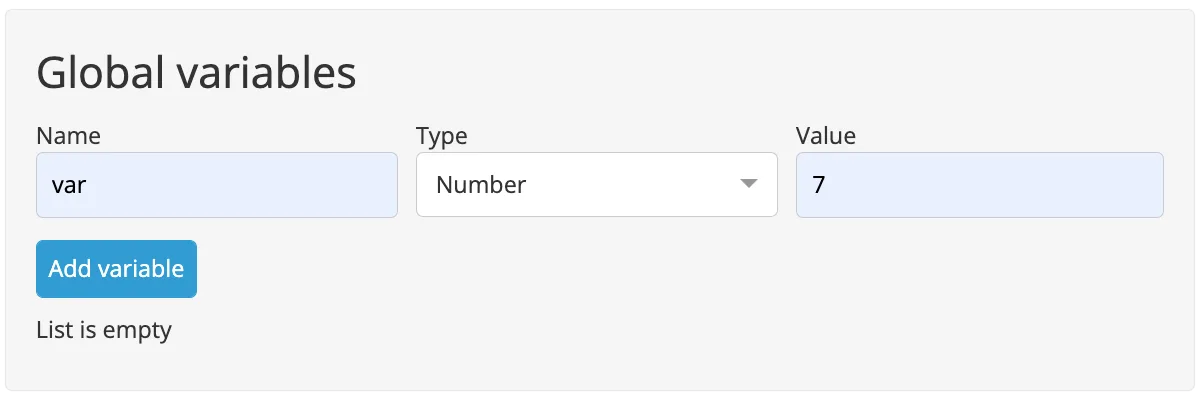
To create a new Global Variable, go to Settings ➝ Global Variables, name your variable in Name field, select the Type of variable and set its Value. Then click Add Variable button.
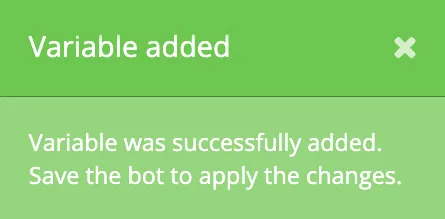
If the variable was created successfully, a message about it will appear in the upper right corner of the screen.
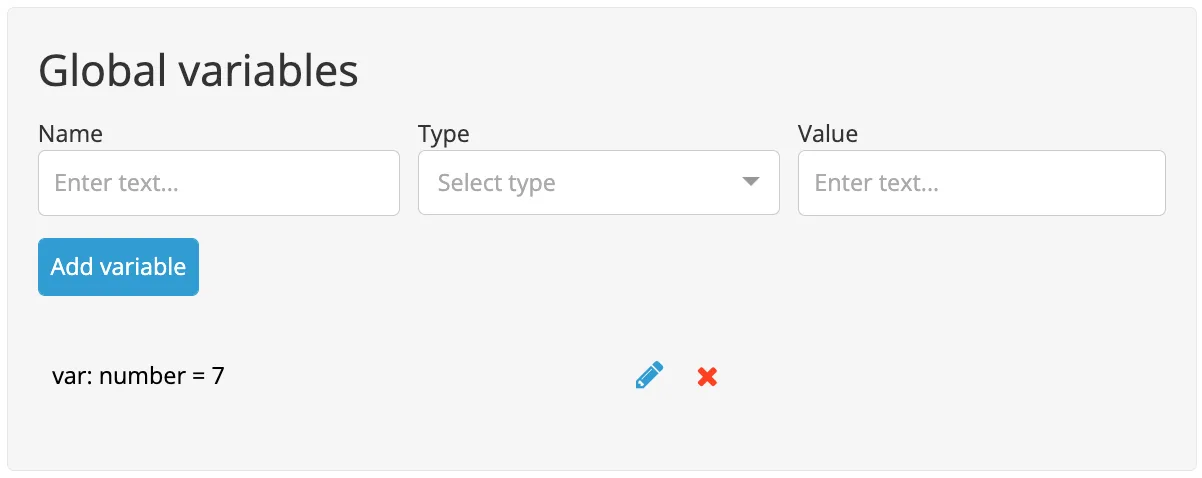
The created variable will appear in the list below. You can add up to 100 variables to this list.
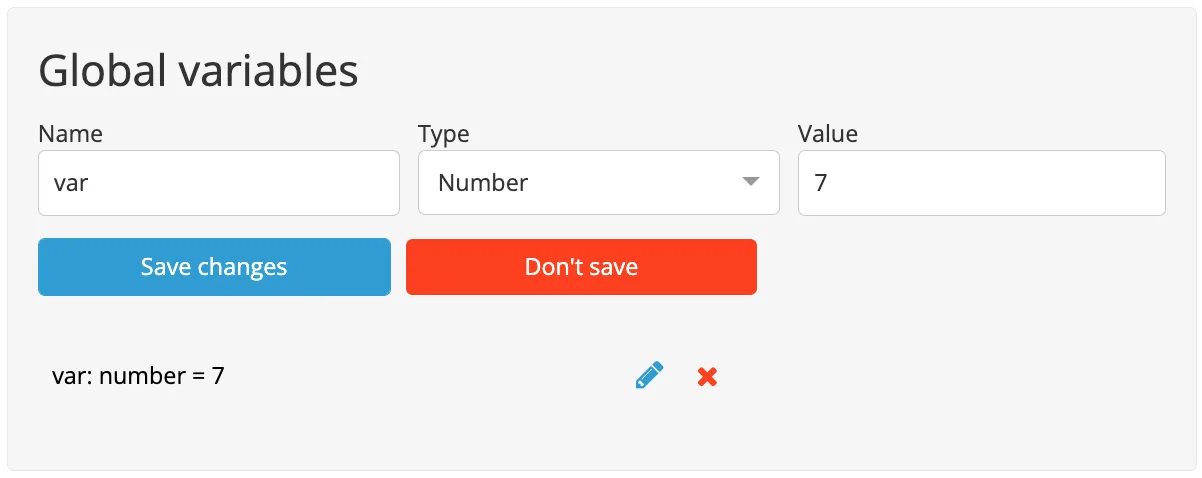
The variable can be edited or deleted.
After editing the variable, click Save Changes.
If the variable is changed successfully, a message about it will appear in the upper right corner of the screen.
Global variables are created and displayed only in the Settings in Global Variables section. They do not get into Users, and the user will not be able to set a value for such a variable, as he does it with ordinary variables.
The global variable can be output to the text using the template {{global.var}}, where var is the name of the variable.
Important! After creating or editing a variable, make a general save of the builder using Save button in the lower right corner. Only then will the changes take effect.To the beginning ↑