Fork
The Fork component determines where to redirect the user or which message to display, depending on the data received from the user.
- Interaction of Fork and Buttons with hints →
- Checking the variable value →
- How to check a variable without a value in Fork →
- Writing a variable →
- How to check a segment in the Fork component →
- How to accept a file or image from a user →
- Setting up a permanent menu from the buttons under the input line →
- How to extract an email from a user message →
You can see how to configure the interaction Buttons with hints and Fork in the video tutorial:
Files from users (images, documents, etc.) recorded by user Input fall into the variables of a specific user (Users section), are stored for 7 days, then disappear beyond recovery. If you need access to the files received in the bot for a period of more than 7 days, then all files must be saved on your device.
The pdf and docx files uploaded via Viber are downloaded without an extension. To open the file, you need to add the extension (.pdf, .docx) manually after downloading.
Interaction of Fork and Buttons with hints
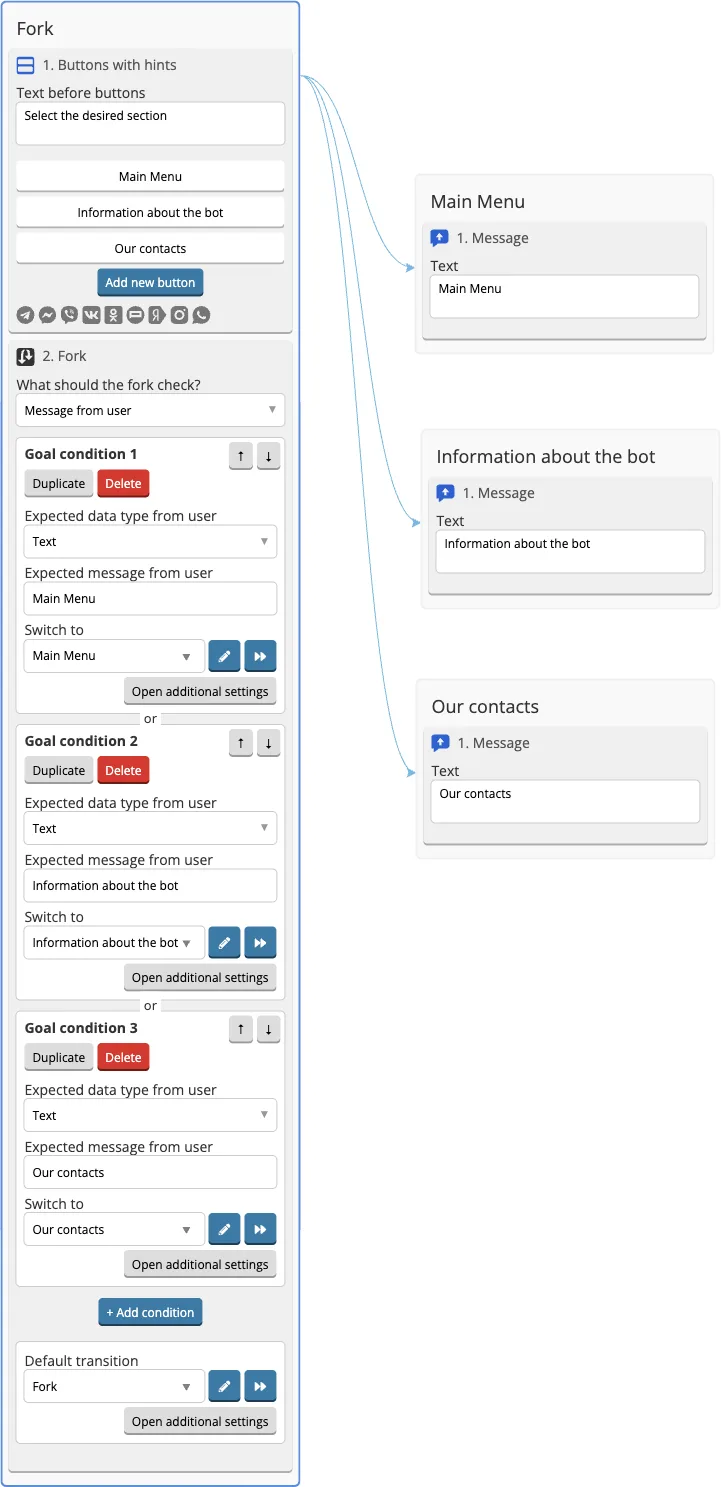
The Buttons with hints show the user several buttons. When the user clicks on the button, its contents (text, emoticons, phone number) are sent to the chat. The fork can catch this input.
In the example, Fork will direct the user to the screen depending on the button they selected. If the user writes something himself, the default goal will return him to the same (previous) screen.
Checking the variable value
Sometimes you need to check the value of a specific variable. For example, when opening access to certain bot blocks.
To do this, you need to specify a variable in Name of variable wich will be used for saving input data field and add goals for possible values.
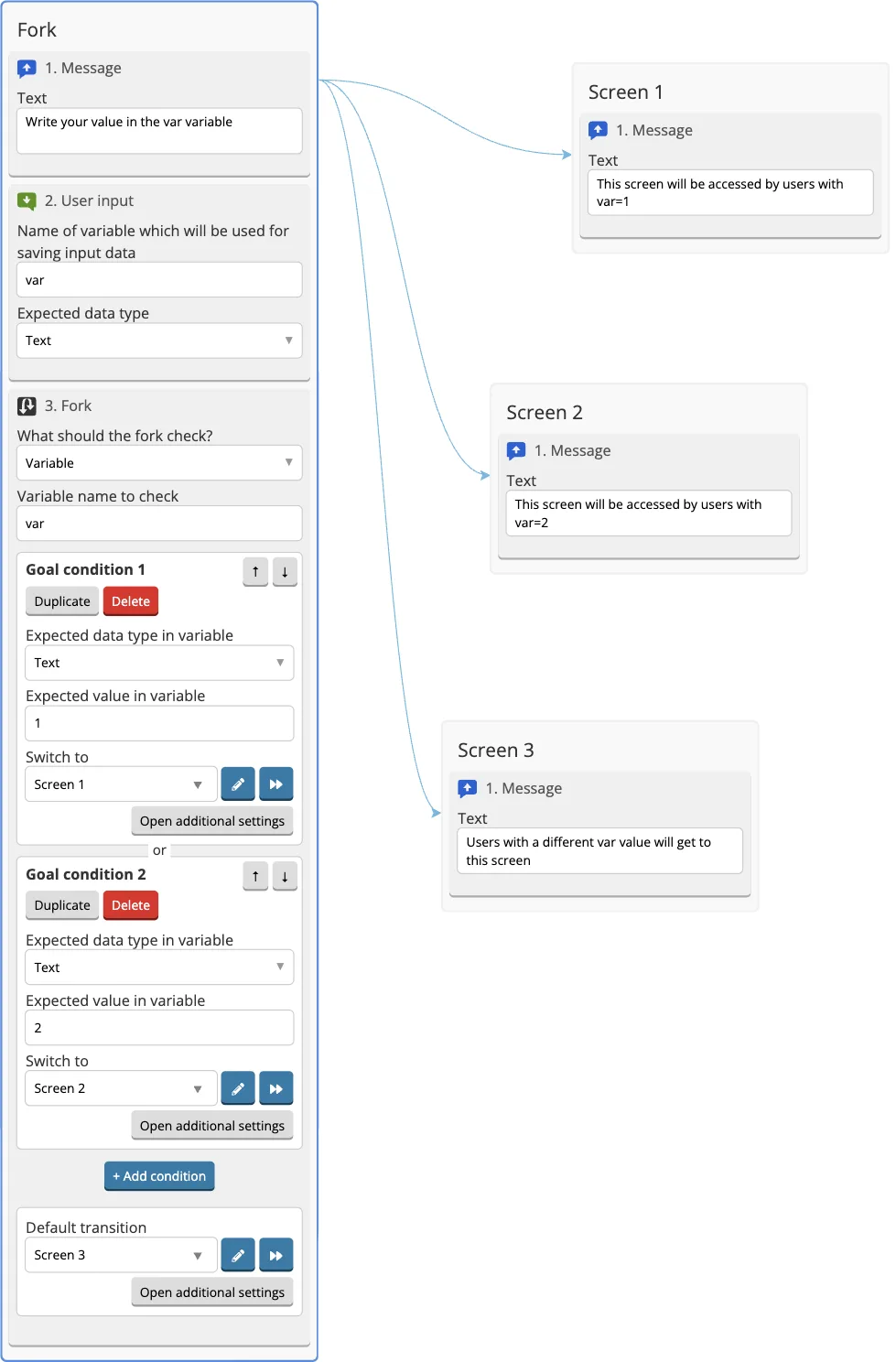
If the user does not have a verifiable variable, then he will be stuck in Fork. To avoid this, before Fork, you need to set the Assign a variable component and write the value {{var}} to the var variable.
How to check a variable without a value in Fork
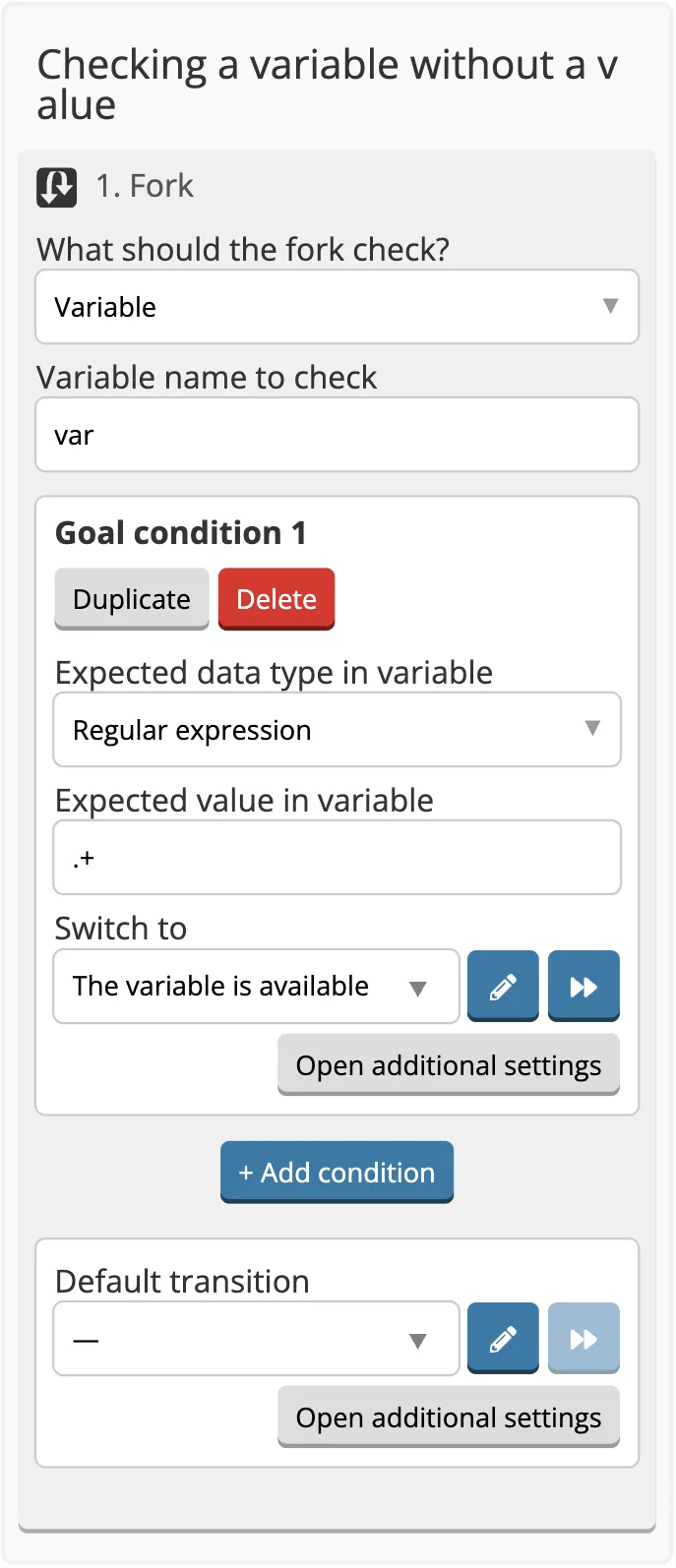
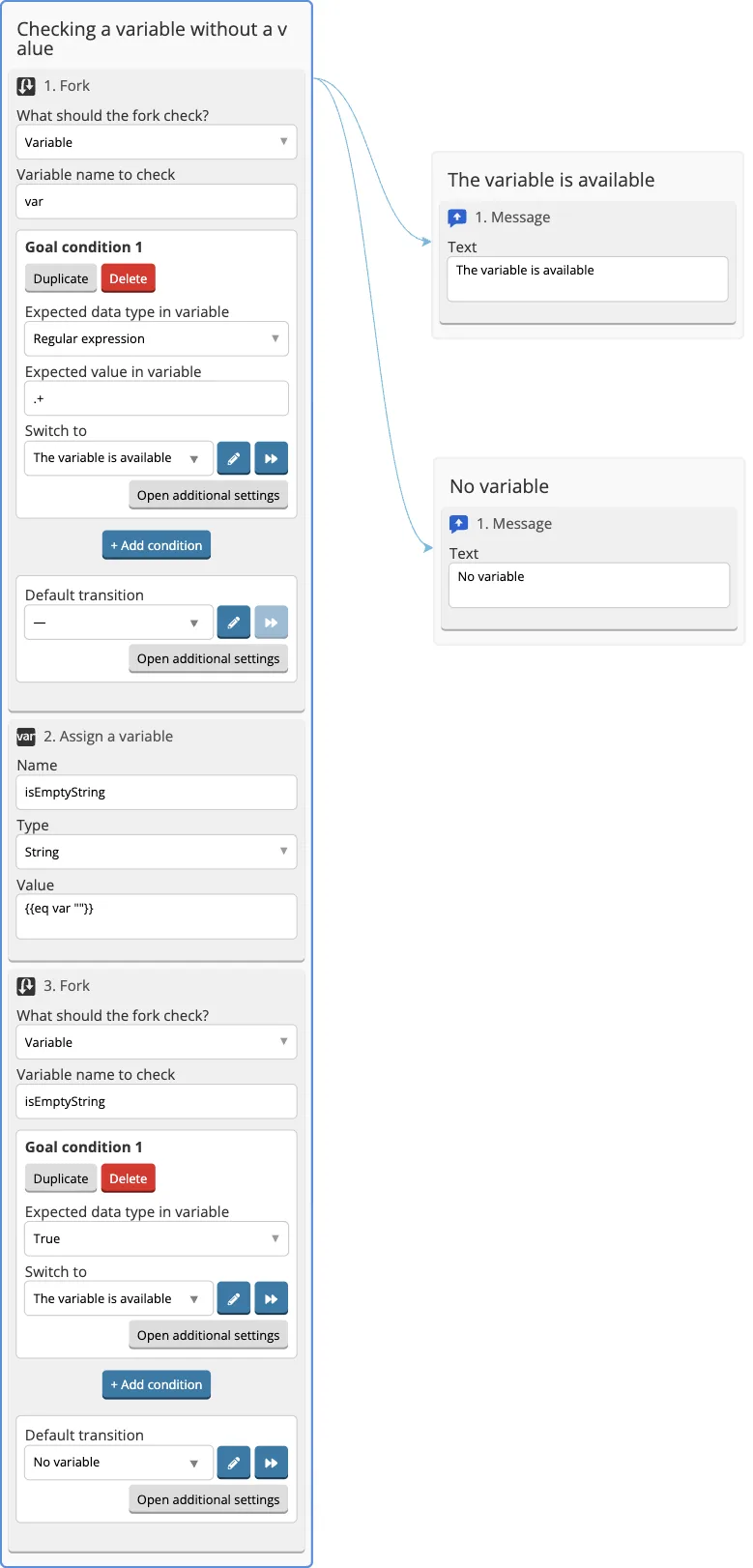
1. Add a Fork that checks the variable by a regular expression for any input:
.+
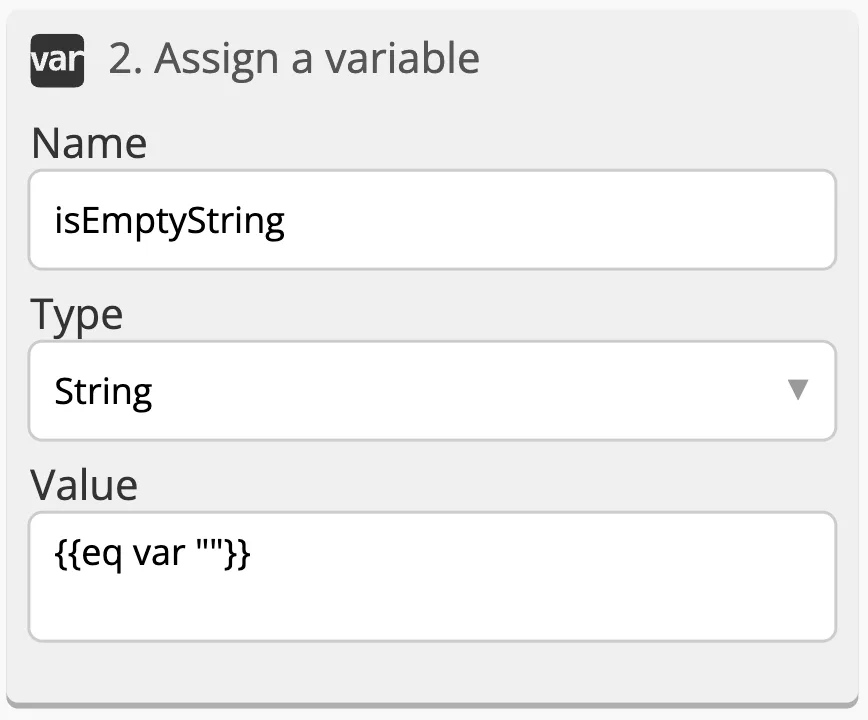
2. This fork won’t work only if there is an empty string in the variable, so after Default Goal, we put Variable Entry and write a check to another variable to see if the variable is equal to the empty string. To do this, add a helper to the value:
{{eq var ""}}
where var is our variable
If the variable is empty, then true will be written, if not, then false.
3. Add the second Fork, where we check the previously recorded variable and add a goal to true, which leads to the screen for those users who have an empty string in the variable.
Otherwise, it is the default goal that leads to the screen for users who do not have a variable.
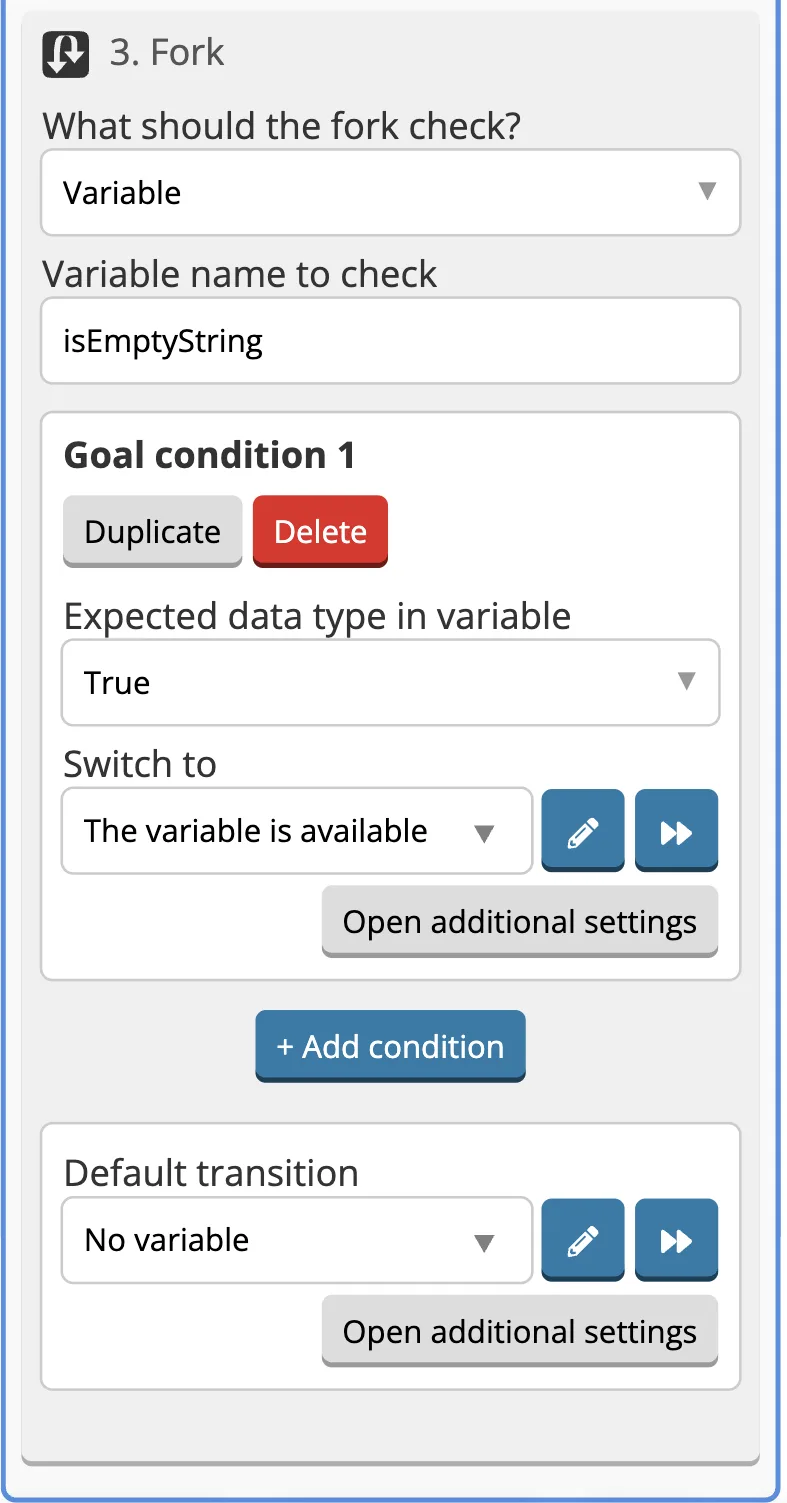
4. Now all you have to do is to add screens for the transition. It doesn’t matter if there is a variable or not.
Writing a variable
Files from users (images, documents, etc.) recorded with Fork, fall into the variables of a specific user (Users section), are stored for 7 days, then disappear beyond recovery. If you need access to the files received in the bot for a period of more than 7 days, then all files must be saved on your device.
Using a Fork, you can write a variable before transferring to another screen.
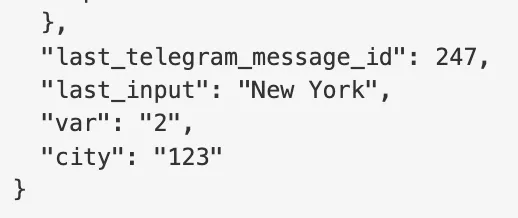
To write the name of the button or the text from the user to a variable, it is enough to specify the Variable name. Everything what the user sent will be written in it, if the condition of this goal matches.

The selected button was recorded in variables.
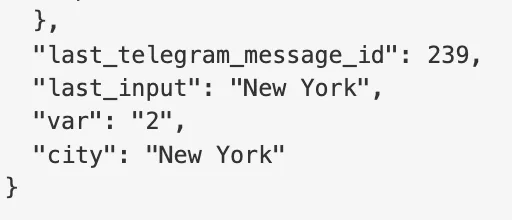
To write the variable value that will differ from the value that the user input should match, you need to enter the value in New Value field.
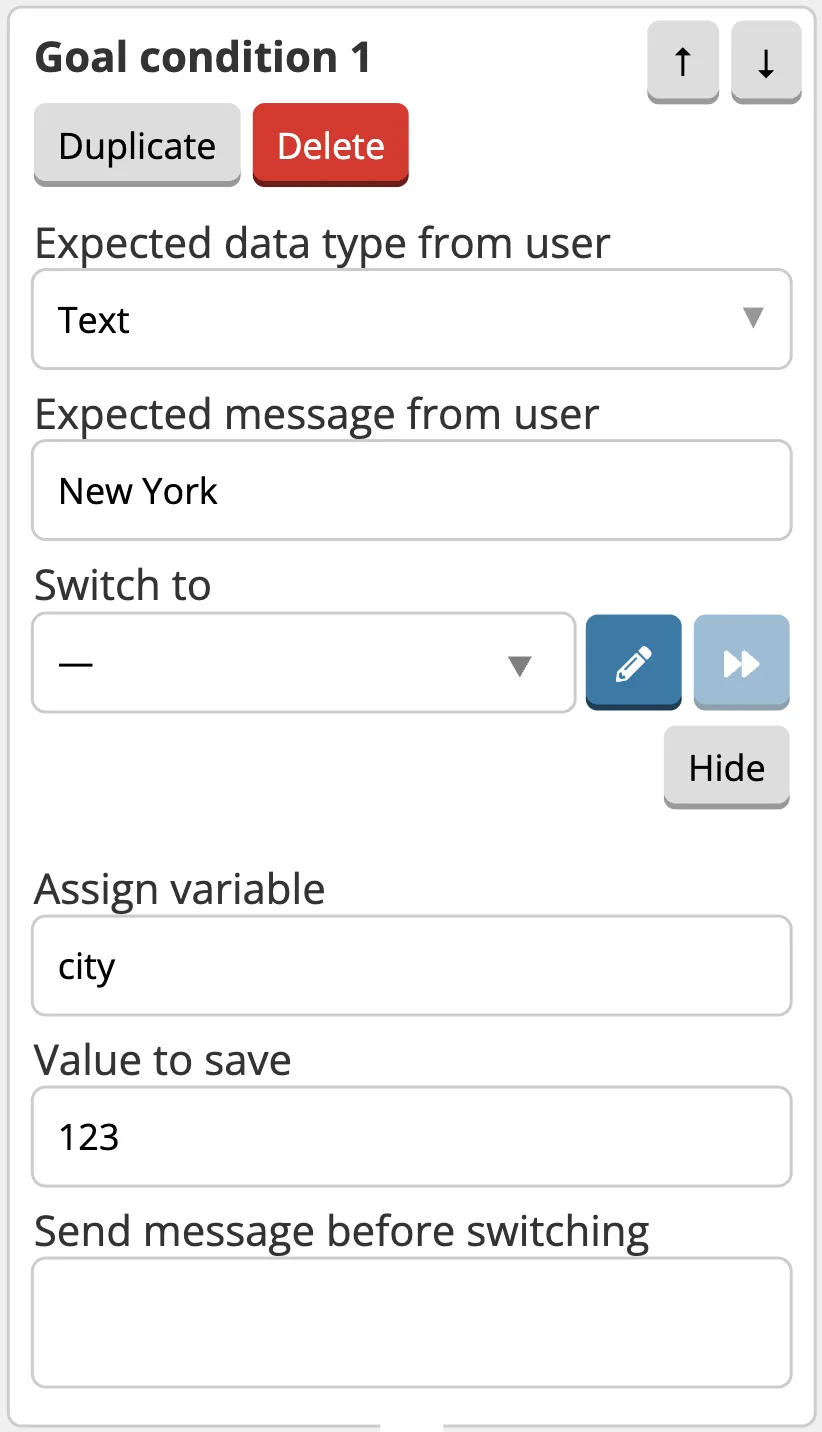
Now the variable has the value set in the Fork settings.
How to check a segment in the Fork component
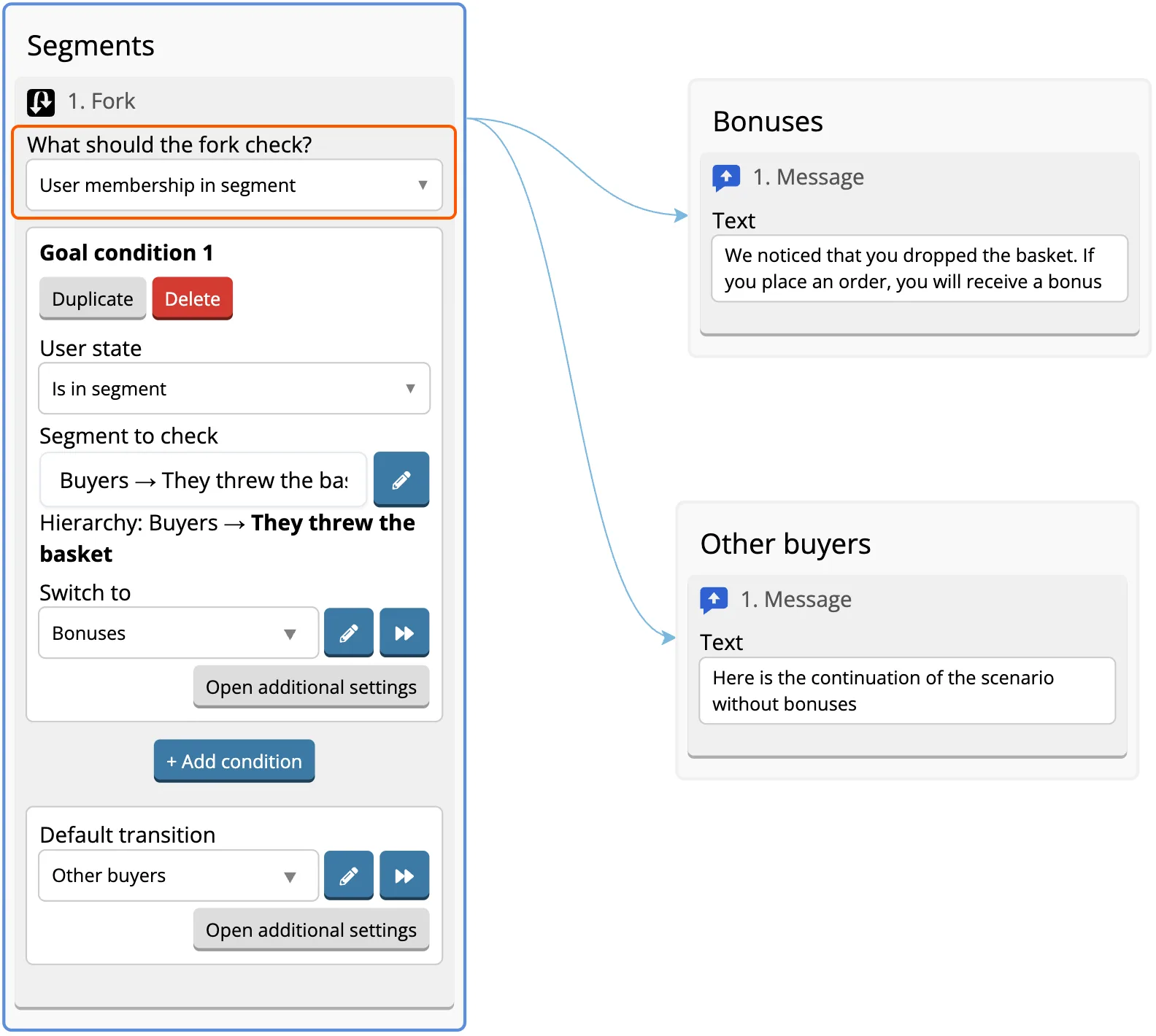
Sometimes you need to check whether a user belongs to a specific segment. For example, to grant access to certain bot screens only to users in the VIP segment, or to show a special offer to users who haven’t made a purchase yet.
To do this, the Fork component can check whether a user is in a segment and route them to the appropriate screen.
Setup
1. Set up Segments following the instructions →
2. Add a Fork component to the screen.
3. In the What shoud the fork check? field, open the dropdown and select User membership in segment.
4. In the User state field, choose the required option:
- is in the segment
- is not in the segment
5. In the Segment to check field, select the required segment from the dropdown. You can choose either a parent or a child segment.
If you check a parent segment, the condition will apply to all users in that segment, including users in its child segments.
For example, there is a parent segment Buyers and child segments:
- Purchased shoes
- Purchased clothing
- Abandoned cart
- Repeat purchase
When checking the Buyers segment with the condition s in segment, the check will pass for users who are in:
- Buyers
- Buyers → Purchased clothing
- Buyers → Purchased shoes
- Buyers → Abandoned cart
- Buyers → Repeat purchase
In other words, checking a parent segment automatically includes all nested child segments.
5. In the Switch to field, select the screen the user should go to if the condition is met.
For example, if the condition is in segment and the segment is Buyers → Abandoned cart, then all users in this segment will be routed to the selected screen.
6. If needed, add an additional branch for users who do not match the condition.
For example:
- users in Buyers → Abandoned cartgo to a screen with a special offer
- other users continue through the scenario, skipping the bonus information
How to accept a file or image from a user
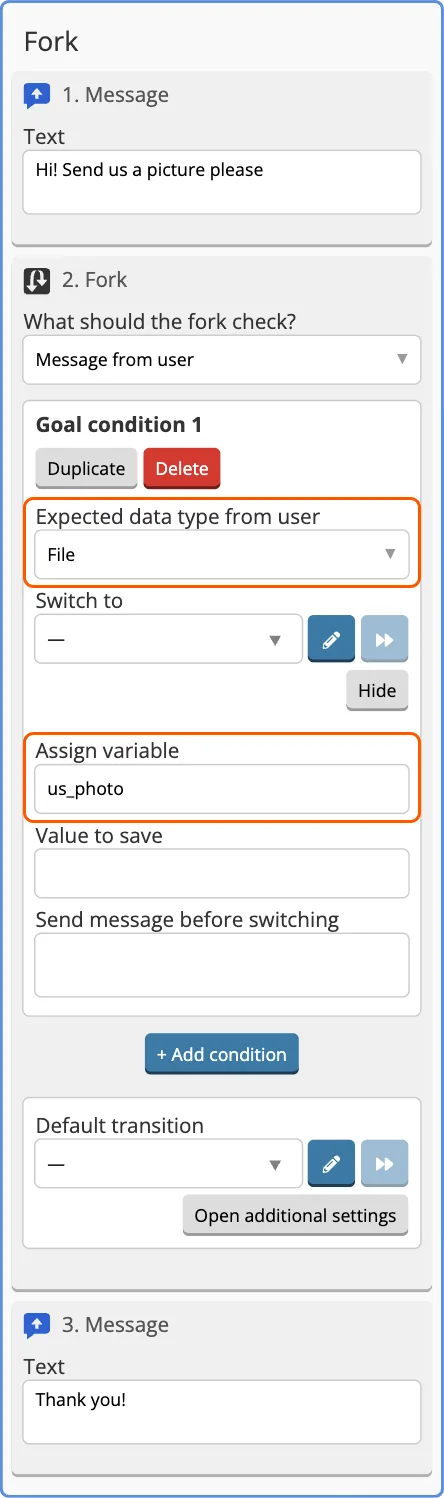
Any file or image can be accepted by selecting File in the data type and setting the variable name in the Fork Target settings. Expand button opens all the Goal settings.
The file will get into the user variable in the form of a link, which you will need to copy, paste into the browser line and press Enter. After that, the file download will begin.
The file will also get into a Dialogue with this user in the form of an active link. If you click on this link, the download of the file will begin.
Setting up a permanent menu from the buttons under the input line
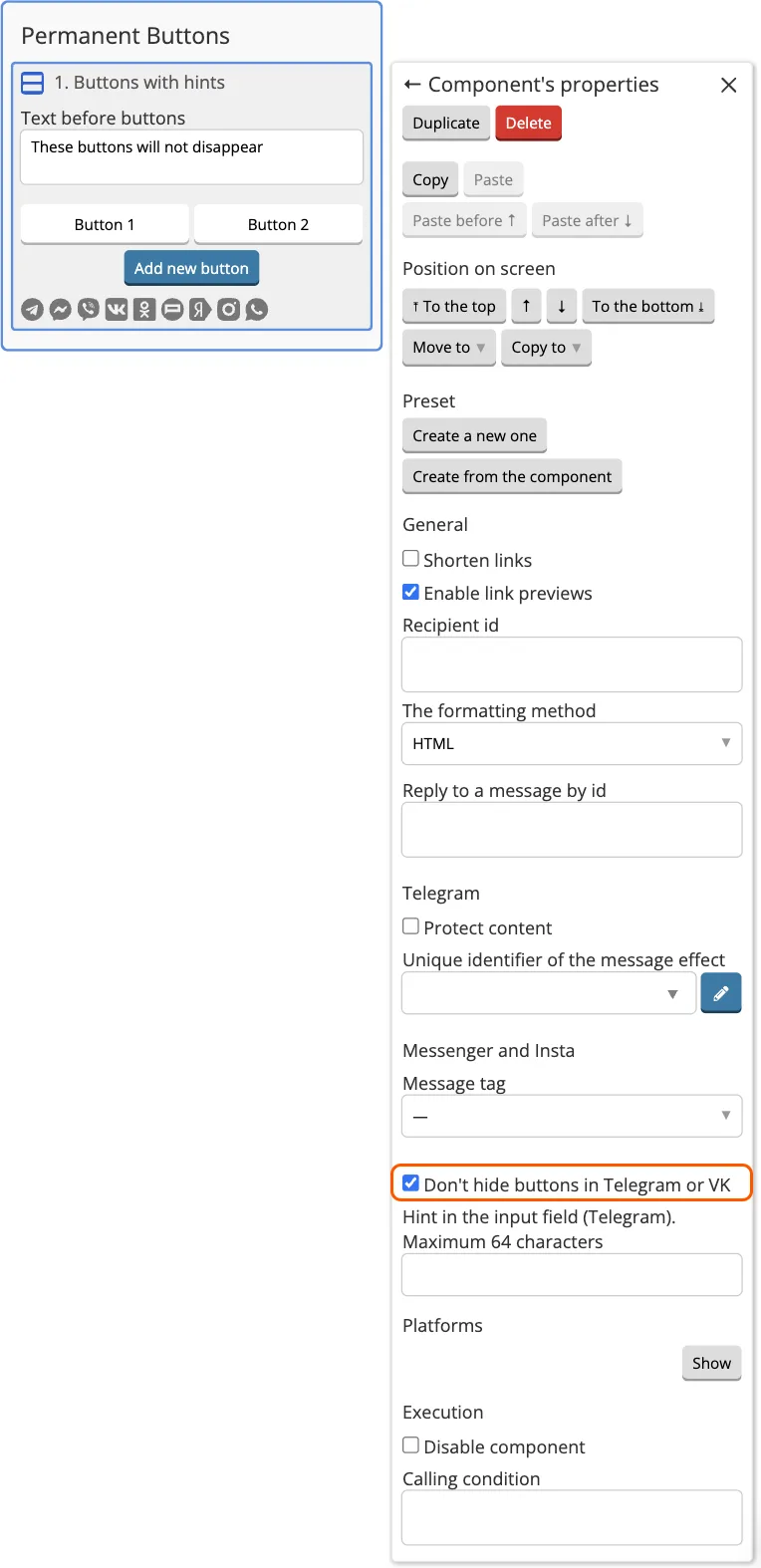
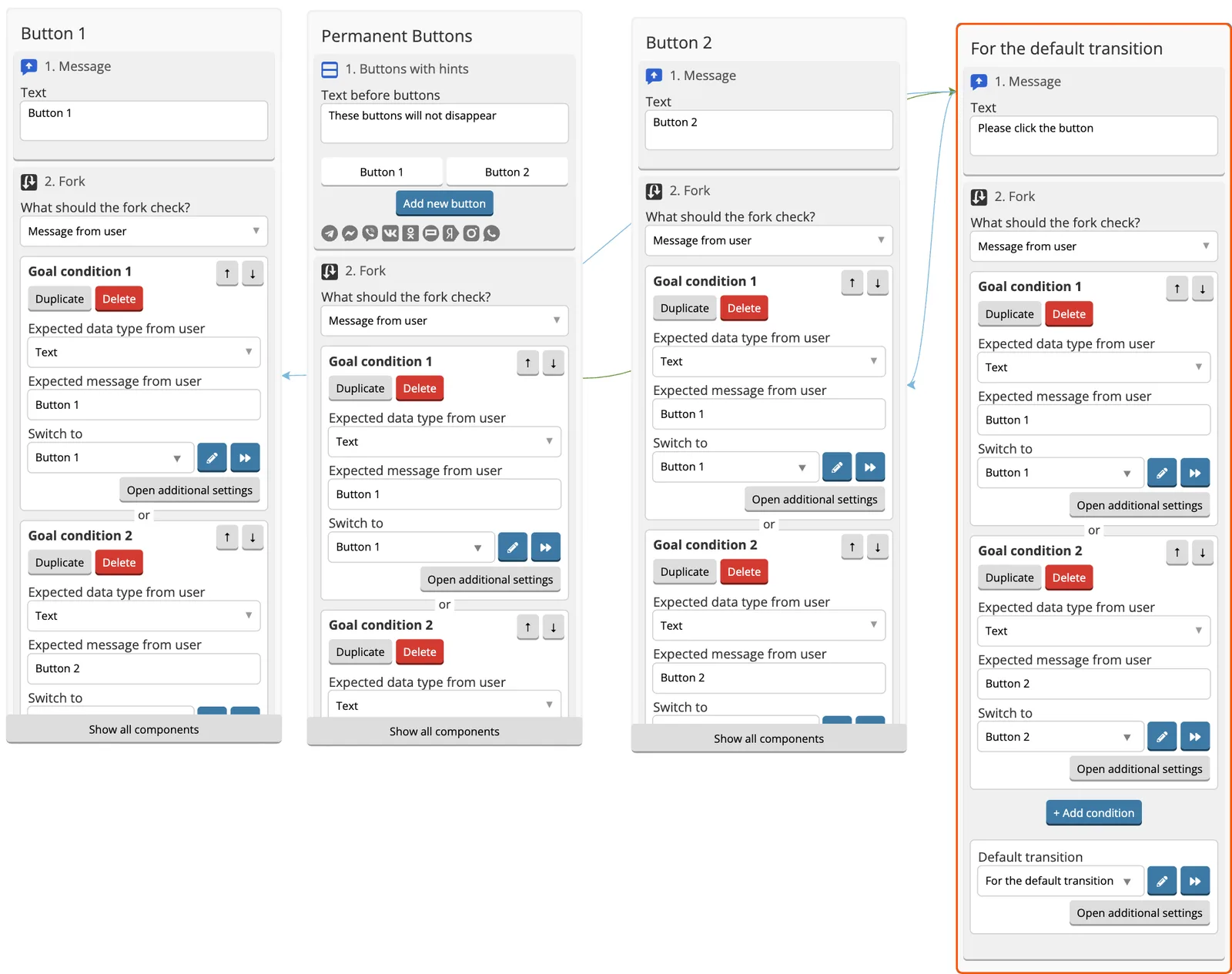
1. Add Buttons with hints to the screen, activate the Don't hide buttons in the Telegram checkbox.
2. Create Fork for Buttons with hints, fill in all the necessary settings.
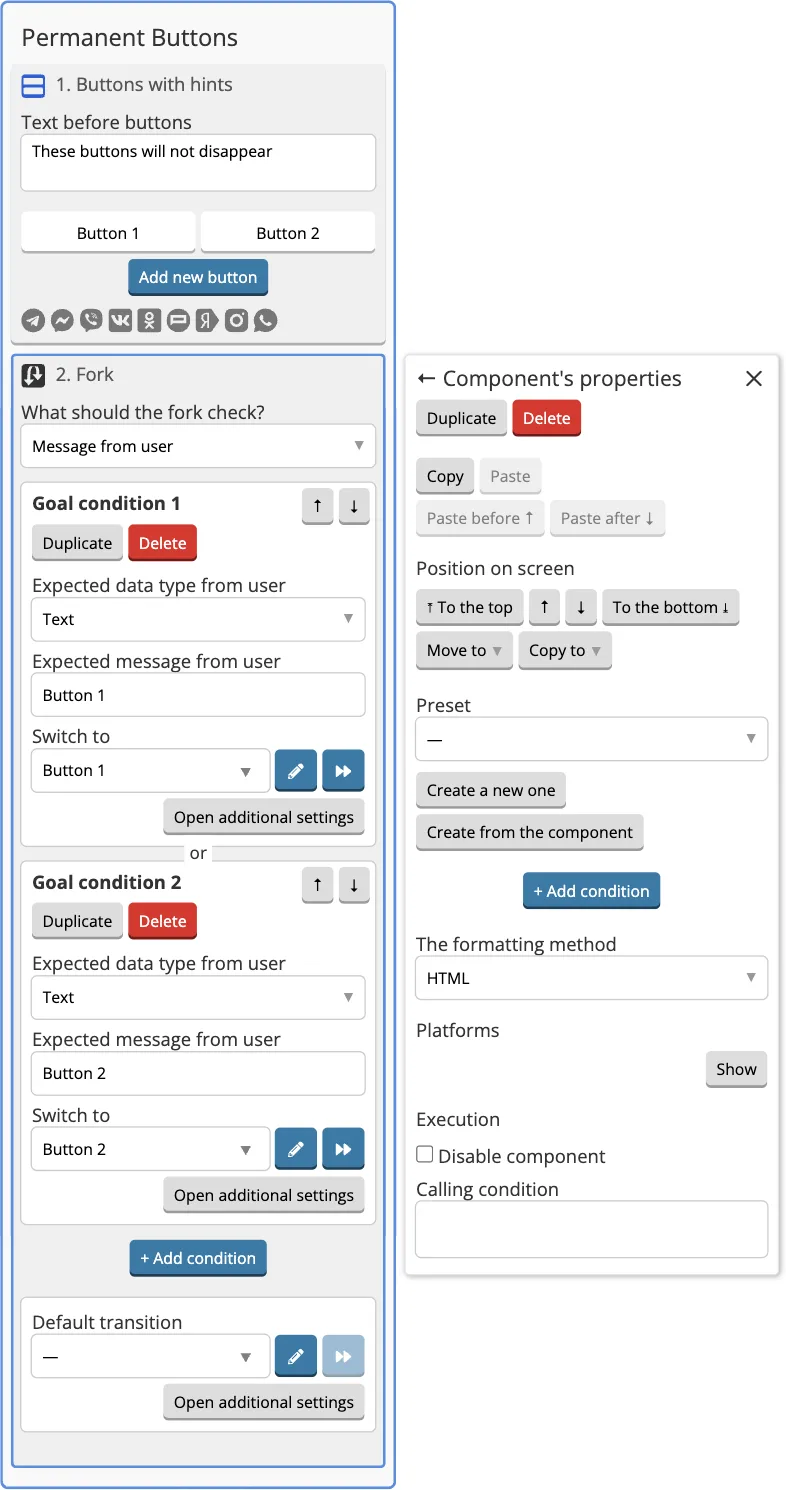
3. Duplicate Fork using Duplicate button in the component settings.
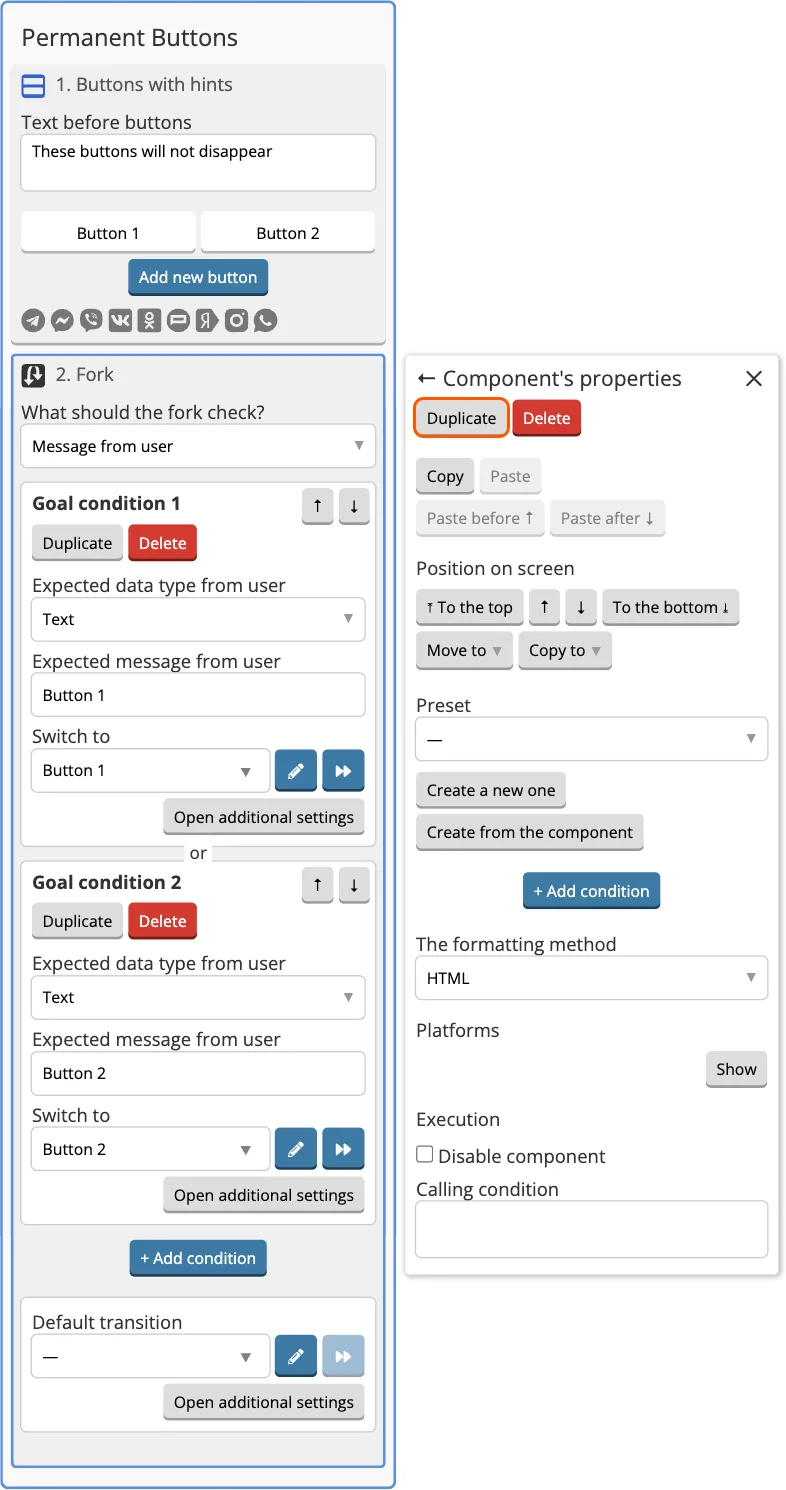
4. Place copies of Fork at the end of all screens where the buttons lead.
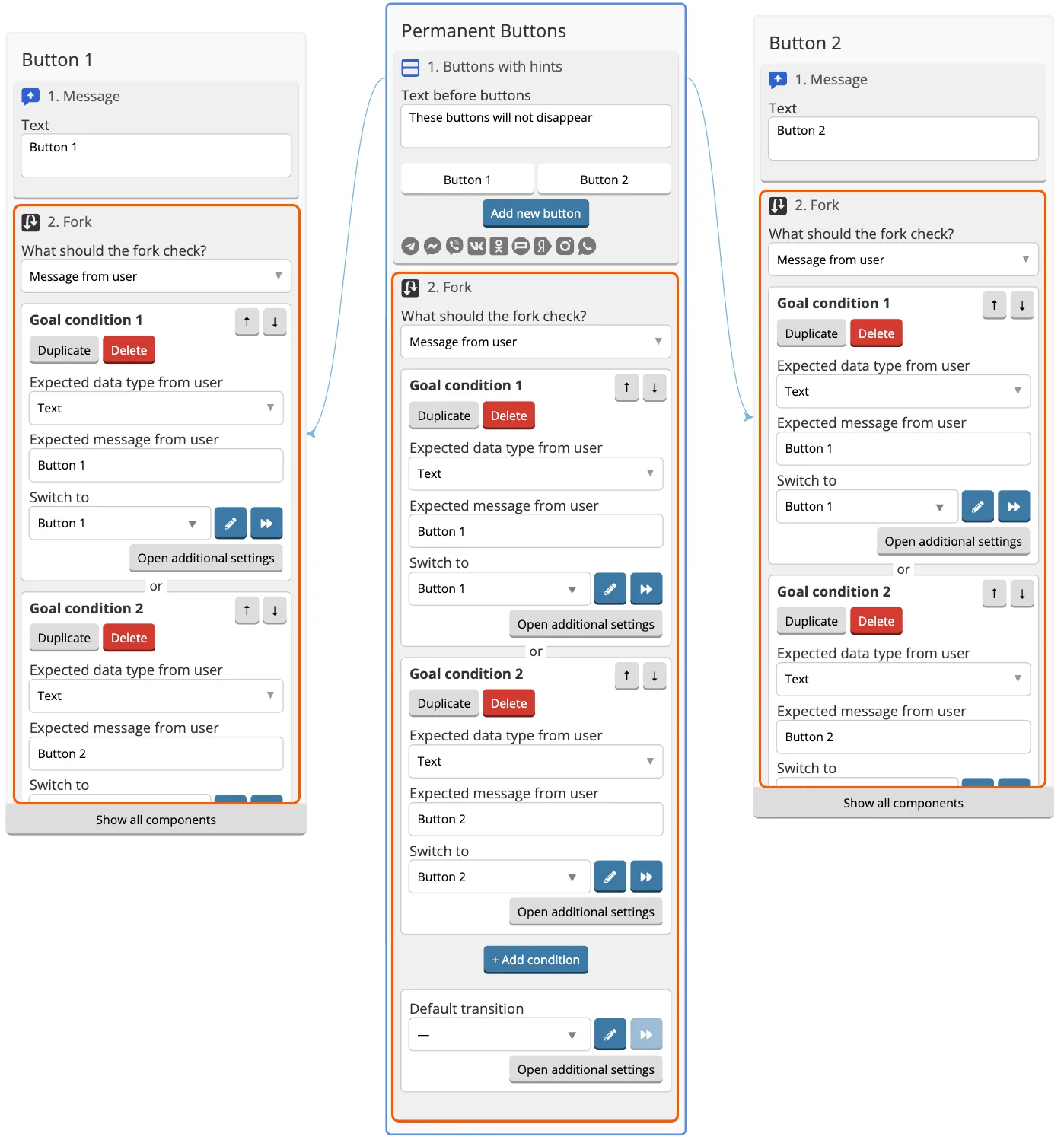
5. Don't forget to save.
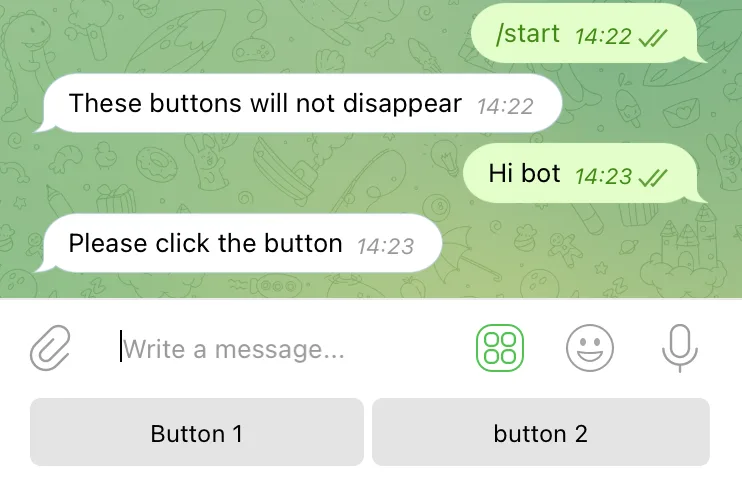
Now the buttons will not disappear and will always be active when pressed.
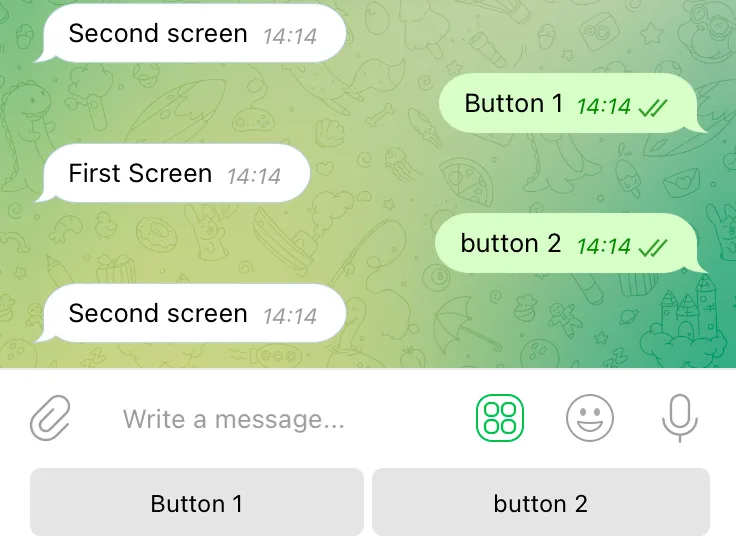
The text in front of the buttons will not be sent again. If you need the text to come, you need to add copies of the Buttons with hints before the copies of Forks.
It is also possible to provide unexpected input from the user, i.e. if he writes a message instead of clicking on the button.
To do this, you need to add a default transition screen to all Forks, on which there will be another copy of the Fork.
How to extract an email from a user message
From the message "Hello, contact me at mail@mail.com" you can extract an email address that is not recorded in a separate variable using Fork.
To do this, add Fork Goal and fill in its settings:
1. Specify Regular expression in the data type.
2. In the regular expression value, add a regular expression that only skips email:
([a-z0-9_\.-]+)@([a-z0-9_\.-]+)\.([a-z\.]{2,6})
3. If the script requires, select the screen for the user to forward to.
4. Click Expand button.
5. Specify an arbitrary variable name. In our case, the variable is called res.
6. Add a new variable value. Our value is {{\match}}.
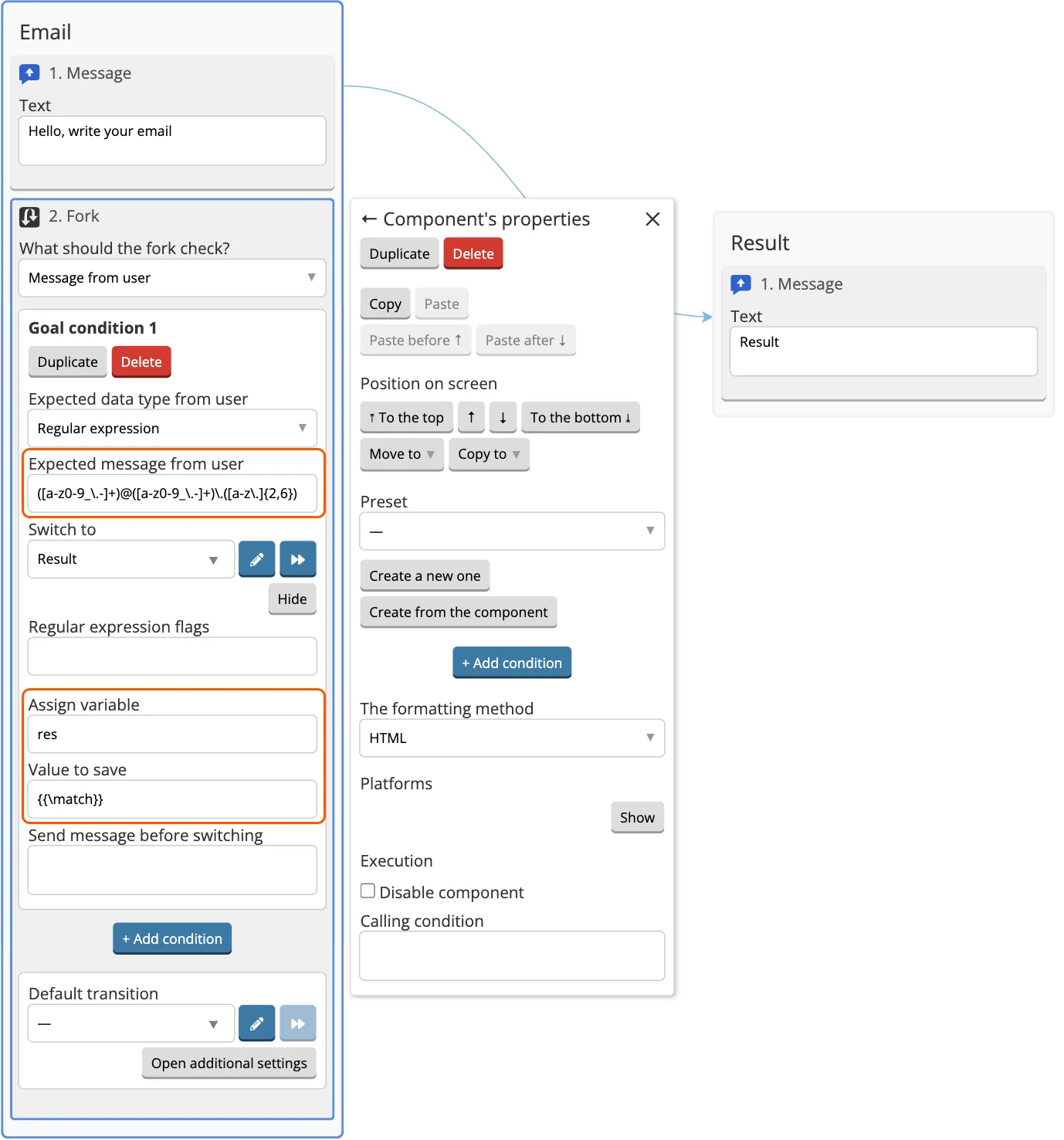
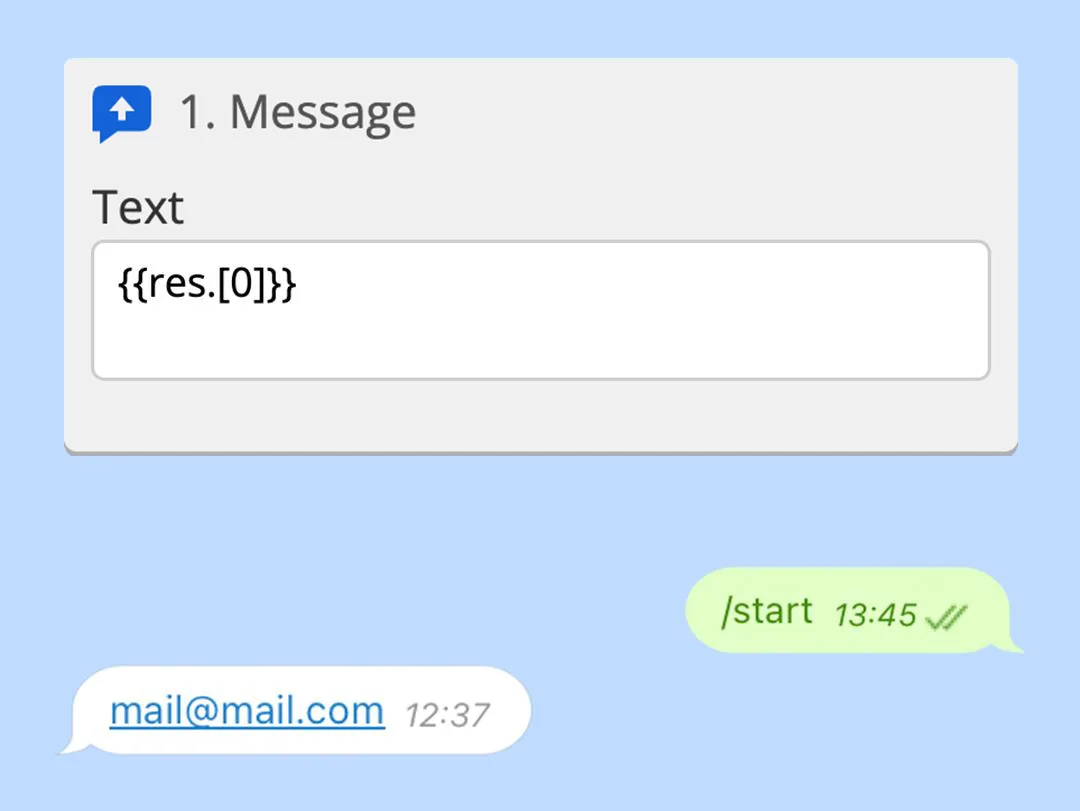
As a result, the email will be located in {{res.[0]}}, where res is the name of your variable.
If necessary, it can be output to the bot, for example, via Message:
Component execution settings
Disable component — when the checkbox is enabled, the component will not be executed, as if it were not part of the flow. To enable the component again, simply uncheck the box.
If platform is not available execute the next component — the bot will skip the current component and move on to the next one if the selected platform is unavailable.