Zapier
You can watch all the steps to create a Zapier connection in the video tutorial:
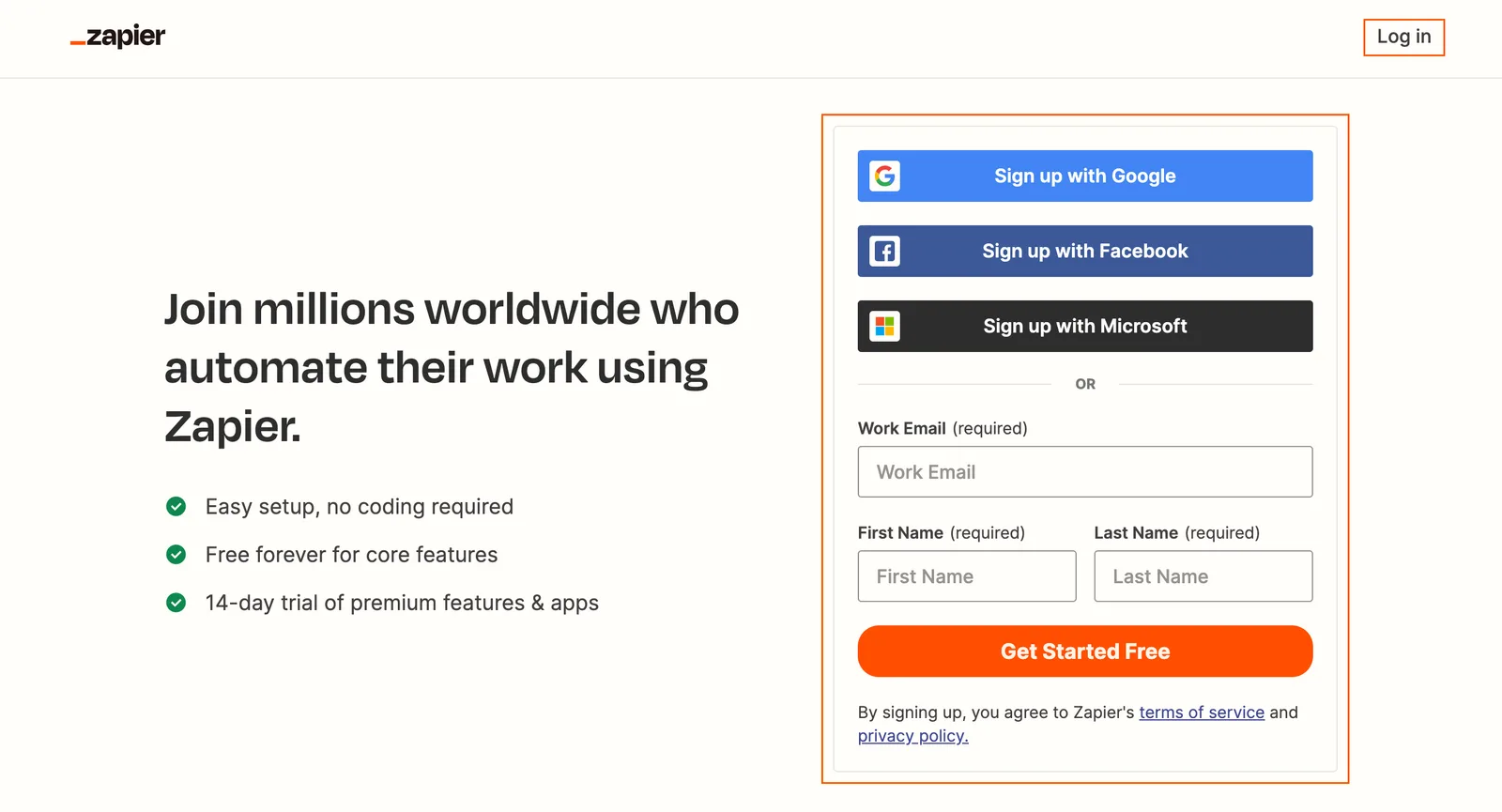
Go to zapier.com and sign up via Google, Facebook, Microsoft, or email. Enter your first and last name and click Get Started Free when registering via email. If you are already registered, click Log in to enter your account.
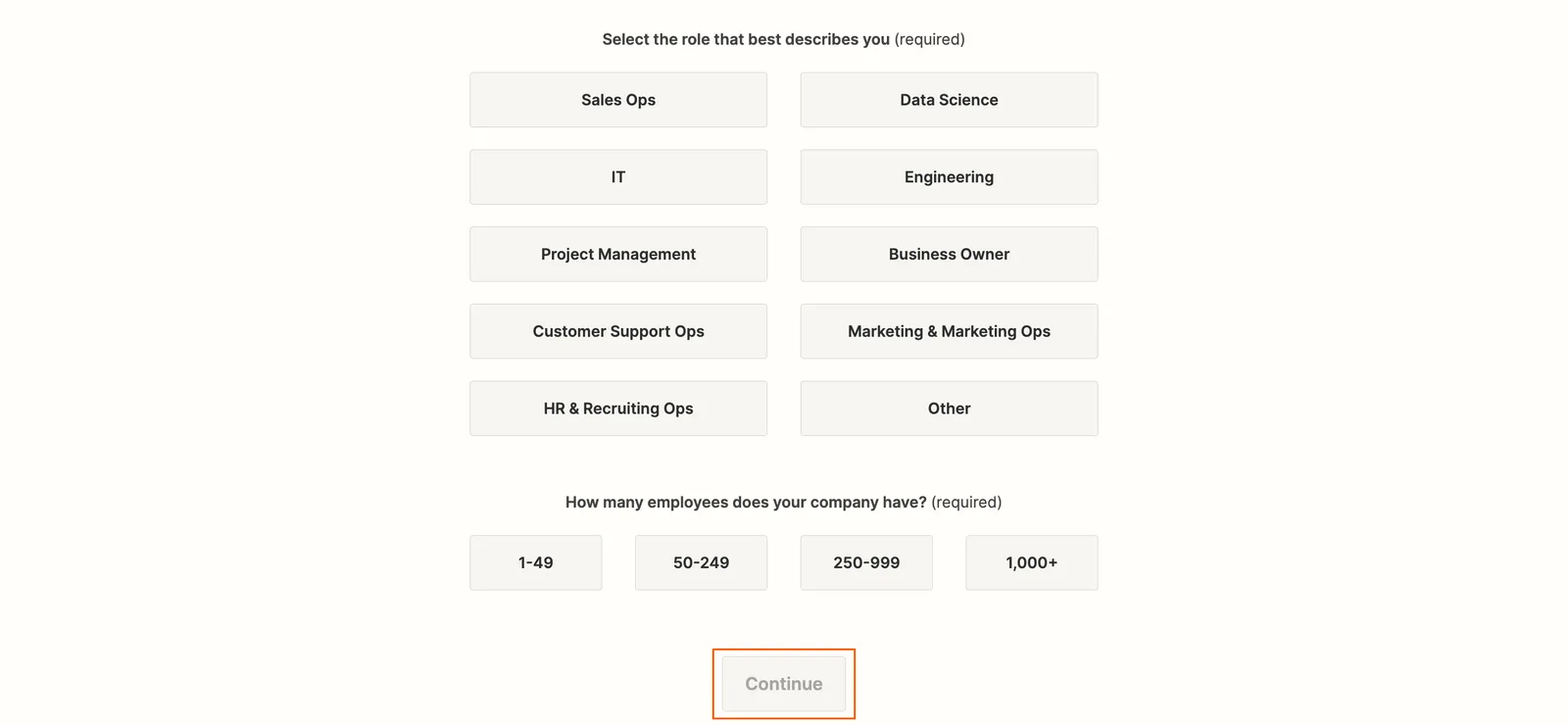
Select any categories and click Continue.
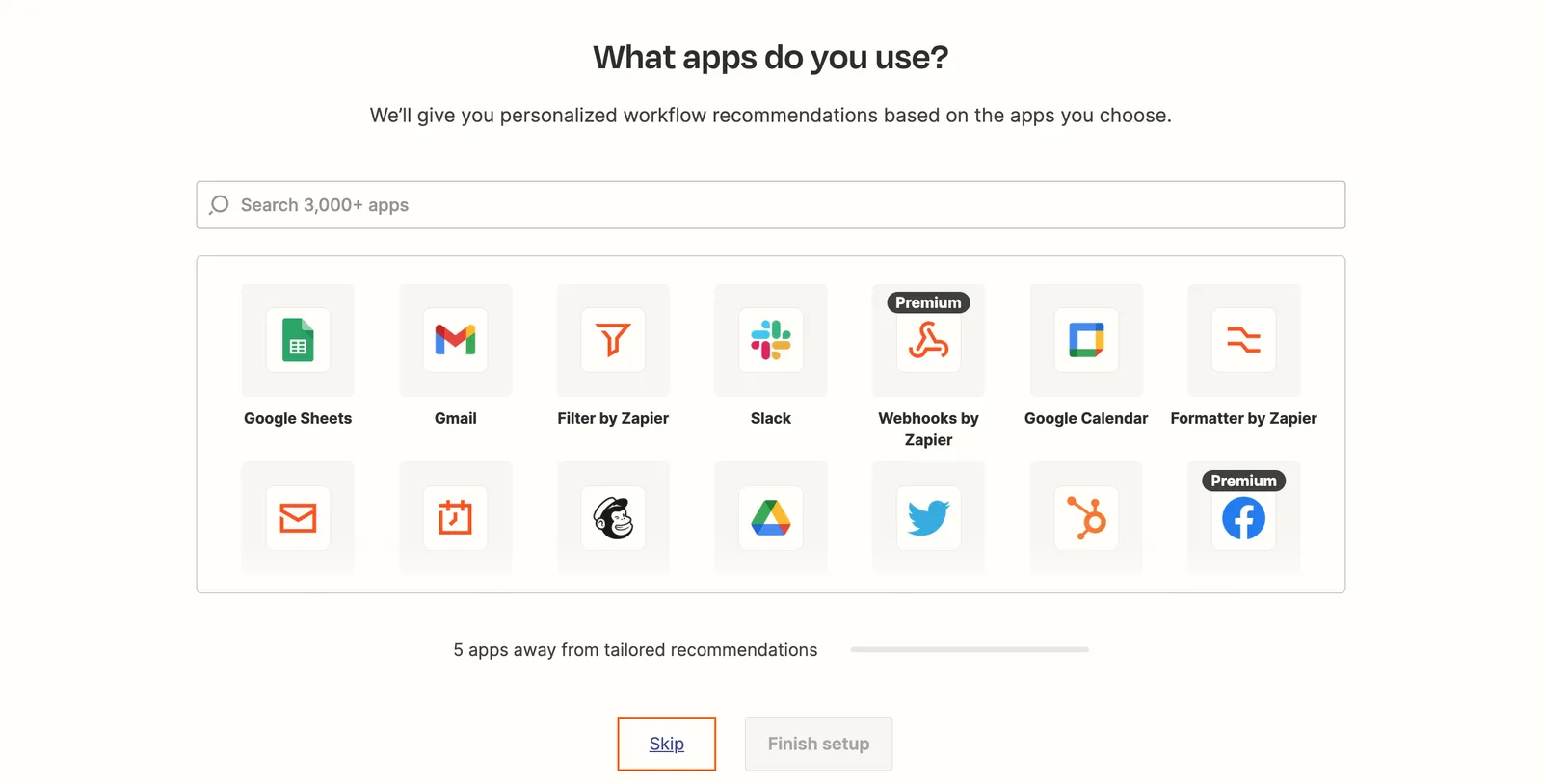
Click Skip to skip the account setup steps.
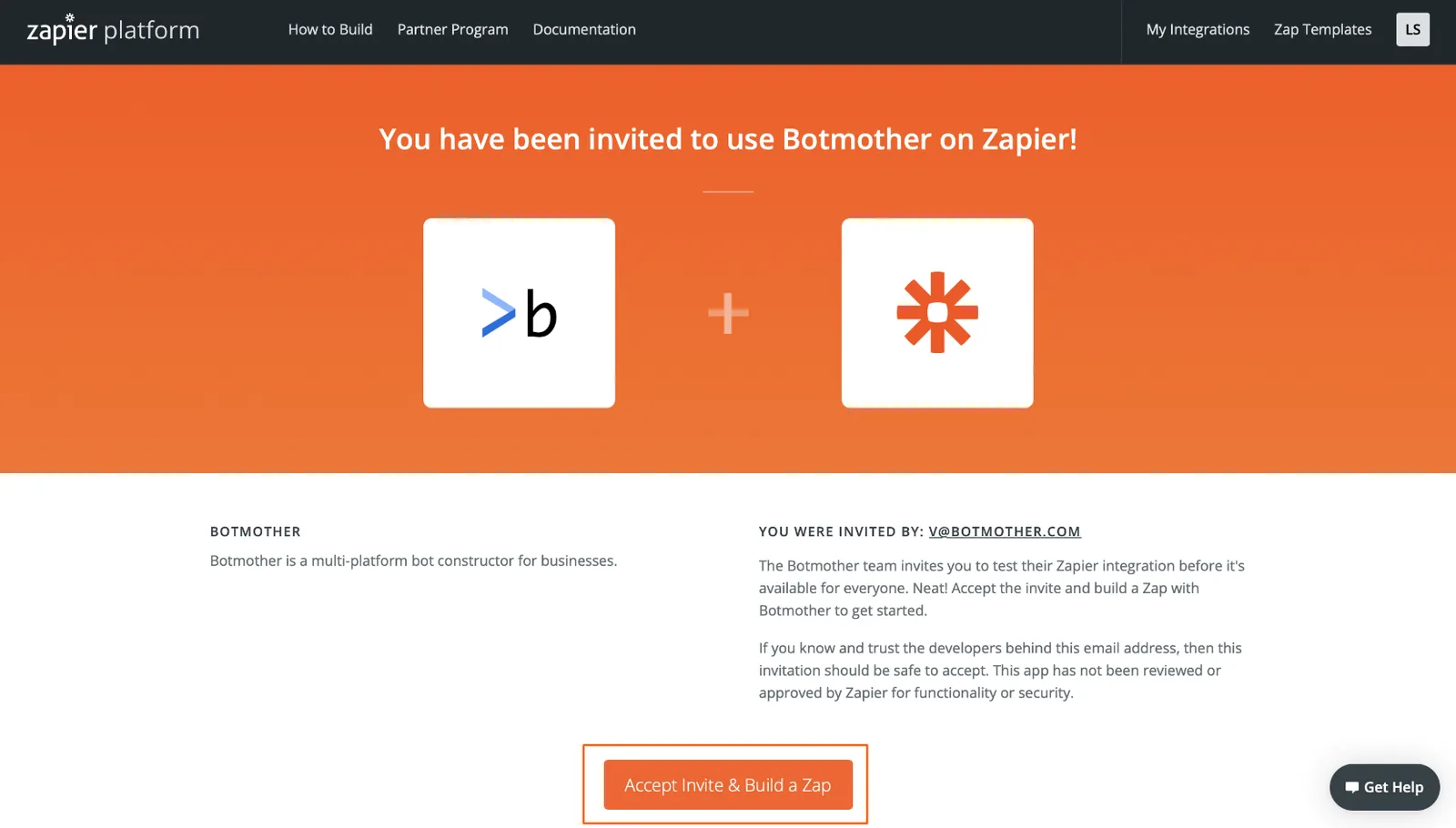
After registering, add the Botmother app. To do this, click on the link.
Click the Accept Invite & Build a Zap button to add the Botmother app to the list of available apps for your account.
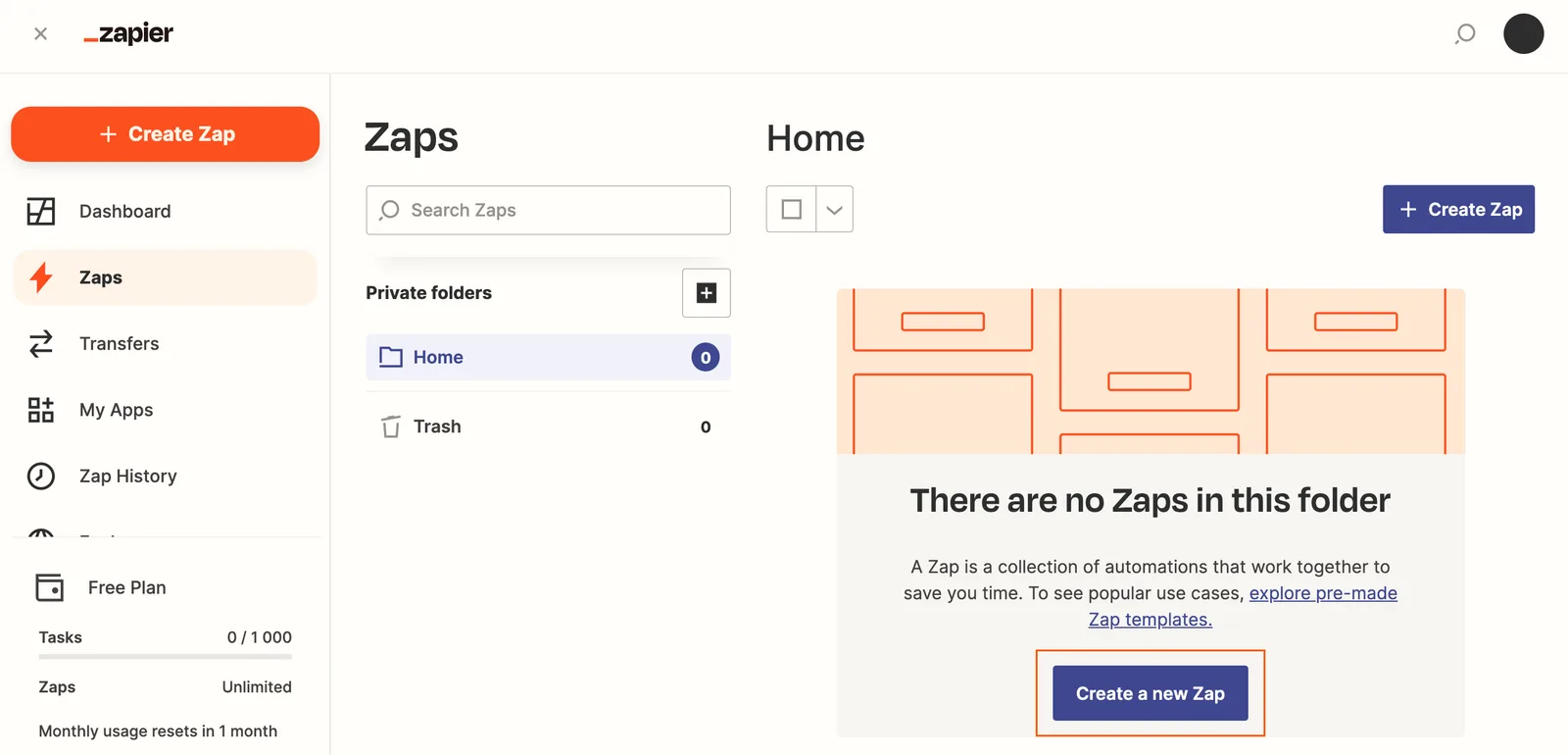
To create a new integration, click Create a new Zap.
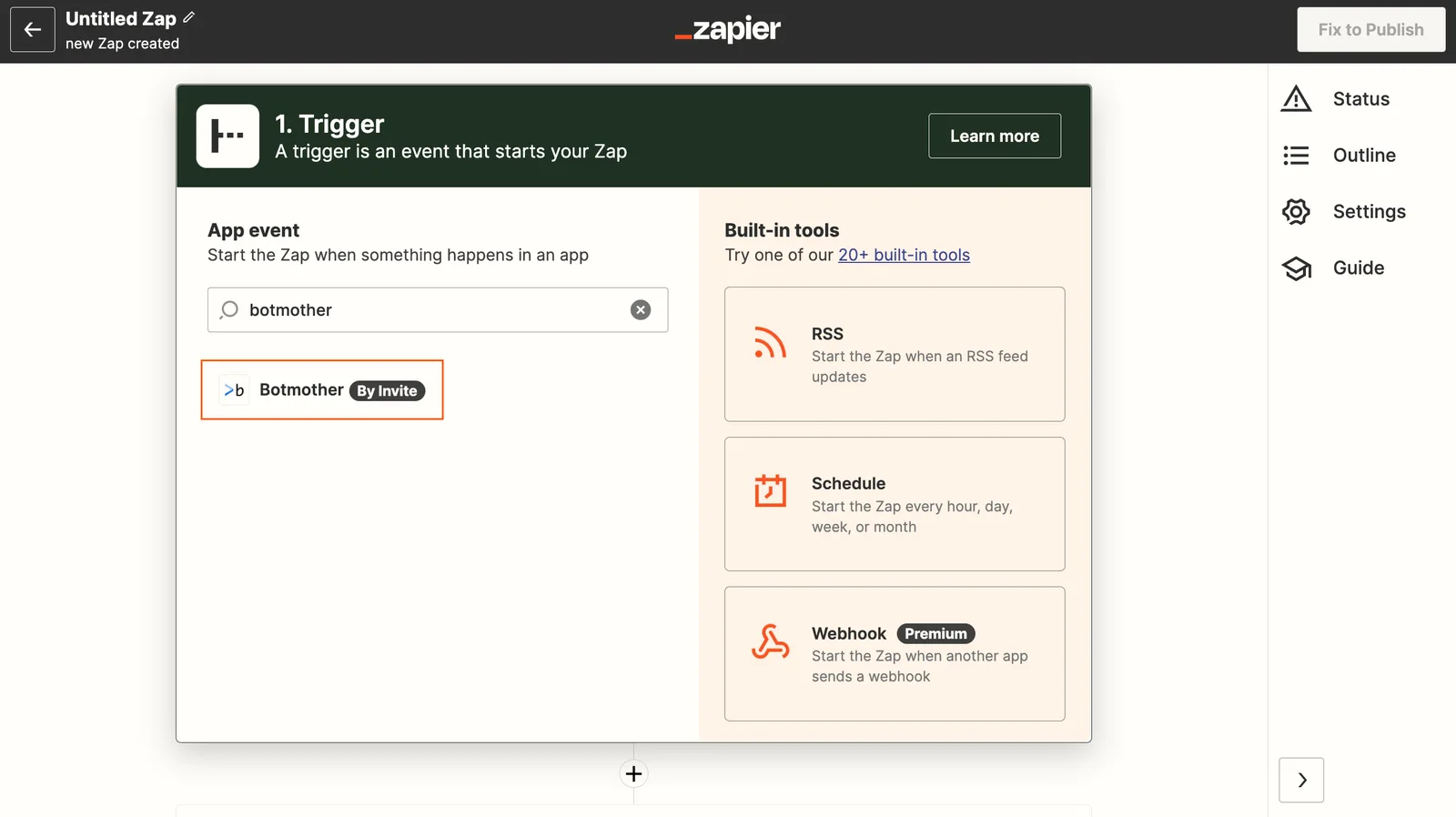
In the search, select the Botmother application that will send data to Zapier.
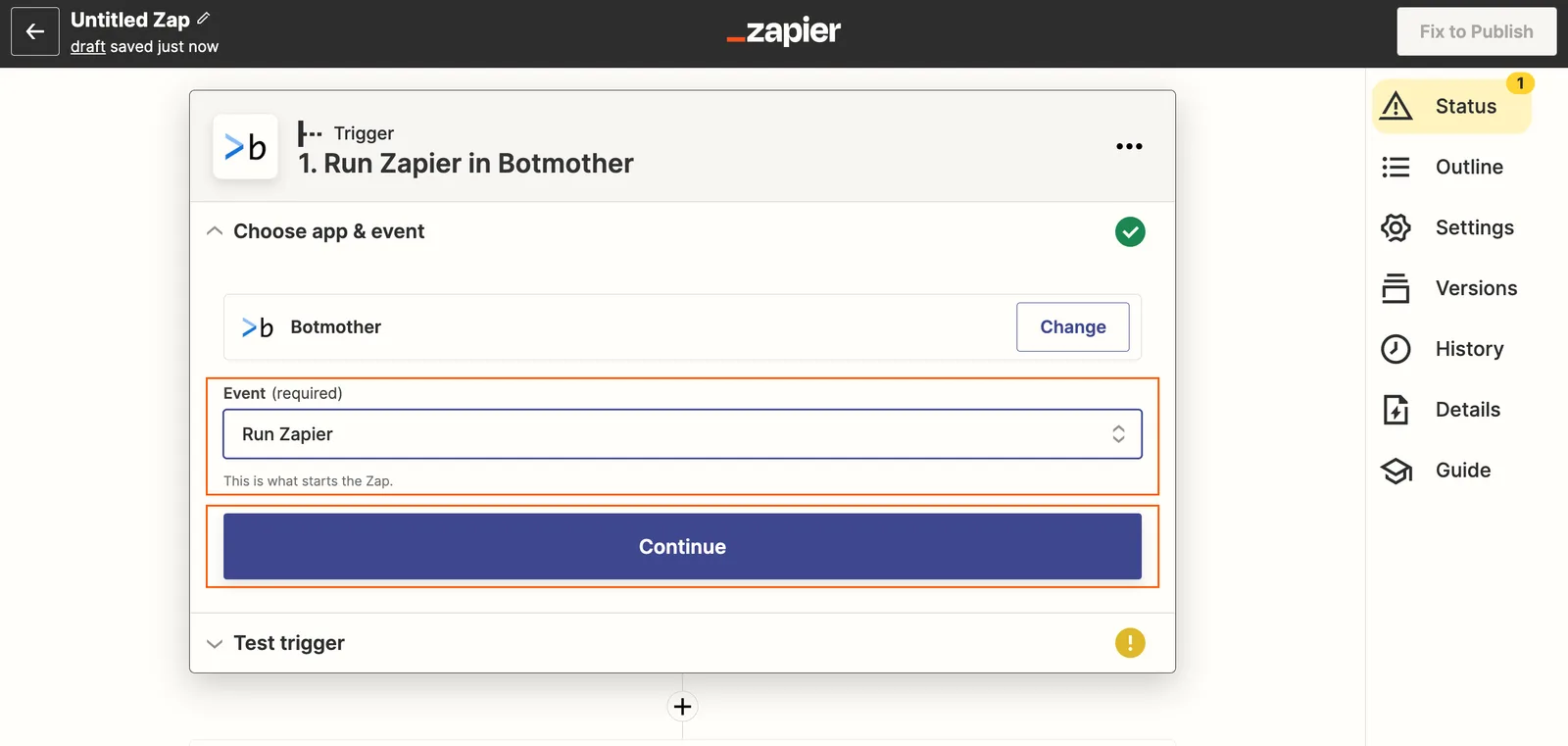
In the Event field, select Run Zapier and click Continue.
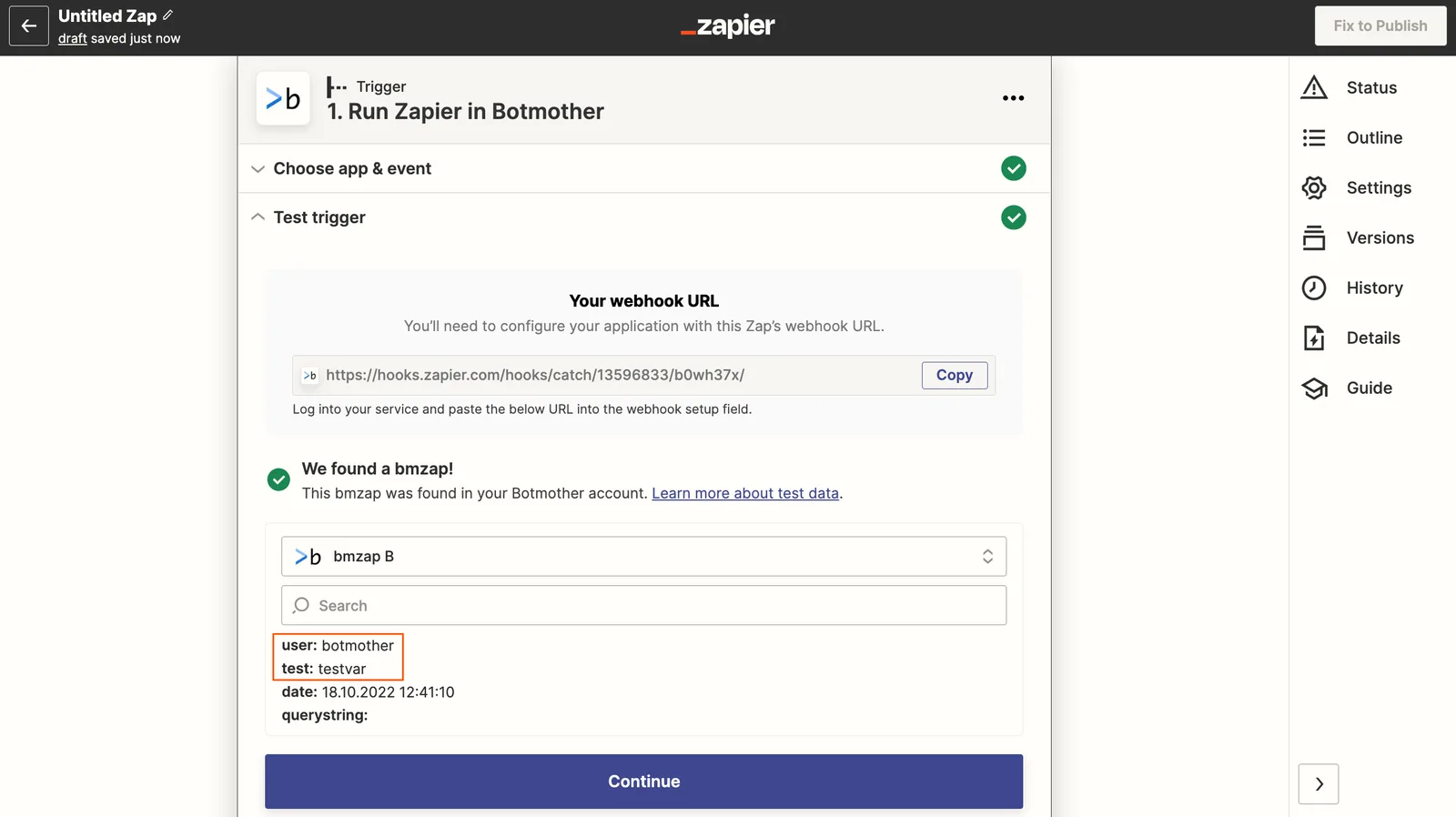
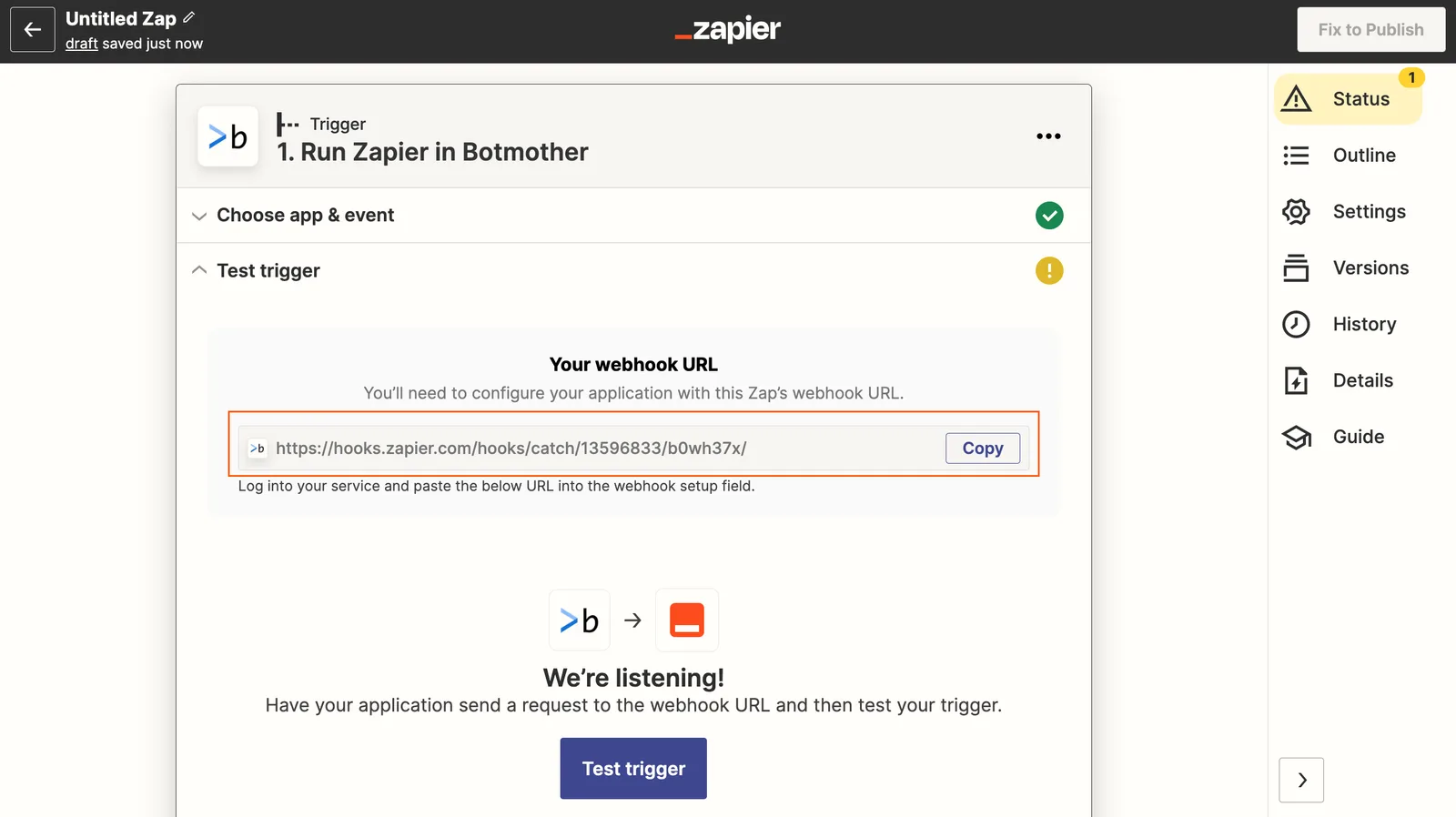
Copy the resulting webhook.
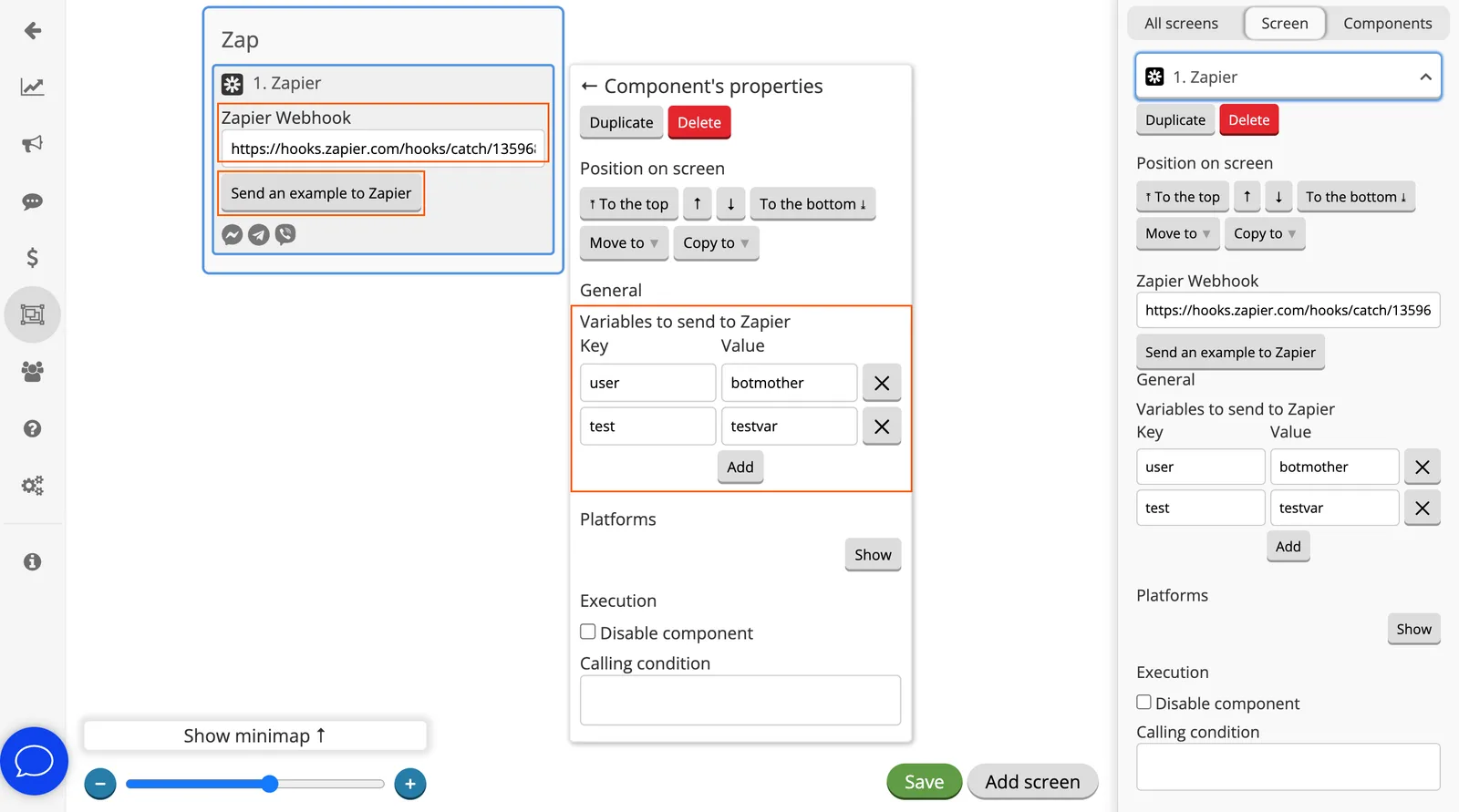
Go to the builder and add the Zapier component to the screen.
Fill in the component:
- Insert the resulting webhook into the Zapier Webhook field.
- Set up the fields to send in Key:Value format. The Key is the name of the field that will be sent, and the Value is what will be sent (you can use variables).
Click Send an example to Zapier. You should see a message that the data was sent successfully.
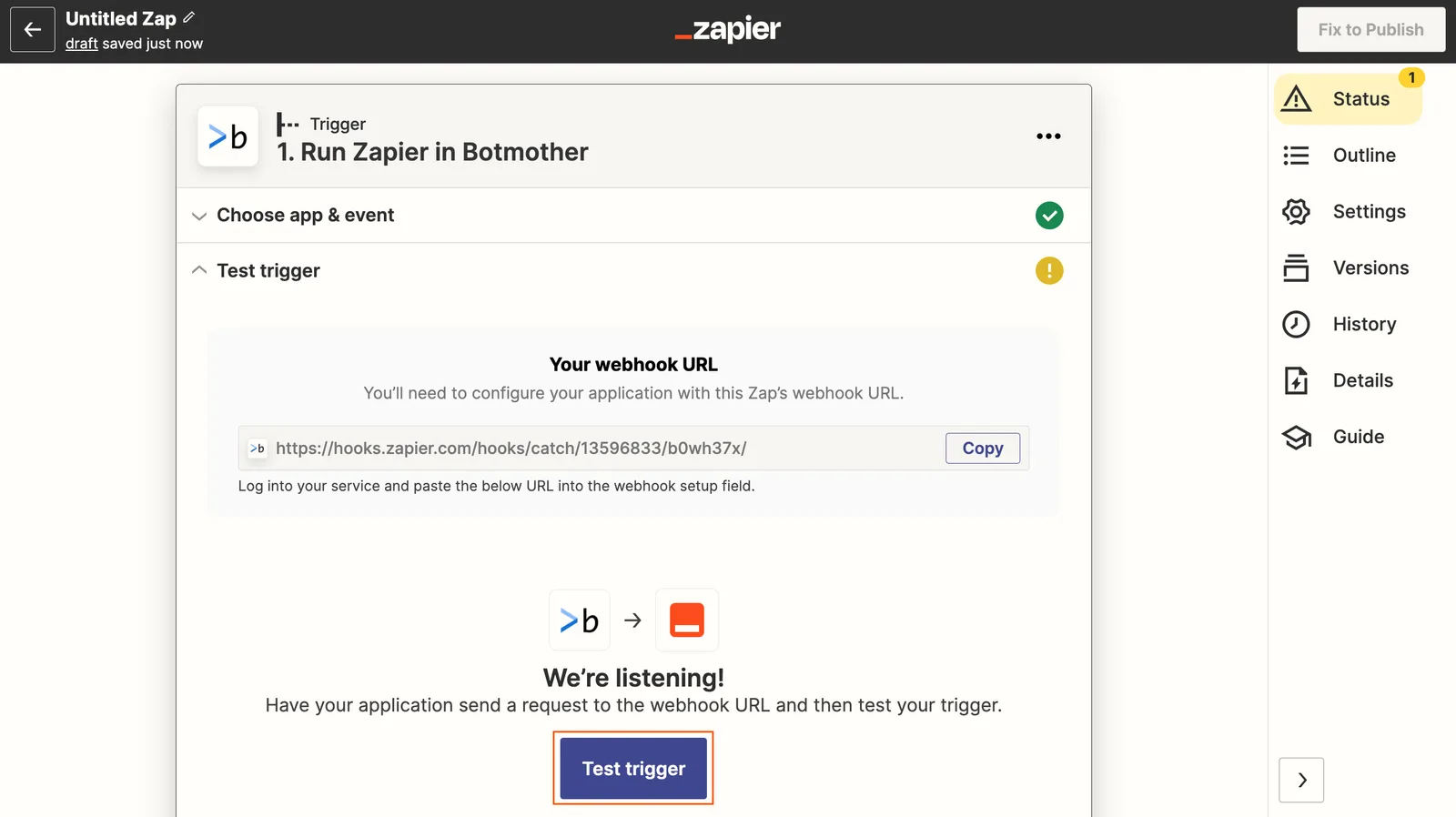
Click the Test trigger button
Done. The data from the Botmother was sent to the Zapier.