Main page
We recommended to work in the builder from a computer. Some features may not be available from your phone or tablet. Work and save the project in one tab so as not to lose your changes.
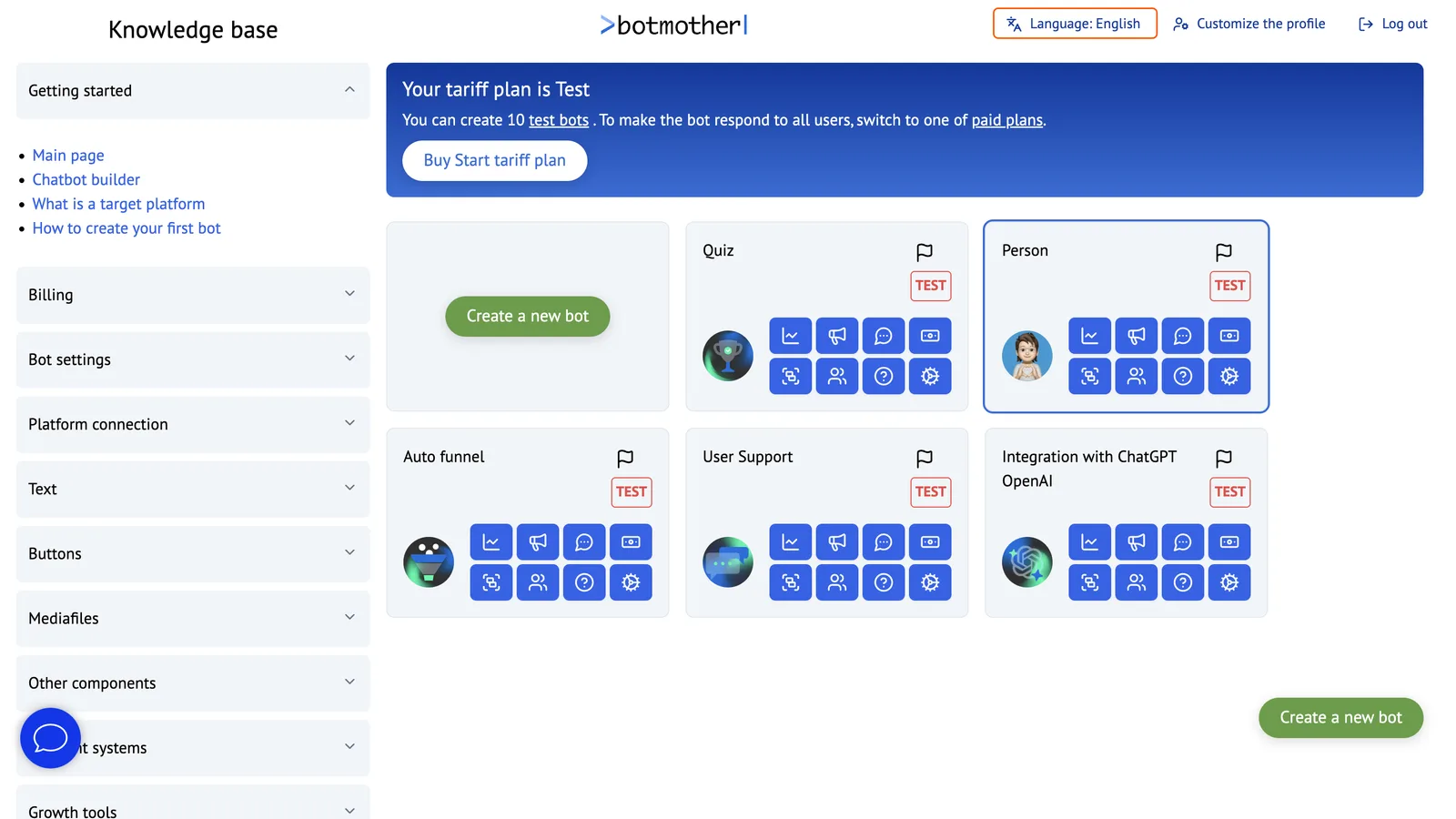
After registering, you get to the main page of the builder.
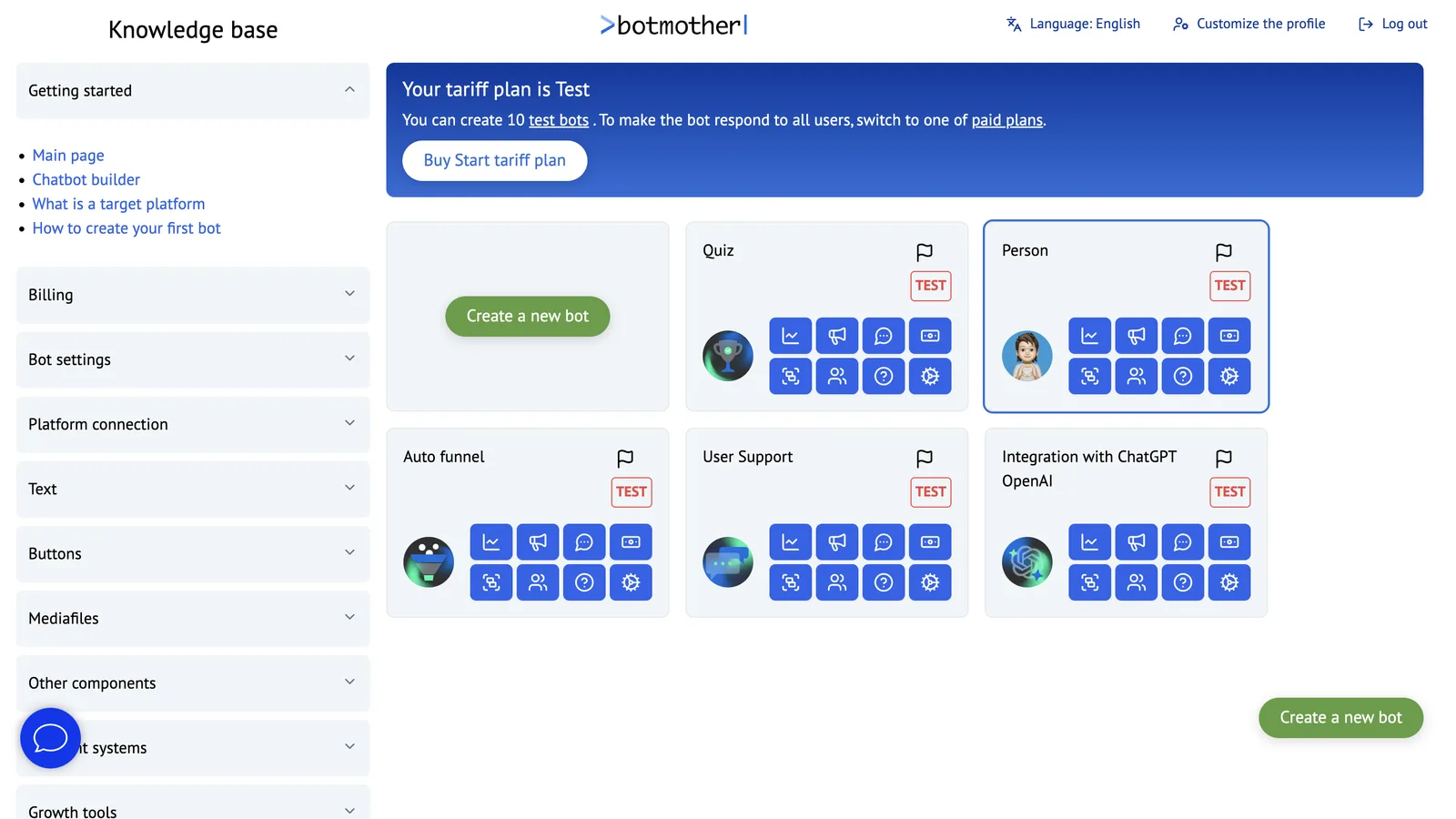
Here is a list of your bots or bots to which you are invited. You can add a new bot by clicking Create a new bot.
The last bot you visited will be circled with a blue box.
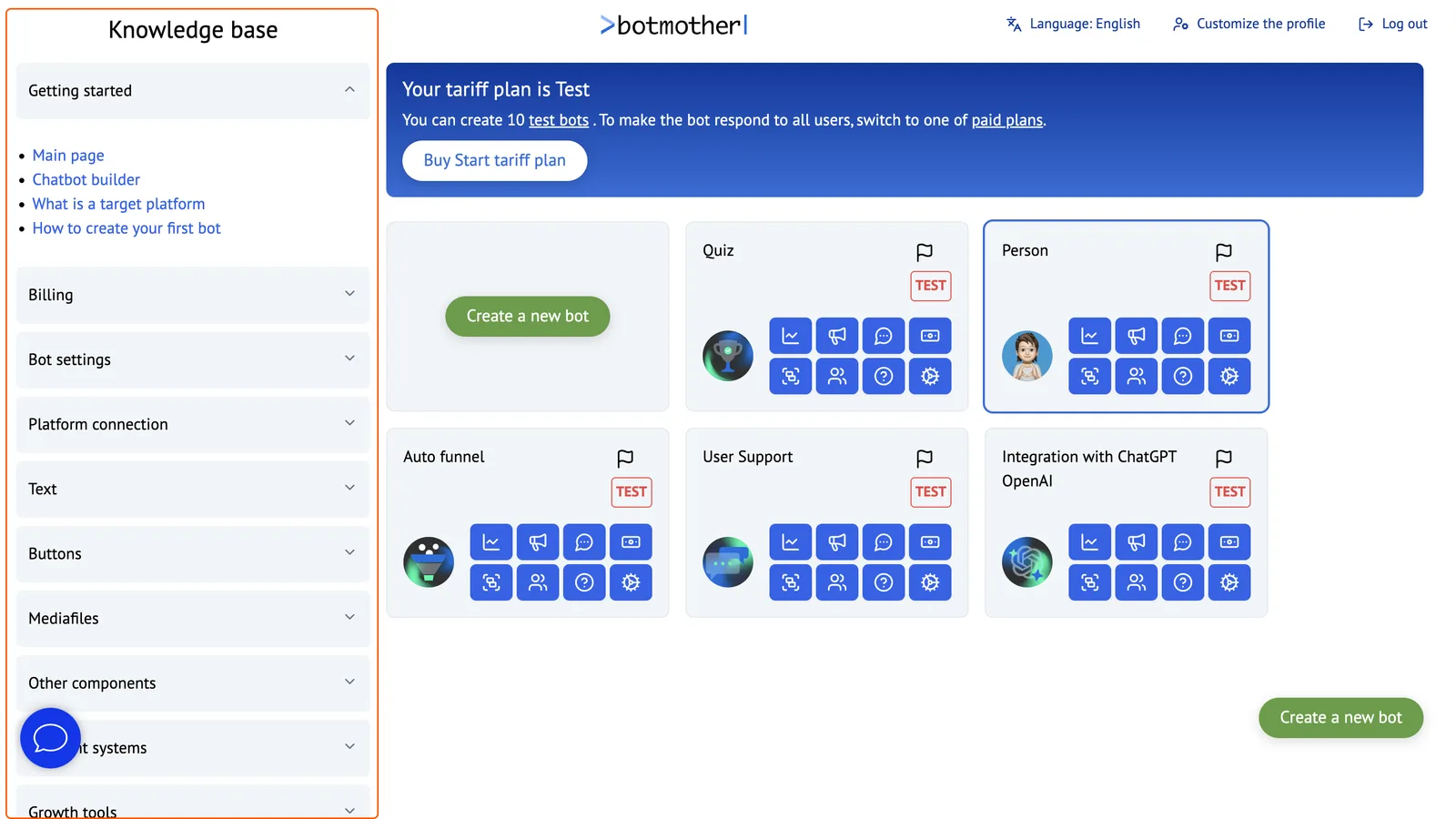
On the left is the Knowledge base . It is highly recommended to use it.
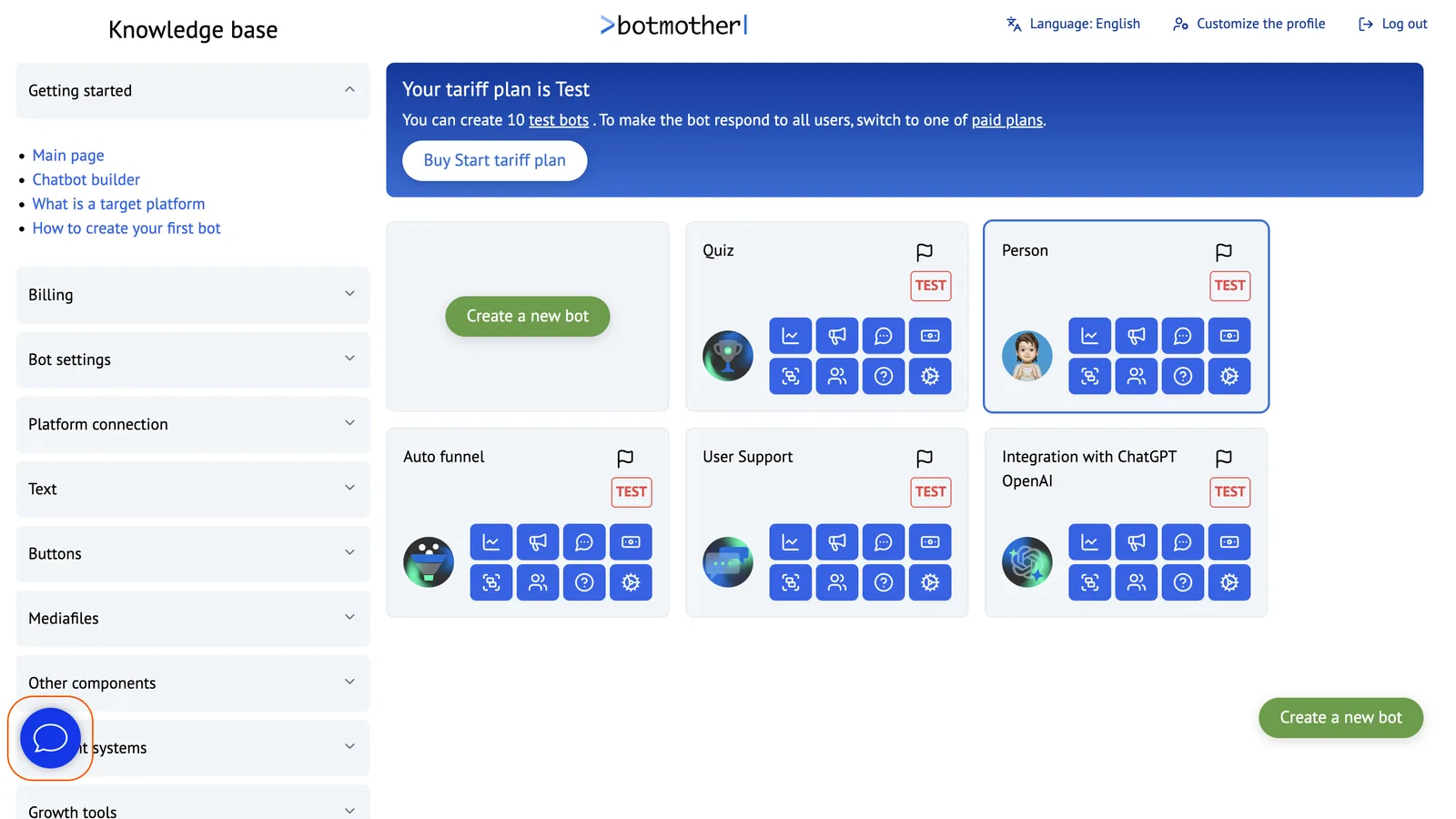
If you do not find the question interestingyou in the Knowledge base — write to Support. The chat icon with support is in the lower left corner.
The language change button changes the interface language from Russian to English and from English to Russian, depending on which language was set initially.
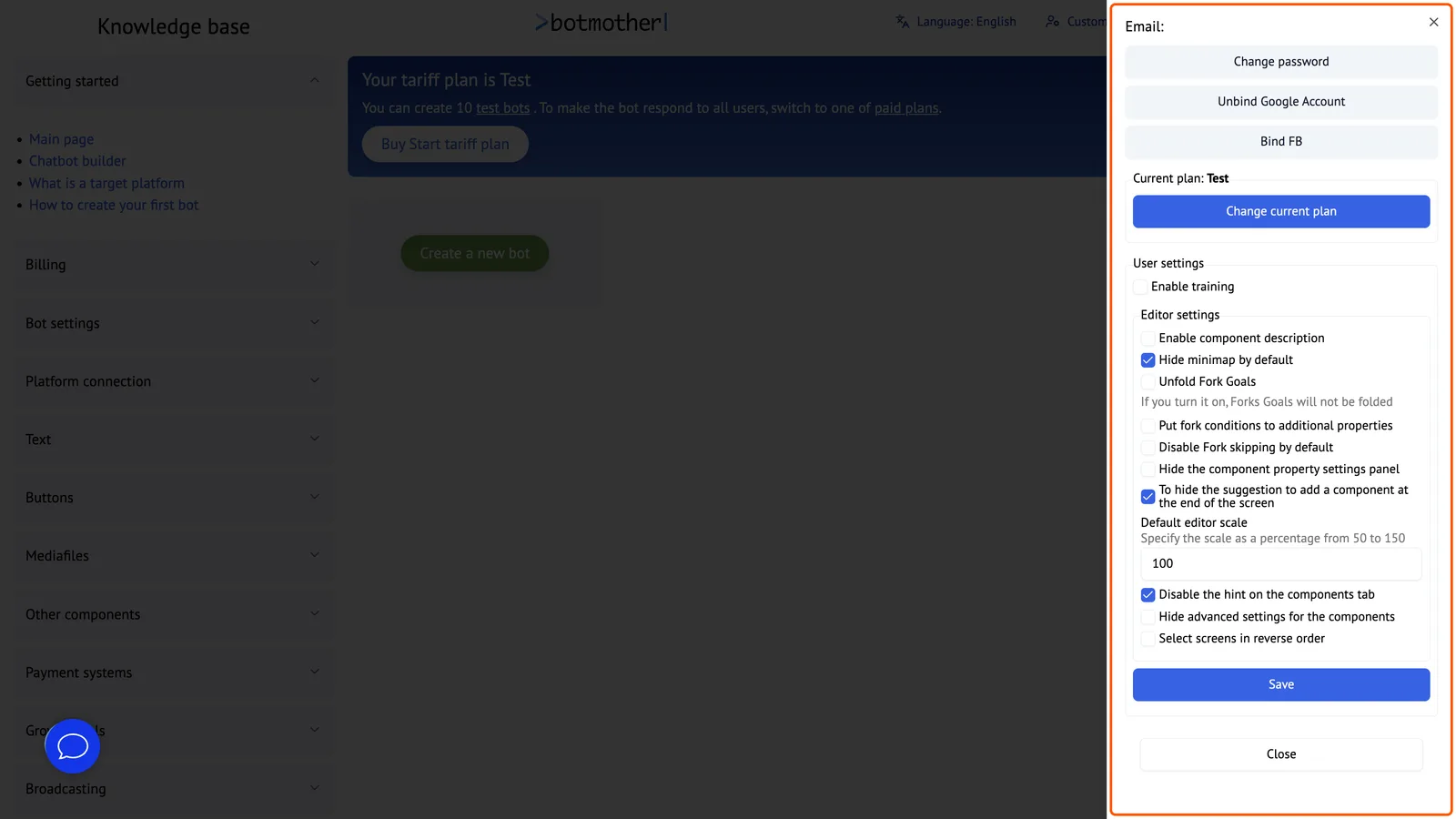
Customise the profile button opens user settings, where you can:
- Change your account password.
- Connect or disconnect your Google Account.
- Connect or disconnect Facebook.
- Change Facebook permissions.
- See information about your current plan and subscription.
- Unsubscribe.
- Connect another card without cancelling the subscription.
- Change the system language.
- Configure the display of training.
- Customize the display of component descriptions.
- Hide the suggestion add Forwrd and Fork at the screen's bottom.
- Change the editor's scale.
- Disable the hint on the components tab.
- Hide advanced settings for all components.
- Select screens in reverse order.