Buttons for Viber
- Functions →
- Component setup →
- Setting up Buttons for Viber as Buttons with hints →
- How to change the button background color →
- How to change the button font color →
- How to add an image to the button background →
The Buttons for Viber component sends the user text and buttons attached to the keyboard.
Buttons appearance
Functions
1. Transition to screens.
2. Transition to an external URL.
3. Transition to screens in conjunction with Fork component.
Component setup
1. Add component Buttons for Viber to the screen.
2. Fill in the text field — this text will appear above the buttons.
3. Add the required number of buttons that will be one under the other. To do this, click on the Add button.
4. In the field Button title, enter the text of the button. If you mark Hide button text, the button will come to the bot without text, but in any case, the Button title must be filled in.
5. In order to add some buttons to a row, click on Add button to this row.
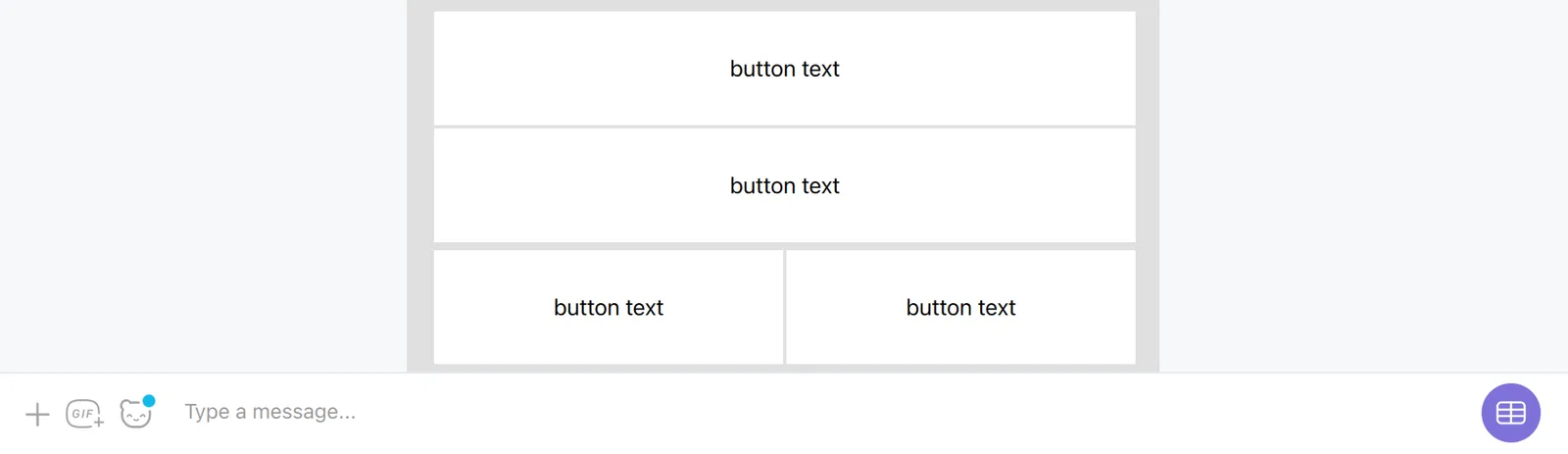
There can be no more than 6 buttons in a row. In the case of the maximum number of buttons (6 pieces), the width of all buttons should be 1. For 2 buttons in one row, the width should be 3. For 3 buttons in one row, the width should be 2. If there is only one button in a row, the width should be maximum — 6 points. If the width in the button settings is smaller, then the size of the button in the messenger will not match the width of the input line.
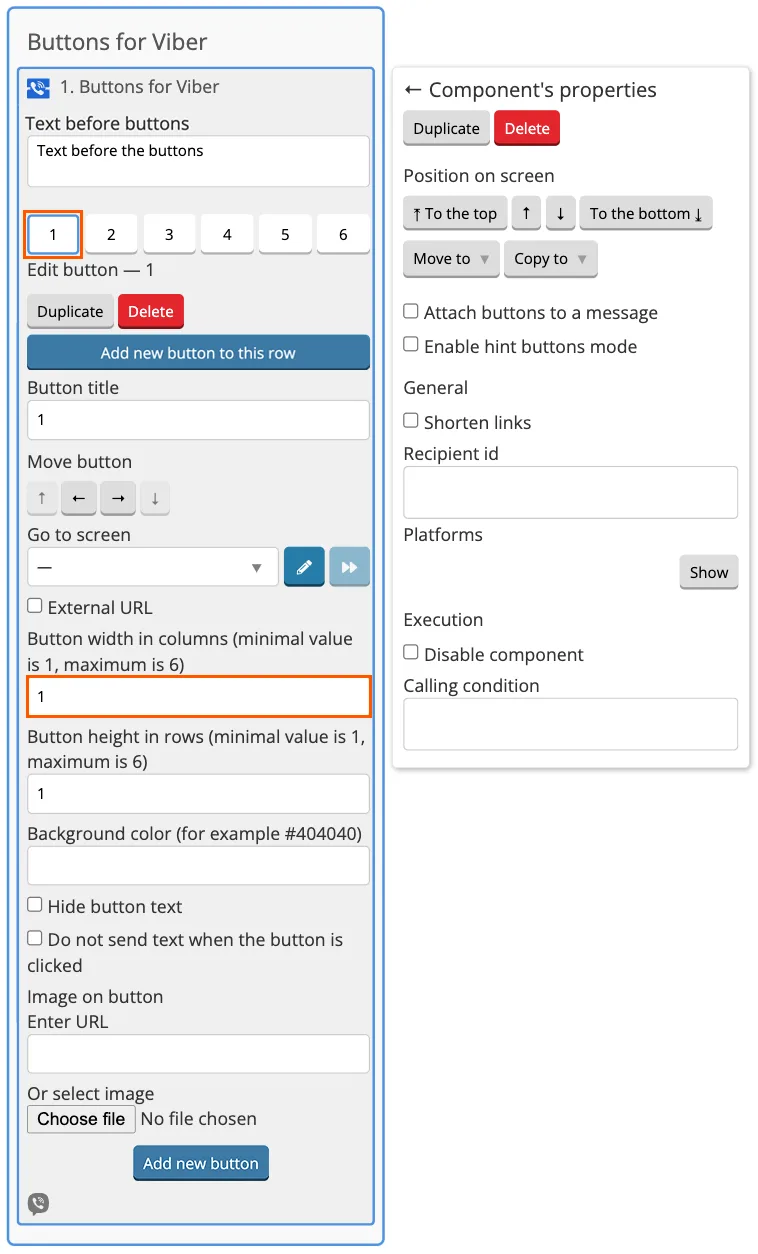
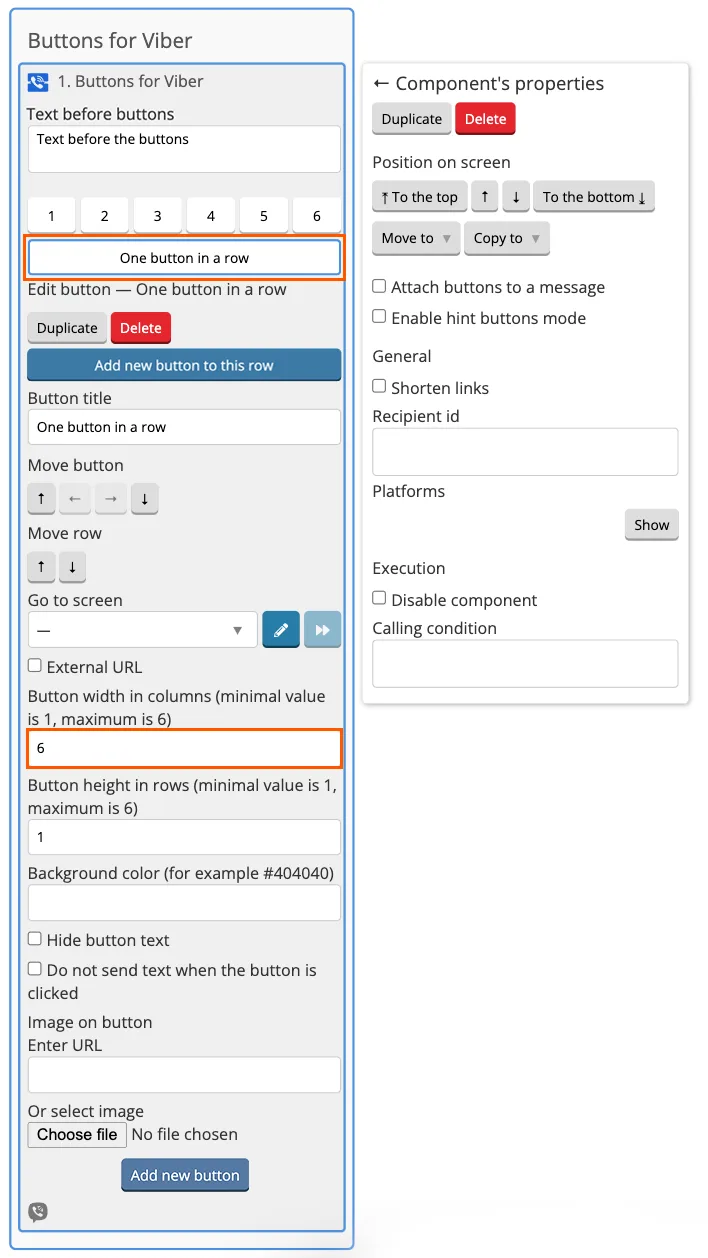
If the buttons are attached to the keyboard (Buttons with hints mode), the platform supports a maximum of 24 rows of Viber buttons inclusive, 1 button in a row. If the buttons are attached to the message, the platform supports a maximum of 7 rows of Viber buttons inclusive, a maximum of 6 buttons in a row (the size of one button is 1x1).The total is no more than 42 buttons.
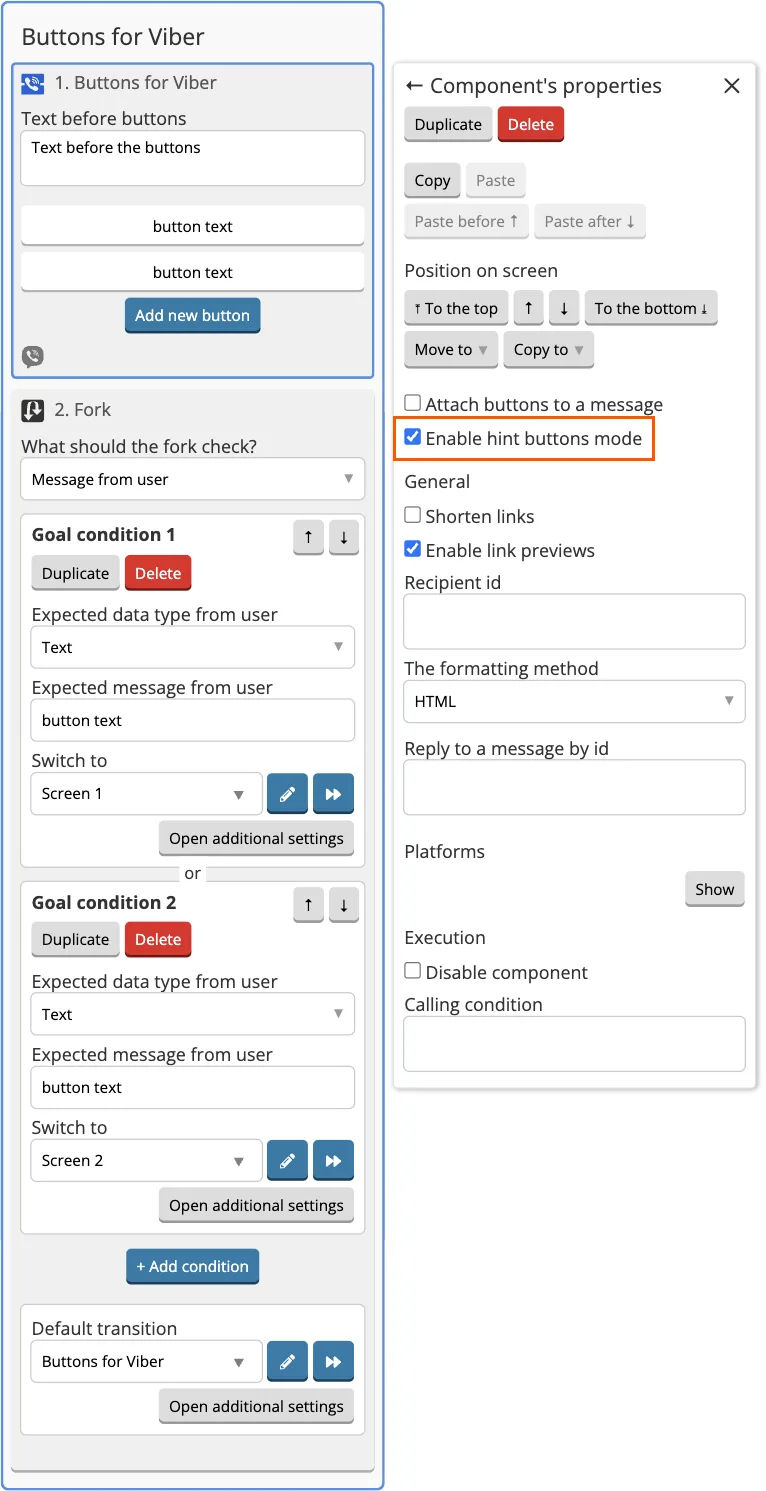
6. If you select Enable hint buttons mode in the settings, then you need to use Fork component to switch to other screens.
7. Place Fork component under the Buttons for Viber component. In the Fork settings, enter the button text in Goal value, and in Transition field, select the desired screen from the drop-down list.
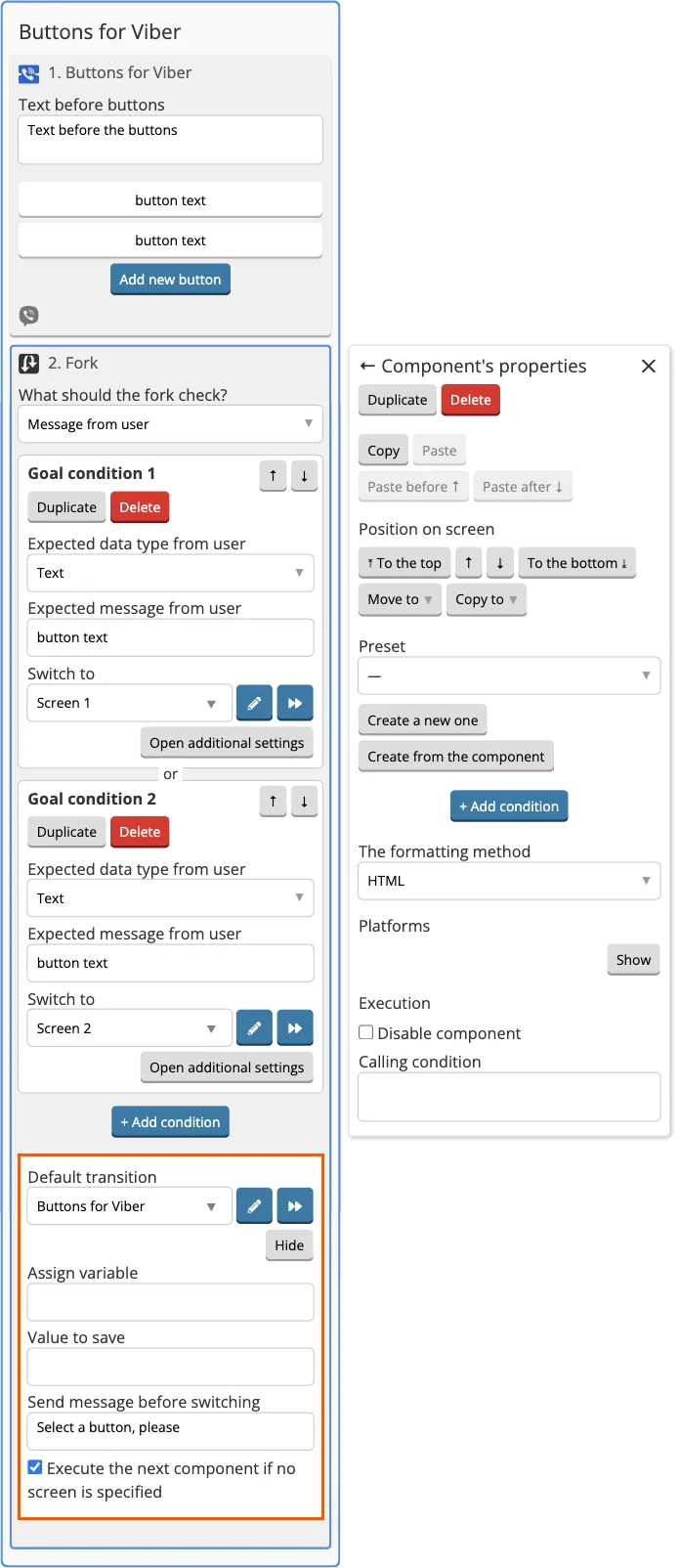
8. If, instead of clicking the button, the user writes something to the bot, you can set up Default goal in Fork component. Then the user will see the same screen with buttons again. To do this, in the settings, write the text that will be sent to the user and specify the same screen (or, if necessary, another one) for the transition.
The button must forward either to the screen or to an external URL.
1. Disable Enable hint buttons mode with hints function.
2. In the Buttons for Viber component settings, select the desired screen from the drop-down list to transfer through the button.
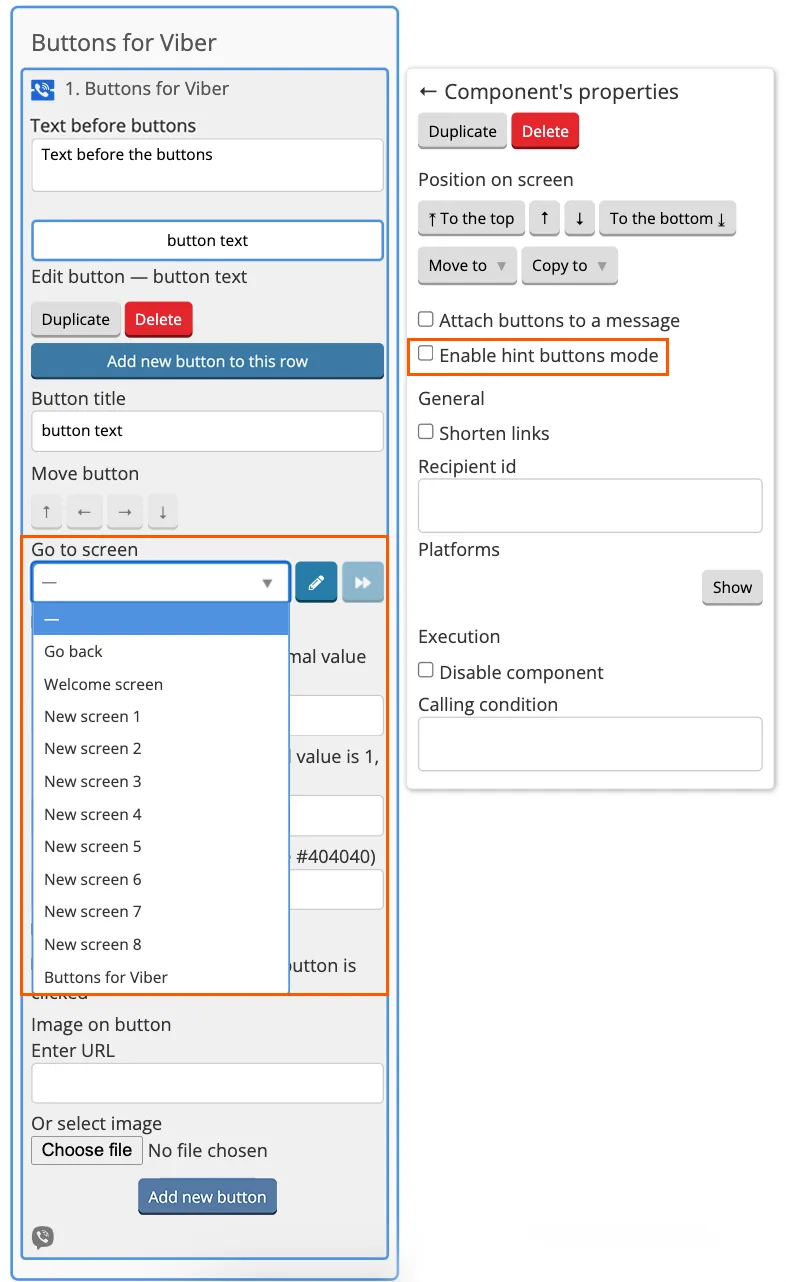
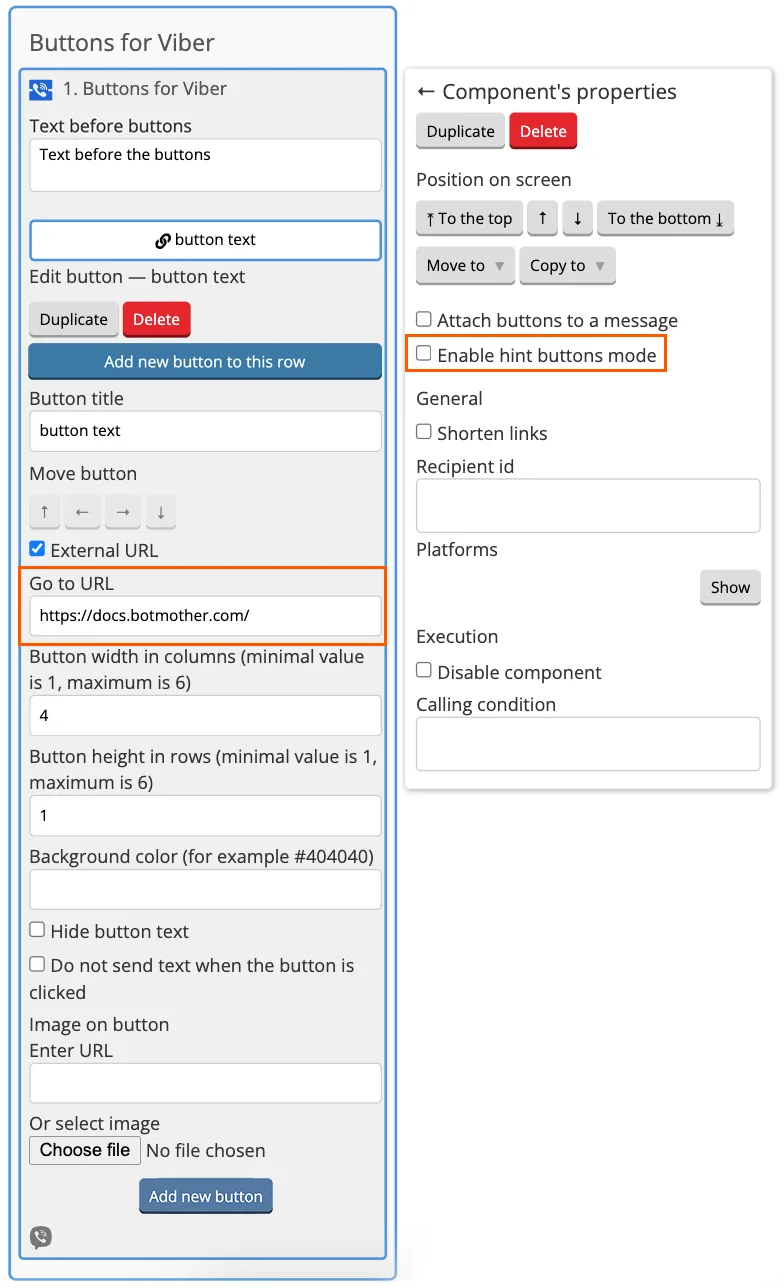
3. To switch to an external service, mark External URL and place the link to go to an external resource in Go to URL field.
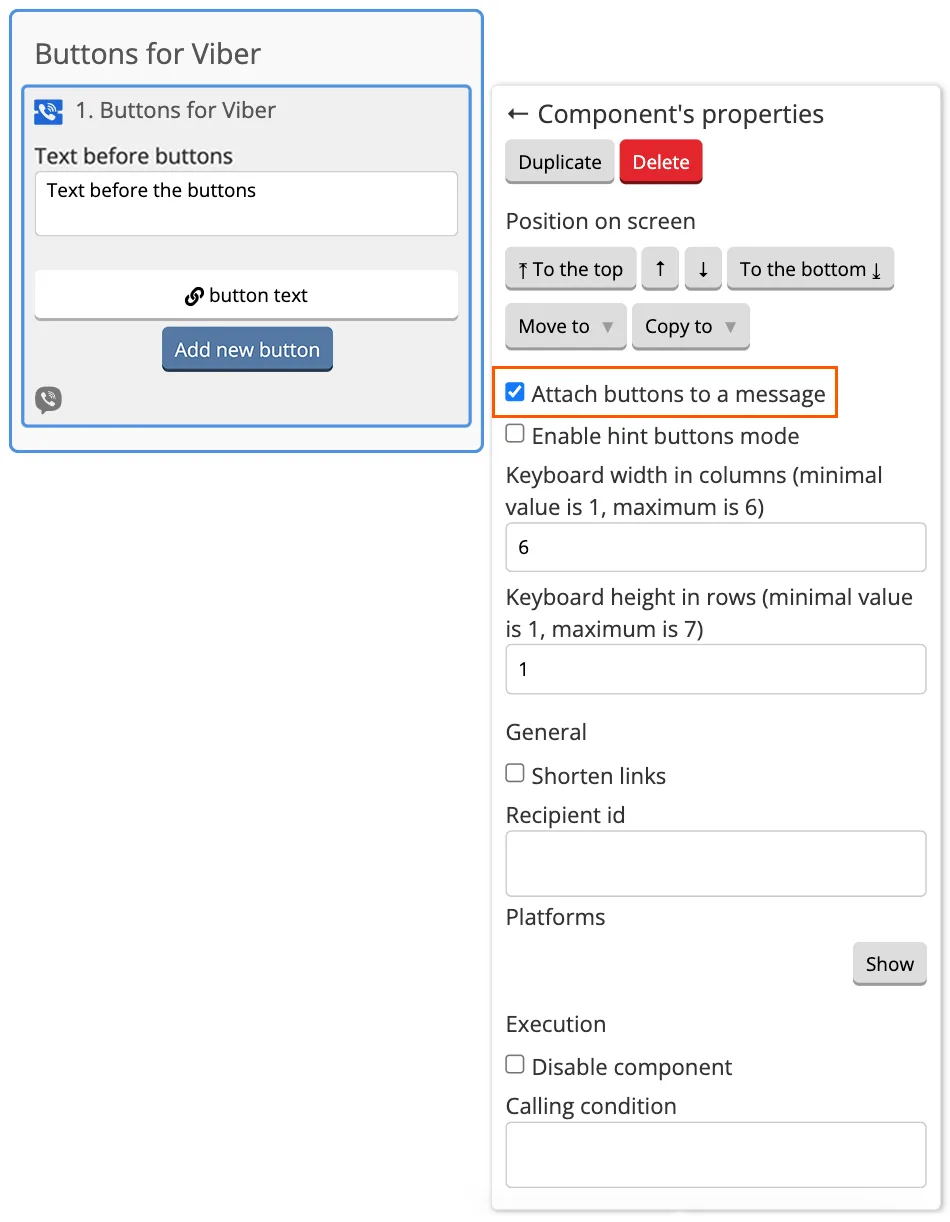
4. You can change the display of buttons in the messenger using Attach buttons to a message function.
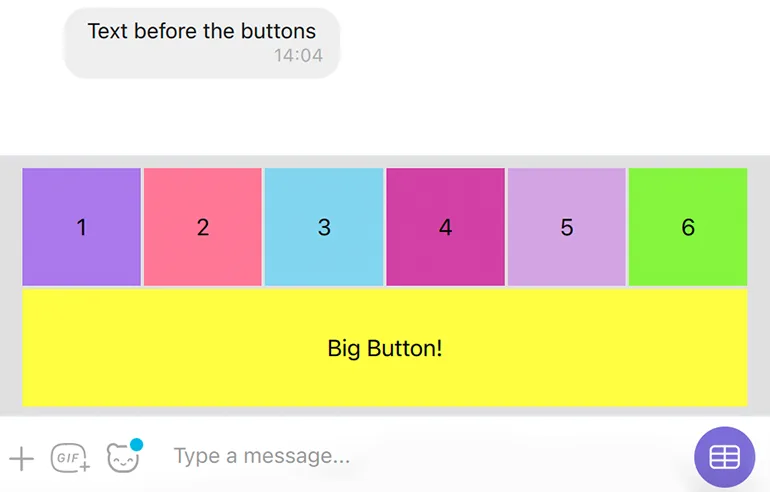
This is how buttons that are not attached to a message look like. In the example, the Viber application is open on the computer and the Attach buttons to а message function is disabled.
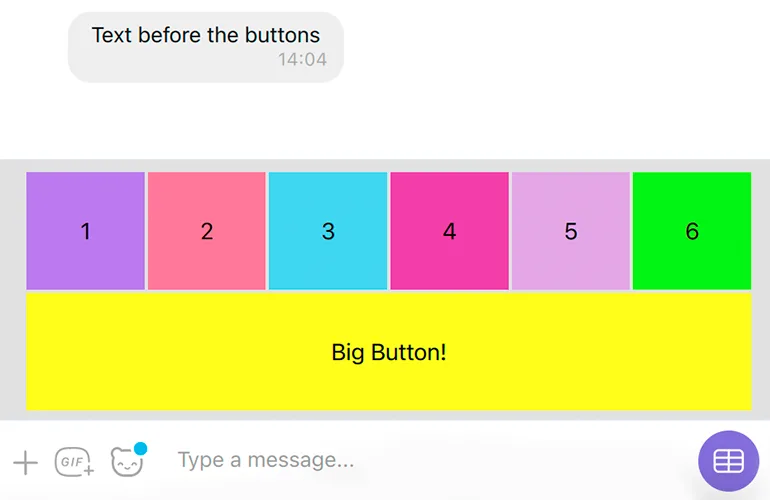
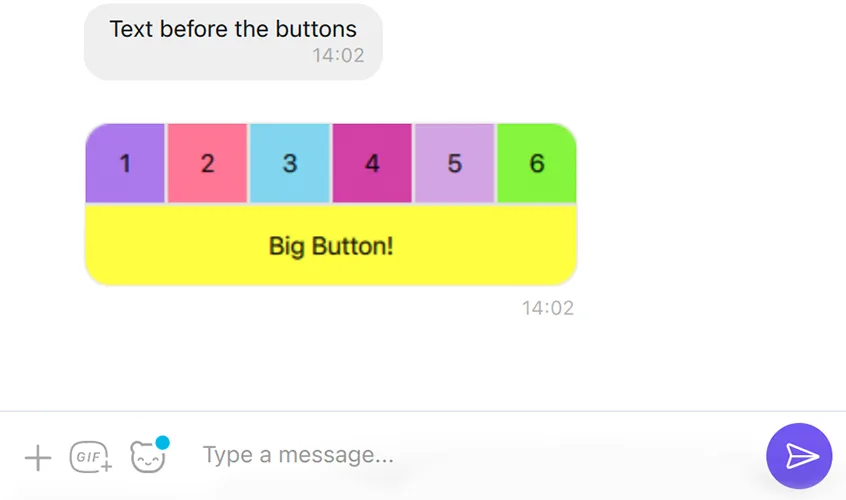
This is how the buttons attached to the message look like. In the example, the Viber application is open on the computer and the Attach buttons to a message function is enabled
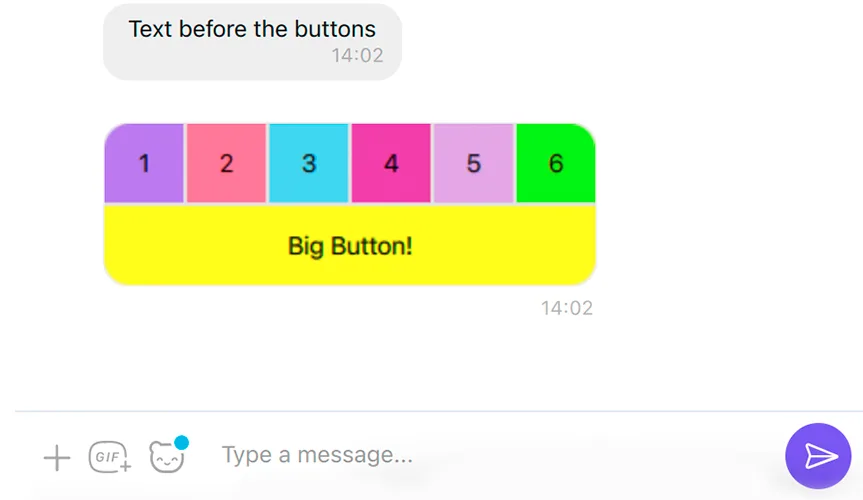
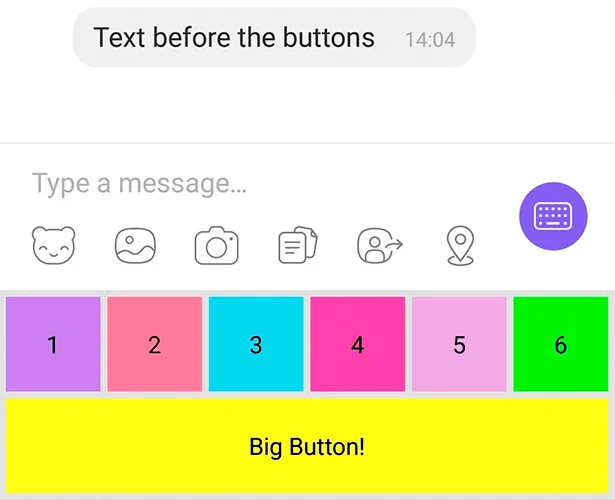
In the Viber app on a smartphone, the attached buttons will be displayed above the input line, the non-attached ones will be displayed under the input line.
Buttons not attached:
Attached buttons:
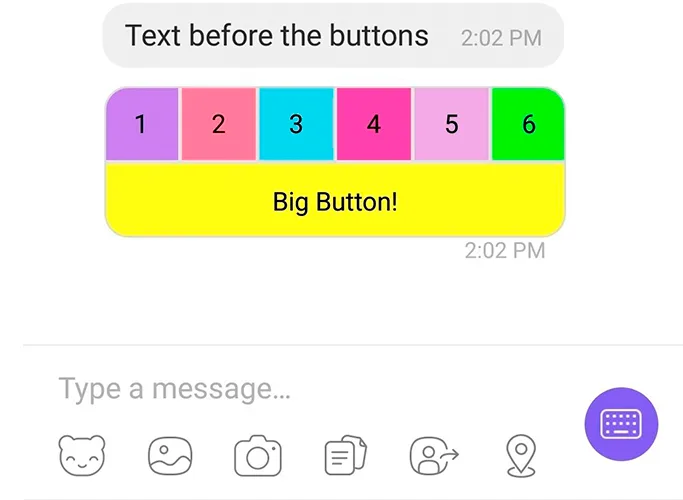
With Attach buttons to message feature enabled, you can send buttons to the user without text.
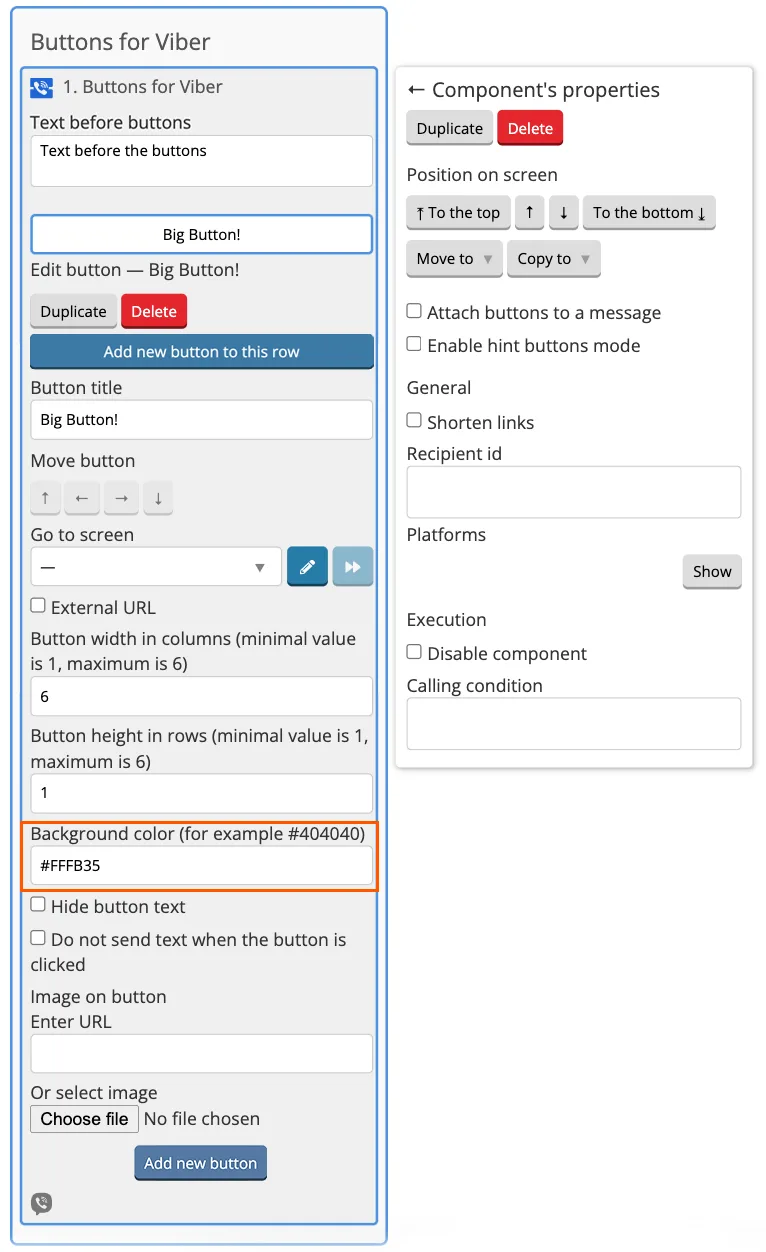
The color of the button will change if you add a color code to Background сolor field. This can be done in the component settings.
Color codes can be found in open sources.
The font color on the button will change if a color code is added to the Button title according to the sample:
<font color="#9966CC">Purple text on the button</font>
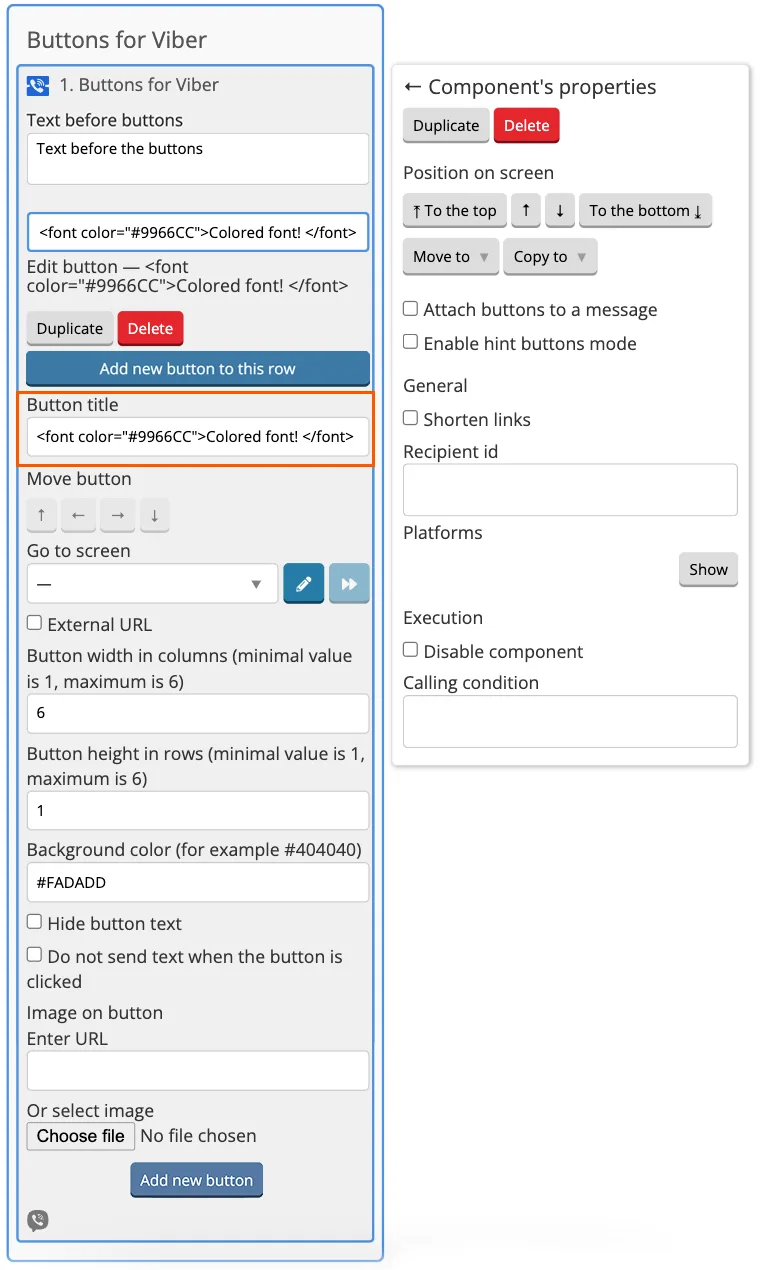
The buttons in the Viber chat will display the specified font color:

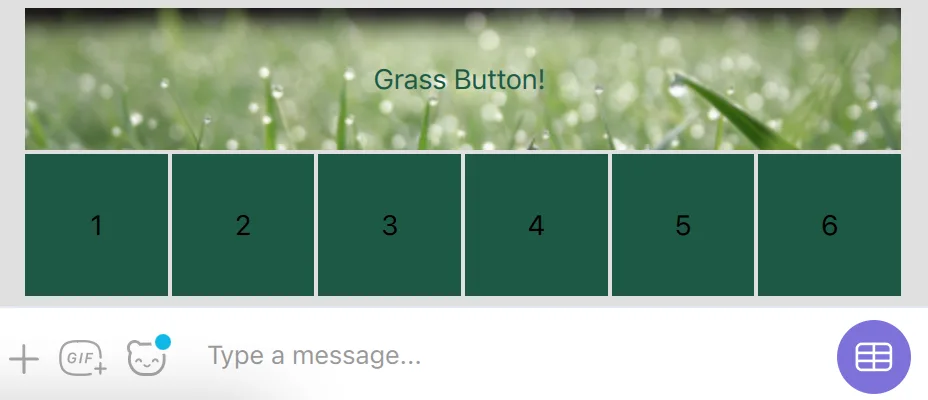
The image is added by Choose file button in the button settings. After clicking on the button, you can open any file saved on the computer.
You can also add an image to the background of the button by link. The link must necessarily end in png, jpg, jpeg.
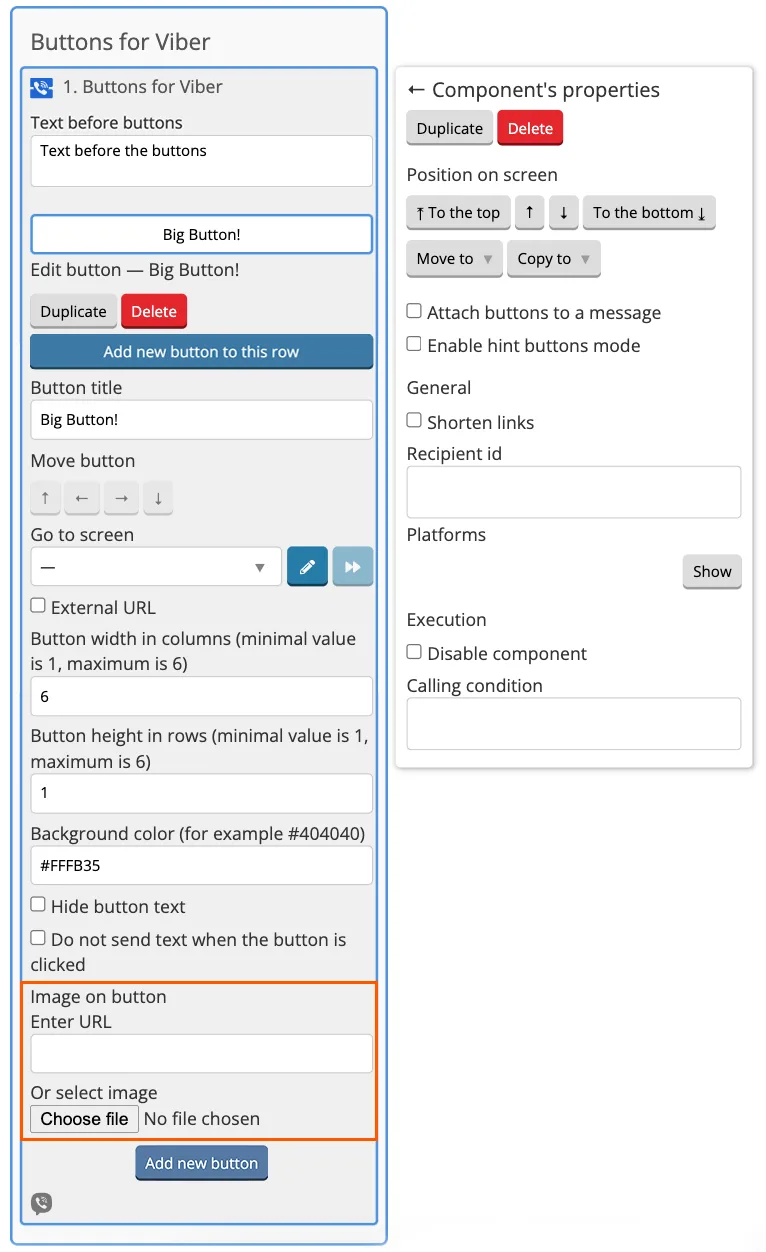
In the bot, the button with the image will look like this: