Summer 2026 Updates
Updates to the Chats Section
We’ve made major improvements to the Chats section, making it easier for operators to work and adding new ways to communicate with users.
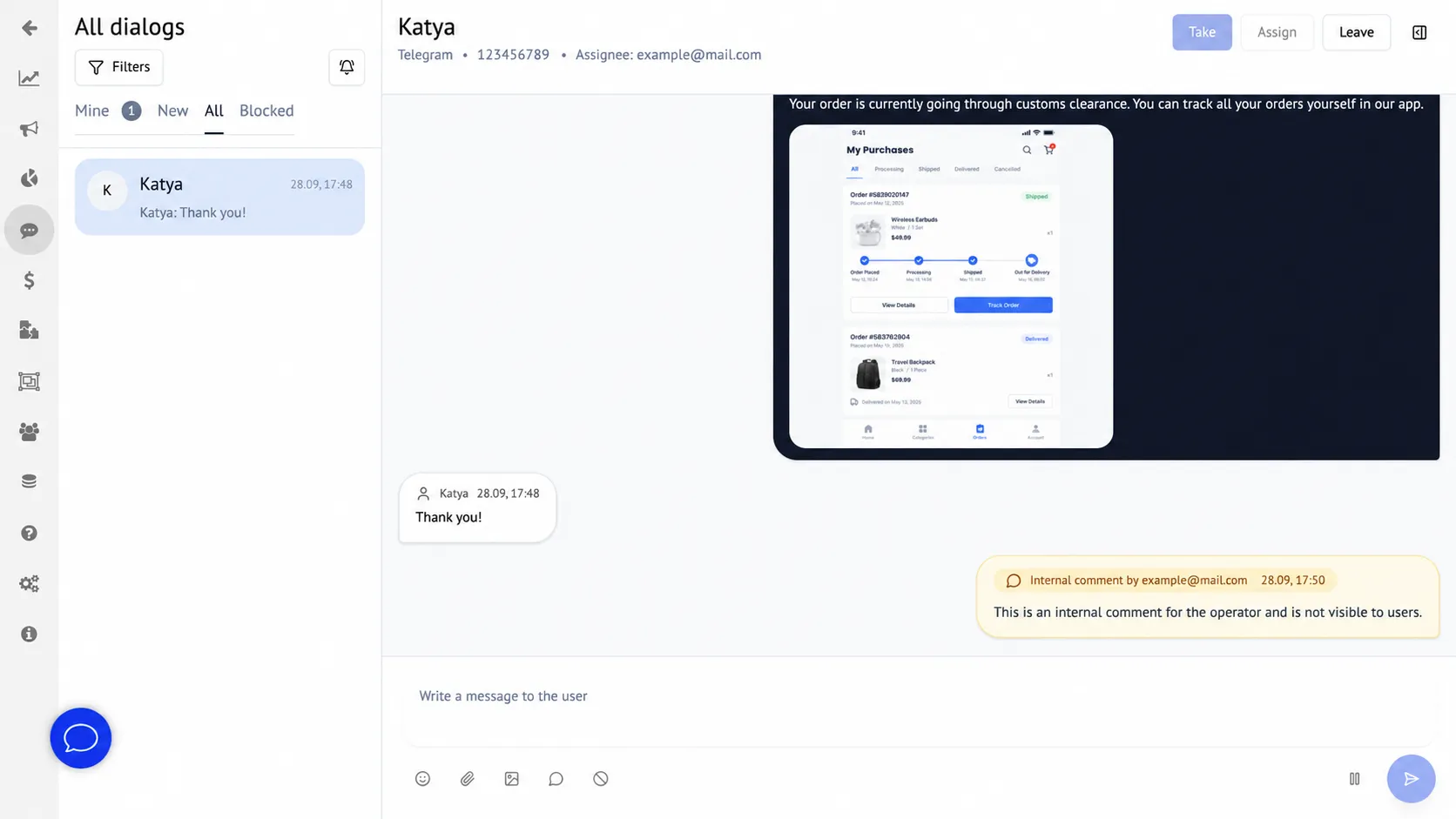
Operators can now send not only text messages but also emojis, images, and files. There’s no need to create a separate broadcast to share an image or file anymore. Operators can send them directly in the chat.
Operators can also take ownership of a conversation, assign it to another operator, or leave it, as well as add internal comments that are hidden from the user.
Chats now also feature a user profile card with key information, including the platform and user ID, current screen, segments, and tags. From the card, operators can quickly view the user’s state, navigate them to another screen, and add internal comments.
Chat search has also been expanded. You can now find users not only by name, but also by assigned operator and activity time.
Learn more about configuring the Chats section in our Knowledge Base.
AI Model Request
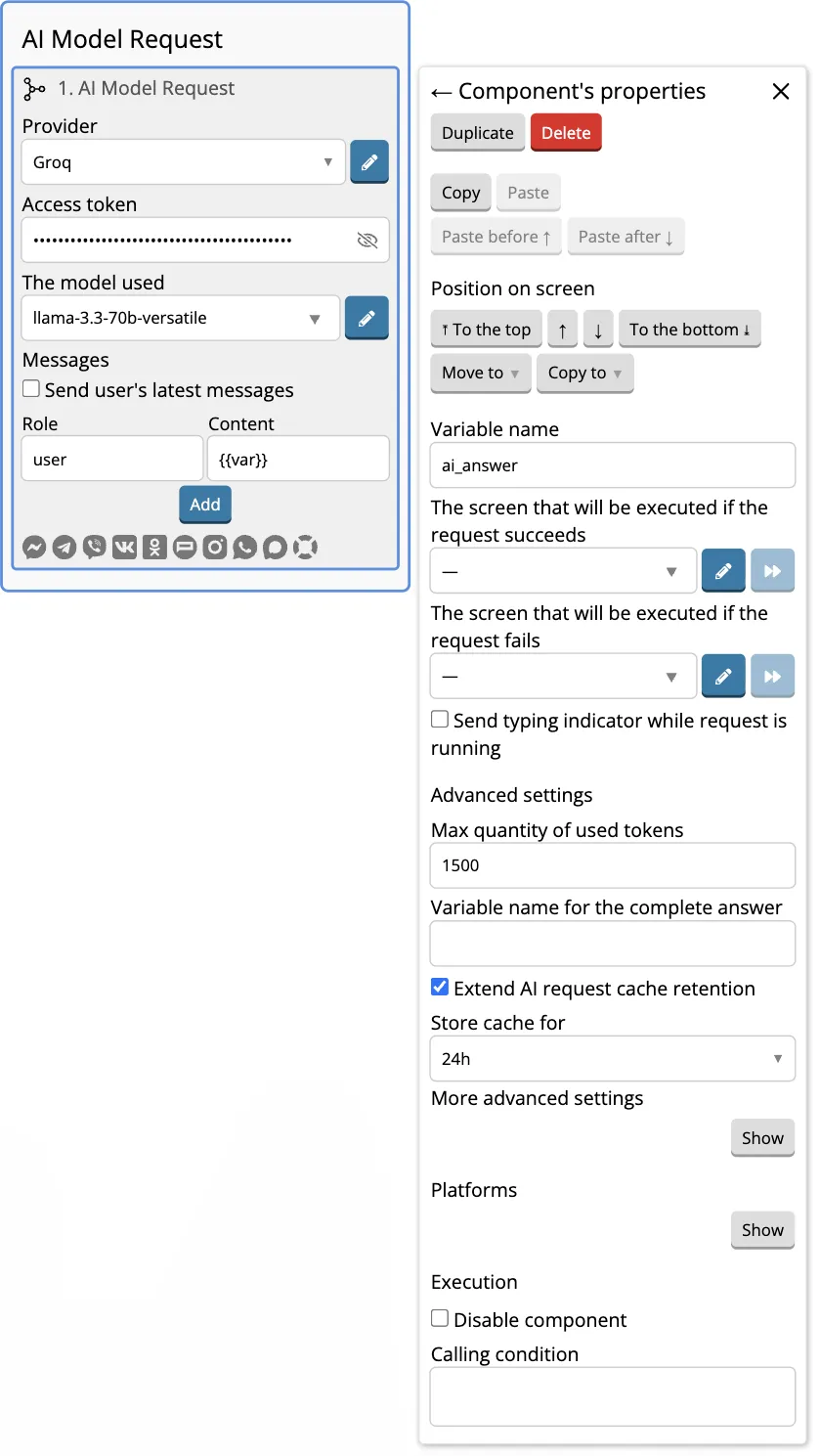
A new AI Model Request component is now available in the builder. It lets you send prompts to different AI models and get AI-generated responses directly in your bot.
The component lets you choose an AI provider and model, define the AI assistant’s role, and provide a prompt. The AI-generated response is saved to a variable that you can use in subsequent bot steps.
The key difference from the ChatGPT OpenAI Request component is that you can work with different AI models, including GPT, Gemini, and Claude, and choose the model that best suits your needs in the component settings.
Learn more about configuring the AI Model Request component in our Knowledge Base.
Updates to the Broadcasts Section
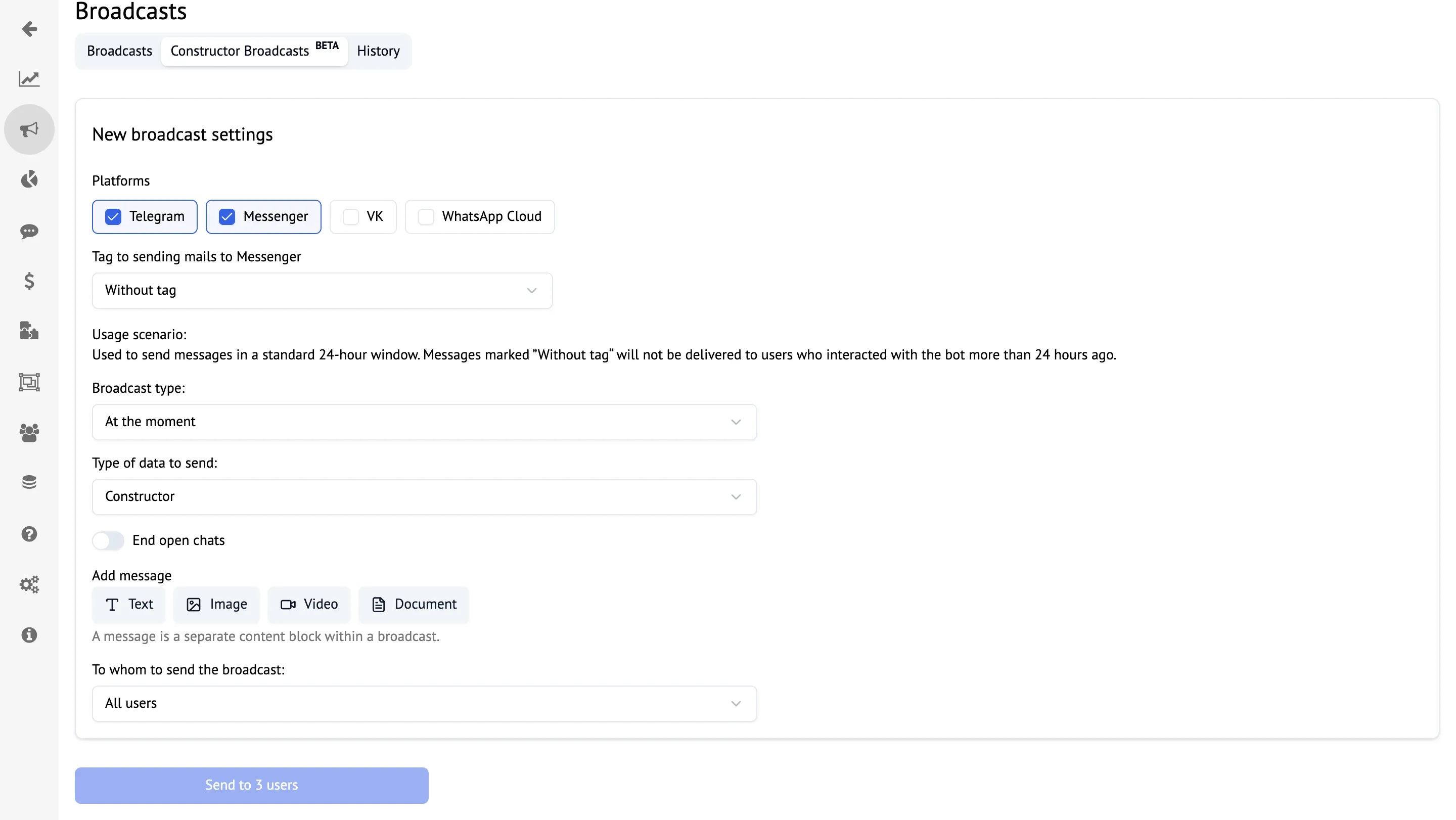
A new Broadcast Builder Beta tab is now available in the Broadcasts section.
You no longer need to open the bot editor to create a separate screen with media files and then select it when setting up a broadcast. You can now do everything directly in the Broadcasts section.
With the new builder, you can create broadcasts using multiple blocks, adding text, images, videos, and documents, then configure the delivery settings. You can change a block’s type after adding it and add captions to images, videos, and documents.
Editor Updates
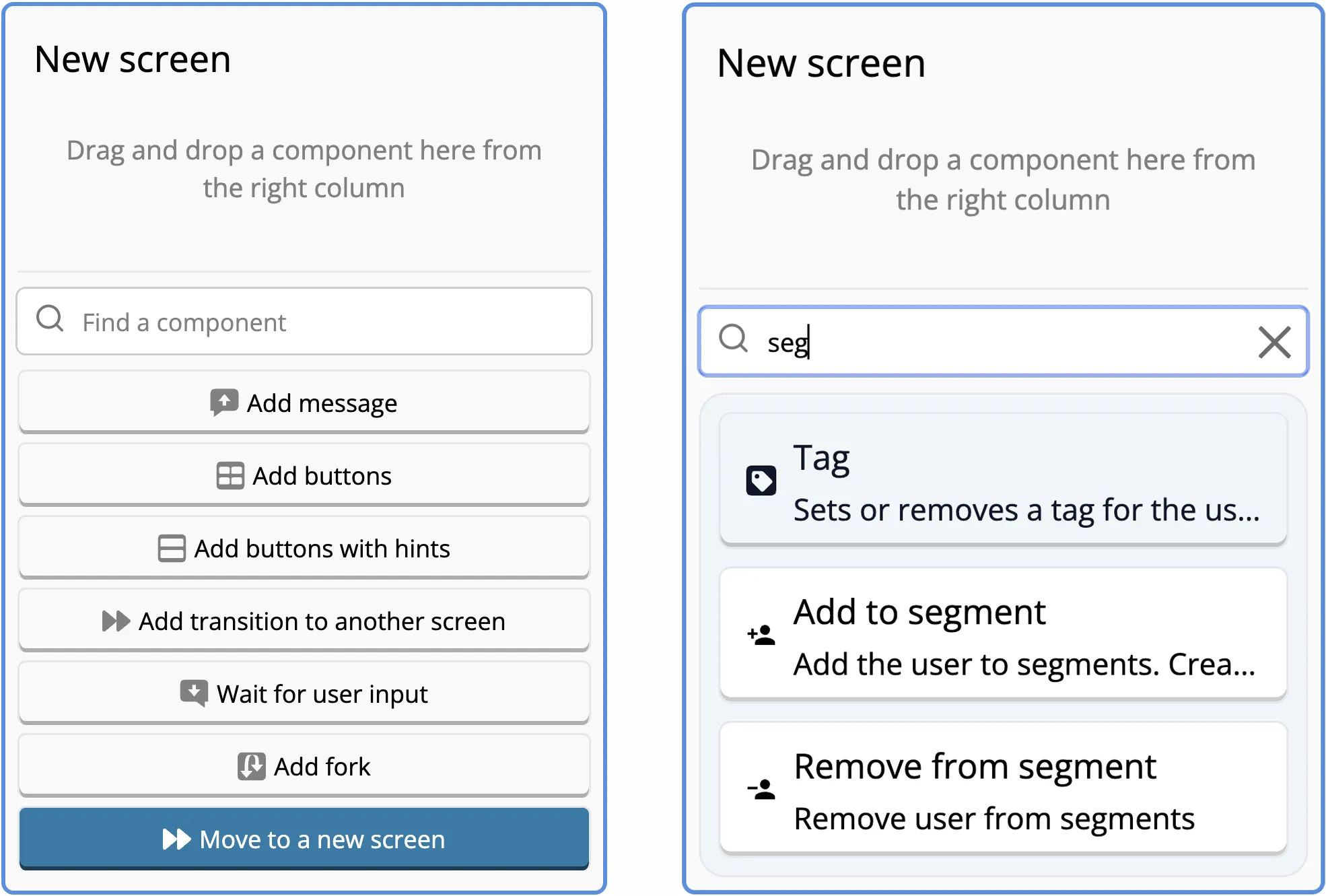
You can now search for components on the currently active editor screen using the new search bar above the suggested components.
Suggested components and the search bar will be visible as long as the "Hide the Add Component suggestion at the end of the screen" option is unchecked in your account settings.
The search lets you find the component you need directly on the screen, without opening the menu on the right. It displays up to 3 matching components for each query. Click a component to add it to the screen automatically.
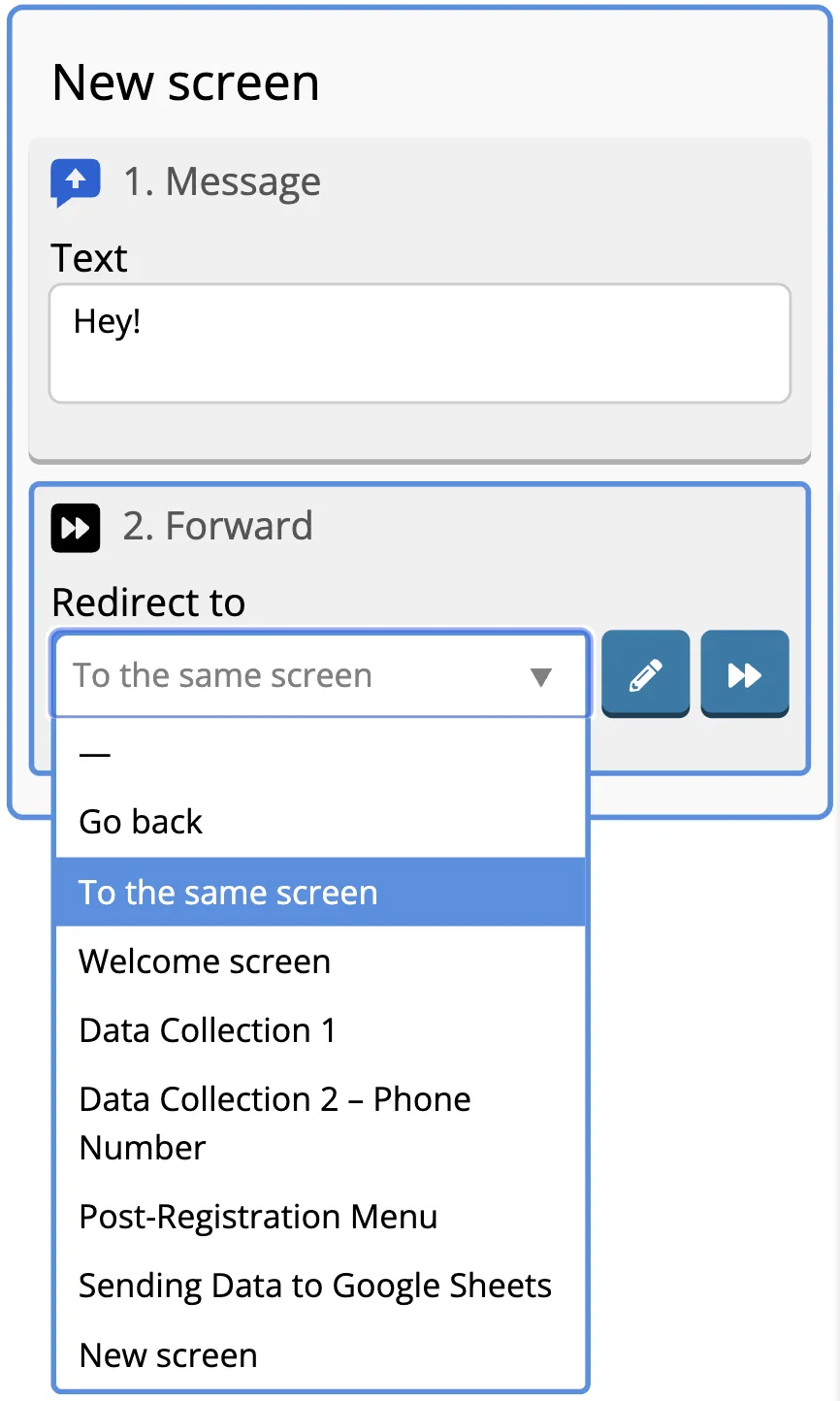
A new "On the Same Screen" option is now available in components that let you select a screen from a dropdown list.
You no longer need to find and select the exact screen name from the dropdown when you want to keep the user on the same screen.
Account Dashboard Updates
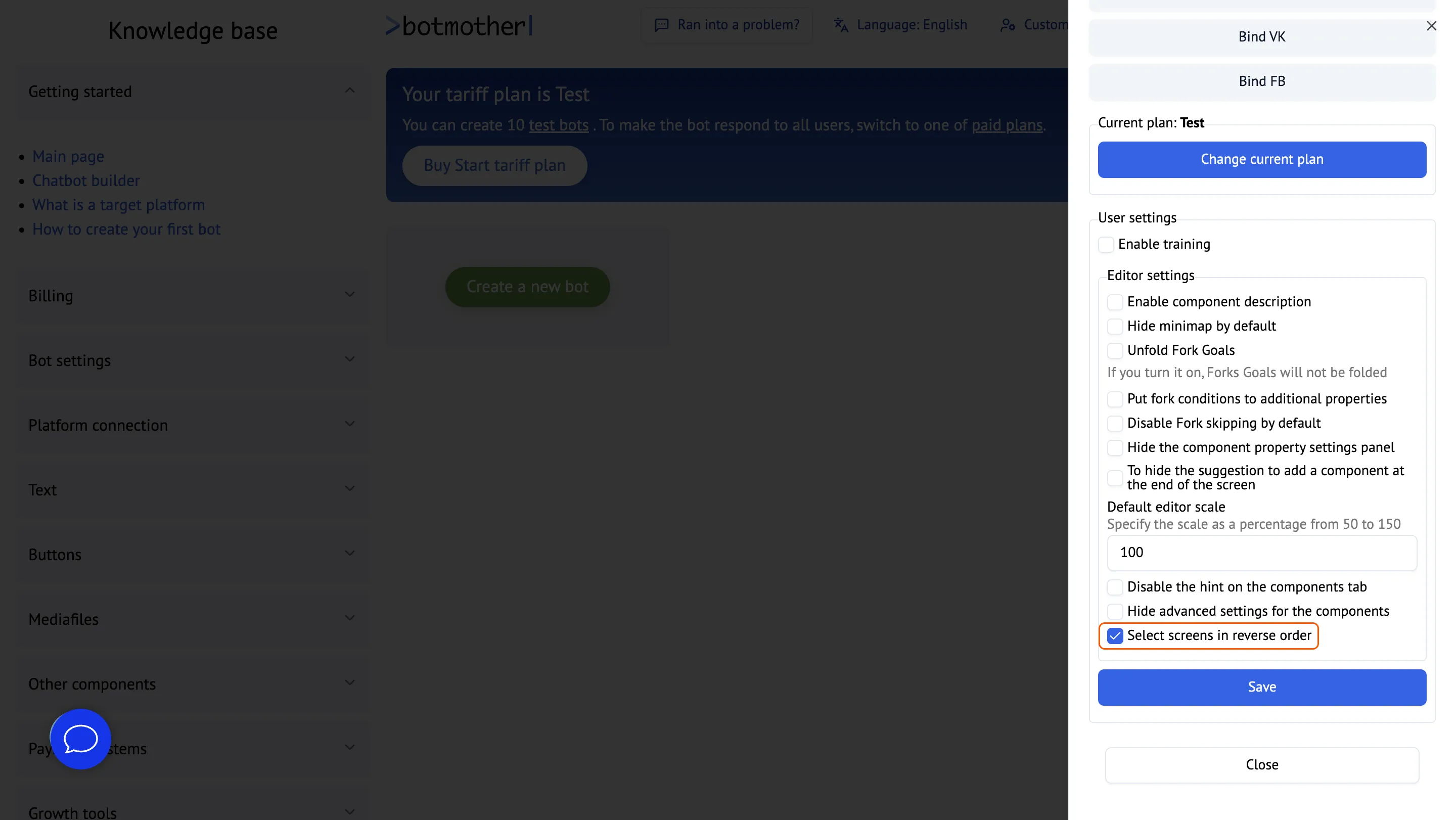
A new "Select Screens in Reverse Order" option is now available in your account settings. It’s turned off by default.
When you enable this checkbox, screens in the dropdown will appear in reverse order instead of the order in which they were created.
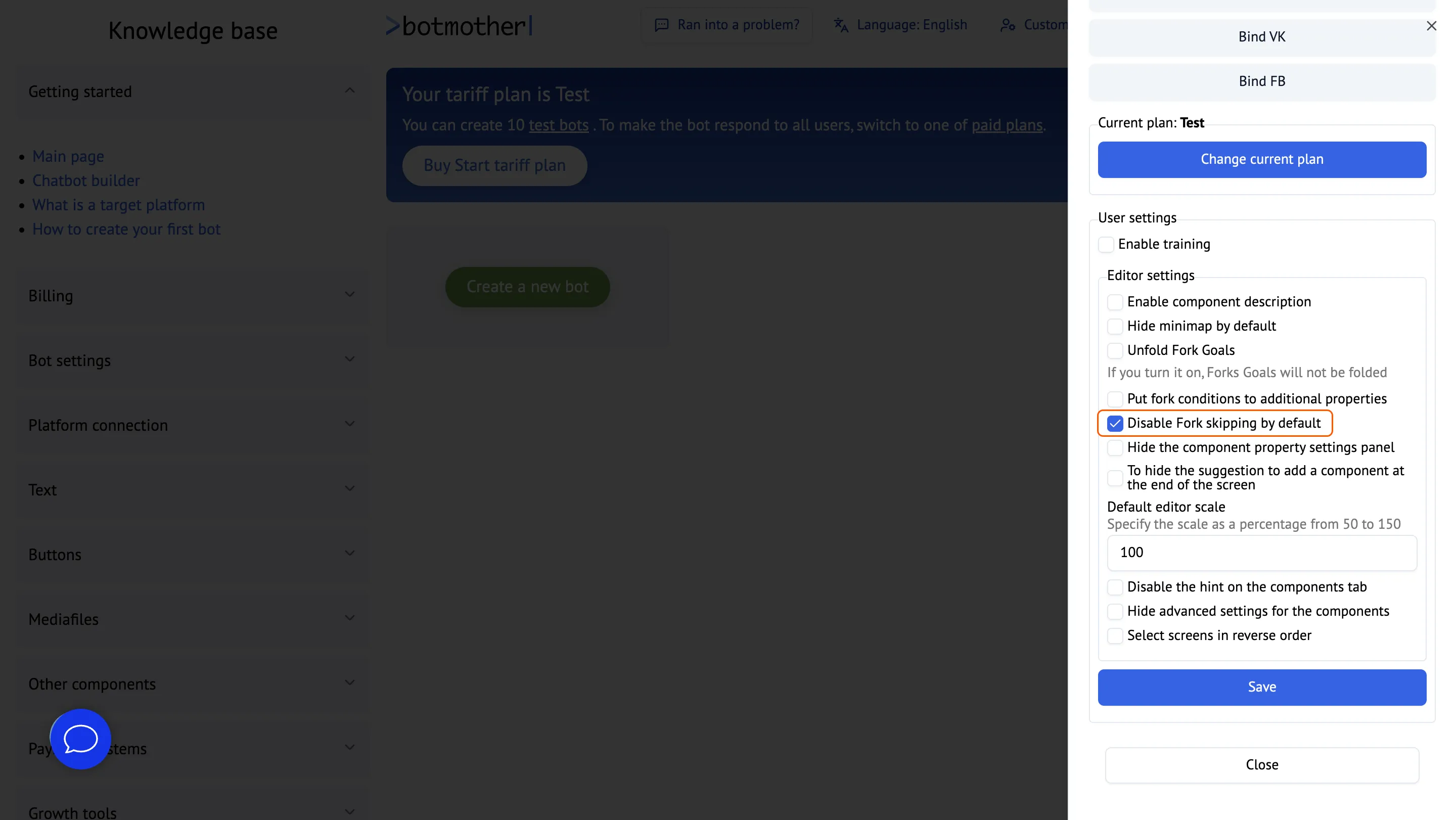
A new "Disable Skip Branch by Default" checkbox has also been added to your account settings. It’s turned off by default.
When this checkbox is enabled, the "Run the next component if no screen is set" checkbox will be turned off by default in new branches.
Other Updates
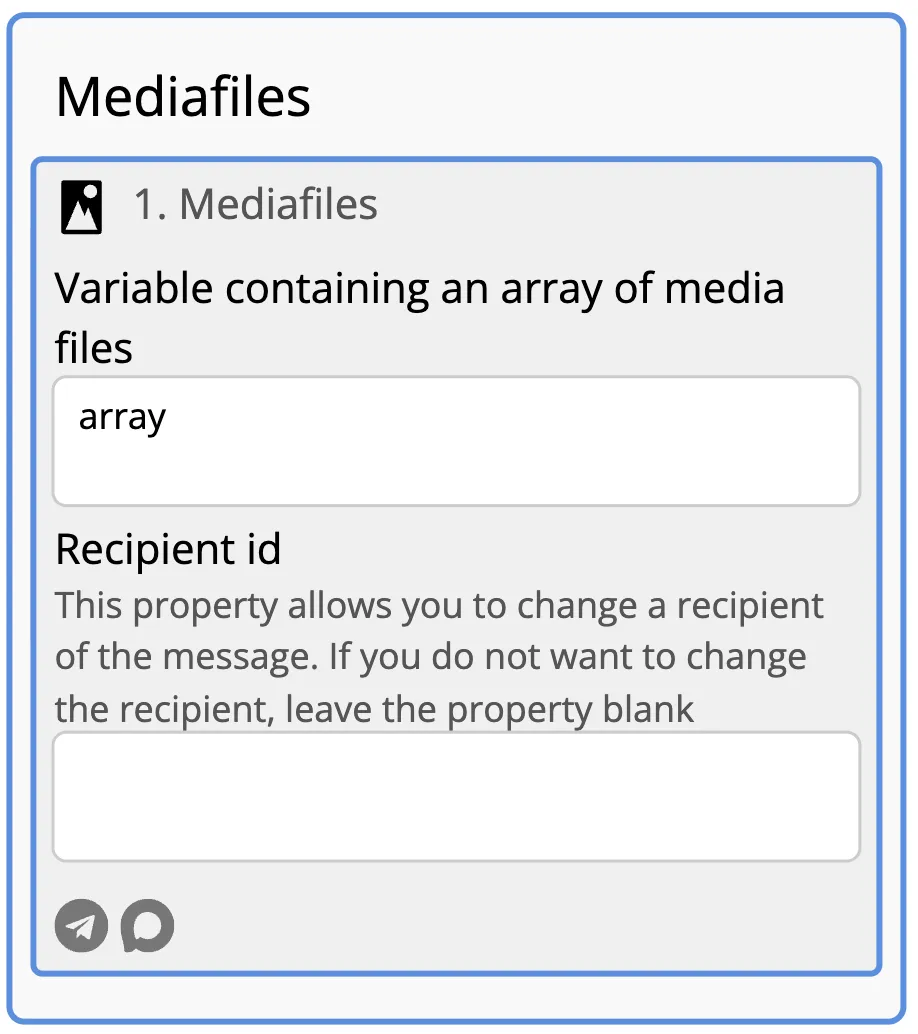
You can now pass images and videos to the Media Files component as an array.
You can now add media files not only by uploading photos and videos from your computer or pasting their URLs into the component, but also by passing them as a single array. The array can contain media URLs and objects, and you can mix videos and images in the same array.
Learn more about using arrays in the Media Files component in our Knowledge Base.
New Knowledge Base Articles
We’ve published several new helpful articles: